
Agency panel: GeoData
Requirements for your agency to create GEO projects
Before you start
To add GEO projects with "Gestionado por la agencia", the subscription is billed to your agency with a saved card. That is why your agency needs three billing details (billing customer, saved payment method and billing address), which you complete yourself in "Configuración de la agencia", and two things that aMarte sets up: the feature enabled and the rate agreed for your agency. Saving the details does not charge anything.
Tip: Even if your billing is not ready, the "Gestionado por el cliente final" option (the GEO payment link) works as usual: it needs none of this. This guide uses the "Agencia de Prueba" as an example. The panel itself is in Spanish, so button names are quoted in Spanish.
Step by step
Step 1
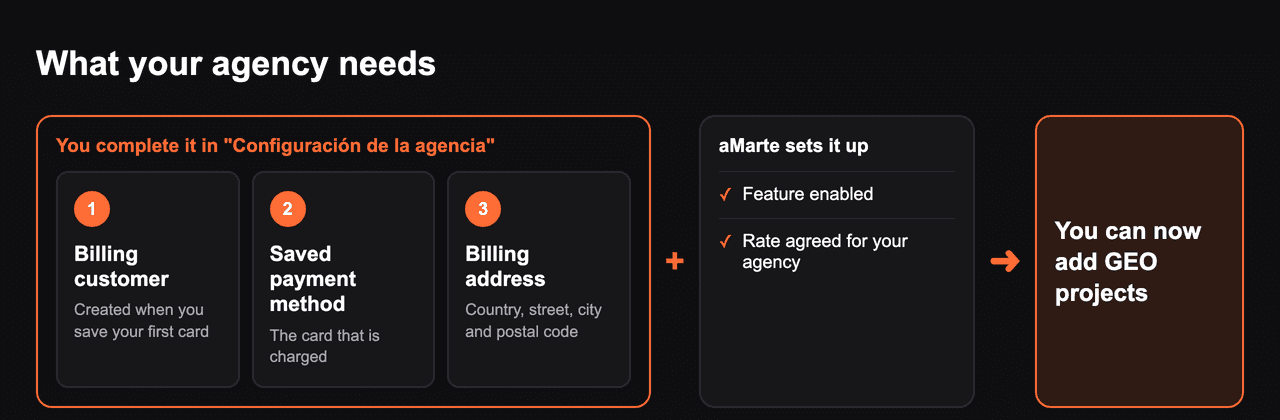
What your agency needs
The diagram sums up the requirements: • You complete in "Configuración de la agencia": ① billing customer (created when you save your first card), ② saved payment method (the card that is charged) and ③ billing address (country, street, city and postal code). • aMarte sets up: the feature enabled and the rate agreed for your agency. You cannot see or change them from the panel.
When everything is in place, you can add GEO projects.
Step 2
How to tell if your agency is ready
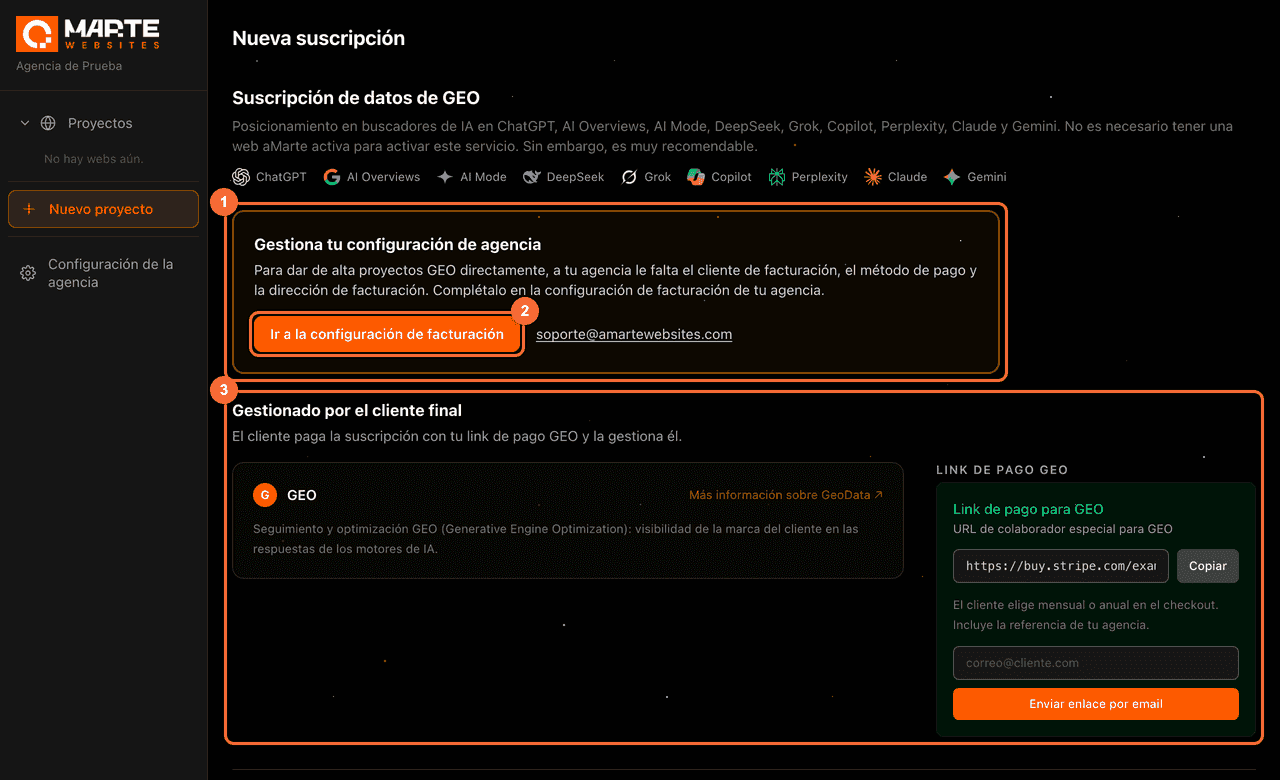
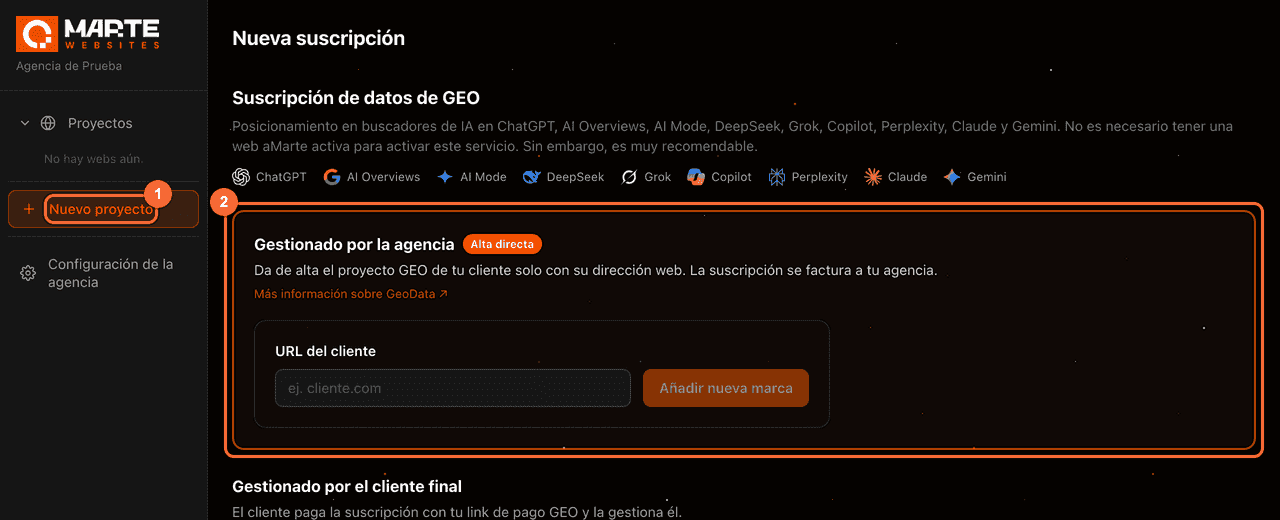
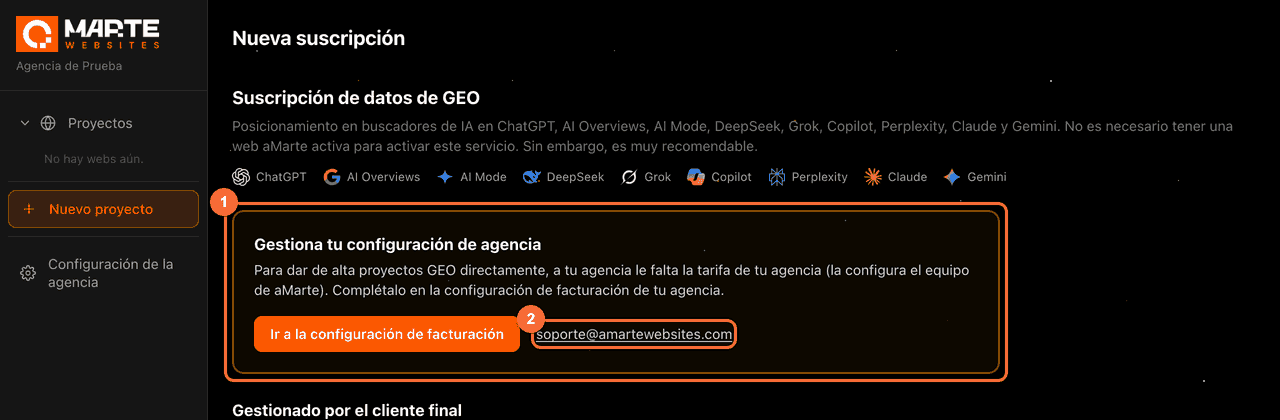
Go to "Nuevo proyecto". If your agency's billing is not ready, instead of "Gestionado por la agencia" you will see the notice "Gestiona tu configuración de agencia" (①), which names what is missing: the billing customer, the payment method, the billing address or your agency's rate.
The "Ir a la configuración de facturación" button (②) takes you to where you complete it. "Gestionado por el cliente final" (③) stays visible. When everything is ready, the notice disappears and the "Gestionado por la agencia" option appears (second screenshot).
Step 3
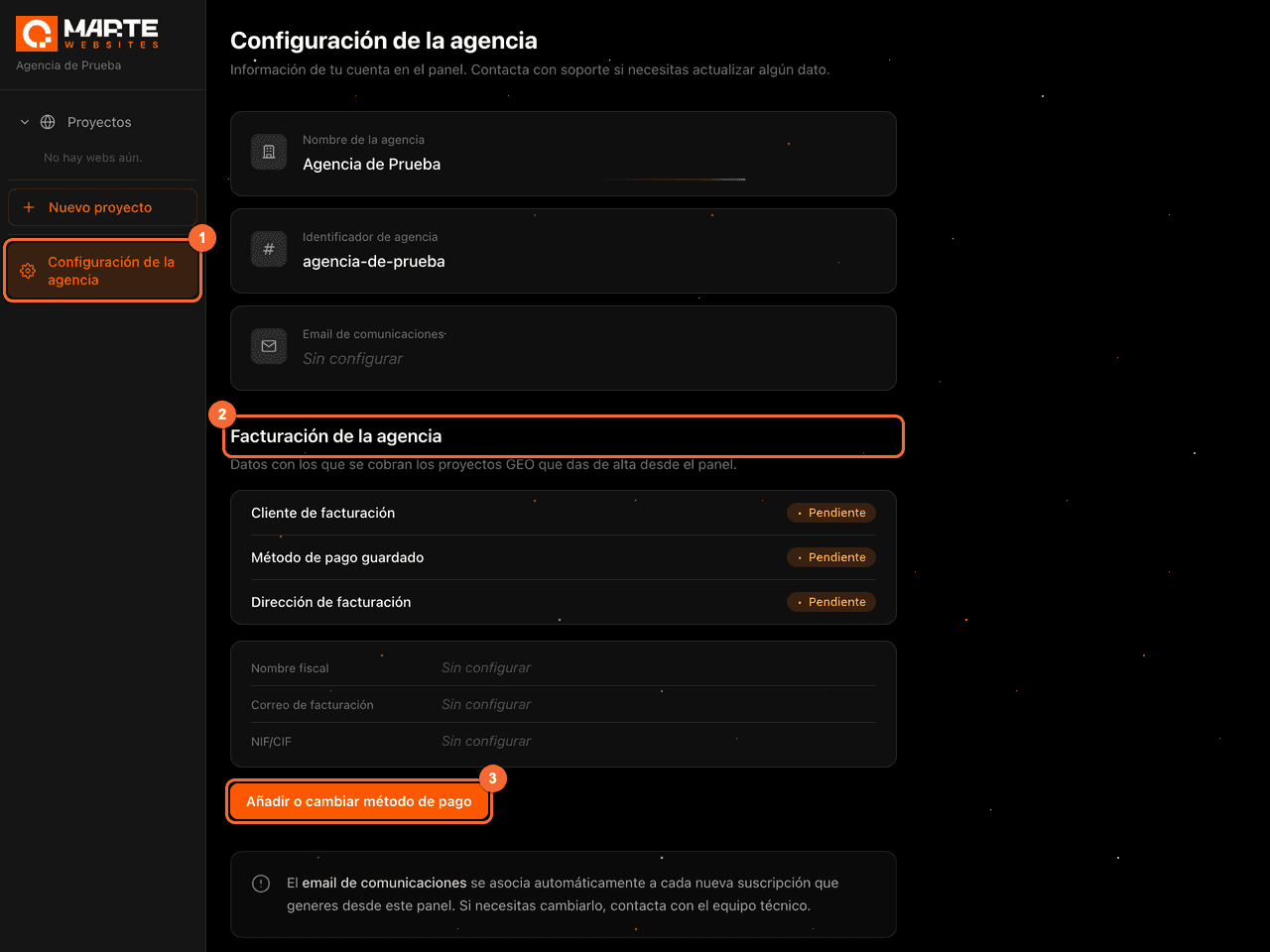
Open "Configuración de la agencia"
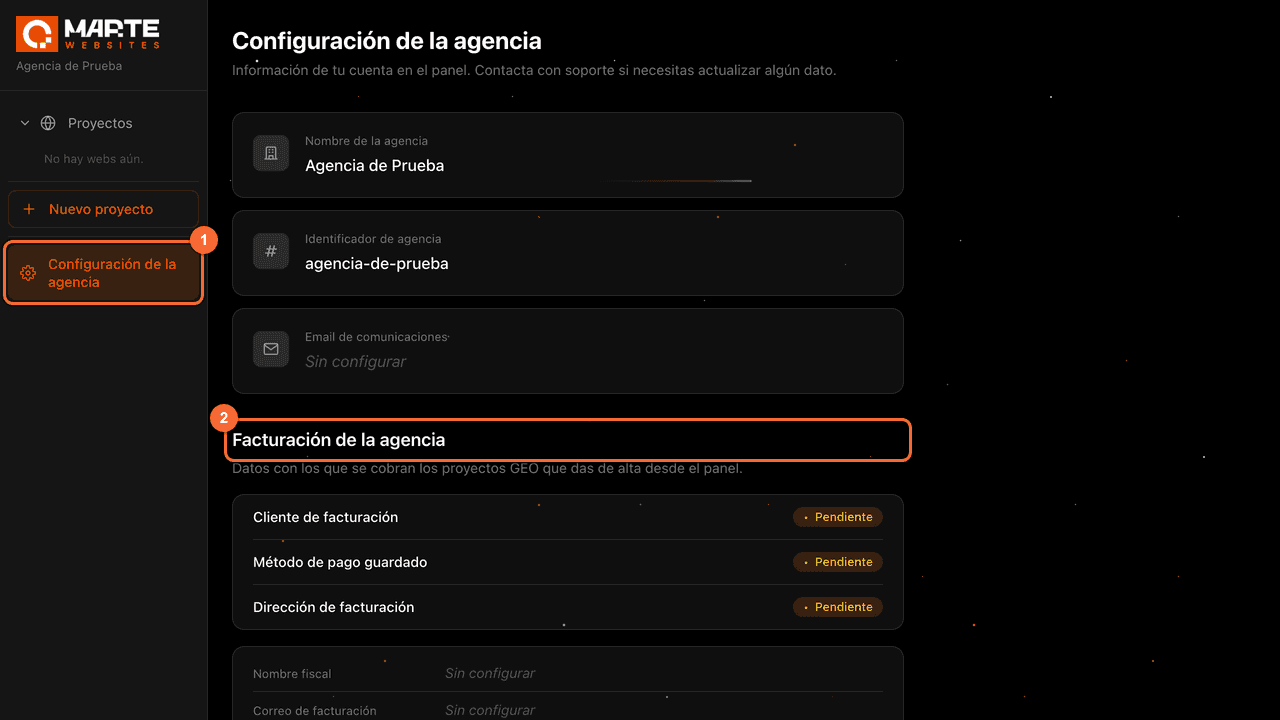
In the left-hand menu click "Configuración de la agencia" (①), or use the button in the notice. Scroll down to the "Facturación de la agencia" section (②): the details used to charge the GEO projects you add from the panel.
You will see the three requirements, each "Listo" (ready) or "Pendiente" (pending): "Cliente de facturación", "Método de pago guardado" and "Dirección de facturación". Below, "Nombre fiscal", "Correo de facturación" and "NIF/CIF" (they show "Sin configurar" until you save them).
Click "Añadir o cambiar método de pago" (③).
Step 4
Save the card and the billing details
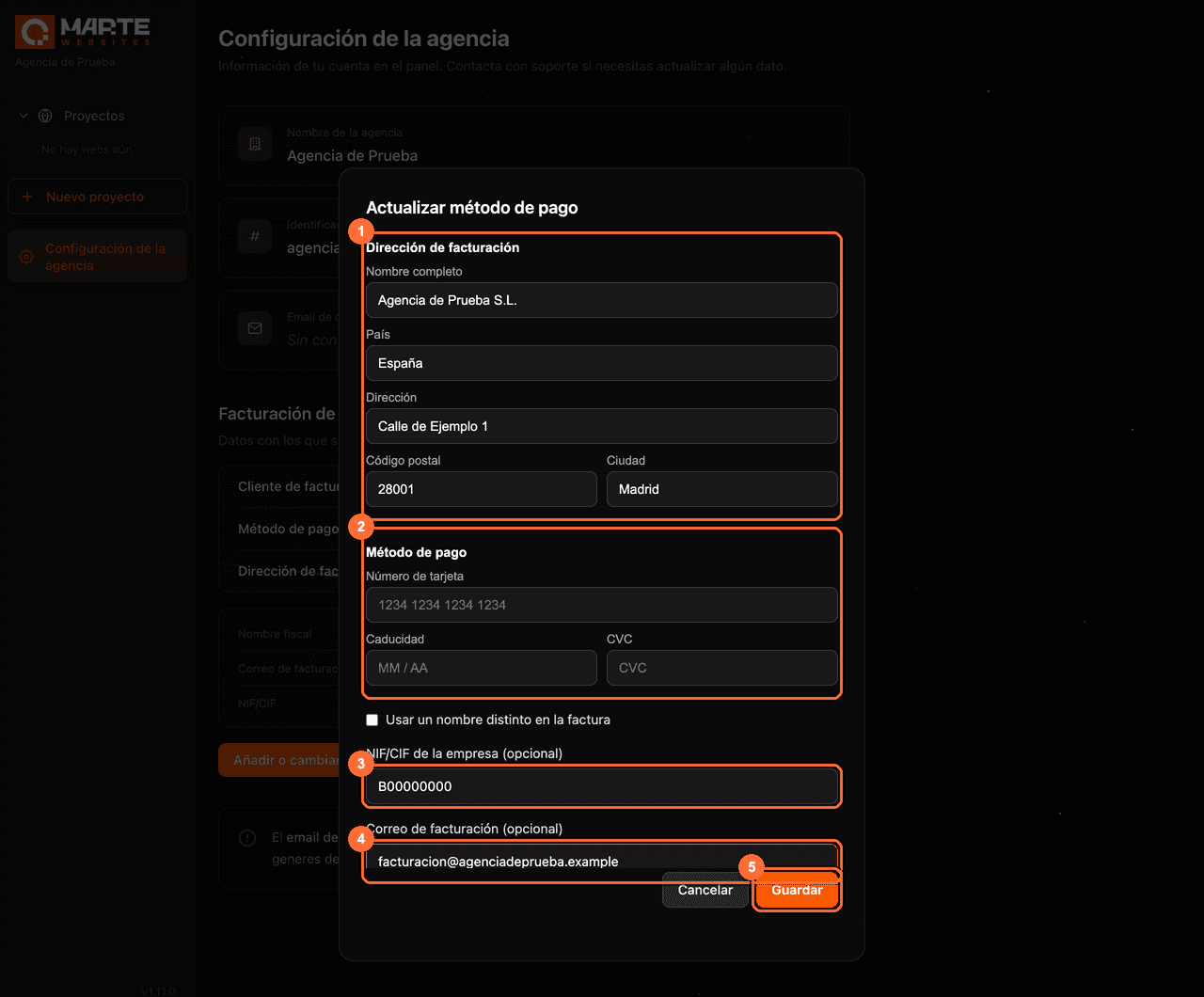
The "Actualizar método de pago" window opens. If your agency did not have a billing customer yet, it is created when you open it. Complete: • ① The billing address: full name, country, address, postal code and city. • ② The payment method: the card details, in the payment provider's secure form. It appears empty in the screenshot. • ③ The "NIF/CIF de la empresa (opcional)" (company tax ID, optional). • ④ The "Correo de facturación (opcional)" (billing email, optional).
If you want the invoice to carry another name, tick "Usar un nombre distinto en la factura". Click "Guardar" (⑤). Saving does not charge anything.
⚠ If your bank asks to verify the card (3-D Secure), its window appears when you click "Guardar": complete it without leaving the page.
Step 5
Check that everything is "Listo"
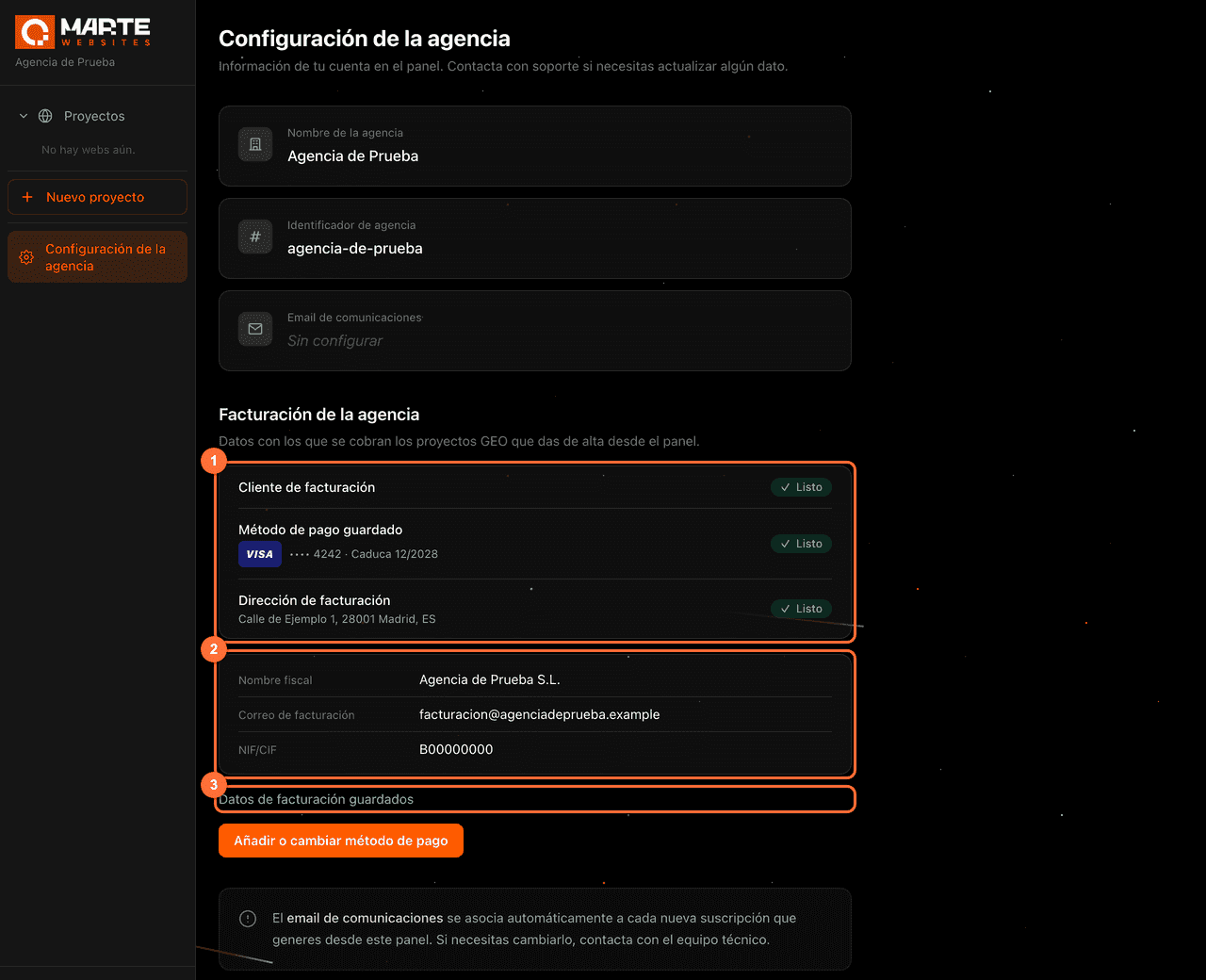
When you save, the window closes and "Datos de facturación guardados" (③) appears. The three requirements turn "Listo" (①): the card is shown with its brand, last digits and expiry (for example "Visa ···· 4242 · Caduca 12/2028") and the full address. Below (②) are the tax name, the billing email and the NIF/CIF.
You can change the card or the details whenever you like with the same "Añadir o cambiar método de pago" button.
Step 6
The rate and the feature: aMarte sets them up
Even with the three requirements in "Listo", the notice may still appear if your agency's rate is missing (①): your agency is missing "la tarifa de tu agencia (la configura el equipo de aMarte)" (your agency's rate, set by the aMarte team).
The GEO subscription rate and the activation of the feature depend on each agency's agreement and are set by aMarte. If the notice names the rate, or you need the feature enabled, write to soporte@amartewebsites.com (②).
Step 7
If you see neither the option nor the notice
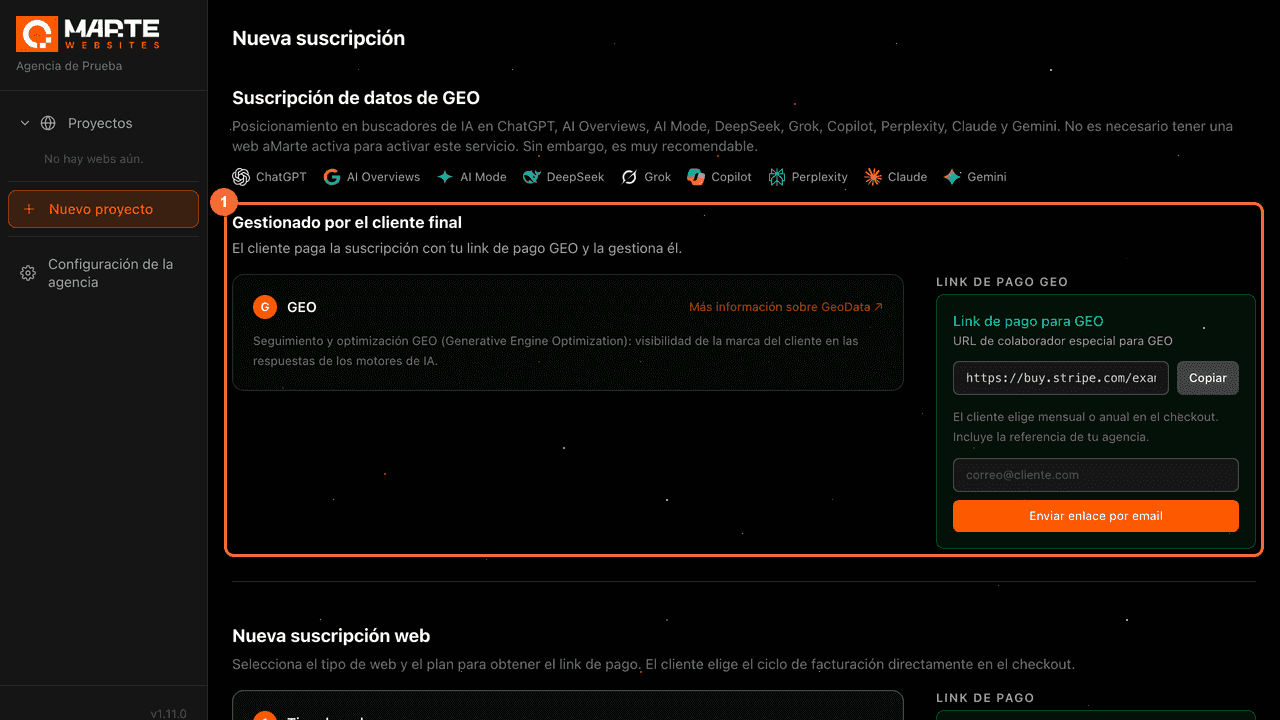
If in "Nuevo proyecto" you only see "Gestionado por el cliente final" (①), with neither the agency option nor the notice, aMarte has not enabled the feature for your agency yet. Write to soporte@amartewebsites.com to ask for it.
Step 8
From your phone
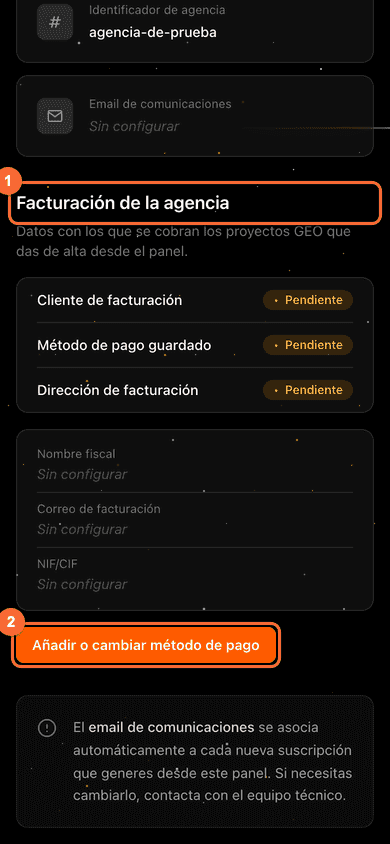
The settings can also be completed from your phone: open the menu (☰), go to "Configuración de la agencia", scroll down to "Facturación de la agencia" (①) and tap "Añadir o cambiar método de pago" (②).
Frequently asked questions
Who enables the feature and sets the rate?
aMarte, agency by agency. The rate and the activation cannot be seen or changed from the panel: write to soporte@amartewebsites.com.
What if the card is declined or needs 3-D Secure when I save it?
If the bank asks to verify the card (3-D Secure), its window appears when you click "Guardar"; follow its steps without leaving the page. If the card is declined or the verification fails, the window shows the error, stays open and nothing is saved: check the details or try another card.
Am I charged anything when I save the card?
No. Saving the card and the details does not charge anything. The first charge comes when you confirm a sign-up in the final summary, for the amount agreed for your agency.
See the guide "How to confirm the GEO sign-up"Can I offer GEO to my clients without having this ready?
Yes. With "Gestionado por el cliente final", the client pays with your GEO payment link and you need no billing or activation.
See the guide "Choosing between agency-managed and end-client-managed"