
Agency panel: GeoData
How to confirm the GEO sign-up and what you see next
Before you start
When you finish the last step of the wizard you reach "Resumen y confirmación" (summary and confirmation). It is the last screen before anything is created: you see the charge, you confirm it, and the panel creates the subscription and the project. The first charge is immediate. The amount is the one agreed for your agency and it is always shown here before you confirm. In the screenshots, 85,00 € is just an example.
Tip: After confirming, do not close the screen and do not click the button again: the panel can take a few dozen seconds. This guide uses the fictional brand "Kharty" (kharty.com) and the "Agencia de Prueba" as an example. The panel itself is in Spanish, so button names are quoted in Spanish.
Step by step
Step 1
Review the summary
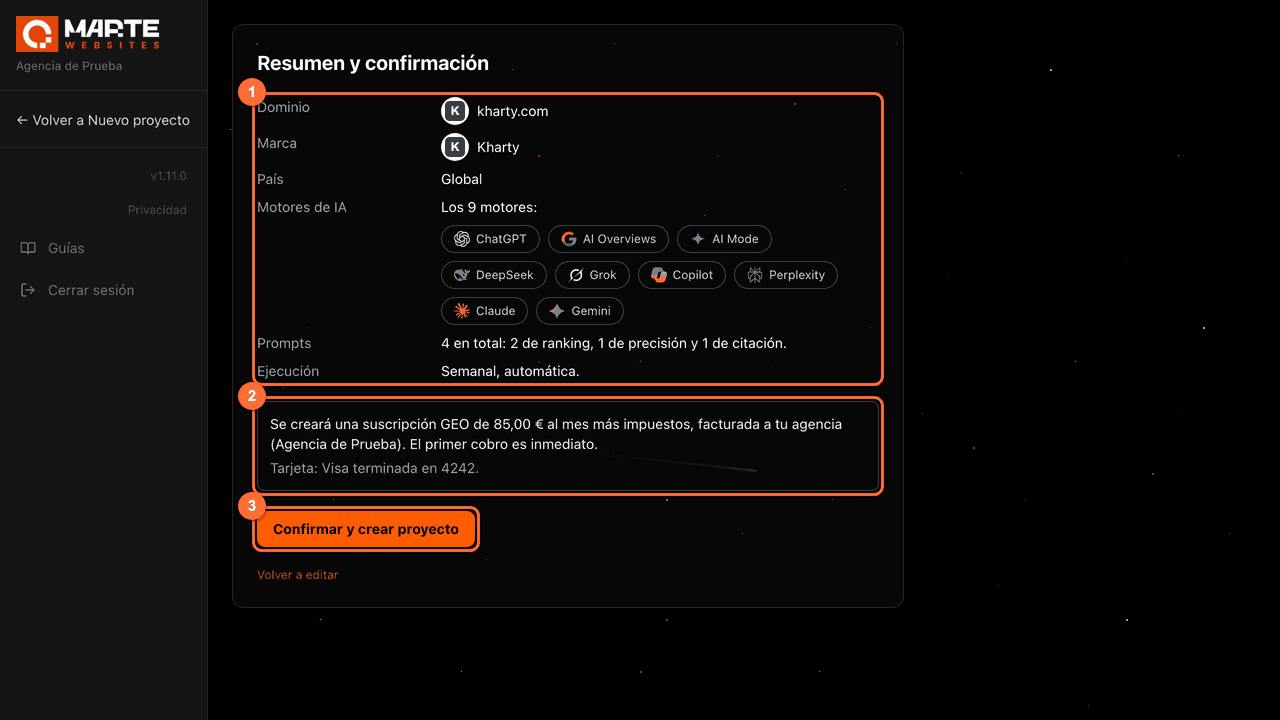
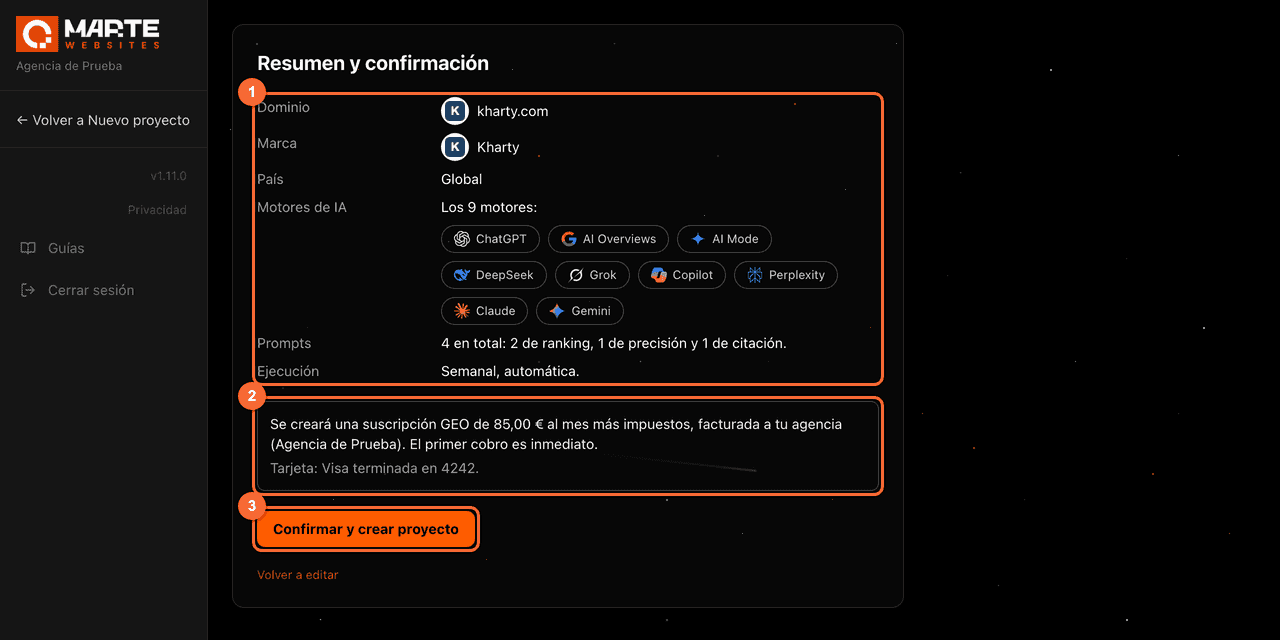
The summary (①) gathers what you are about to create: "Dominio" (domain), "Marca" (brand), "País" (country), the 9 AI engines, the number of "Prompts" (for example "4 en total: 2 de ranking, 1 de precisión y 1 de citación") and the "Ejecución" (run schedule): weekly and automatic.
Below it, the charge notice (②): "Se creará una suscripción GEO de 85,00 € al mes más impuestos, facturada a tu agencia (Agencia de Prueba). El primer cobro es inmediato." (a GEO subscription of 85,00 € per month plus taxes will be created, billed to your agency; the first charge is immediate), together with the card that will be used (for example "Visa terminada en 4242").
If something is wrong, click "Volver a editar" (back to edit) and fix it. When everything is right, click "Confirmar y crear proyecto" (③).
⚠ Clicking "Confirmar y crear proyecto" charges the first month right away, with your agency's card.
Step 2
If there are no prompts
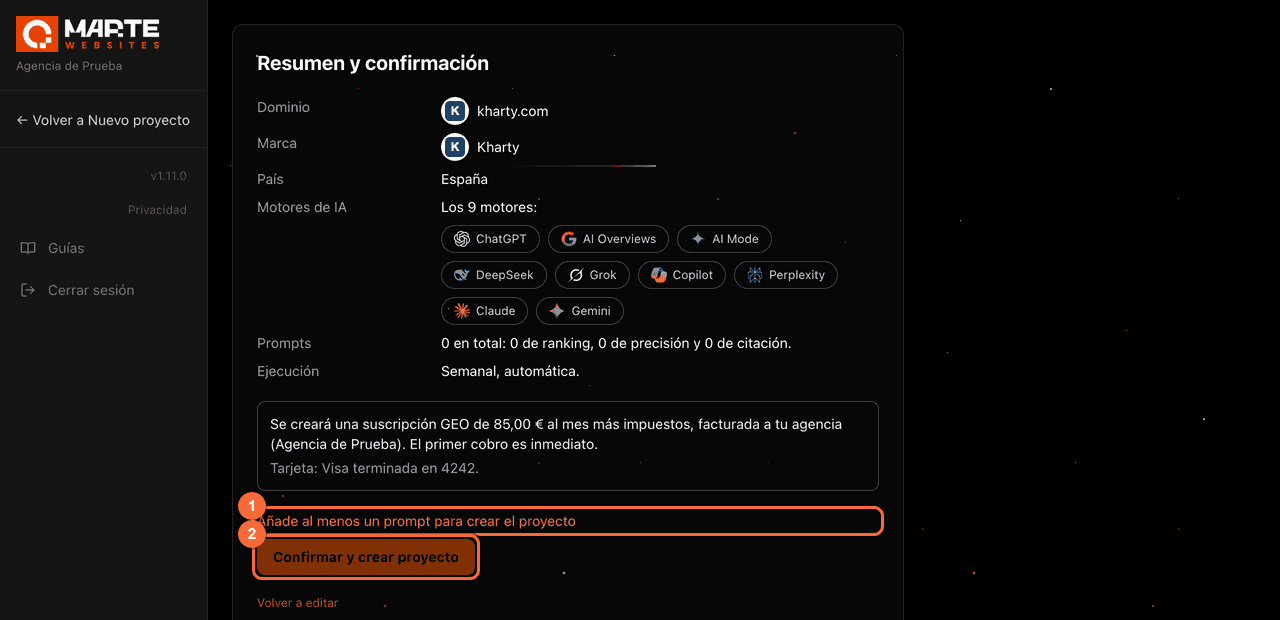
If you have not added any prompt, the summary will not let you continue: it shows "Añade al menos un prompt para crear el proyecto" (①) and the "Confirmar y crear proyecto" button (②) is disabled. Click "Volver a editar", add at least one and go back to the summary.
Step 3
Follow the progress
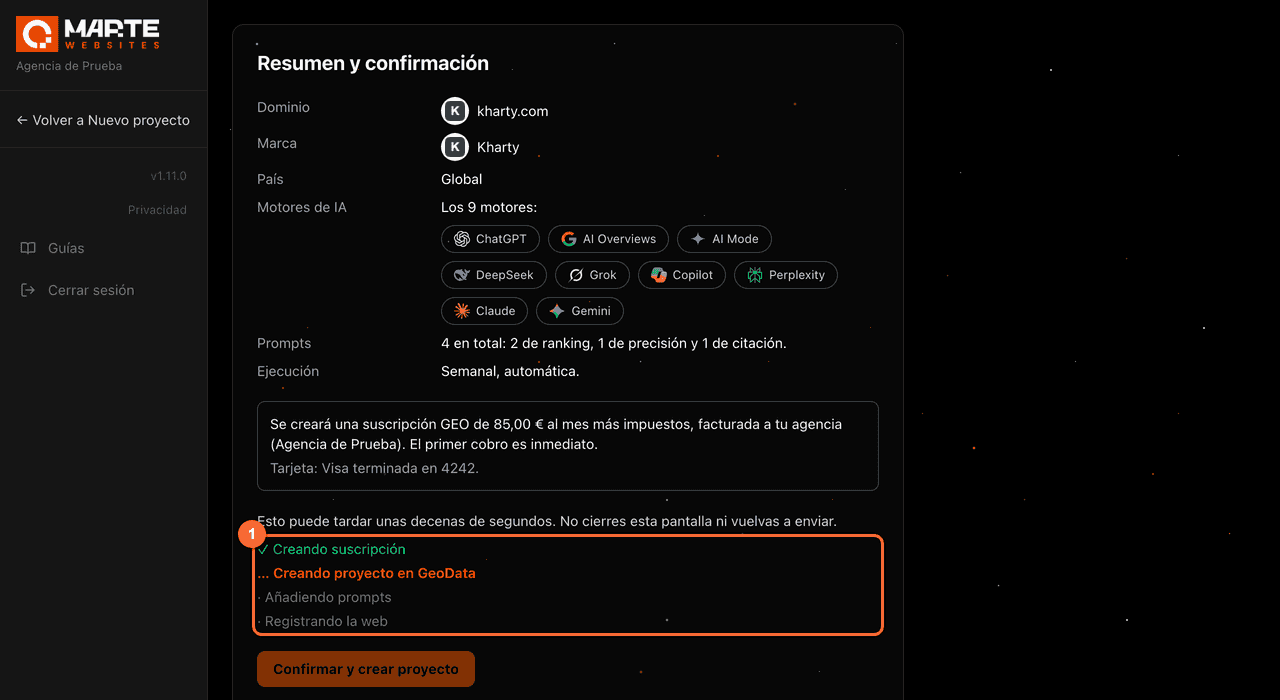
After confirming, the panel creates the project step by step and shows the progress (①): "Creando suscripción" (creating subscription), "Creando proyecto en GeoData", "Añadiendo prompts" and "Registrando la web". What is done shows a ✓ and what is running is in orange.
It can take a few dozen seconds. Do not close the screen and do not submit again. If the connection drops, it is safe to retry: if the sign-up was already in progress it carries on where it stopped and you are not charged twice.
Step 4
What you see when it finishes: GeoData
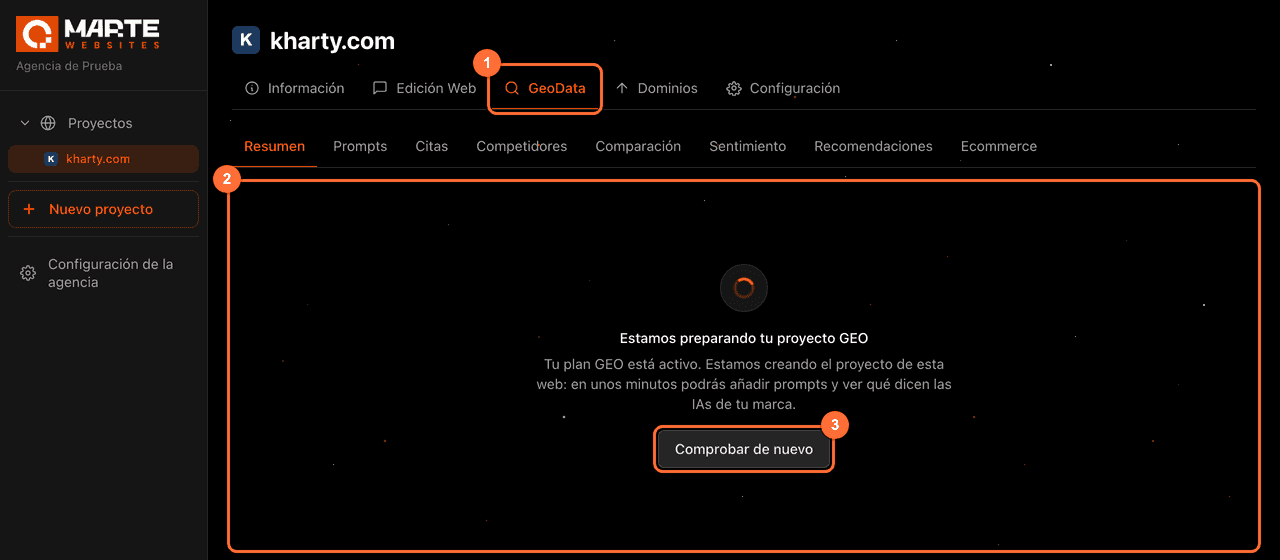
When it finishes, the panel takes you to the "GeoData" tab (①) of the new brand, and the brand appears under "Proyectos". For a few minutes you will see "Estamos preparando tu proyecto GEO" (②): your GEO plan is active and the project of this website is being created; in a few minutes you will be able to add prompts and see what the AIs say about your brand.
The screen re-checks itself every so often, and you can click "Comprobar de nuevo" (③, check again). When the project is ready, you will see the extraction running in that tab and the results as they are generated.
Step 5
If something fails
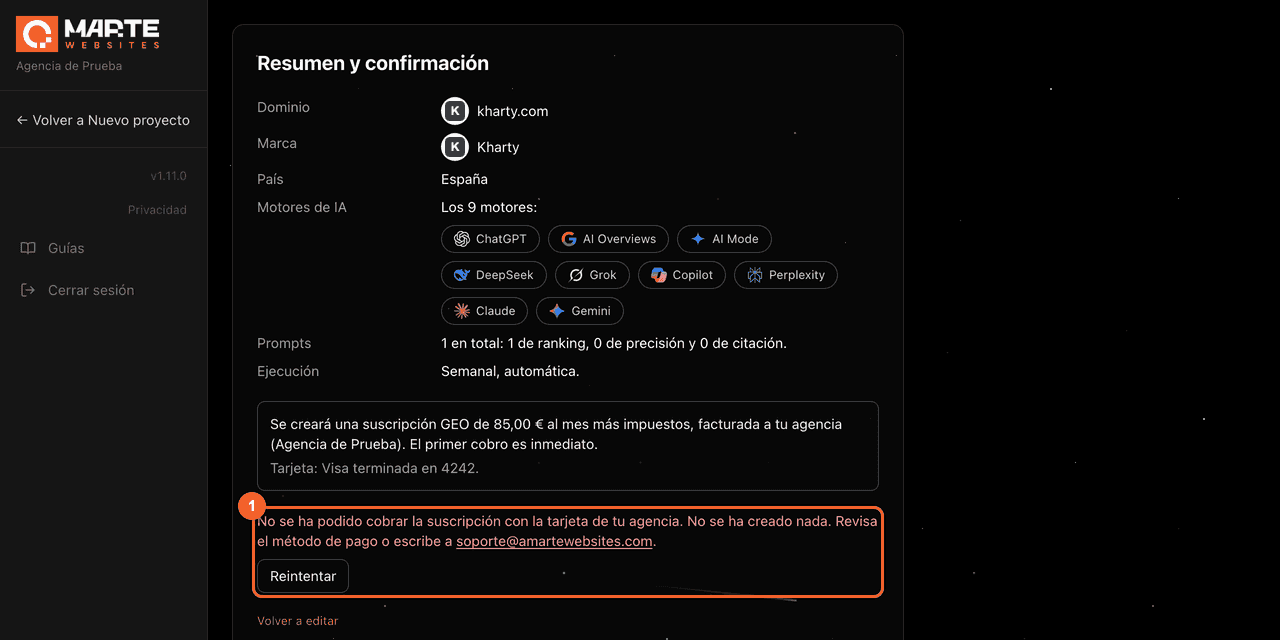
The panel tells you what happened and what to do: • "No se ha podido cobrar la suscripción con la tarjeta de tu agencia. No se ha creado nada. Revisa el método de pago o escribe a soporte." (①), meaning the charge failed and nothing was created or charged. You can click "Reintentar" after checking the card. • "Se ha perdido la conexión" or "No se pudo crear el proyecto": it is safe to retry and you will not be charged twice. • "Hemos cobrado la suscripción pero el proyecto no se ha podido terminar. Nuestro equipo lo está resolviendo; no hace falta que vuelvas a intentarlo.": the aMarte team is notified and no second charge is made. • "Ahora mismo no podemos crear nuevos proyectos GEO. Inténtalo más tarde o contacta con soporte" (we cannot create new GEO projects right now). • "Tu agencia todavía no puede crear proyectos GEO desde el panel (falta cliente de facturación, método de pago o dirección de facturación). Escribe a soporte" (your agency cannot yet create GEO projects from the panel: a billing customer, payment method or billing address is missing): nothing was created or charged. Complete what is missing in "Configuración de la agencia" (guide "Requirements for your agency to create GEO projects") and start again. • "Este dominio ya existe como proyecto…": with "Ver proyecto" you open the existing one.
In any case you can write to soporte@amartewebsites.com.
Step 6
The whole journey
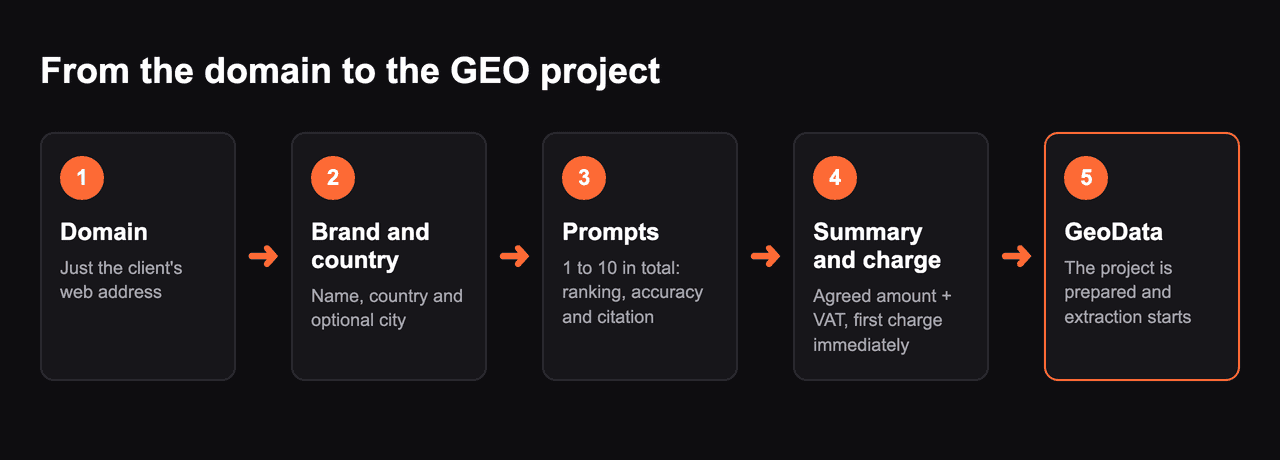
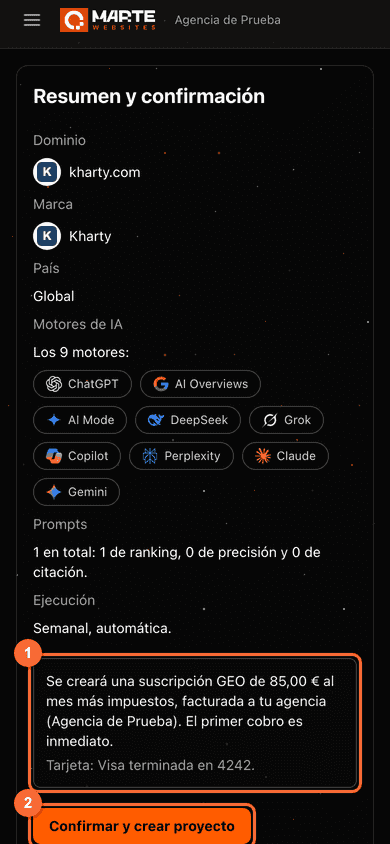
This diagram sums up the whole journey: domain, brand and country, prompts, summary and charge, and the GeoData tab preparing the project. On mobile it is the same: the charge notice (①) and the "Confirmar y crear proyecto" button (②) are at the bottom of the screen.
Frequently asked questions
When am I charged?
At the moment you click "Confirmar y crear proyecto". The first charge is immediate, with your agency's saved card, and after that the subscription is billed every month.
What if I click twice or reload the page?
You are not charged twice. The sign-up for a given domain is not duplicated: if it was already in progress, it carries on where it stopped.
How long until the project is ready?
The project is prepared in a few minutes. Until then you will see "Estamos preparando tu proyecto GEO" in the GeoData tab.
I closed the screen in the middle of the sign-up, what do I do?
Open "Proyectos" and check whether the brand appears. If not, add the domain again from "Nuevo proyecto": if the sign-up was in progress, it carries on without charging again. If in doubt, write to soporte@amartewebsites.com.
See the guide "How to add a new brand to GeoData"What if the card is declined or the bank asks for 3-D Secure when I confirm?
If the bank declines the charge, or requires a verification that cannot be done at that moment, the panel shows "No se ha podido cobrar la suscripción con la tarjeta de tu agencia. No se ha creado nada." and nothing is charged or created. Check or change the card in "Configuración de la agencia" (the 3-D Secure verification is completed when you save the card) and click "Reintentar".
See the guide "Requirements for your agency to create GEO projects"