
Agency panel: GeoData
Agency-managed or end-client-managed
Before you start
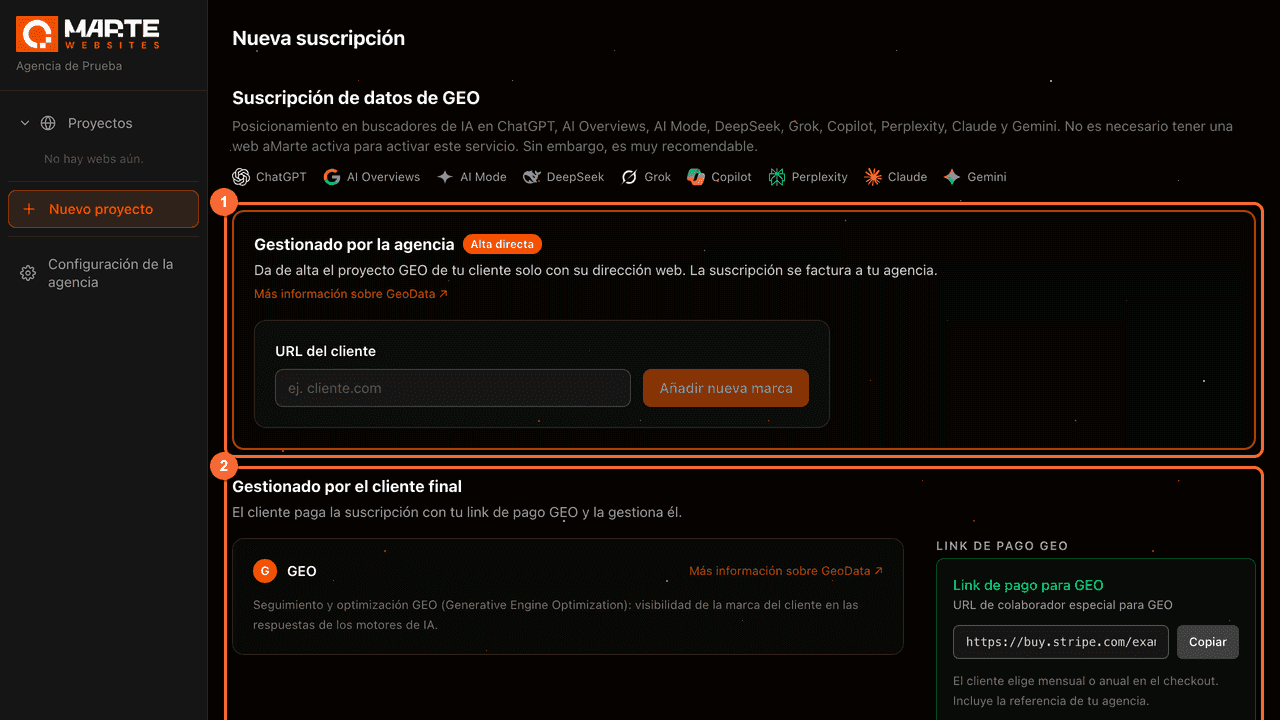
In "Nuevo proyecto", inside "Suscripción de datos de GEO", there are two ways to sign a client up for GEO tracking. In both, the client ends up with their brand measured in the 9 AI engines (ChatGPT, AI Overviews, AI Mode, DeepSeek, Grok, Copilot, Perplexity, Claude and Gemini). What changes is who takes the step and who is billed.
Tip: Choose according to who you want to hold the subscription. If in doubt, "Gestionado por el cliente final" needs nothing set up beforehand in your agency. This guide uses the fictional brand "Kharty" (kharty.com) as an example. The panel itself is in Spanish, so button names are quoted in Spanish.
Step by step
Step 1
Recognise the two options
Go to "Nuevo proyecto". At the top, inside "Suscripción de datos de GEO", you will see: • ① "Gestionado por la agencia" (tag "Alta directa"): it adds your client's GEO project with just their web address, and the subscription is billed to your agency. • ② "Gestionado por el cliente final": the client pays the subscription with your GEO payment link and manages it themselves.
Every agency has the second one and it is always visible. The first one only appears if your agency has the feature enabled by aMarte and its billing ready; otherwise the panel shows a notice in its place (next step).
Step 2
If "Gestionado por la agencia" does not appear: the billing notice
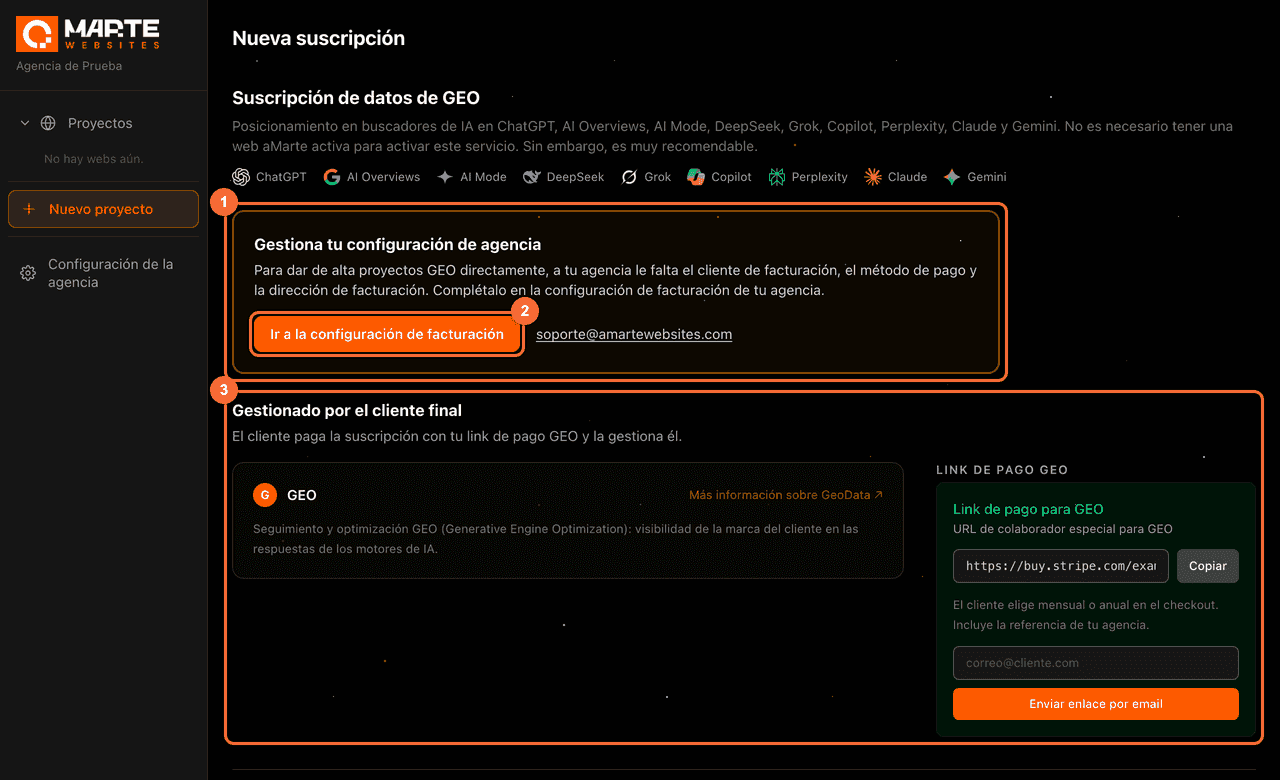
If your agency's billing is not ready, the "Gestionado por la agencia" option is not shown. In its place you will see the notice "Gestiona tu configuración de agencia" (①): "Para dar de alta proyectos GEO directamente, a tu agencia le falta…" (to add GEO projects directly, your agency is missing…) and whatever is missing: the billing customer, the payment method, the billing address or your agency's rate (which the aMarte team sets).
The "Ir a la configuración de facturación" button (②, go to billing settings) takes you to "Configuración de la agencia", where you complete it (guide "Requirements for your agency to create GEO projects"). Next to it is the support email.
The "Gestionado por el cliente final" option (③) stays available, so you can keep offering GEO with the payment link in the meantime. While the panel checks the billing you will see "Comprobando la facturación de tu agencia…"; if it cannot check it, a "Reintentar" button.
Step 3
Compare the differences
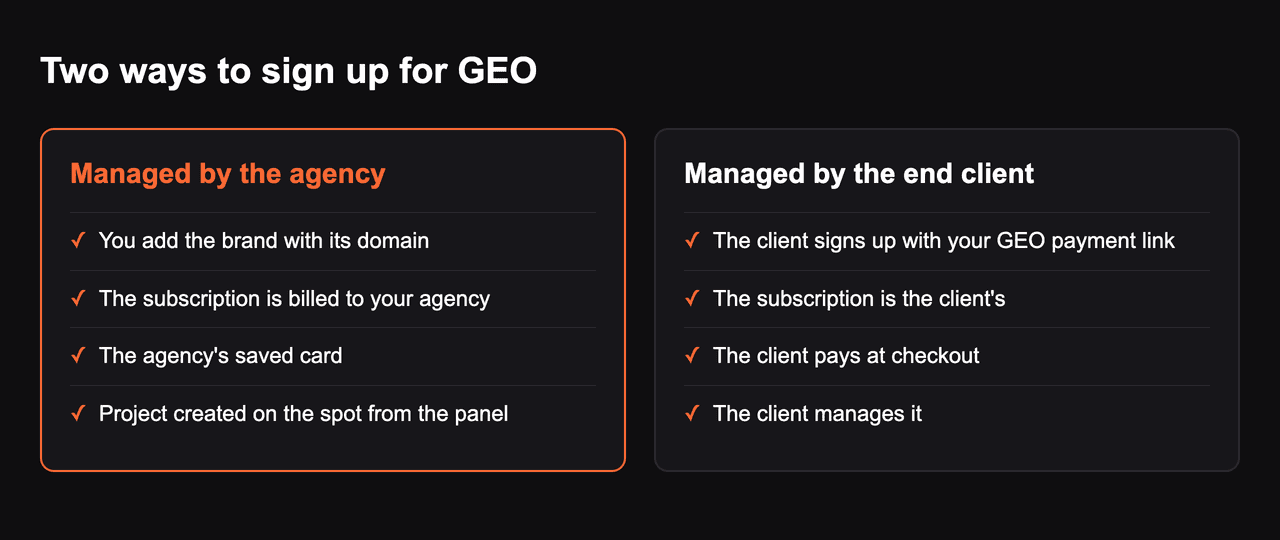
The diagram sums up the difference: • With "Gestionado por la agencia" you add the brand with its domain, the subscription is billed to your agency with its saved card, and the project is created on the spot from the panel. • With "Gestionado por el cliente final" the client signs up with your GEO payment link, the subscription is theirs, they pay at checkout and they manage it.
In both, GEO tracking is the same service.
Step 4
When to use each one
"Gestionado por la agencia" is best when you want everything under your control: you choose the brand, the prompts and the moment, and the subscription is in your agency's name. How you then charge your client is up to your agreement with them.
"Gestionado por el cliente final" is best when the client wants to sign up and pay on their own, or when you prefer the subscription to be theirs. You just pass them the link. You need no saved card, no billing set up and no feature enabled.
The first one is explained step by step in the guides "How to add a new brand to GeoData", "How to complete the GEO sign-up wizard" and "How to confirm the GEO sign-up".
To use the first one, your agency's billing must be ready first.
Step 5
Pass the GEO payment link to your client
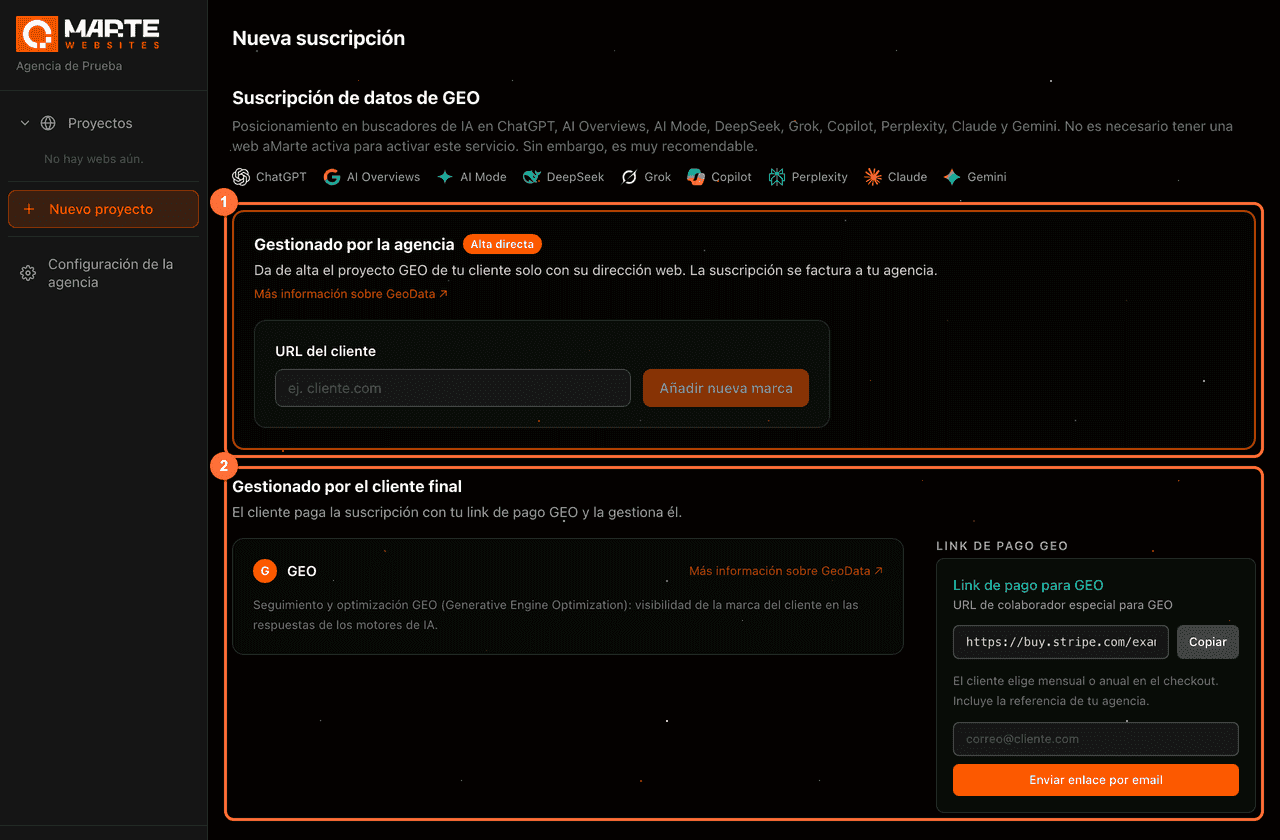
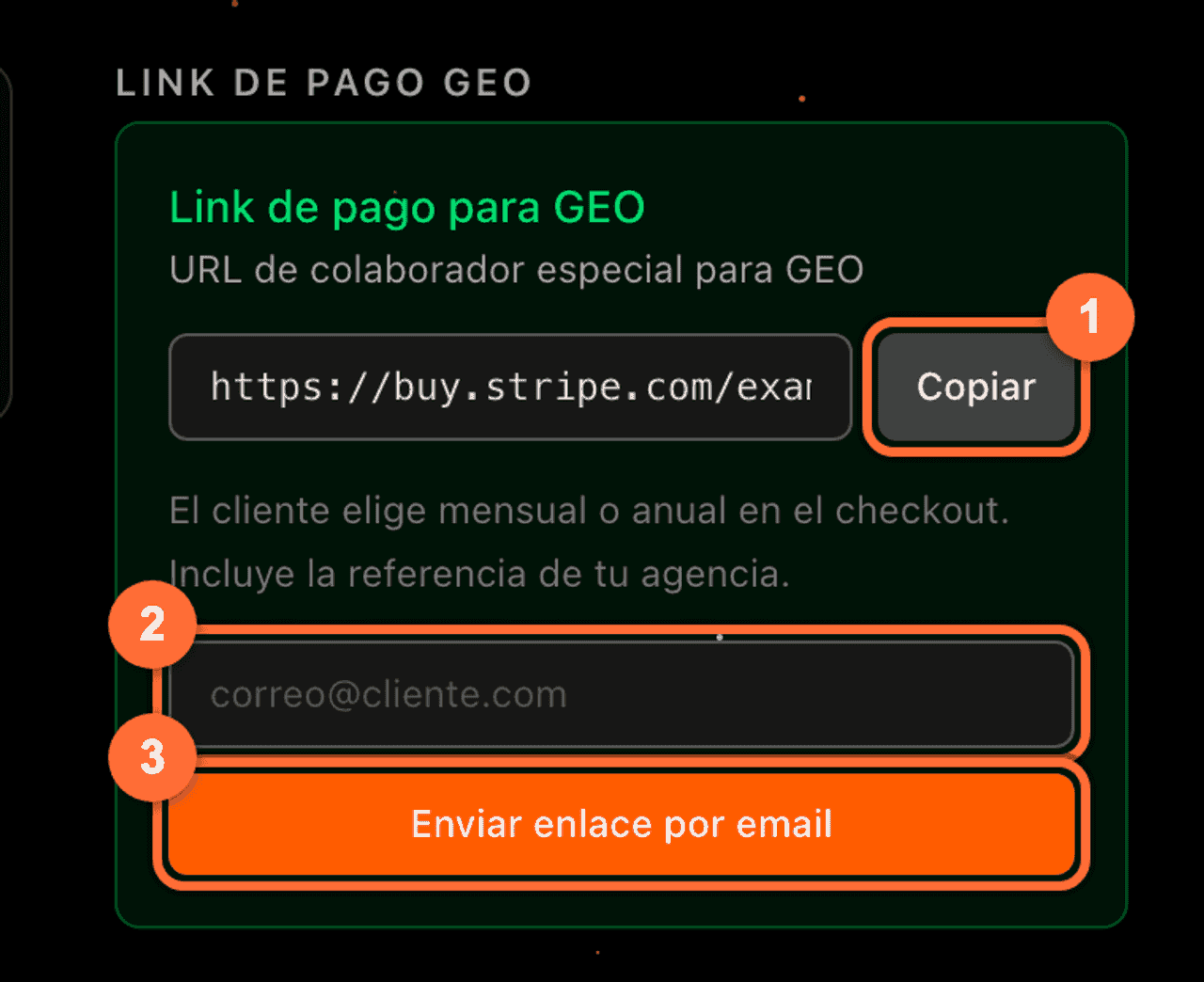
The "Gestionado por el cliente final" option has the "Link de pago GEO" panel. It has: • ① "Copiar" (copy), to copy the link and send it through your usual channel. • ② An "correo@cliente.com" field to type the client's email. • ③ "Enviar enlace por email" (send link by email), which sends them the link directly. Once sent, you see "✓ Enviado a" and their email.
The link already includes your agency's reference, and the client chooses monthly or annual payment at checkout. If you see "Link de GEO no configurado todavía.", write to soporte@amartewebsites.com.
Frequently asked questions
Why do I not see "Gestionado por la agencia"?
Because something is missing for your agency: the feature enabled by aMarte or the billing ready (billing customer, payment method and address, which you complete, and the rate, which aMarte sets). If the billing is missing, you will see the notice "Gestiona tu configuración de agencia".
See the guide "Requirements for your agency to create GEO projects"Can I use both options with different clients?
Yes. You can add some brands with "Gestionado por la agencia" and pass the GEO payment link to other clients. Each brand goes through just one route.
Do I need an aMarte website to sign up for GEO?
No. The panel says you do not need an active aMarte website to activate the service, although it is highly recommended.
Where does the end client see what they signed up for?
In the panel, in the GeoData tab of their website. The guide "How to confirm the GEO sign-up" explains what you see right after a project is created.
See the guide "How to confirm the GEO sign-up"How much does it cost?
With "Gestionado por la agencia" the amount agreed for your agency applies and it is shown before you confirm. With the payment link, the client sees the price at checkout. More information on the GeoData page.