
Agency panel: GeoData
How to complete the GEO sign-up wizard
Before you start
The wizard has 4 steps: Marca (brand), Prompts de ranking, Prompts de precisión (accuracy) and Prompts de citación (citation). A prompt is a question that is asked to the AI engines on a regular basis to measure how your brand appears in their answers. No type is mandatory, but you need at least one prompt in total and at most 10. Prompts run every week, automatically, on the 9 AI engines: ChatGPT, AI Overviews, AI Mode, DeepSeek, Grok, Copilot, Perplexity, Claude and Gemini. To open the wizard, your agency's billing must be ready.
Tip: Write each prompt the way a customer would ask an AI. To start with, one or two ranking prompts are usually enough. You can add more later from the GeoData tab. This guide uses the fictional brand "Kharty" (kharty.com) as an example. The panel itself is in Spanish, so button names are quoted in Spanish.
Step by step
Step 1
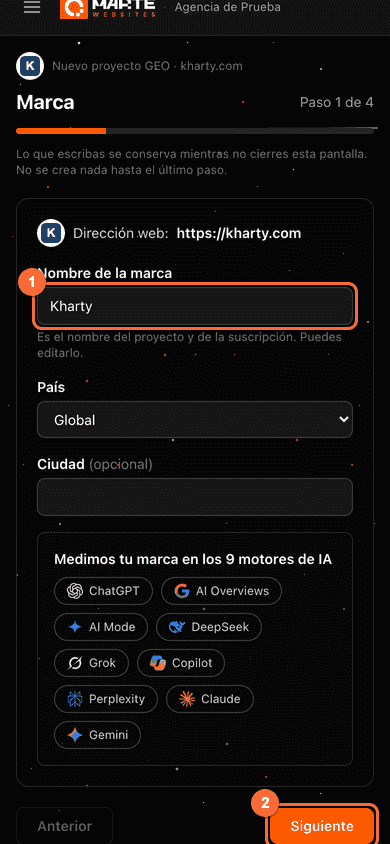
Brand: name, country and city
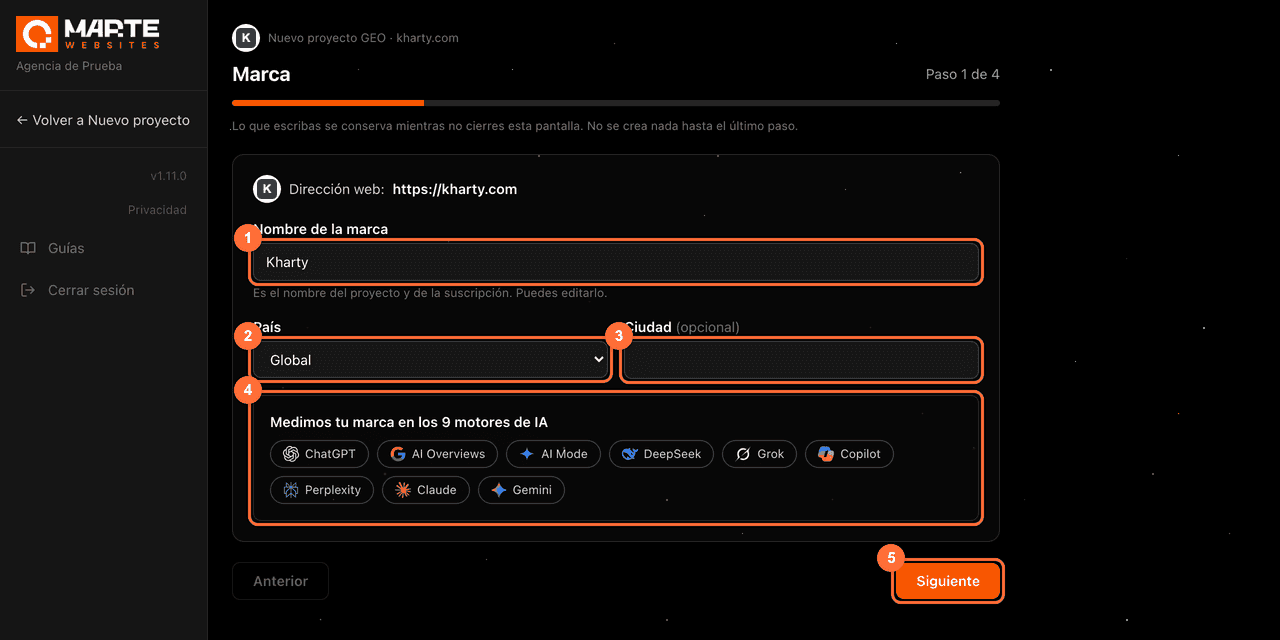
The first step shows the web address that was already checked and asks you for: • ① "Nombre de la marca" (brand name): suggested from the domain, and you can edit it. It is the name of the project and of the subscription. • ② "País" (country): proposed from the domain ending (for example "España" for a ".es") or "Global". • ③ "Ciudad (opcional)" (city, optional): 3 to 80 characters, if the brand is local. • ④ The notice "Medimos tu marca en los 9 motores de IA" (we measure your brand on the 9 AI engines), with their logos. There is nothing to choose.
Click "Siguiente" (⑤, next). The "Anterior" (previous) button takes you back without losing what you typed.
Step 2
Ranking prompts
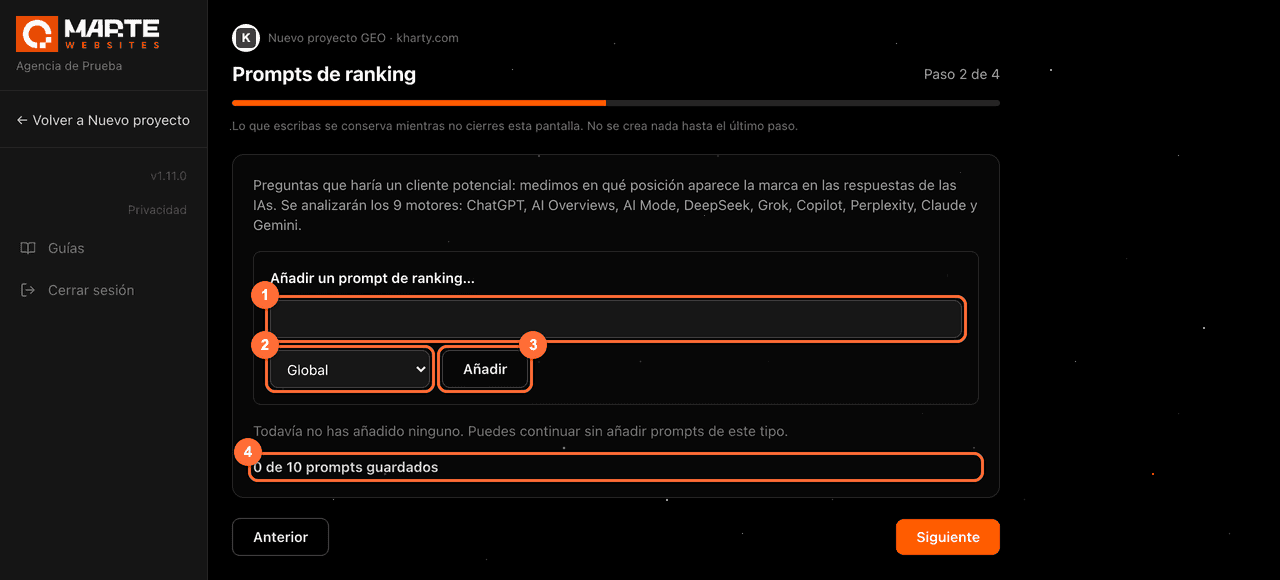
Ranking prompts are the questions a potential customer would ask. They measure the position where the brand appears in the AI answers.
Type the question in "Añadir un prompt de ranking…" (①), choose its country (②) and click "Añadir" (③, add). The counter (④) tells you how many you have, for example "0 de 10 prompts guardados" (0 of 10 prompts saved).
The text must be between 3 and 500 characters. If you leave it typed and click "Siguiente" without clicking "Añadir" first, that prompt is not saved.
Step 3
Review and edit what you added
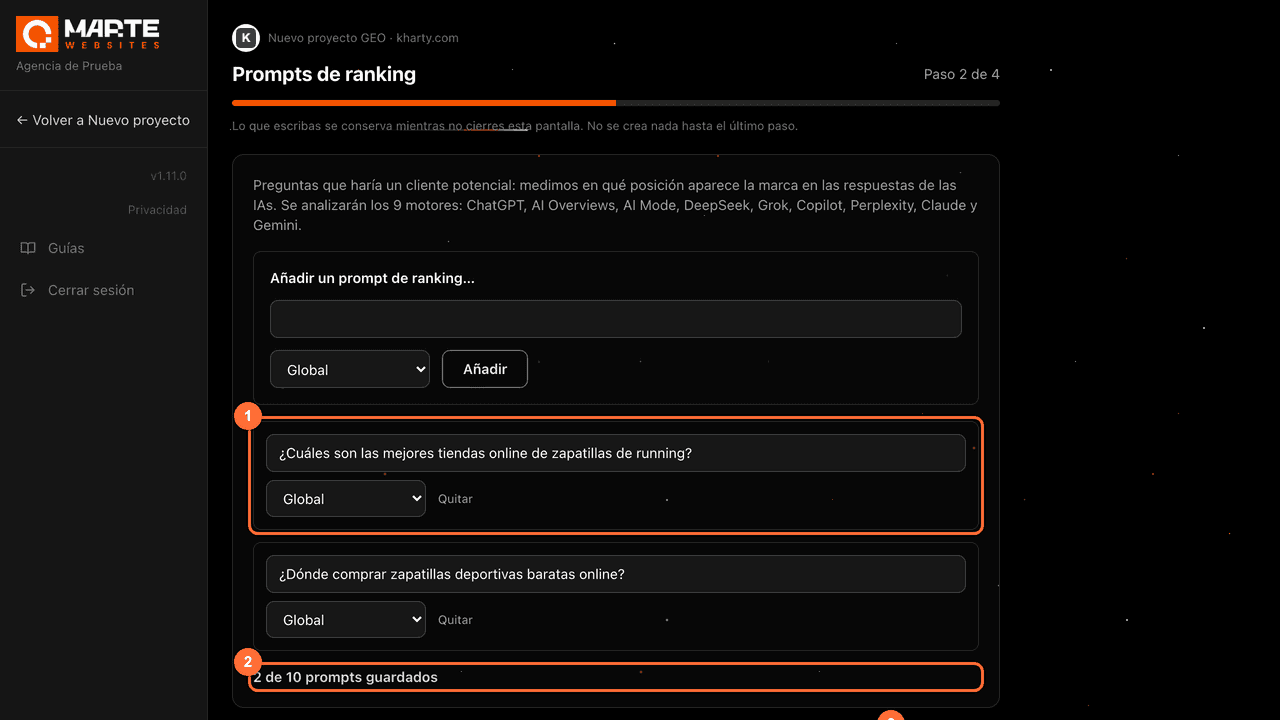
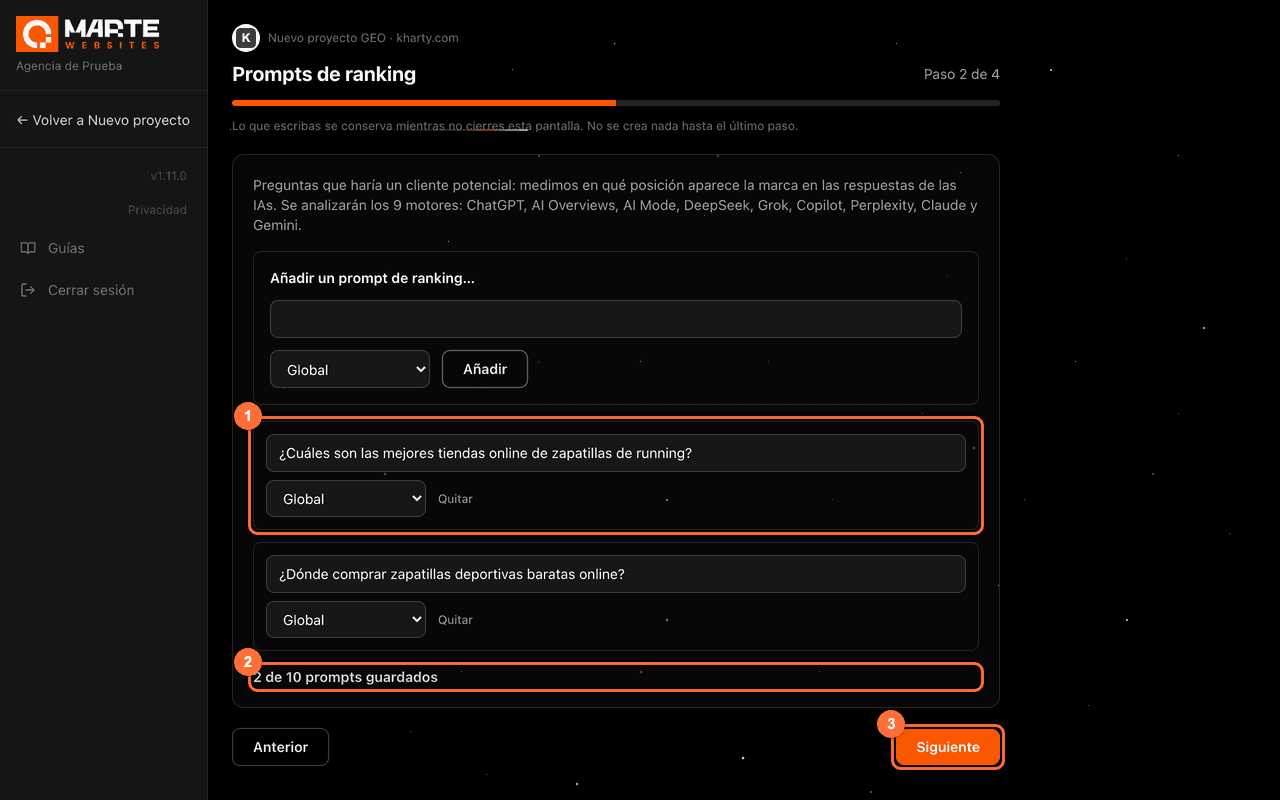
Each added prompt appears below as a card (①). You can edit its text or its country right there, or remove it with "Quitar". The counter (②) updates ("2 de 10 prompts guardados") and "Siguiente" (③) takes you to the next step.
Duplicate prompts are not allowed: if you add the same one, you will see "Ese prompt ya está en la lista." (that prompt is already in the list).
Step 4
Accuracy prompts
Accuracy prompts check whether the AIs answer correctly about your brand. Each question comes with its expected answer.
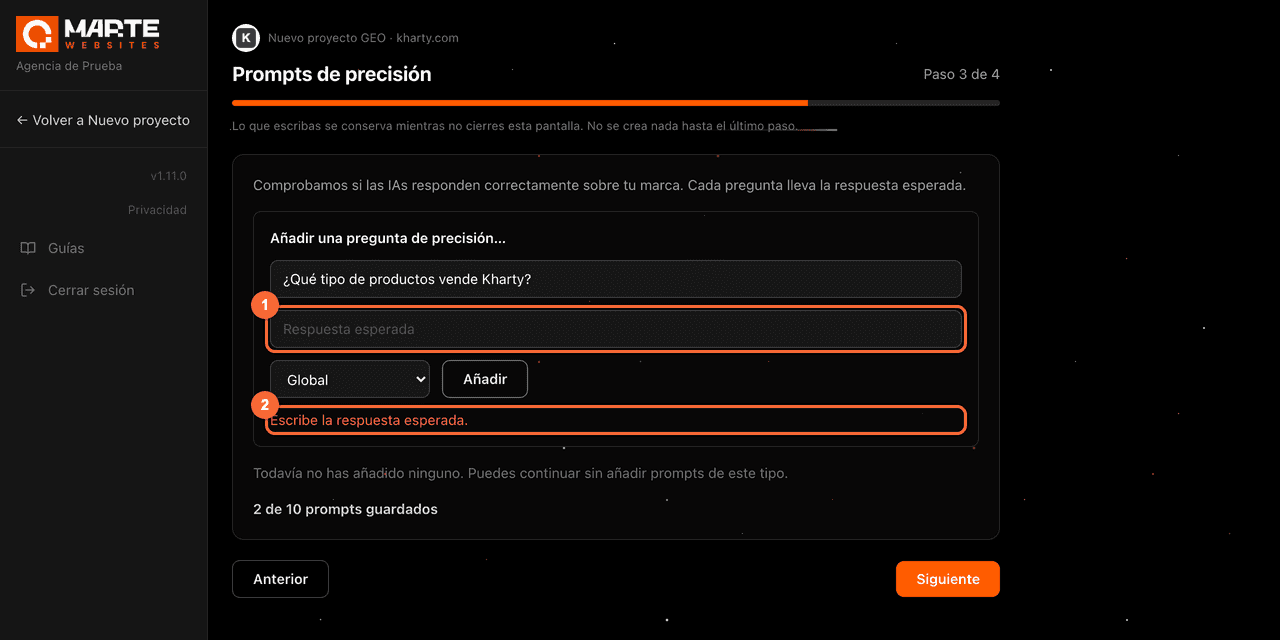
Type the question and, in the "Respuesta esperada" field (①, expected answer), what the AI should reply. If the answer is missing, the panel warns you "Escribe la respuesta esperada." (②) and does not add the prompt.
Step 5
Add the question with its answer
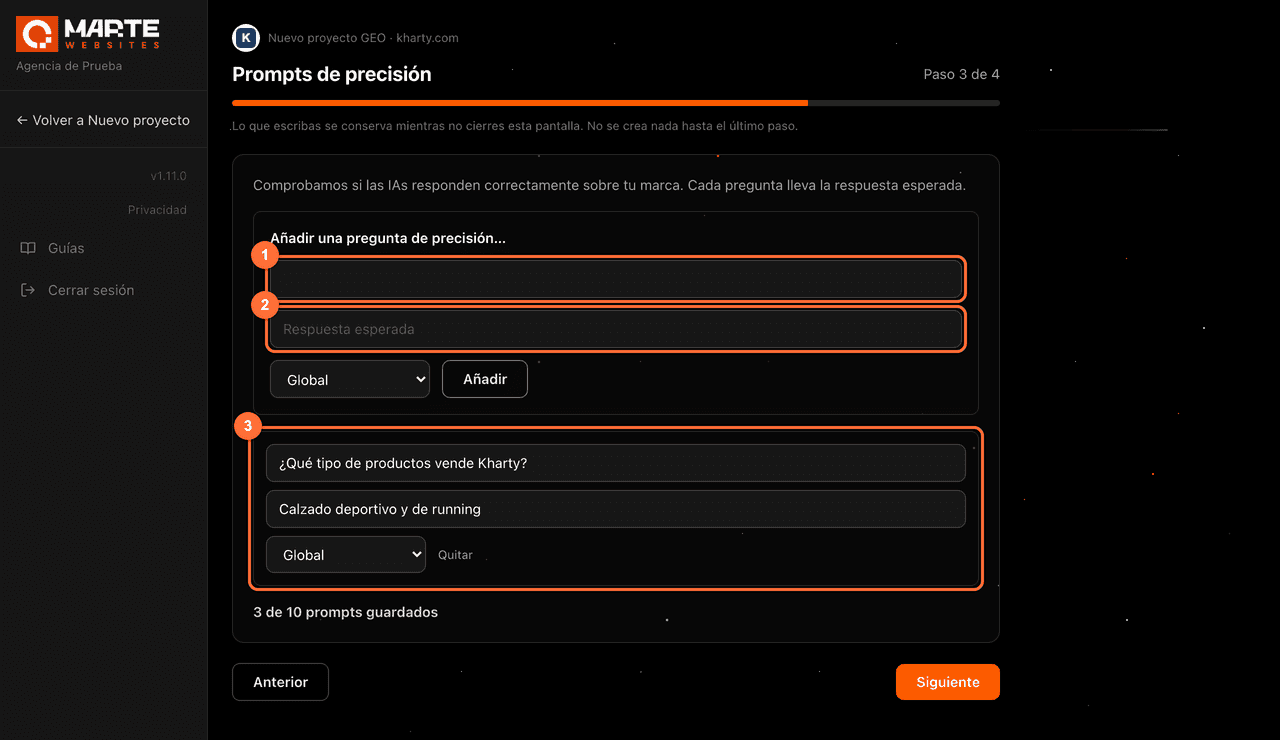
With the answer typed, click "Añadir". The fields (① and ②) are cleared for the next prompt and the question, with its expected answer, goes into the list (③). The counter goes up. You can edit or remove it whenever you like.
Step 6
Citation prompts
Citation prompts measure whether the AIs cite the brand's website as a source.
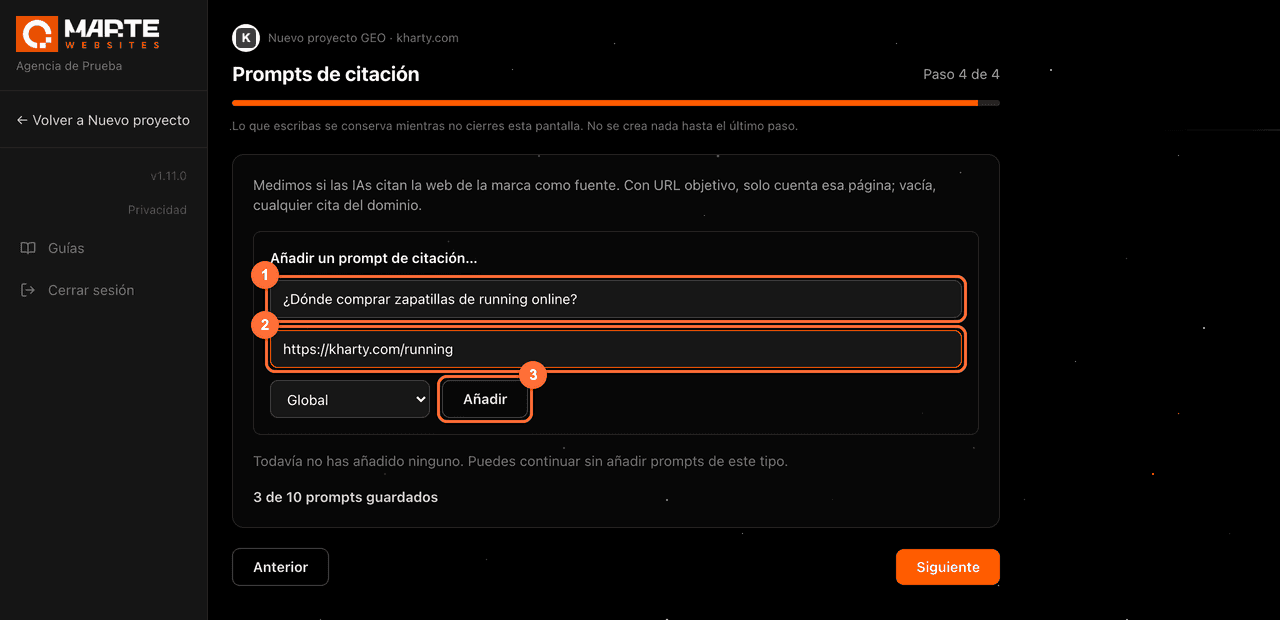
Type the prompt (①). The "URL objetivo (opcional)" (②, target URL, optional) is for fine-tuning: with a URL, only a citation of that page counts; left empty, any citation of the domain counts. The URL must belong to the brand itself; otherwise you will see "La URL objetivo debe pertenecer al dominio de la marca.". Click "Añadir" (③).
Step 7
The limit of 10 prompts
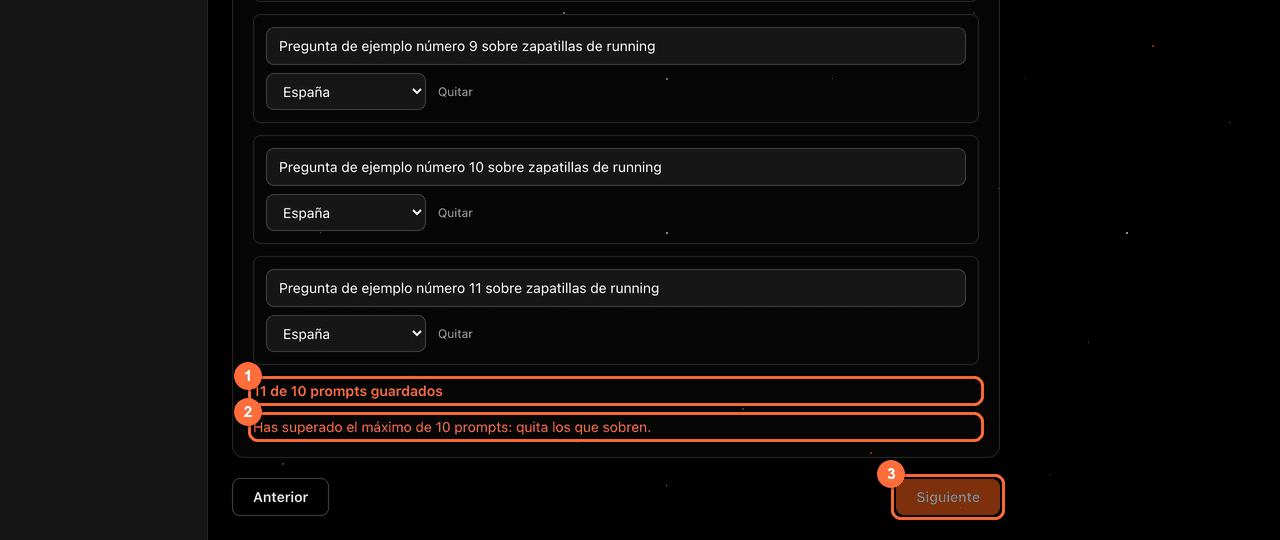
In total you can save up to 10 prompts, adding up the three types. The counter (①) shows it ("11 de 10 prompts guardados"). If you go over, the notice (②) says "Has superado el máximo de 10 prompts: quita los que sobren." (you have gone over the maximum of 10 prompts: remove the extra ones) and "Siguiente" (③) is disabled until you remove the extra ones with "Quitar".
No type is mandatory, but with 0 prompts the project cannot be created: the final summary warns "Añade al menos un prompt para crear el proyecto" (add at least one prompt to create the project).
⚠ The limit of 10 applies to the sign-up. Once the project is created, you can keep adding prompts from the GeoData tab, depending on your plan.
Step 8
Move on to the summary
After the last step (citation), "Siguiente" takes you to the summary and charge confirmation, which is explained in the guide "How to confirm the GEO sign-up". You can also complete the wizard from your phone: the steps are the same.
Frequently asked questions
Do I have to add all three types of prompt?
No. No type is mandatory. You only need a minimum of 1 prompt in total, of any type, and a maximum of 10.
Does the panel suggest prompts to me?
No. In the sign-up you write the prompts yourself. You can add more afterwards, once the project exists, from the GeoData tab.
What happens if I close the screen halfway?
The wizard only keeps what you type while the screen stays open, and nothing is created until you confirm in the summary. If you close or reload it, you start again from "Nuevo proyecto".
Which AI engines are measured?
Always the 9: ChatGPT, AI Overviews, AI Mode, DeepSeek, Grok, Copilot, Perplexity, Claude and Gemini. You do not have to choose them.
Can I open the wizard directly by its address?
Only if your agency's billing is ready. If it is not, the panel sends you back to "Nueva suscripción" with the notice "Gestiona tu configuración de agencia". You cannot get in without having checked a domain first either.
See the guide "Requirements for your agency to create GEO projects"