
Panel: your website
How to share or bookmark the link to a tab
Before you start
Every tab of your website in the panel has its own address (link). When you switch tabs, the end of the address in the browser bar changes. That lets you bookmark the tab you use most, copy its link to open it on another device, reload the page without losing the tab, and use the browser's back and forward buttons. The panel is in Spanish, so this guide quotes its labels in Spanish with their meaning in brackets.
Tip: Bookmark the tab you check most (for example "Facturación", Billing) to go straight to it. This guide uses the fictitious website "Kharty" (kharty.com) as its example.
Step by step
Step 1
Open your website and look at the address bar
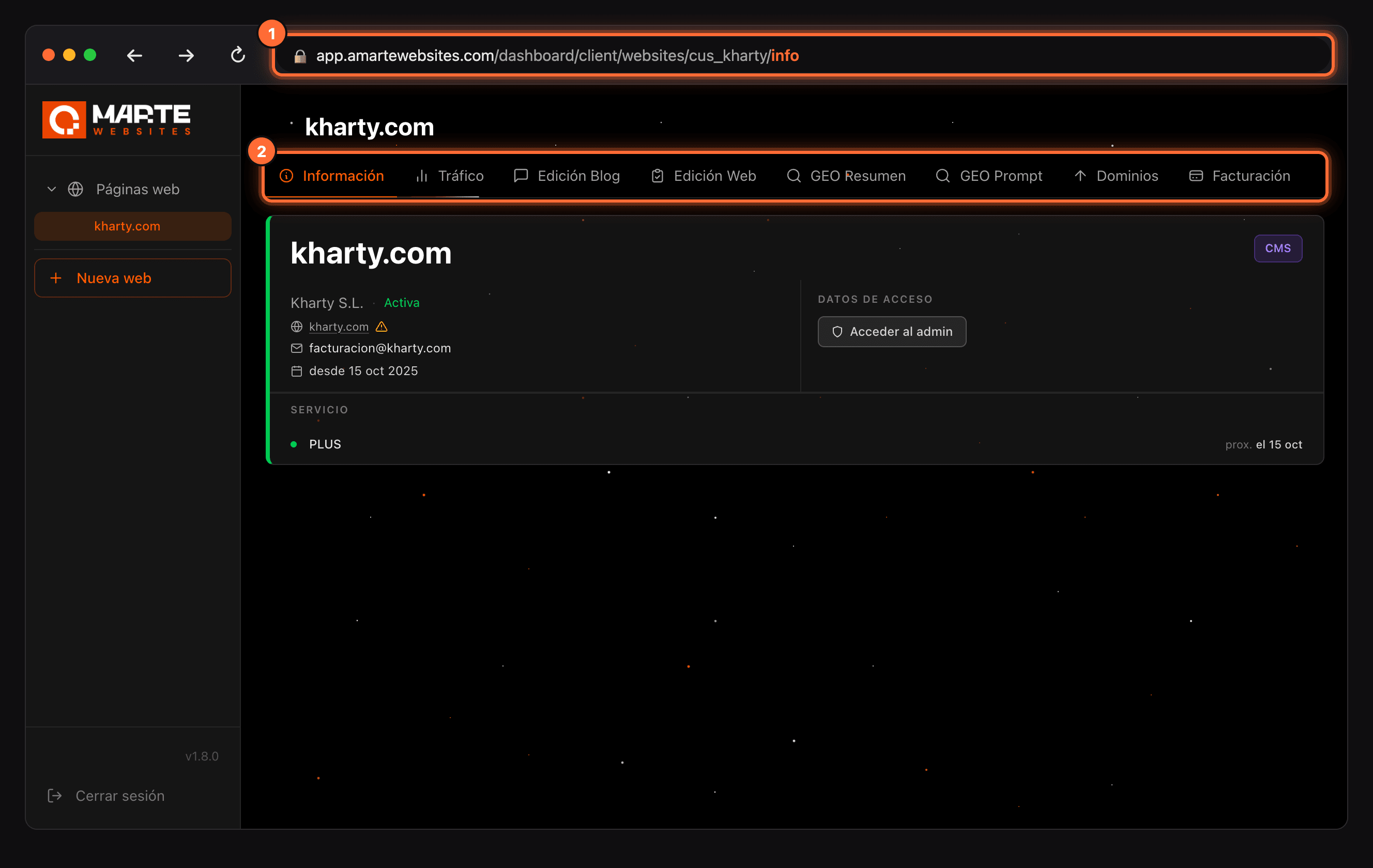
Sign in to the panel and click your website under "Páginas web" (Websites). The "Información" (Information) tab opens and the browser address ends in /info (①).
At the top you have all of the website's tabs (②).
Step 2
Switch tabs: the link changes with it
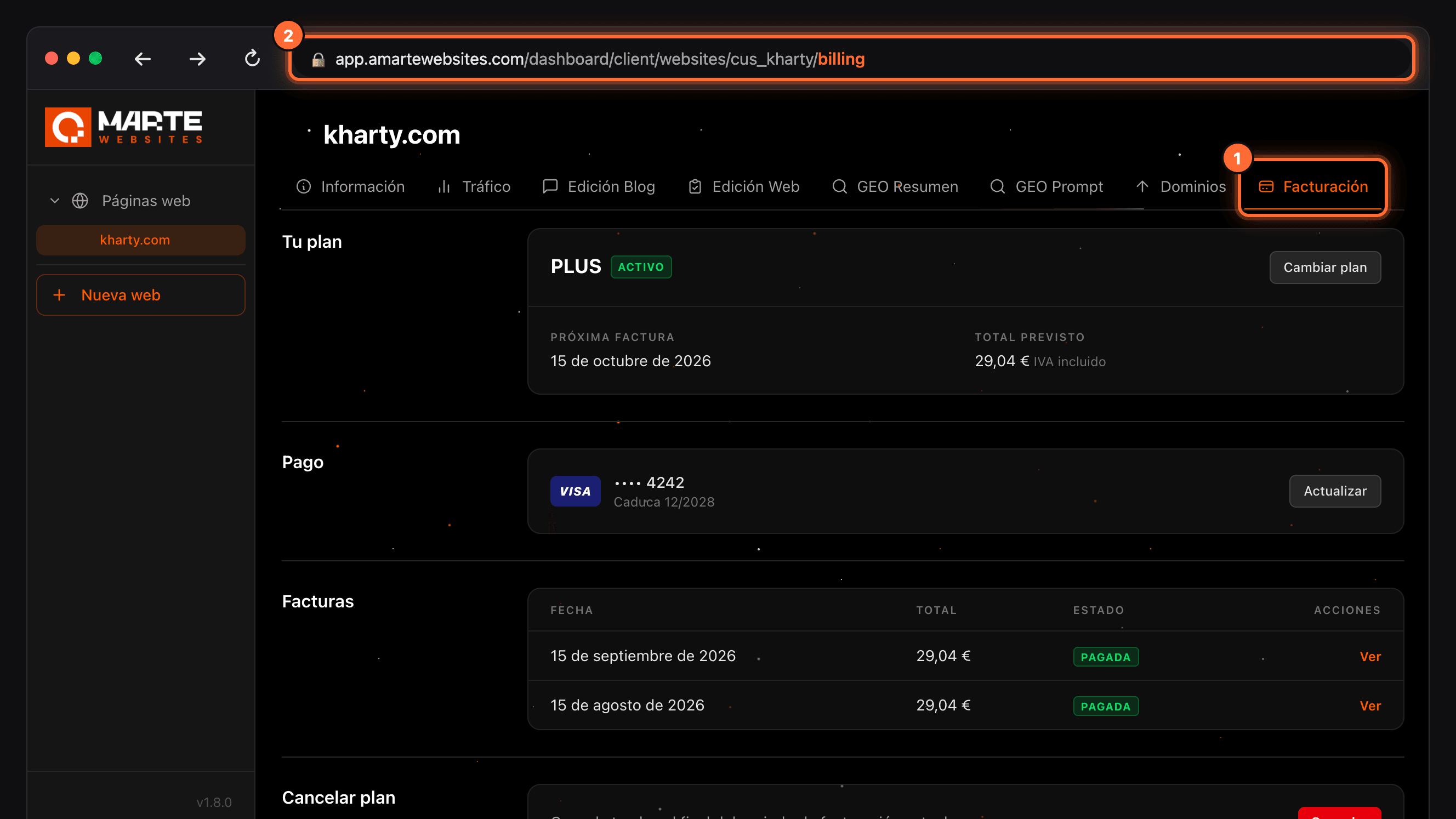
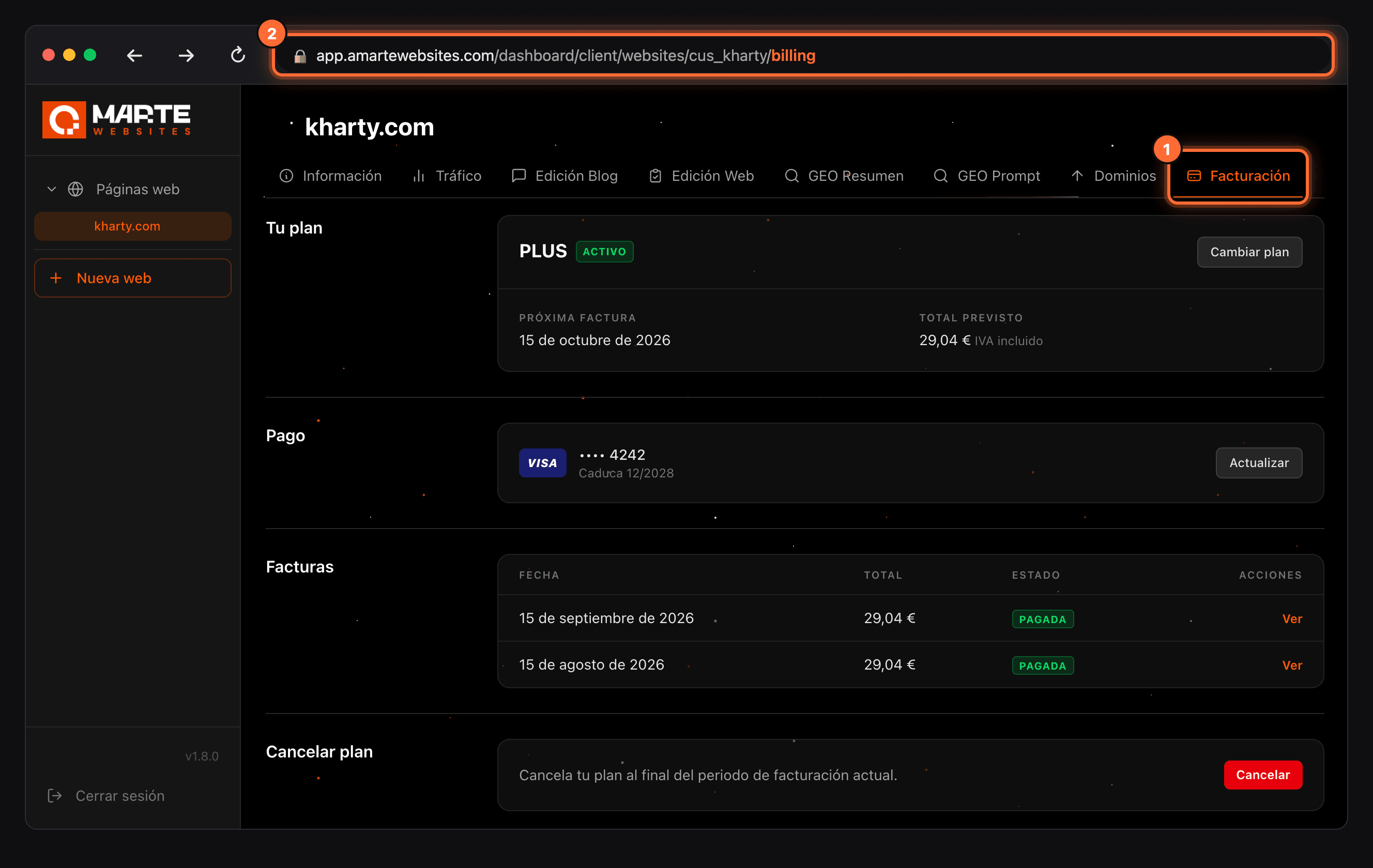
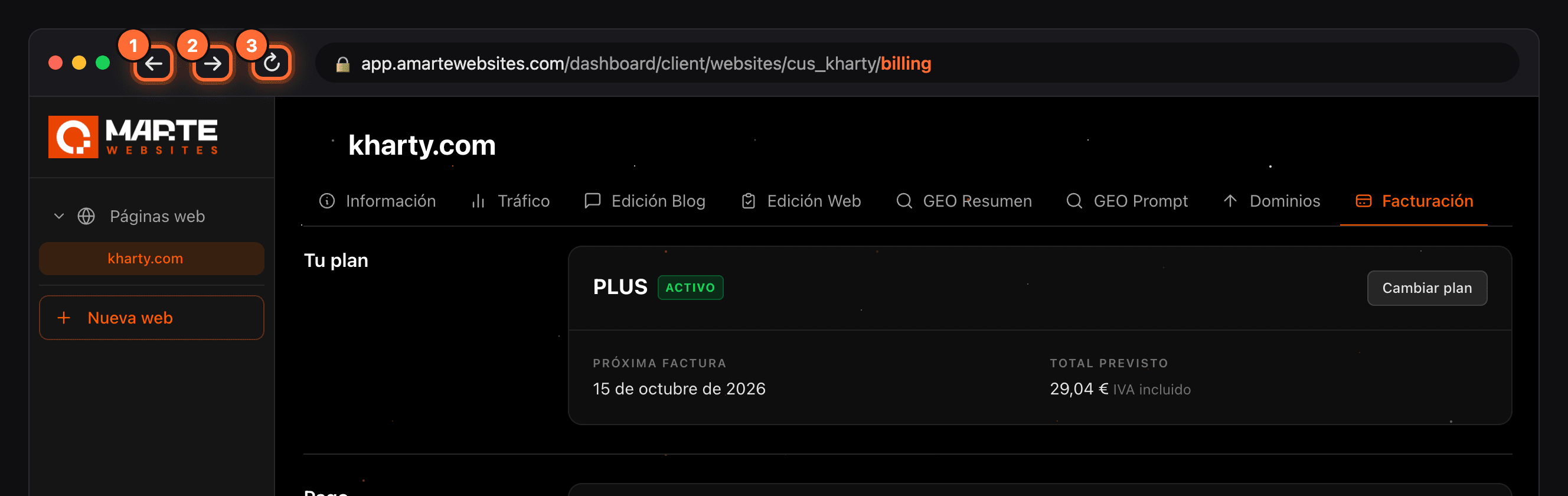
Click another tab, for example "Facturación" (Billing) (①). The address now ends in /billing (②).
That address always opens that tab of that website: it is the link you can copy or bookmark.
Step 3
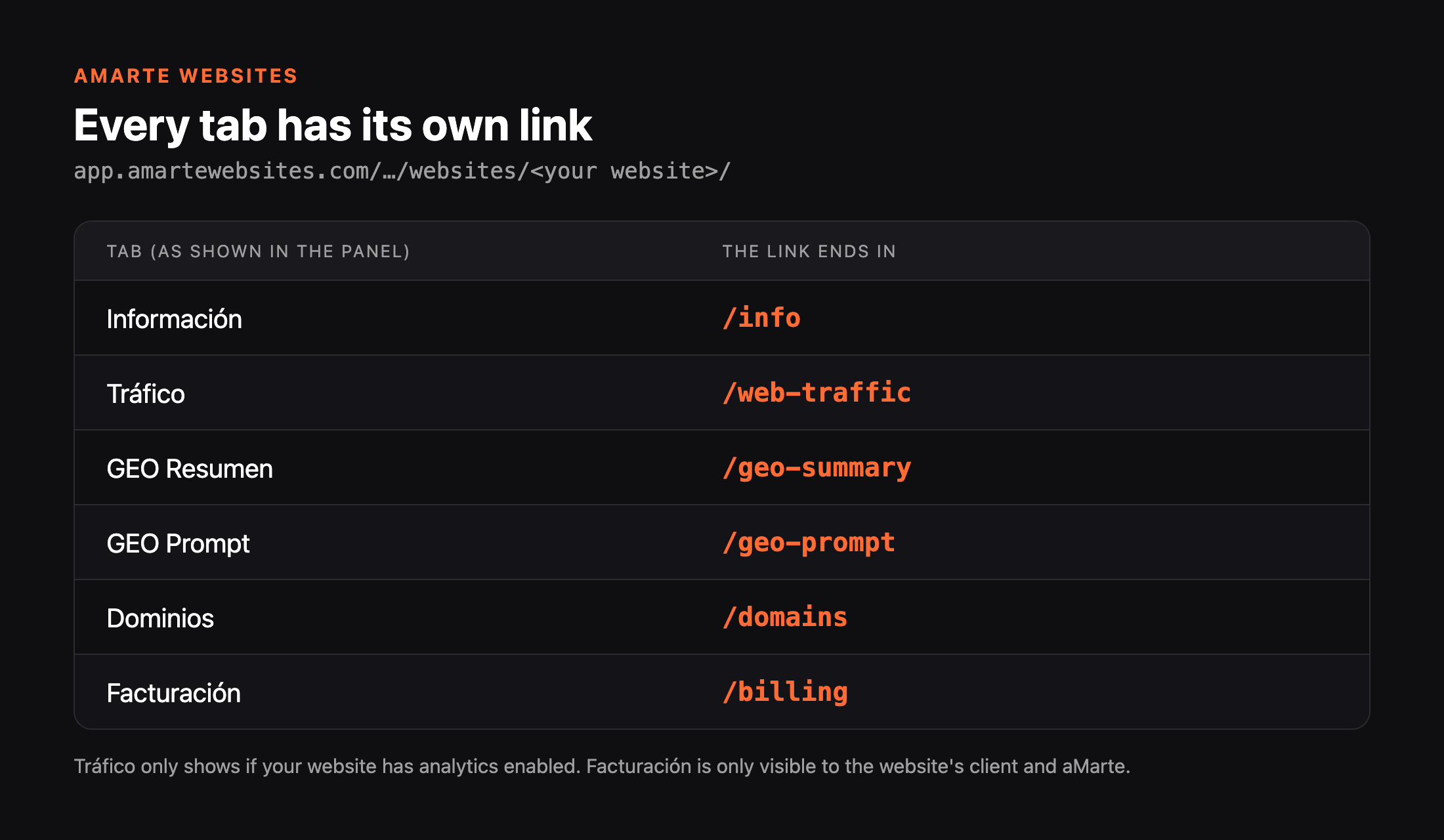
See how each tab's link ends
Every tab follows the same pattern: your website's address in the panel plus an ending: • Información (Information): /info • Tráfico (Traffic): /web-traffic • GEO Resumen (GEO Summary): /geo-summary • GEO Prompt: /geo-prompt • Dominios (Domains): /domains • Facturación (Billing): /billing
"Tráfico" only shows if your website has analytics enabled. "Facturación" is only visible to the website's client and the aMarte team.
Step 4
Copy the link or bookmark it
With the tab open, click the browser's address bar (the one highlighted in step 2) and copy the address: Ctrl+C on Windows or Cmd+C on Mac. You can now paste it into an email or a message.
To bookmark it, press Ctrl+D on Windows or Cmd+D on Mac, or click the star icon in the address bar.
There is no screenshot for this step because the copy and bookmark menus belong to the browser itself and differ from one browser to another.
Step 5
Use back, forward and reload
Every tab you open is kept in the browser history: • Back (①) returns you to the previous tab, for example from "Facturación" to "Información". • Forward (②) goes back to the one you just left. • Reload (③) keeps you on the tab you are on.
Step 6
It works the same on mobile
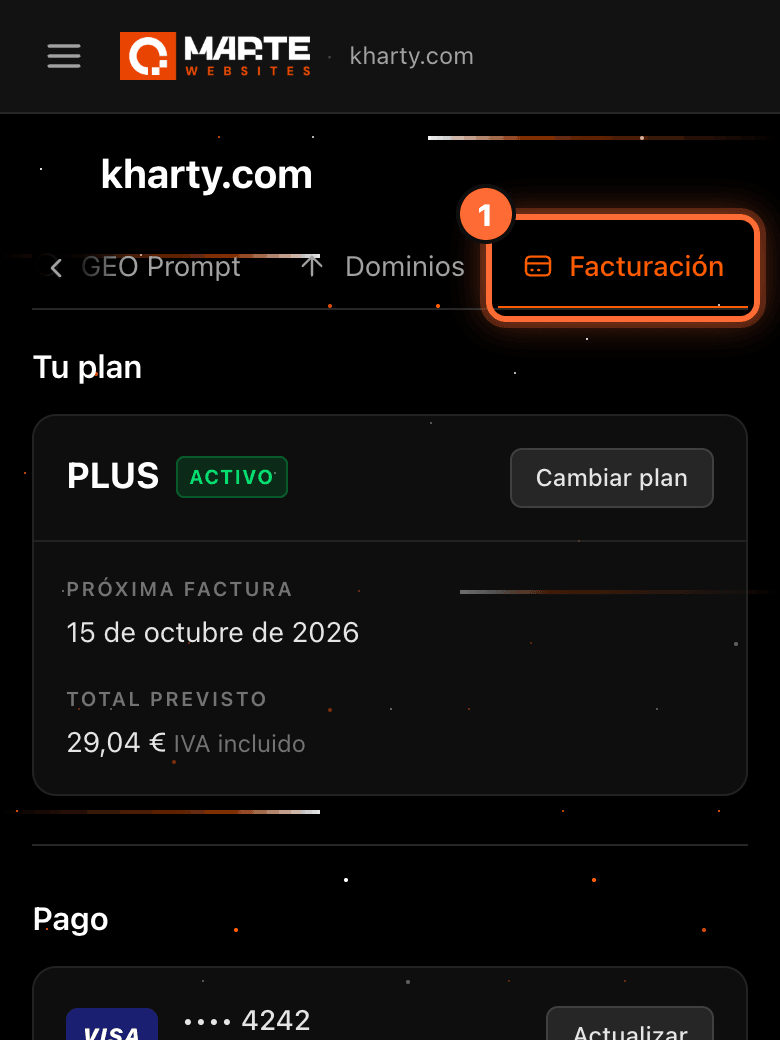
On mobile, the tab bar scrolls sideways; the open tab is shown in orange (①). Its link is the same as on a computer, so you can open on your phone a link you copied on your computer, and the other way round.
Frequently asked questions
Can someone else open my link?
The link only opens the tab with your own panel session. If someone else opens it with their account, they won't see your website's data. Use it for your bookmarks or to open the tab on another device where you are signed in.
What happens if I open the link without being signed in?
The panel asks you to sign in first. Afterwards you land in your panel, not directly on the tab: open the link again and it will take you there.
I'm an agency. Why does the "Facturación" link take me to "Información"?
The "Facturación" (Billing) tab is only visible to the website's client and the aMarte team. If an agency opens a link ending in /billing, the panel takes it to that website's "Información" tab. The other tabs work the same for agencies; their link starts differently but ends the same way.
What about the "Edición Blog" and "Edición Web" tabs?
They also have their own link, but it is about to change, so this guide doesn't include it. To get to them, open your website and click the tab.