
Support: Conversational agent
Website content management guide with Martín
What is Martín and what can he do?
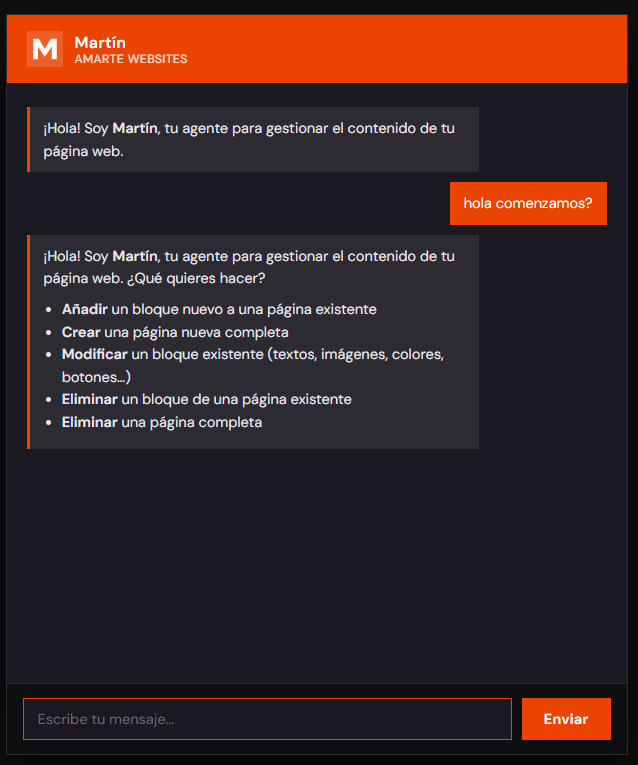
Martín is the Amarte Websites conversational agent. He guides you through a conversation to collect all the information about your requested website change and automatically open a work ticket in our internal system. The Amarte team receives that ticket and applies the change within 24 business hours.
Martín can:
- ✓Add a new block (hero, features, testimonials, CTA, text, image, form or other) to an existing page.
- ✓Create a brand new page, with the sections you choose and in the exact order you specify.
- ✓Edit an existing block: text, images, colors, buttons or settings, one or several changes in the same request.
- ✓Delete a block from an existing page.
- ✓Delete an entire page, along with its navigation references.
- ✓Collect content in several languages if your website is multilingual.
- ✓Show you a full summary before creating the ticket; if you're deleting something, this includes an irreversibility warning before that summary.
- ✓Open the ticket in Jira after your explicit confirmation.
Martín cannot:
- ✗Publish, edit or delete blog articles: that is handled by the blog publishing chatbot.
- ✗Answer general technical questions about your website.
- ✗Search or list existing tickets.
Before you start: prepare this information
| Campo | Obligatorio | Detalles |
|---|---|---|
| Request type | Yes | Add block, create page, edit block, delete block or delete page |
If you're adding a block to an existing page, also have ready:
| Campo | Obligatorio | Detalles |
|---|---|---|
| Target page | Yes | URL or name (e.g. /contact, "home") |
| Block type | Yes | hero, features, testimonials, cta, text, image, form or other |
| Position | Yes | At the start, at the end, or after a specific section |
| Block content | Yes | According to the block catalog (see below) |
| Language(s) | Yes | Spanish only, or other languages too if your website is multilingual |
If you're creating a new page, also have ready:
| Campo | Obligatorio | Detalles |
|---|---|---|
| Title | Yes | The page's name (e.g. "Contact") |
| Slug / URL | Yes | Martín suggests it from the title; you confirm or change it |
| Sections | Yes | Which blocks to include and in what exact order |
| Content for each section | Yes | According to the block catalog (see below) |
| Language(s) | Yes | Spanish only, or other languages too if your website is multilingual |
If you're editing an existing block, also have ready:
| Campo | Obligatorio | Detalles |
|---|---|---|
| Page | Yes | URL or name of the page where the block is located |
| Block identifier | Yes | Describe it in your own words: visible text, position, or other clues |
| What you want to change | Yes | Text, image, color, button, or a show/hide setting |
| New value for each change | Yes | The new text, image URL, color or link |
| Current value for each change | No | If you know it, it helps the team; if not, Martín notes it as "unknown": he never makes it up |
If you're deleting a block or a page, also have ready:
| Campo | Obligatorio | Detalles |
|---|---|---|
| Page | Yes | URL or name of the page (to delete a block) |
| Block identifier | Yes, only if deleting a block | Description in your own words: if it has text, include part of the exact visible text |
| Page to delete | Yes, only if deleting a full page | URL or name; one ticket per page |
Available block catalog
| Tipo | Campos obligatorios | Campos opcionales |
|---|---|---|
| hero | Main headline | Subtitle, background image, button text and link |
| features | At least one item (title + description) | Section title, icon/image per item |
| testimonials | At least one testimonial (quote + author) | Section title, author's role, photo |
| cta | Title, button text, button link | Description |
| text | Text (body) | Heading |
| image | Image file (URL), alt text | Caption |
| form | Form title, fields, submit button text | Success message, notification email |
| other | Description of what you want, text to display | Image URL |
Consejo: Prepare any block's text in a plain text editor (Notepad, TextEdit, etc.) before opening the chat. Avoid pasting formatted content as it usually includes hidden formatting: in Word use Paste Special → Plain Text, in Google Docs Ctrl+Shift+V.
Important for deletions: be clear about which block or page you want to delete before starting the chat. Deleted blocks cannot be automatically recovered, and a deleted page stops being available as soon as the change is applied.
The complete step-by-step flow
Step 1
Greeting and request type
Martín welcomes you and presents the five available options:
1. Add a new block to an existing page 2. Create a brand new page 3. Edit an existing block (text, images, colors, buttons…) 4. Delete a block from an existing page 5. Delete an entire page
Pick one; Martín will guide you through the corresponding flow. If your answer isn't clear, Martín will ask a single follow-up question.
Step 2.a · Add block
New block on an existing page
1. Target page: indicate the URL or the page's name. 2. Block type: hero, features, testimonials, cta, text, image, form, or other if none of these fit. If you're not sure which to pick, Martín briefly describes each option. 3. Position: at the start, at the end, or after a specific section (indicating which one). 4. Block content: Martín asks one field at a time, starting with the required ones from the catalog. If a field is an image, he'll ask for a public link (Google Drive, Dropbox or similar), never a filename. 5. Language(s): if your website is multilingual, indicate which language(s) you have content ready for and whether a translation is missing.
Step 2.b · Create page
Brand new page
1. Title: the new page's name (e.g. "Contact", "Our services"). 2. Slug / URL: Martín proposes a lowercase, accent-free URL based on the title; you can accept it or propose another. 3. Sections: indicate which blocks you want and in what order. Martín collects each block's content, one at a time, in that same order and one field per turn. 4. Language(s): if your website is multilingual, indicate which language(s) you have content ready for and whether a translation is missing.
Step 2.c · Edit block
Progressive discovery
You don't need to know any technical names: describe the result you want and Martín figures it out with you, one question at a time.
1. Page: URL or name of the page where the block is located. 2. Block identifier: describe it in your own words (visible text, position on the page…). If it's ambiguous, Martín will ask for more details until he can identify it with certainty. 3. What you want to change: Martín digs deeper based on your answer: for text, he asks exactly which text (title, paragraph, button) and what the new one is; for an image, he asks for the public link to the new image and whether the alt text changes too; for a color, he asks for the current color (if you know it, otherwise it's noted as "unknown") and the new one (hex, name or description); for a button, whether the text, the link, or both change; for a setting, which element should be shown or hidden. 4. Anything else? You can chain several changes to the same block; Martín collects them one by one and numbers them in the summary.
Not available here: moving the block's position (a special request to the team) and changing a block's type (Martín proposes deleting the current one and adding a new one, as two separate tickets).
Step 2.d · Delete block
Block on an existing page
1. Page: URL or name of the page where the block is located. 2. Section description: describe it in your own words; if it contains text, include part of the exact visible text (e.g. "the section that says 'Our clients say'"). Martín will never ask for the block's technical name. If the section could appear on several pages, he'll first ask which one.
Step 2.e · Delete page
Entire page
1. Page to delete: indicate the URL or the name. If you mention several pages, Martín will ask you to pick one per ticket.
Step 3
Ticket confirmation
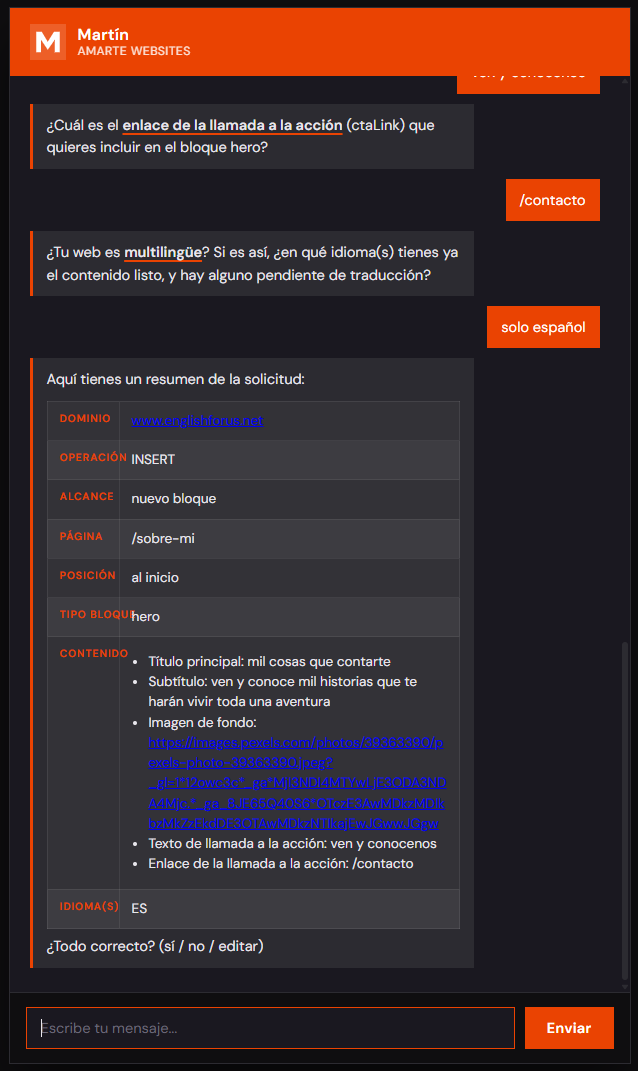
Before creating the ticket, Martín shows you a complete summary with all the collected data, in a confirmation block.
For deletions, you'll always see an irreversibility warning first.
You can reply "Yes" for Martín to create the ticket, "No" to cancel the process, or "Edit" for Martín to ask which field or section you want to correct; he keeps all the other data already collected and shows you the full summary again.
Martín never creates the ticket without your explicit confirmation.
⚠ Important: deleted blocks cannot be recovered. To use them again, you'll need to create them from scratch. When deleting an entire page, Martín automatically updates related references to avoid navigation issues, and the page stops being available as soon as the change is applied.
Step 4
Ticket creation and SLA
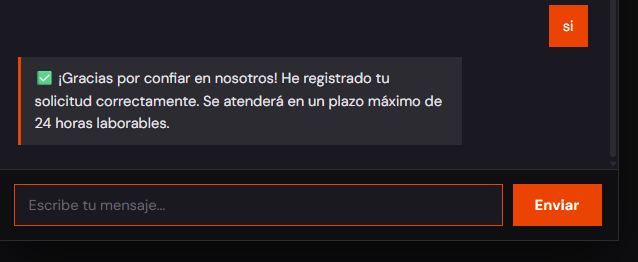
After your confirmation, Martín registers the request and tells you the turnaround time.
The 24-business-hour deadline starts immediately Monday through Thursday and on Fridays before 17:00 (Madrid time). If you submit the request on Friday at or after 17:00 or during the weekend, the deadline starts the following Monday at 09:00. Martín will explicitly indicate this when it applies.
Frequently asked questions
Exactly when is the change applied?
The Amarte team applies it within a maximum of 24 business hours from ticket creation. There is no guaranteed exact time within that window.
Can I upload images directly through Martín?
No. Martín only accepts a public link to the image (Google Drive, Dropbox or similar); the team downloads it and uploads it when deploying the change.
My website is multilingual, what should I do?
Indicate which language(s) you already have content ready for and which one is missing. Martín collects each version field by field and notes in the ticket which language is still pending translation.
Can I change the type of an existing block?
Not directly. Martín proposes deleting the current block and adding a new one of the type you want, as two separate tickets.
Can I publish, edit or delete blog articles with Martín?
No. That's handled by the blog publishing chatbot: Martín automatically redirects you if you ask him.
What happens if I close the browser mid-conversation?
The session is lost. You'll need to start from Step 1. That's why it's best to have all your content ready before starting the chat.
Can I handle several requests in the same session?
No. Each chat session handles a single request (one block, one page, or one set of changes to the same block). For another request, start a new session.
I asked to delete something and regretted it, can I undo it?
Not automatically. If the deletion ticket has already been created, contact the Amarte team as soon as possible: they may still be in time to cancel the change before it's applied. If it's already been applied, the team will check whether a backup is available to recover from.
What happens to links pointing to a page I delete?
Any external link to that URL will stop working after the deletion. If the page has traffic, let the Amarte team know so they can consider a redirect.