Marte Guide
How to manage a sports tournament with the amarte websites editor
This guide explains step by step how to create and update a tournament on your website using the aMarte Sports editor: from adding the right block to configuring groups, results and team shields. No coding required.
Block name
Sports Results
Manual block for tournaments and match results. You will find it in the 'Sports blocks' category in the aMarte Sports editor.
The blocks you need to build a tournament
A complete tournament page in aMarte Sports is built by combining these blocks. The most important one is Sports Results: it is the core block where all phases, matches and scores live, updated directly from the editor.
Sports Results
The main block. Here you configure the tournament phases (groups, semi-finals, final), add matches, scores and shields. Everything is updated manually from the editor — no coding needed.
List of Logos
Displays sponsor logos at the top of the groups page. Perfect for giving visibility to partner brands.
Standings
Standings table per group. Shows points, wins, losses and goals. Add one per group.
Grid
To celebrate the champion. Add the winning team's shield with a festive background animation and a congratulations message.
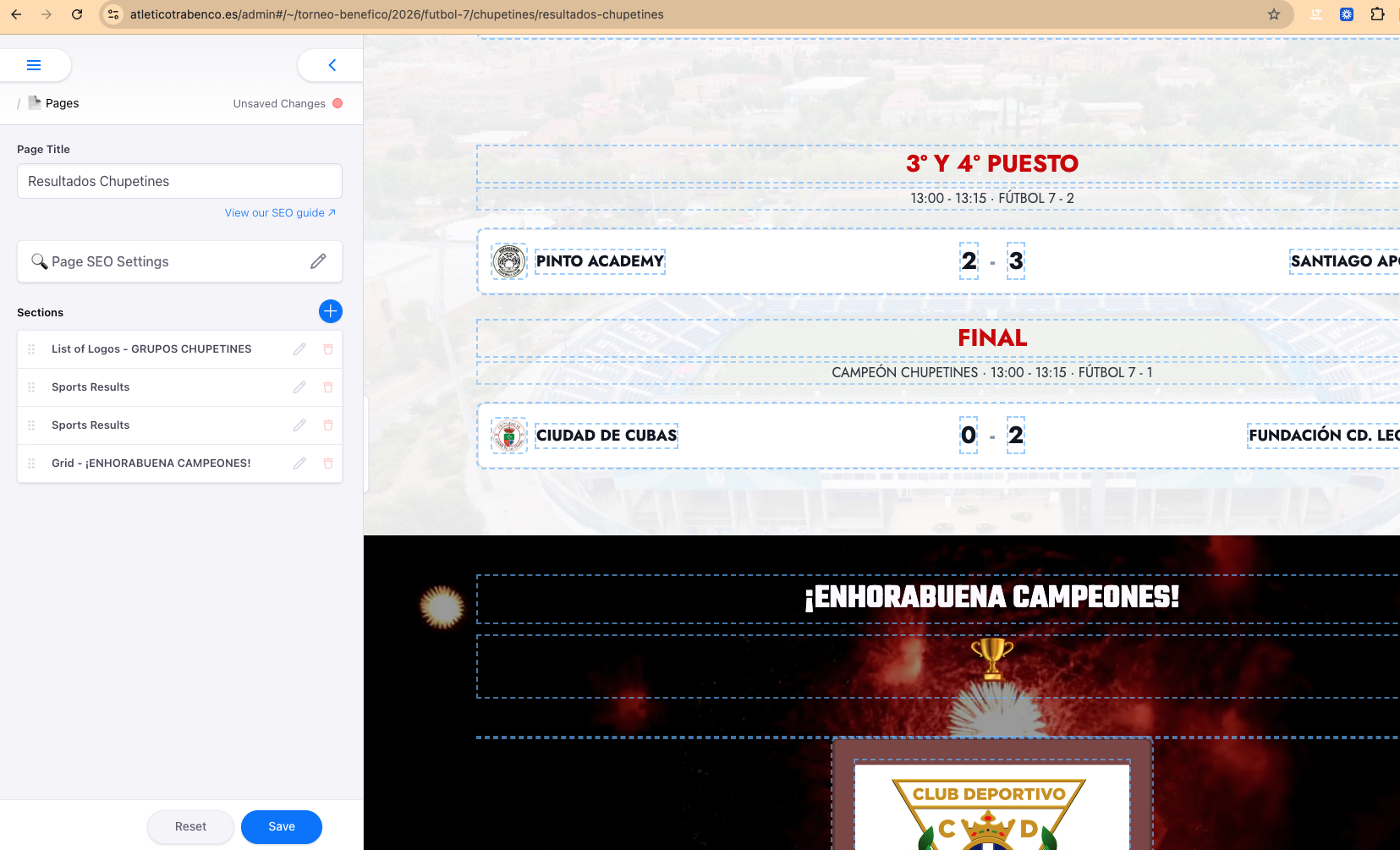
Step 1: Open the tournament page in aMarte Sports
- Log in to your website's aMarte Sports editor (usually at /admin).
- Navigate to the page where you want to display the tournament.
- If the page does not exist yet, create a new page from the 'Pages' menu.
Step 2: Add the 'Sports Results' block
- In the page editor, scroll to the blocks section and click 'Add block'.
- Find the 'Sports blocks' category and select the block called Sports Results.
- The block will appear on the page ready to configure.
This block is manual: you enter the tournament data directly, with no connection to any external API.
Step 3: Create the tournament phases
- Inside the Sports Results block you will see a 'Tournaments' list (phases or rounds of the tournament).
- Click 'Add item' to add a new phase: Group 1, Semi-final 1, Final, etc.
- For each phase, type the name in the 'Tournament Name' field (e.g. «Semi-final 1») and an optional description.
Step 4: Add the match results
- Inside each phase, expand the 'Results' list and click 'Add item' for each match.
- Fill in the fields: Team 1 Name, Team 1 Score, Team 2 Name, Team 2 Score.
- You can also add the date, time and venue of the match.
- Repeat for every match in every phase.
If a match has not been played yet, leave the score fields empty. No score will be shown.
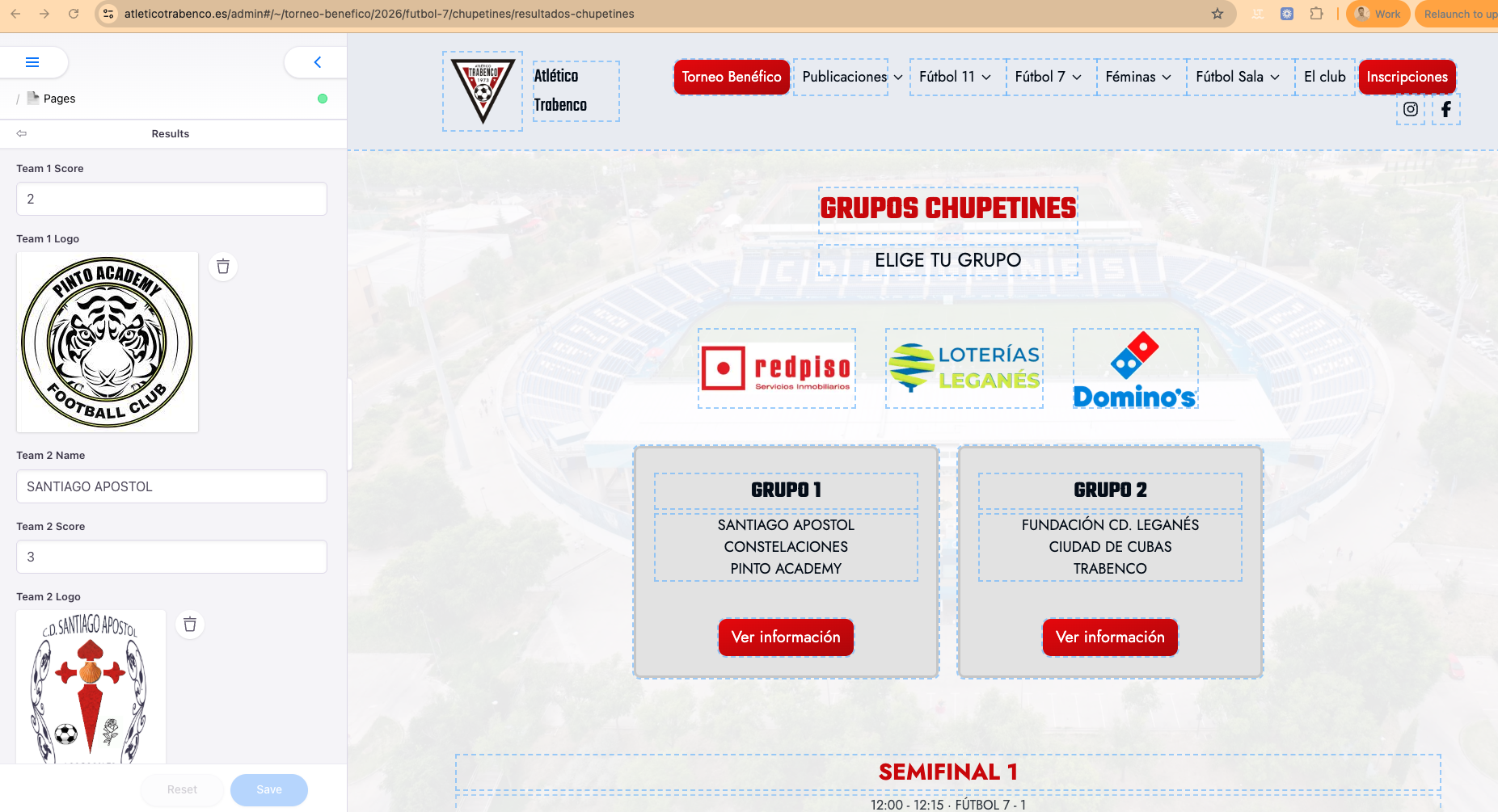
Step 5: Add team shields
- In each match, the 'Team 1 Logo' and 'Team 2 Logo' fields let you assign the team shield.
- Click the image field and select the shield from the 'escudos' folder in the media gallery.
- If the shield has not been uploaded yet, see the 'Shields' section below.
Step 6: Save and review
- Click 'Save' to save all changes.
- Open the page URL in your browser to check that results, phases and shields display correctly.
- Repeat the process whenever there are new results: just edit the relevant match and update the score.
Highlight your sponsors on the groups page
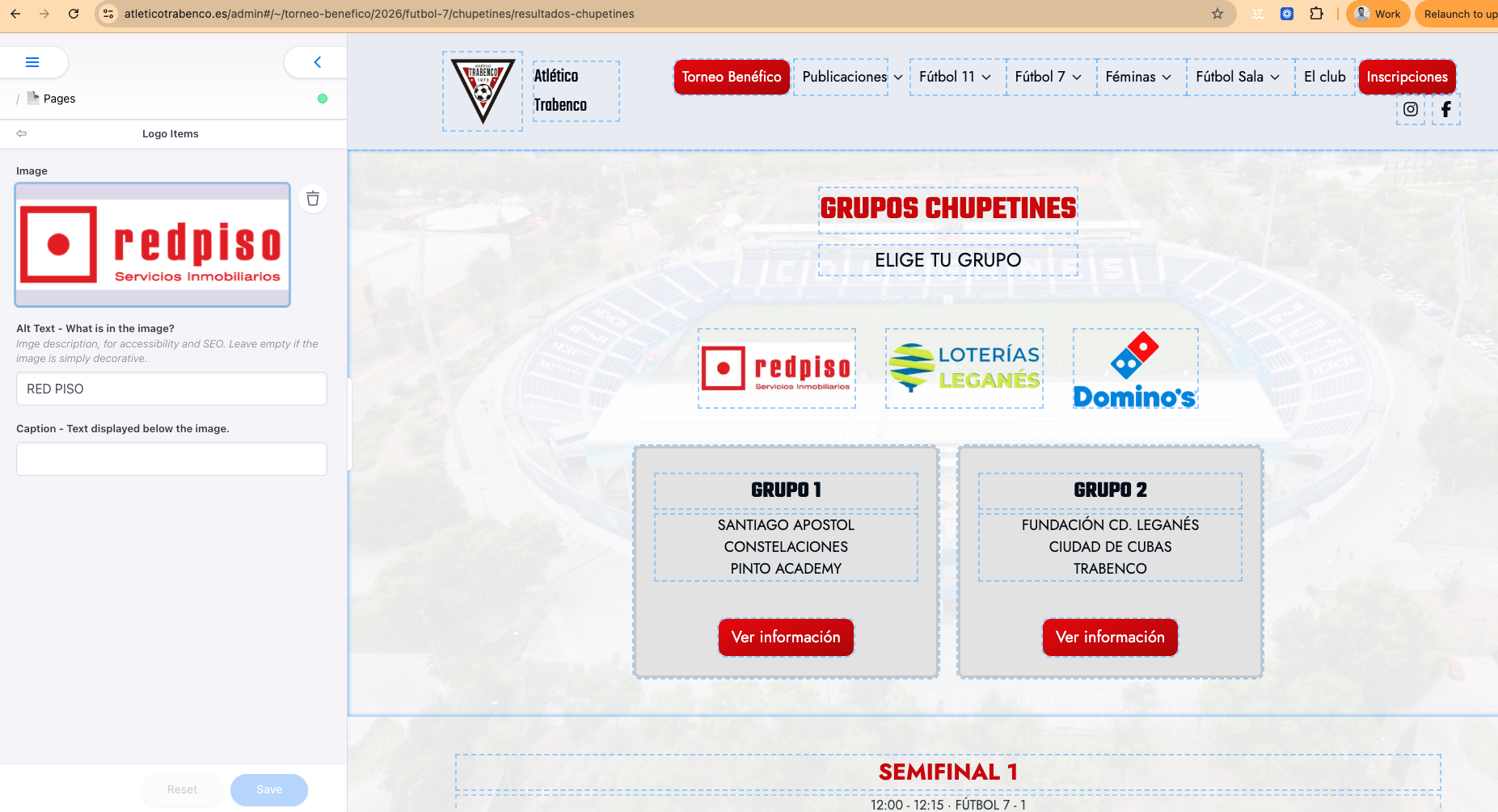
You can display sponsor logos at the top of the groups page. Use the 'Logo Items' block from the 'Sports blocks' category to add them in a visually appealing way, right above the groups and results.
Block name
Logo Items
Block for displaying a row of logos. Perfect for sponsors, partner brands or institutions.
- In the groups page editor, click 'Add block' and select the 'Logo Items' block from the 'Sports blocks' category.
- Click 'Add item' for each sponsor: upload their logo and fill in the 'Alt Text' field with the brand name (important for accessibility and SEO).
- Place the block at the top of the page, before the results and groups block.
- Save your changes. The logos will appear aligned in a horizontal row, as shown in the example.
Want to add a standings table too?
If the tournament has a group stage with a standings table (points, wins, losses…), you can add the 'Standings' block to the same page to show the full table for each group.
Block name
Standings
Manual block for standings tables. Also in the 'Sports blocks' category.
- Add one Standings block per group (Group 1, Group 2, etc.).
- Inside the block, expand the 'Teams' list and add each team with its name and shield.
- Fill in the statistics: Points, Games Played, Wins, Draws, Losses, Goals For/Against.
- Save the changes. The standings table will appear above or below the results depending on the block order.
How to upload and manage shields
Keeping shields well organised is essential: the editor loads them from the media gallery folder, and if a file is missing or named incorrectly, the block will display a blank space. Take a few minutes to upload them correctly from the start.
Gallery path
uploads/escudos/
escudo-nombre-del-club.png
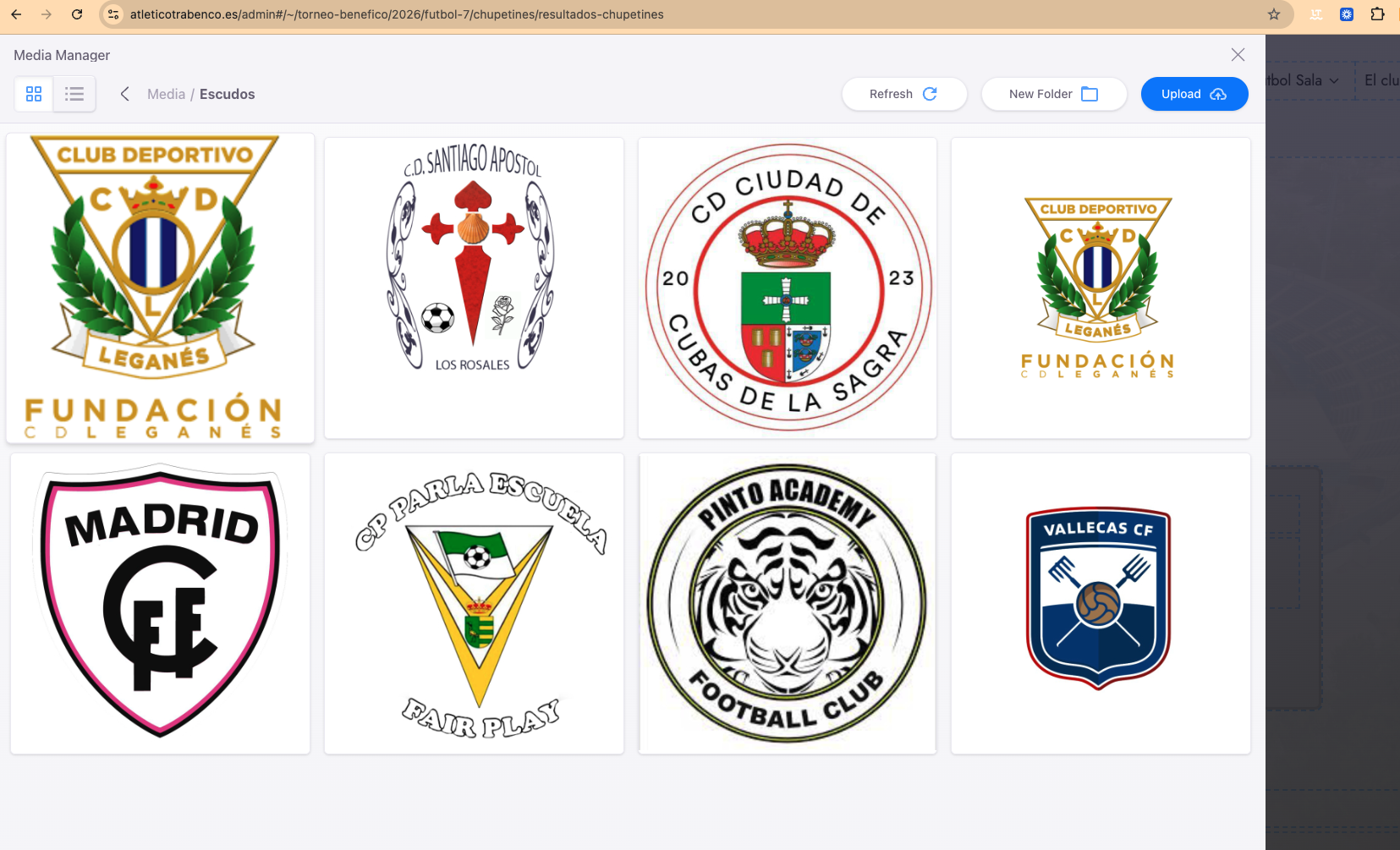
- Go to the aMarte Sports media gallery and navigate to the 'escudos' folder (create it if it does not exist).
- Upload the shield file and name it following this pattern: escudo-club-name.png (all lowercase, words separated by hyphens).
- Correct examples: escudo-pinto-academy.jpeg, escudo-cd-santiago-apostol-los-rosales.jpg, escudo-atletico-trabenco-zarzaquemada.png.
- Once uploaded, the shield will be available in all image fields in the Sports Results and Standings blocks.
- If you have many teams, upload all shields before starting to configure matches — they will be ready in the image picker without having to leave the block.
Highlight the champion with a Grid block
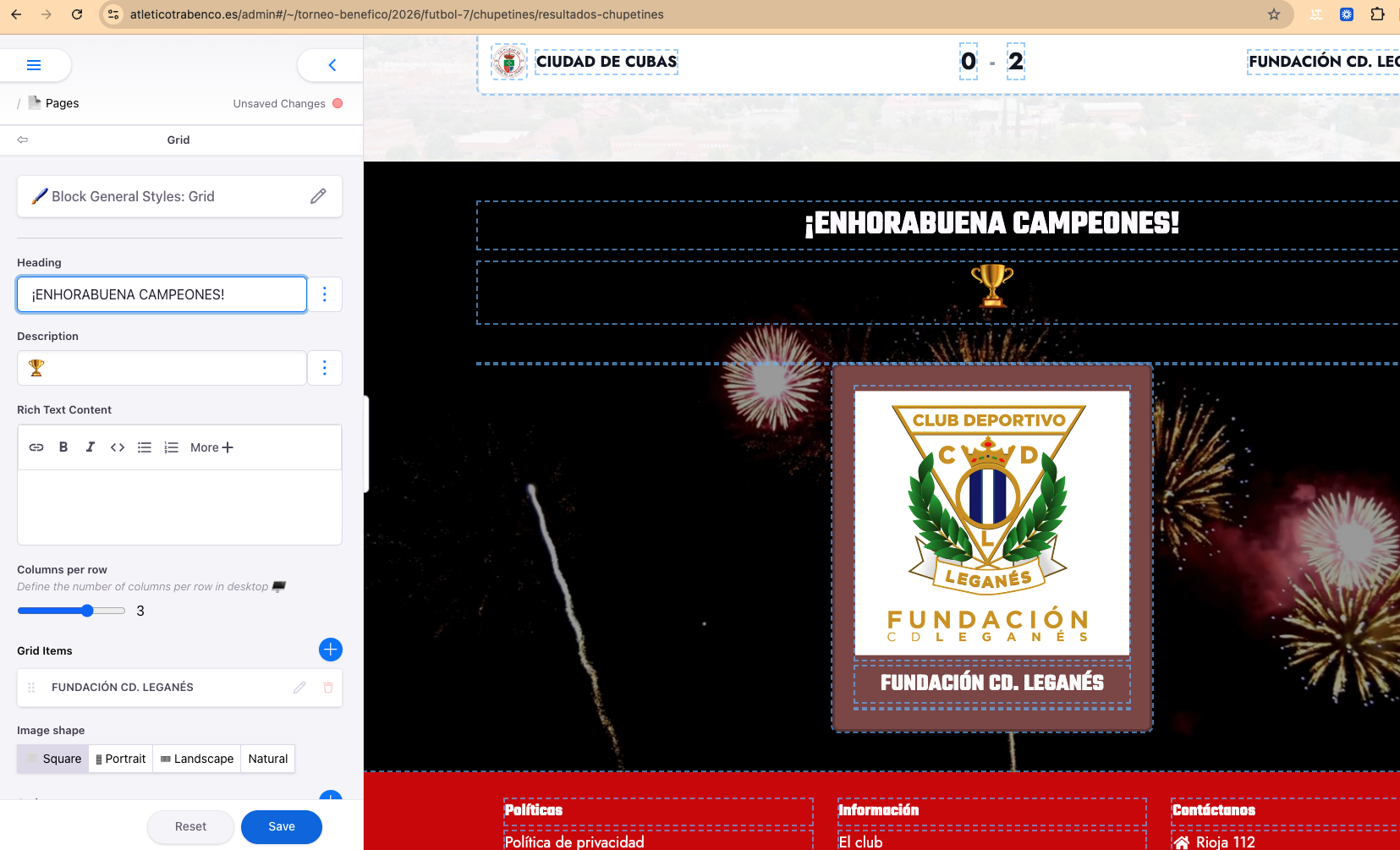
Once the tournament ends, you can add a special block to congratulate the winning team. The 'Grid' block lets you showcase the champion's shield with a festive background animation — like fireworks — turning the page into a true tribute.
Block name
Grid
Multi-purpose grid block. Supports items with image, title and text, plus animated or multimedia backgrounds.
- Add a 'Grid' block at the top of the tournament page (before the results).
- In the 'Heading' field write the congratulations message, e.g. «¡ENHORABUENA CAMPEONES!».
- In 'Description' you can add a festive emoji like 🏆 or the winning team's name.
- In 'Grid Items', click '+' and create an item: upload the champion's shield and set their name as the item title.
- For the animation, go to the block's 'Background Media' and upload a short fireworks video (or any looping animation). The editor plays it automatically.
- Set 'Columns per row' to 1 or 3 depending on how many teams you want to highlight.
- Save your changes. The result is a visually striking celebration page.
The background video should be short (5-10 seconds), lightweight and in MP4 format so it loads quickly on mobile.