
Support — Conversational agent
Article publishing guide with Martín
What is Martín and what can he do?
Martín is the Amarte Websites conversational agent. He guides you through a conversation to collect all the information about your article and automatically open a work ticket in our internal system. The Amarte team receives that ticket and publishes the article within 24 business hours.
Martín can:
- ✓Verify that your domain is active on the platform.
- ✓Guide you to complete all article fields.
- ✓Automatically suggest the slug (URL path) and tags.
- ✓Show you a full summary before creating the ticket.
- ✓Open the ticket in Jira after your explicit confirmation.
Martín cannot:
- ✗Update or delete already published articles.
- ✗Publish directly — Publiblog is a static system, it always goes through the team.
- ✗Answer general technical questions about your website.
- ✗List or search existing articles.
Before you start — prepare this information
| Campo | Obligatorio | Detalles |
|---|---|---|
| Domain | Sí | Your website URL (e.g. company.com) |
| Title | Sí | Maximum 90 characters |
| Content (body) | Sí | Plain text, between 800 and 1,500 words, no HTML or Markdown |
| Tags | Sí | Martín suggests them; you confirm or change |
| Publication date | Sí | Default is today's date |
| Author | Sí | Full name or pen name |
| Slug | Sí | Martín suggests it from the title; you confirm or change |
Consejo: Prepare the article text in a plain text editor (Notepad, TextEdit, etc.) before opening the chat. Avoid pasting formatted content as it usually includes hidden formatting.
The complete step-by-step flow
Step 1
Domain verification
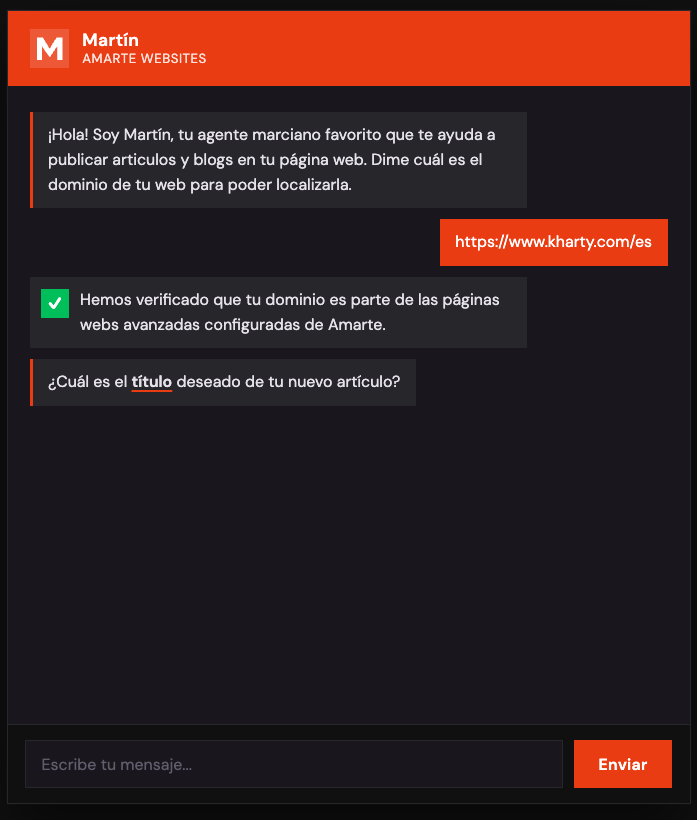
Martín welcomes you and asks for your website domain.
What to respond: your website domain, for example mycompany.com or shop.co.uk. No need to include https:// or www.
If the domain is not recognized, check that you typed it correctly. If you believe it should be active, contact the Amarte team.
Step 2
Article title
Martín asks for the article title exactly as you want it to appear on the website.
Rules: maximum 90 characters. If you exceed that limit, Martín will ask you to shorten it before continuing.
Valid examples: «How to improve your website SEO in 2026», «5 reasons to have a professional website», «Complete digital marketing guide for SMEs».
Step 3
Article content
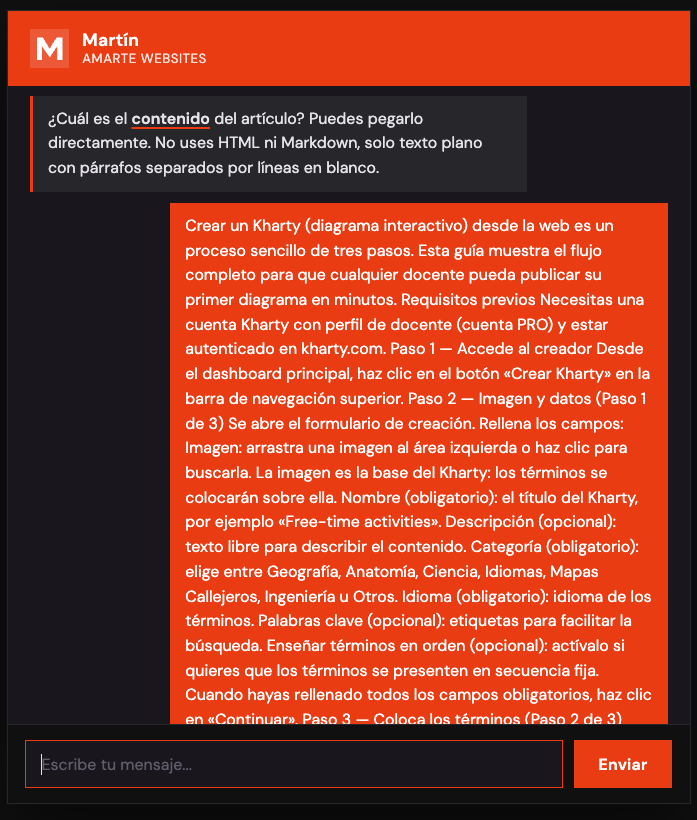
Martín will ask for the full article text.
Content rules: plain text only, no HTML tags or Markdown. The content should be between 800 and 1,500 words. Paragraphs must be separated by a blank line.
If you copy from Word or Google Docs, remove formatting before pasting. In Word: Paste Special → Plain Text. In Google Docs: Ctrl+Shift+V (paste without formatting).
Step 4
Tags
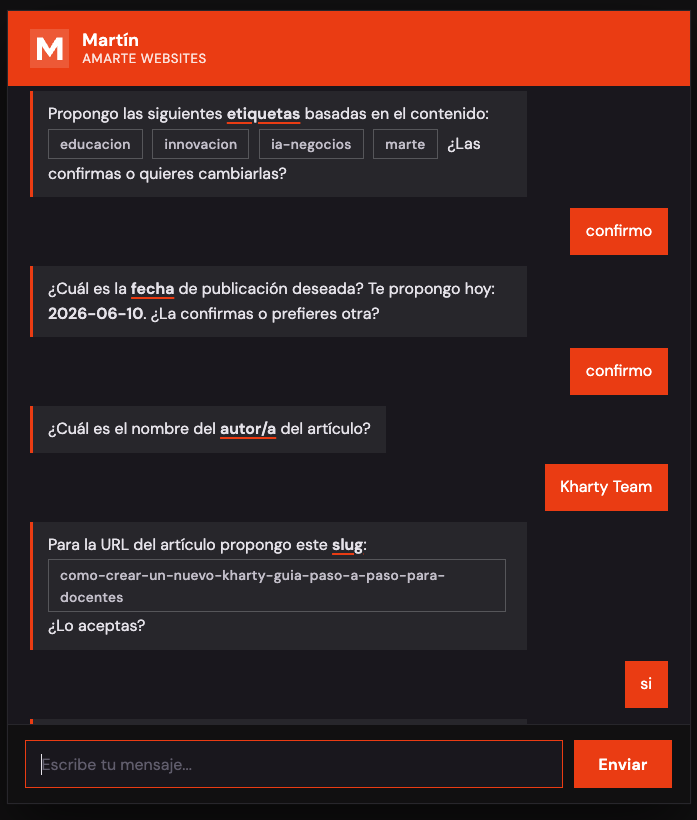
Once Martín has the title and content, he analyzes the topic and suggests between 2 and 5 tags from Amarte's approved taxonomy.
You can confirm the suggested tags or specify your own. Using between 2 and 6 tags is recommended: fewer than 2 makes the article hard to discover; more than 6 dilutes the signal.
Available categories: technology & AI, SEO & visibility, web development, business & marketing.
Step 5
Publication date
Martín suggests today's date. You can confirm it or indicate another date in any format («July 15th», «2026-07-15», «next Monday»).
Note: the date field controls the order in the blog listing. Scheduled publishing is not supported — the article appears as soon as the team deploys it, regardless of the date indicated.
Step 6
Author
Enter the name of the article's author. If you prefer not to specify, you can use your company or brand name.
Step 7
Slug (article URL)
Martín automatically generates the slug from the title. For example, the title «How to improve your website SEO in 2026» becomes how-to-improve-your-website-seo-in-2026.
You can accept it or suggest a different one.
Slug rules: lowercase only, words separated by hyphens, no accents or special characters, between 3 and 7 words.
Warning: the slug cannot be changed once the article is published without breaking external links and search engine rankings. Choose a descriptive and definitive one.
Step 8
Ticket confirmation
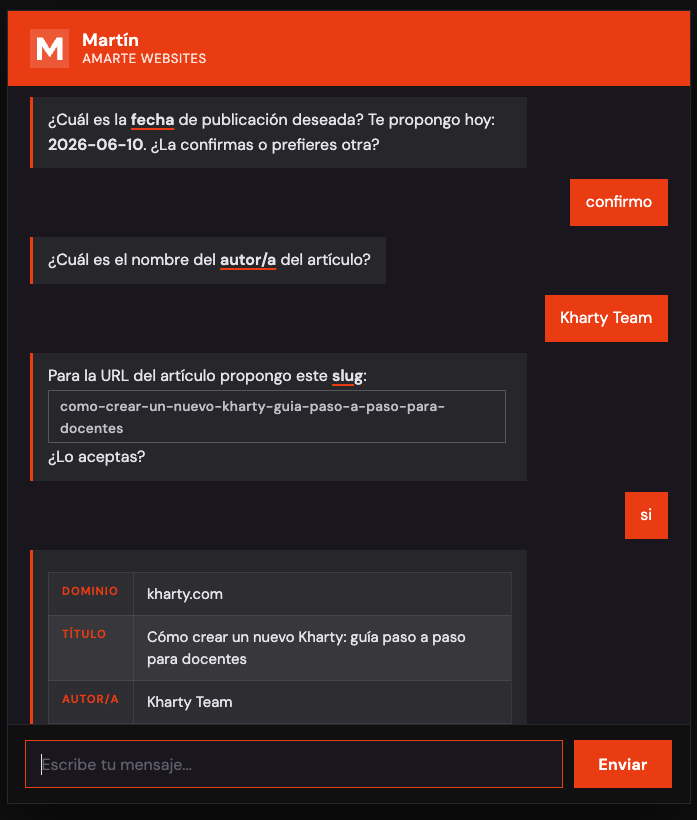
Before creating the ticket, Martín shows you a complete summary with all the data: domain, title, author, date, slug, tags and an excerpt of the body.
You can confirm the summary, cancel the process or indicate which field you want to correct. Martín never creates the ticket without your explicit confirmation.
Step 9
Ticket creation and SLA
After your confirmation, Martín creates the ticket and responds with the reference (e.g. MAR-891).
The 24-business-hour deadline starts immediately Monday through Thursday and on Fridays before 17:00 Madrid time. If you submit the request on Friday at or after 17:00 or during the weekend, the deadline starts the following Monday at 09:00. Martín will indicate this explicitly.
Save the ticket reference to follow up with the Amarte team.
Frequently asked questions
When exactly is the article published?
The Amarte team publishes it within a maximum of 24 business hours from ticket creation. There is no guaranteed exact time within that window.
Can I schedule the publication for a future date?
You can indicate a future date in Step 5. The article will appear in the listing with that date, but will be technically visible as soon as the team deploys it. Automatic scheduled publishing is not supported.
Can I add images to the article?
Images cannot be managed through Martín. If you want a header image, let the Amarte team know when contacting them with the ticket reference.
Can the article be in English as well as Spanish?
If your website is bilingual, the Amarte team can create the article in both languages. Let them know in the notes once you have the ticket reference.
Can I talk to Martín at any time?
Yes. Martín is available at any time. Keep in mind that if you open the chat and don't complete the conversation, when you reopen it, it will start from the beginning.
What happens if I close the browser mid-conversation?
The session is lost. You will need to start from Step 1. That is why it is recommended to have all your content ready before starting the chat.
Can I create several articles in one session?
No. Each chat session handles a single article. To publish another article, start a new chat session.
The title has more than 90 characters, what do I do?
Shorten it by removing secondary words. For example, instead of «A complete and detailed guide on how to improve your Google ranking in 2026», use «How to improve your Google ranking in 2026».