

Marte Guide
Add a page to your website
Managing pages on your Marte CMS website is easy and intuitive. This step-by-step guide will show you how to access page management, create new pages, delete them or manage their routes.
Create new page
- Open any page with your editor.
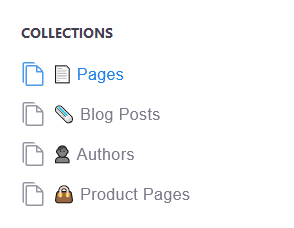
- Open the side menu.
- Click on "Pages".
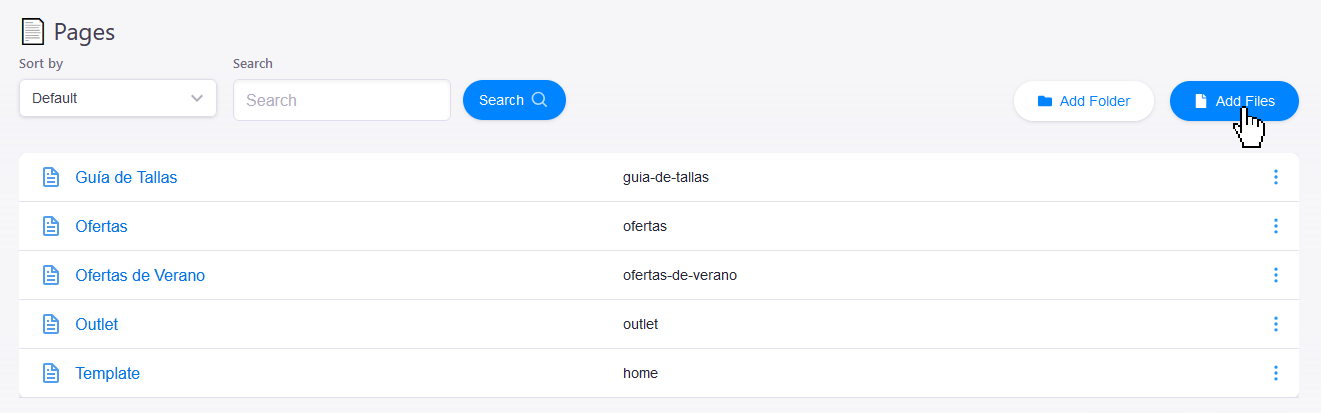
- On the page management screen you have access to all pages. Click the blue "Add Files" button (top right) to create a new one.
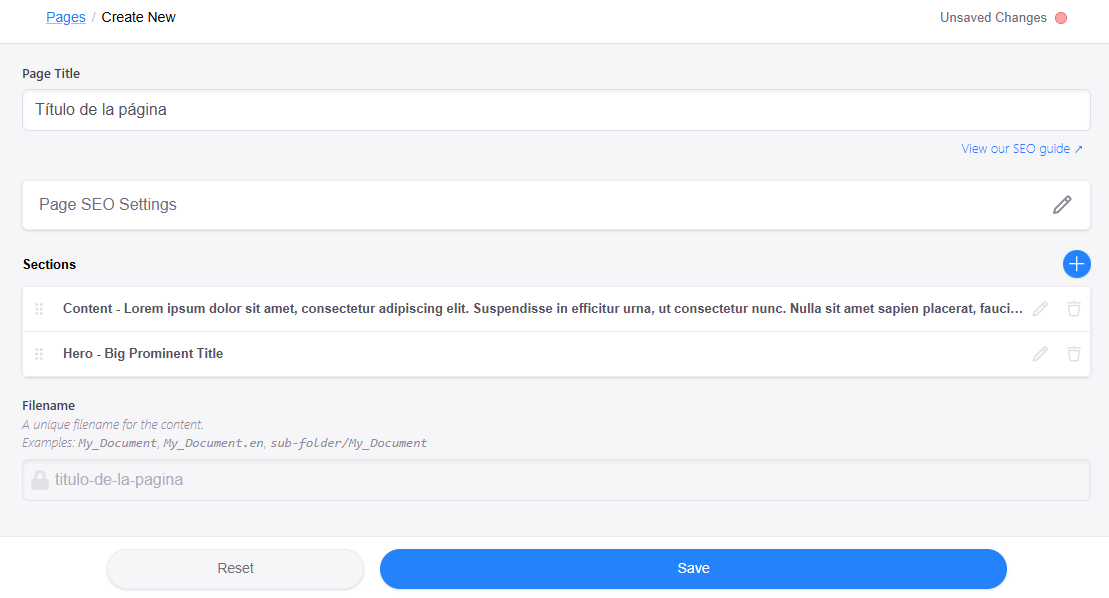
- Fill in the information: enter the Title in "Page Title". The "Filename" is generated automatically (lowercase and hyphens); you can change it. This defines the page route.
- Click the blue "Save" button to add it to the list.
Marte CMS Guide
Create a folder to organize your pages
Organizing your website efficiently is essential. With Marte CMS you can create folders to add subpages, making hierarchy easier and improving the user experience. Follow this guide to learn how to create and manage folders that group your subpages clearly.

Step 1: Create a folder
- Open any page with your editor, side menu and click on "Pages".
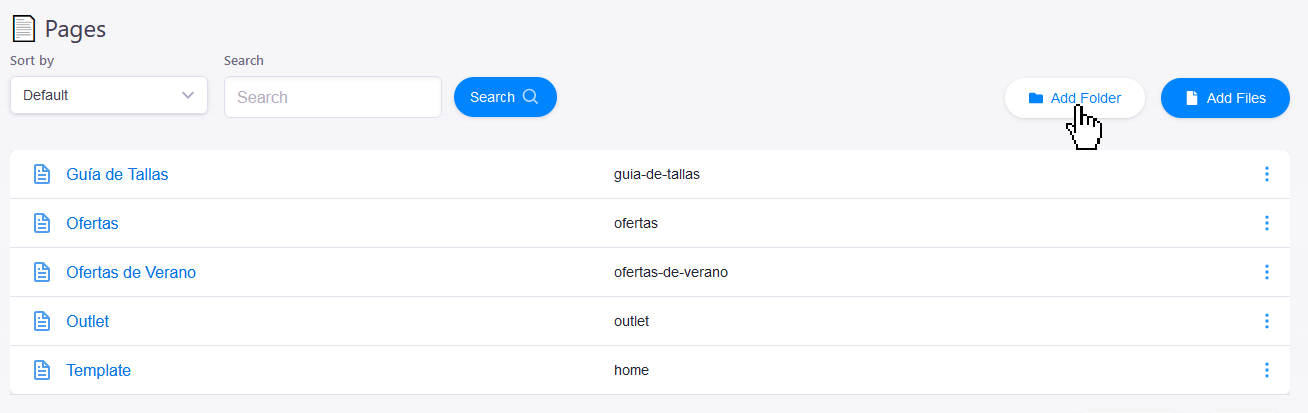
- On the page management screen click the "Add Folder" button.
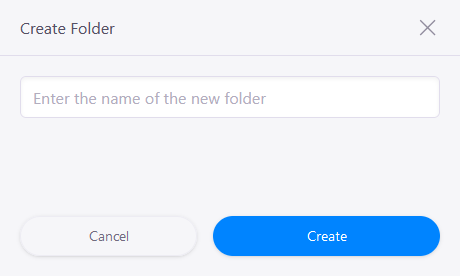
- In the modal window enter the folder name. Use lowercase letters, hyphens and numbers. Special characters and spaces are not allowed. Press the blue "Create" button.
Step 2: Add a page to the folder
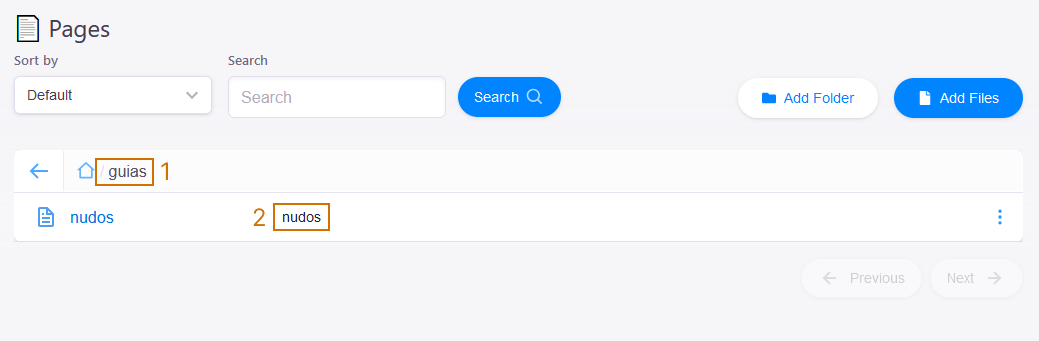
- Add pages to the folder with the blue "Add Files" button (top right). The process is the same as for creating new pages.
Marte CMS Guide
Create a link to the new page
Linking pages is key for smooth navigation. This section explains how to identify and use your page routes to create links, buttons or redirects.

Step 1: Identify the new page route
- Consider the folder name and then the page name. Example: page "nudos" in folder "guias" → route "/guias/nudos".
Step 2: Create a link to the new page
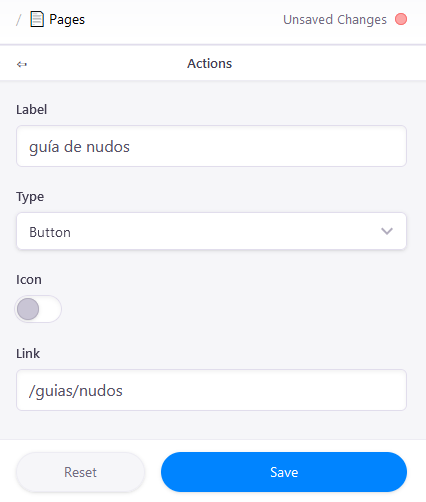
- In Pages identify the page URL. In the button "Link" section specify the route (e.g. "/guias/nudos").
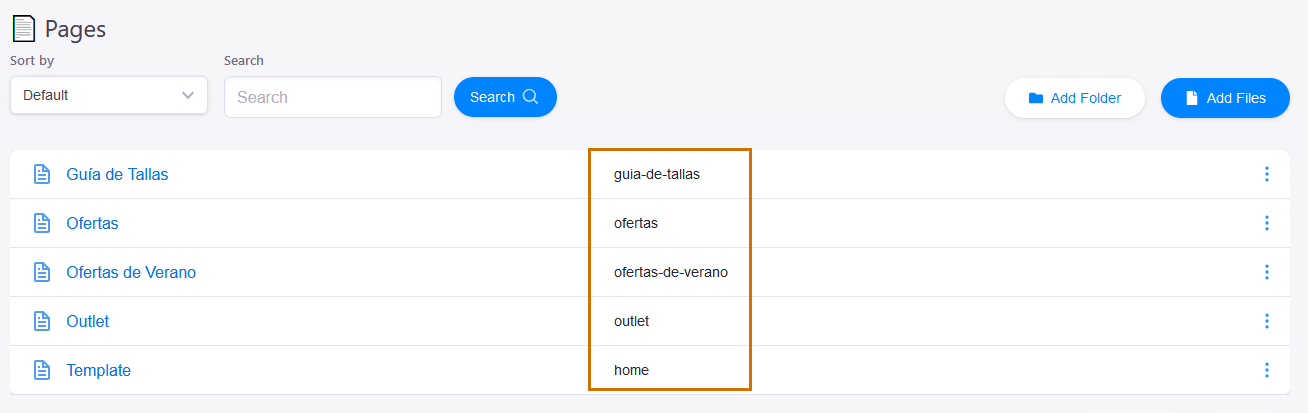
- If the page is not in a folder, specify only the route name (e.g. "/ofertas"). In the page list you can see the column with the route for each page.
Other frequently asked questions
About page management
How can I change my page URL?
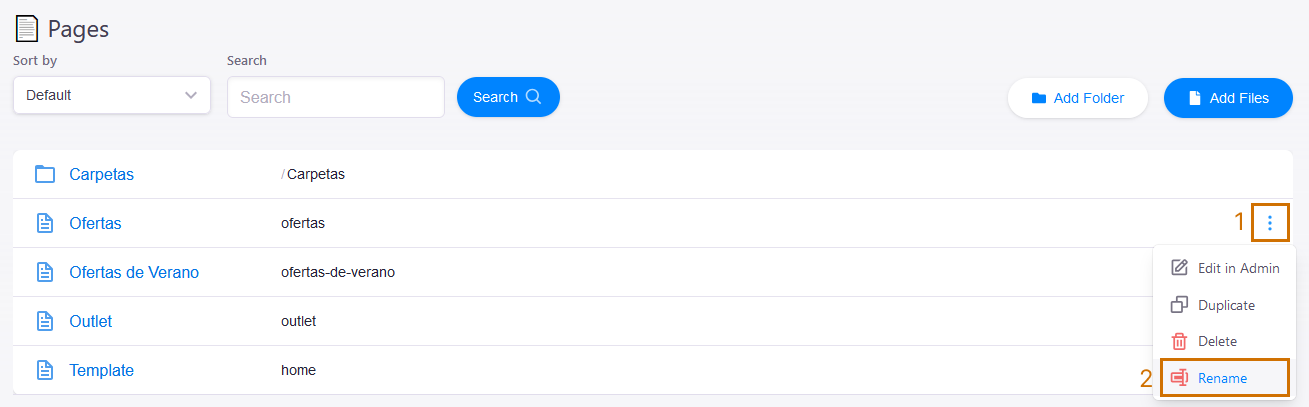
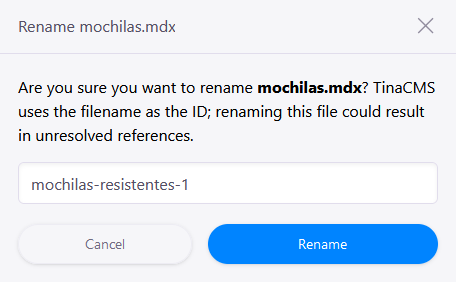
Go to "Pages" and click the three-dot icon for the page. Click the Rename option. A modal will open where you must use lowercase letters, hyphens and numbers for the new URL. Special characters and spaces are not allowed. Click the blue "Rename" button.
How do I delete or edit an existing page?
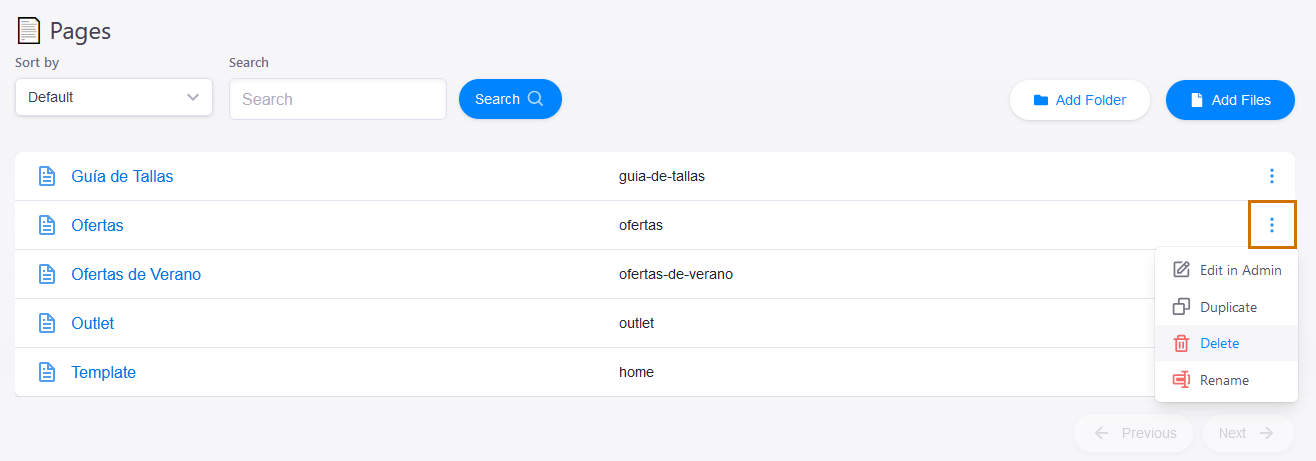
Access the Pages management screen. Click the options button (three dots) for any page in the list: you can edit, duplicate, delete and rename it.
How can I get a page route?
On the page management screen, in your site's page list, you can see a central column with the route for each page. If the page is inside a folder, the main route appears at the top of the list.