
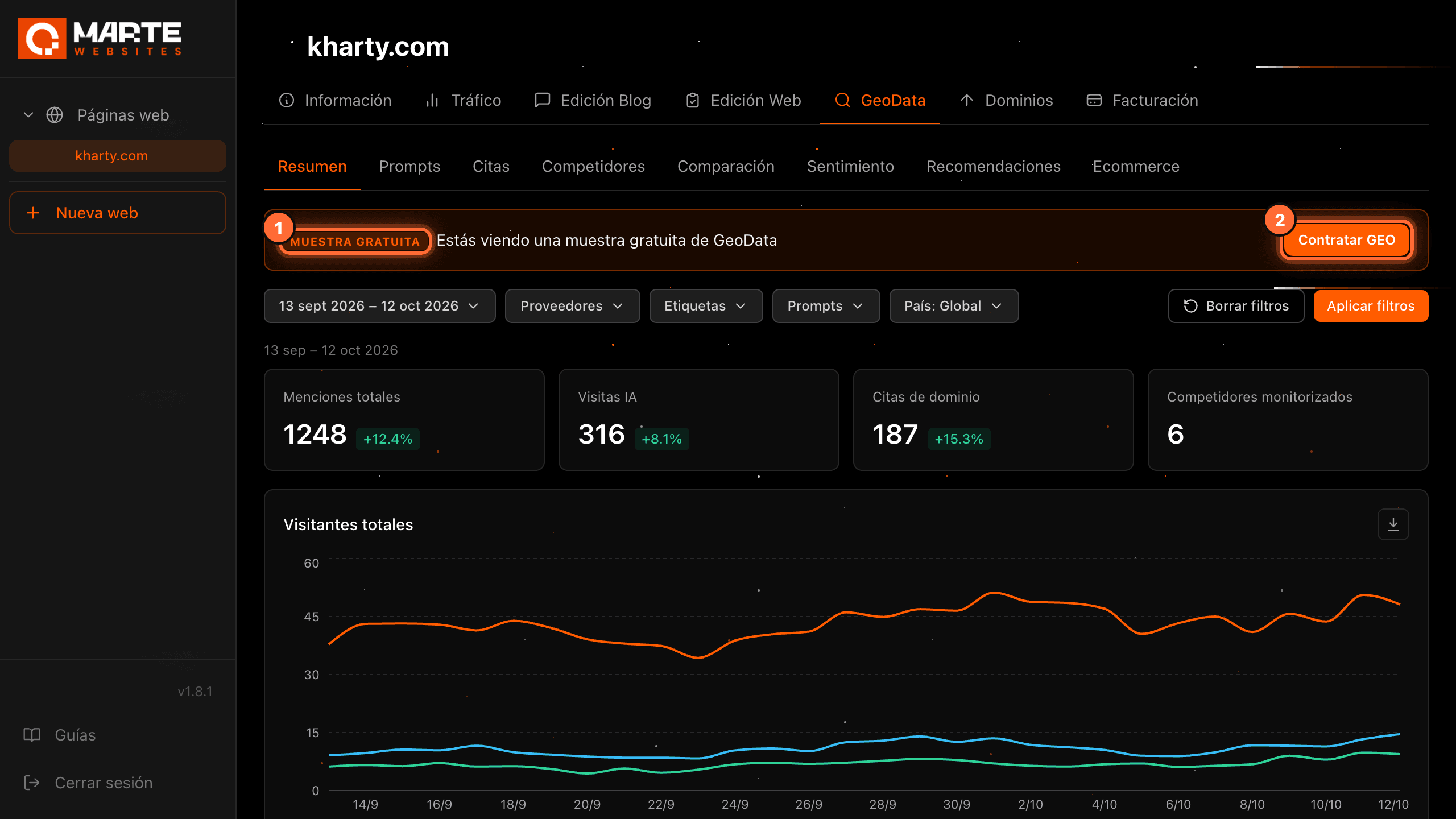
Panel: GeoData
The free GEO sample and how to get GEO
Before you start
Before you get GEO, the aMarte team can enable a free GeoData sample with real data about your brand. With the sample you can browse every sub-tab; adding and managing prompts, starting sentiment analyses or requesting recommendations requires a plan with GEO. If you are the website's client, you get it without leaving GeoData, in a single window.
Tip: What you see in the sample isn't lost when you subscribe: the sample prompt stays on your website, with its data. In this guide we use the fictional website "Kharty" (kharty.com), on the PLUS plan, as an example.
Step by step
Step 1
Recognise the free sample
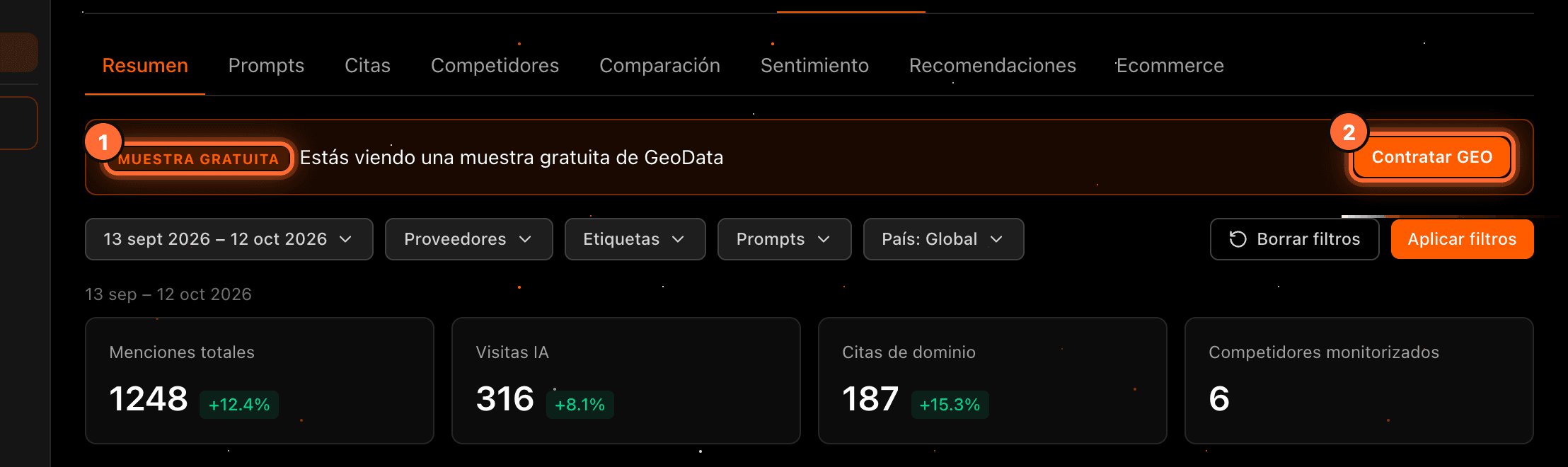
When your website is on the sample, every "GeoData" sub-tab shows the "Muestra gratuita" (Free sample) notice at the top, with the text "Estás viendo una muestra gratuita de GeoData" (You are viewing a free GeoData sample) (①) and the "Contratar GEO" (Get GEO) button (②).
You'll see the same notice if your website has GEO data but no longer has an active plan with GEO.
Step 2
The buttons stay active
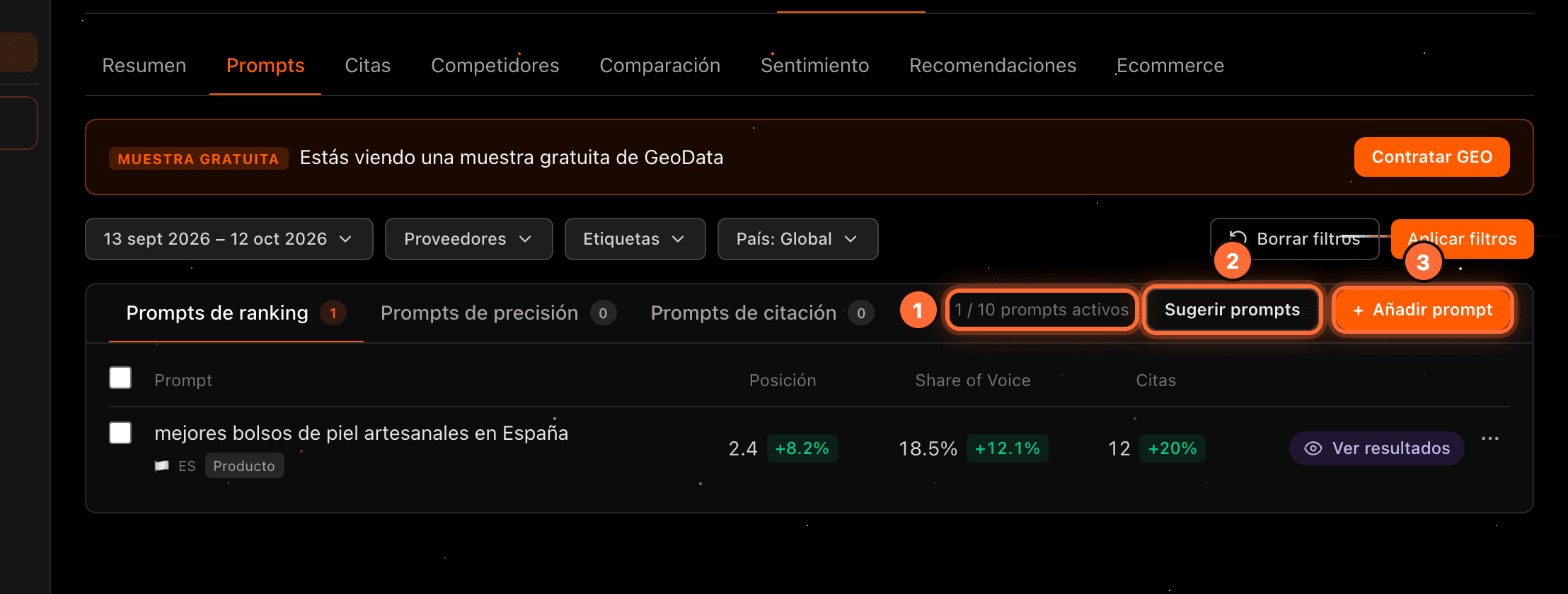
On the sample, the counter shows the prompts you have, for example "1 / 10 prompts activos" (1 / 10 active prompts) (①). "Sugerir prompts" (Suggest prompts) (②) and "Añadir prompt" (Add prompt) (③) aren't grey, and neither are the checkboxes or the "…" menu of each prompt. Clicking any of them doesn't carry out the action: it opens the window to get GEO (step 3).
Step 3
If you are the client: the window to upgrade to GEO
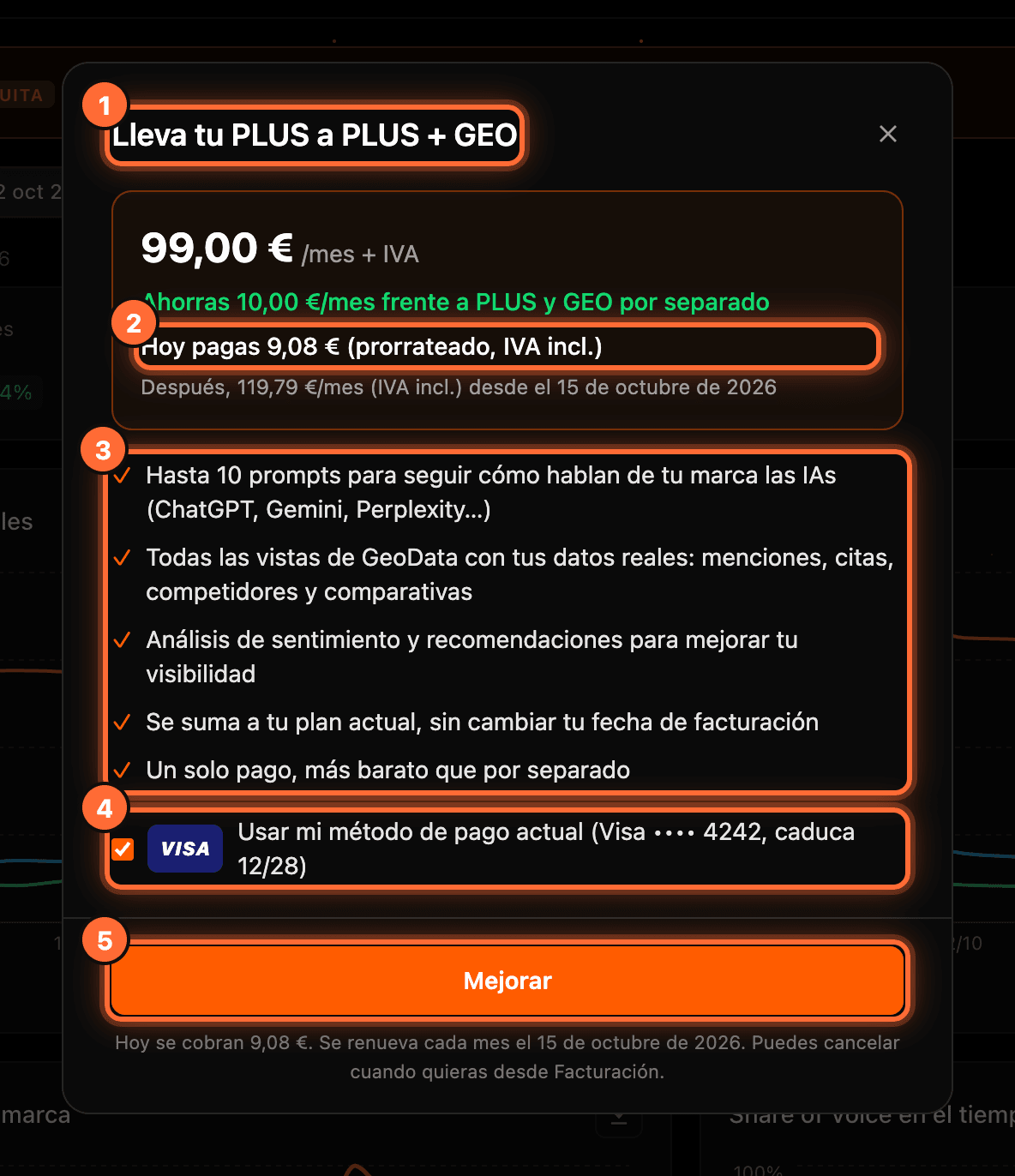
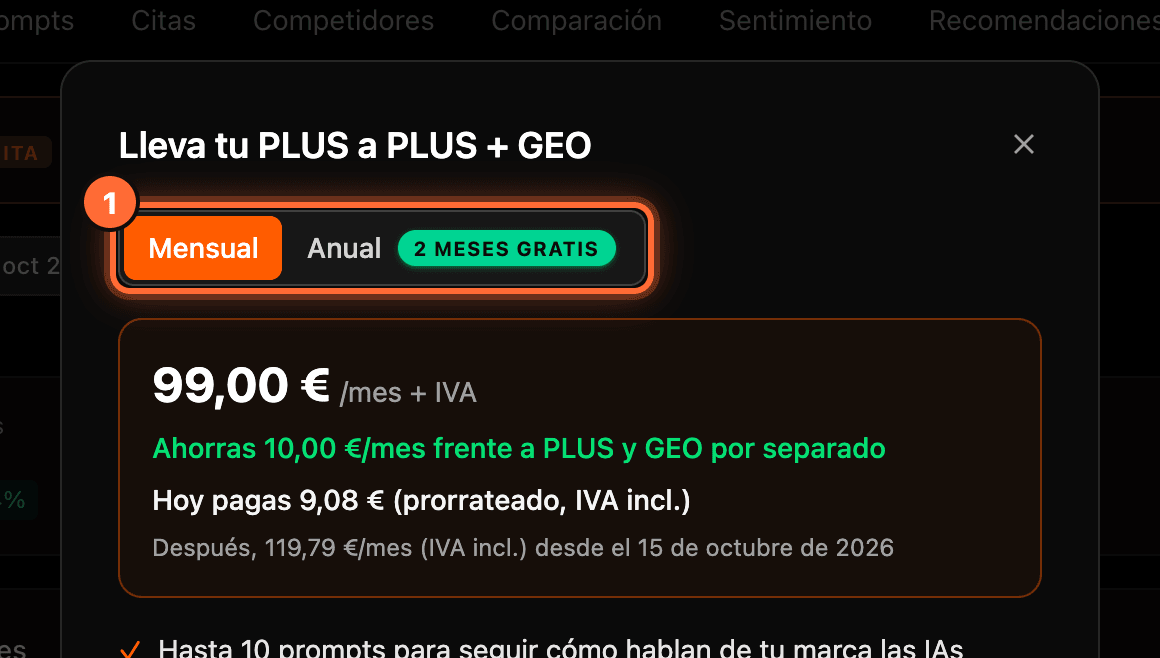
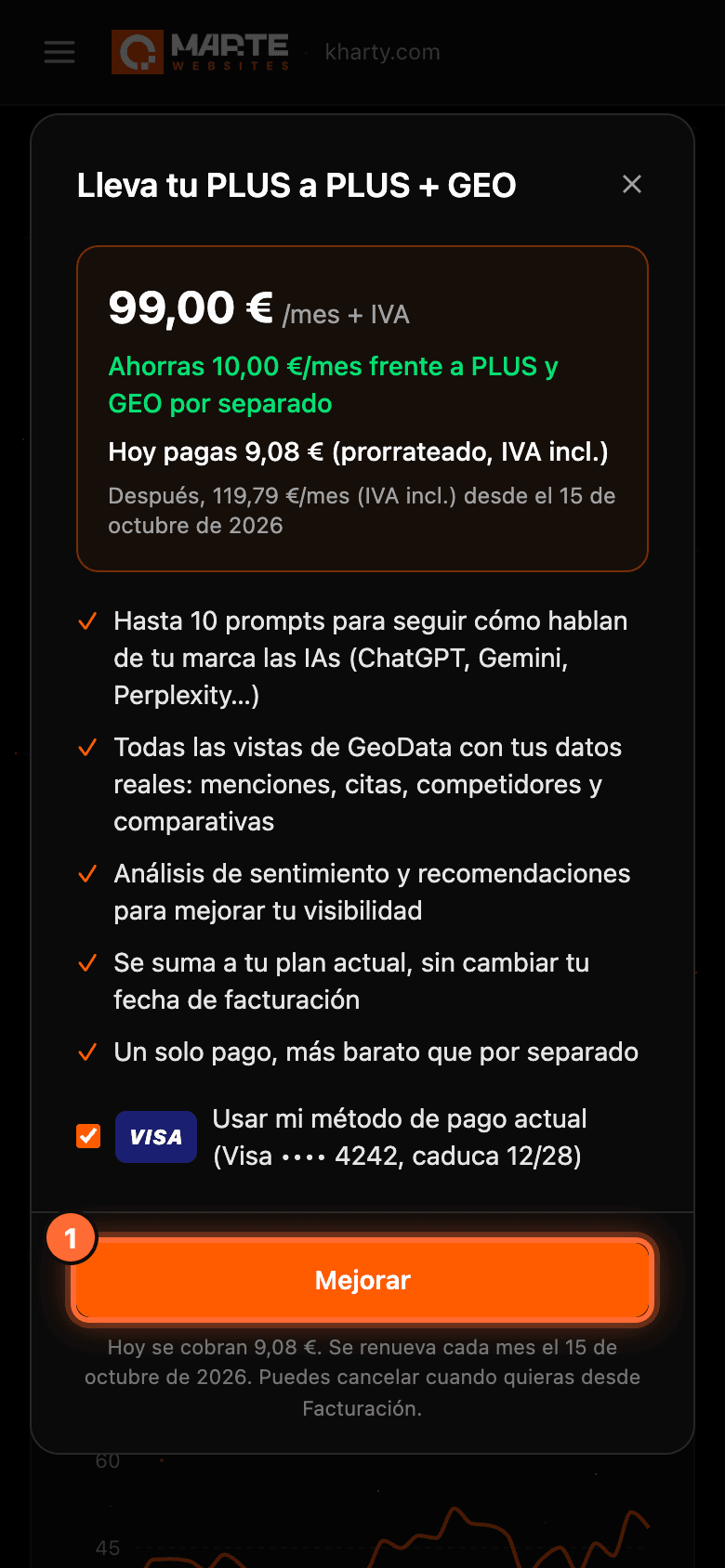
If you are the website's client (or the aMarte team), "Contratar GEO" opens a window with a single offer, the one that matches your plan (①): "Lleva tu PLUS a PLUS + GEO" (Take your PLUS to PLUS + GEO) if you have PLUS, or "Lleva tu PRO a PRO + GEO" if you have PRO. It shows: • The price, for example "99,00 € /mes + IVA" (€99.00/month + VAT), and how much you save compared with PLUS and GEO separately. • What you pay today (②), for example "Hoy pagas 9,08 € (prorrateado, IVA incl.)" (You pay €9.08 today, prorated, VAT incl.), and what you'll pay afterwards: "Después, 119,79 €/mes (IVA incl.) desde el 15 de octubre de 2026" (Then €119.79/month, VAT incl., from 15 October 2026). • What's included (③): up to 10 prompts, every GeoData view with your real data, sentiment analyses and recommendations. GEO is added to your plan without changing your billing date. • "Usar mi método de pago actual" (Use my current payment method) (④), ticked with your saved card, for example "Visa •••• 4242, caduca 12/28". • The "Mejorar" (Upgrade) button (⑤).
⚠ When you click "Mejorar", the "Hoy pagas" amount is charged today to your payment method. Check it before clicking. You can cancel whenever you want from "Facturación" (Billing).
Step 4
Monthly or annual, when available for your plan
The window uses the frequency you already pay with. When annual payment is available for your plan, you'll see the "Mensual" | "Anual" (Monthly | Annual) selector at the top (①); "Anual" carries the "2 meses gratis" (2 months free) tag. When you switch frequency, today's amount and the renewal date are recalculated.
If you don't see the selector, GEO is activated with your current frequency. If you choose "Anual" and your subscription can't change frequency from the panel, you'll see "El pago anual no está disponible para tu suscripción desde el panel. Puedes activar GEO con tu frecuencia actual." (Annual payment isn't available for your subscription from the panel. You can activate GEO with your current frequency.)
Step 5
Pay with your saved card or another one
With "Usar mi método de pago actual" ticked, just click "Mejorar". If you untick it, or if your website has no saved payment method yet, the secure payment form appears inside the same window so you can enter another card; in that case you'll see "El importe de hoy se calcula al guardar tu método de pago" (Today's amount is calculated when you save your payment method), and the amount is shown before anything is charged.
If your bank asks you to confirm the payment (3-D Secure), its verification window opens; confirm it and the change completes on its own. If the payment can't be completed, the window tells you and offers "Usar otra tarjeta" (Use another card).
We don't include a screenshot of the card form or the bank's verification: they are secure third-party screens.
Step 6
GEO activated!
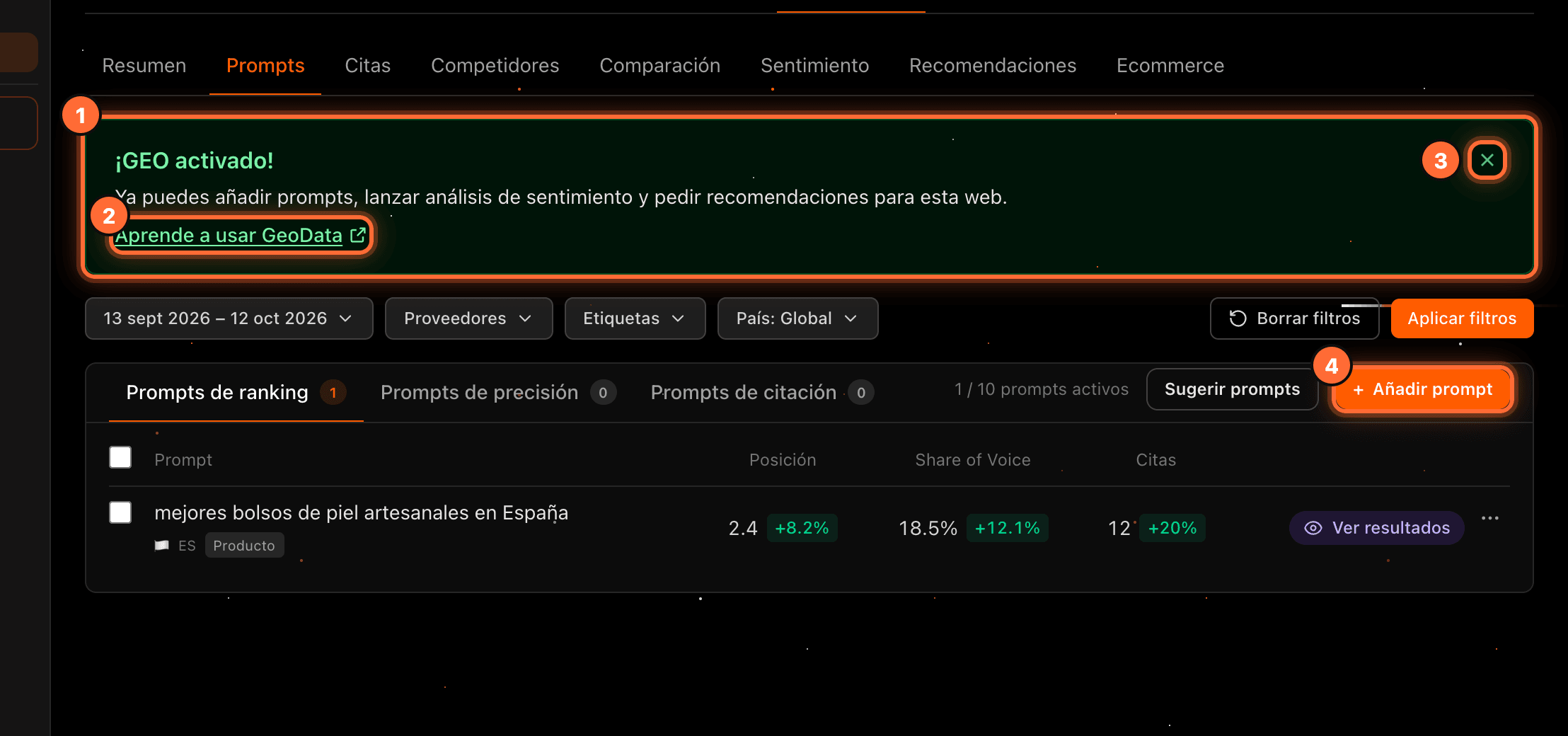
When the payment completes, the window closes and the green "¡GEO activado!" (GEO activated!) card appears (①) with the text "Ya puedes añadir prompts, lanzar análisis de sentimiento y pedir recomendaciones para esta web." (You can now add prompts, start sentiment analyses and request recommendations for this website.) • "Aprende a usar GeoData" (Learn to use GeoData) (②) opens these guides in a new tab. • The X (③) closes the notice.
The "Muestra gratuita" notice disappears and the buttons now carry out their action, for example "Añadir prompt" (④). The counter still includes the sample prompt: in the example, "1 / 10 prompts activos", so you can add 9 more.
Step 7
If you started from "Añadir prompt"
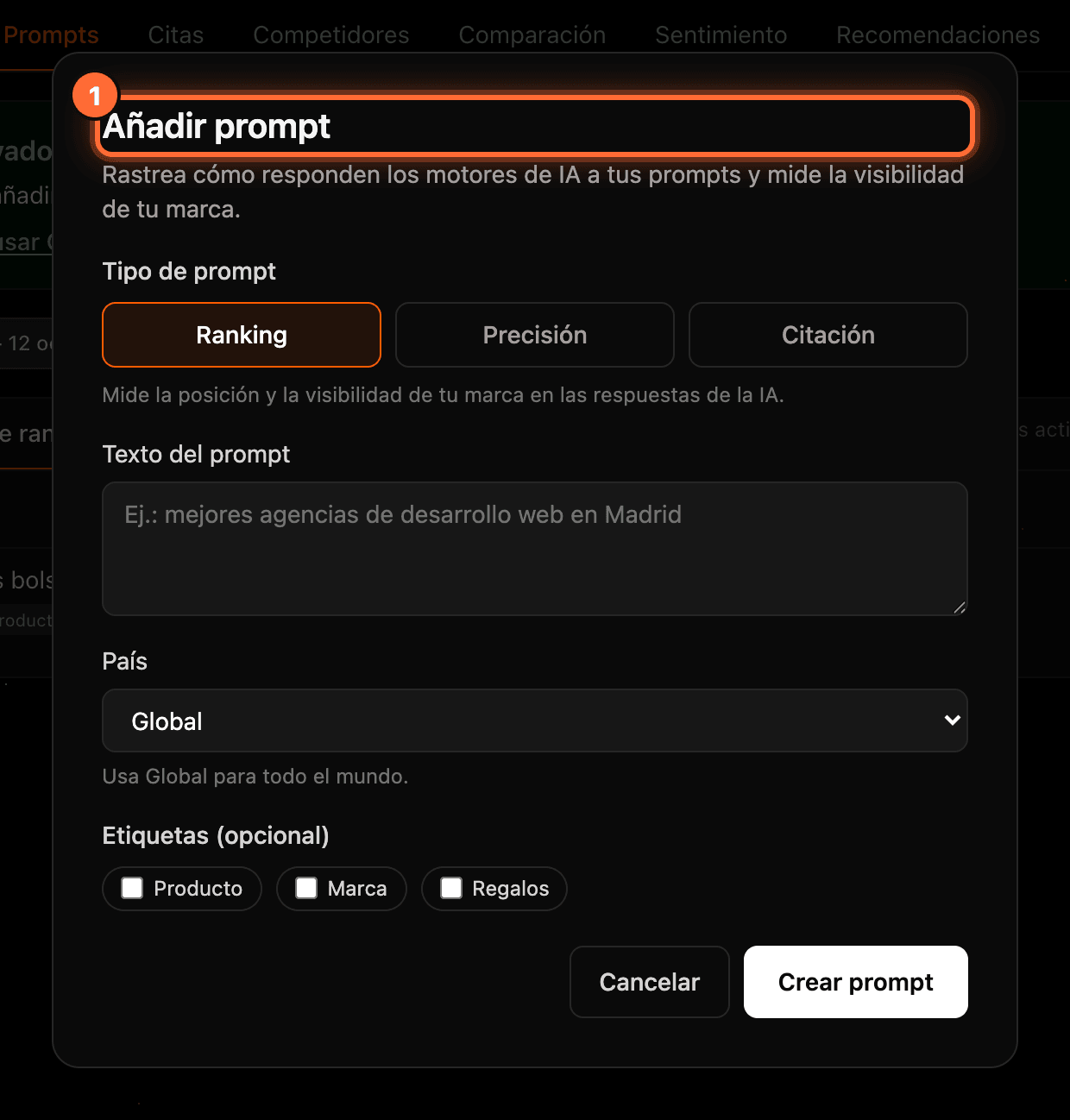
If you opened the window by clicking "Añadir prompt", the "Añadir prompt" window (①) opens straight away when you finish, so you can add the prompt you wanted. We explain it in the guide "How to add a prompt".
Step 8
Also from Sentiment and Recommendations
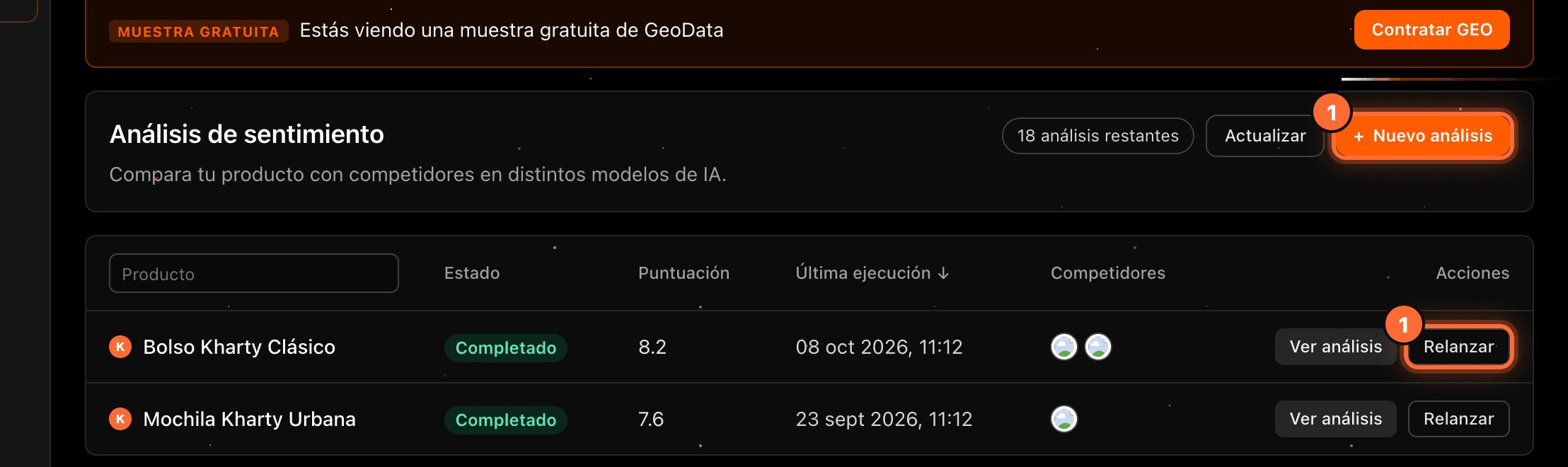
The same window opens when you click "Nuevo análisis" (New analysis) or "Relanzar" (Rerun) in "Sentimiento" (Sentiment), and "Nueva recomendación" (New recommendation) in "Recomendaciones" (Recommendations) (①). You can still browse the analyses and recommendations you already have.

Step 9
If your website doesn't have a plan yet
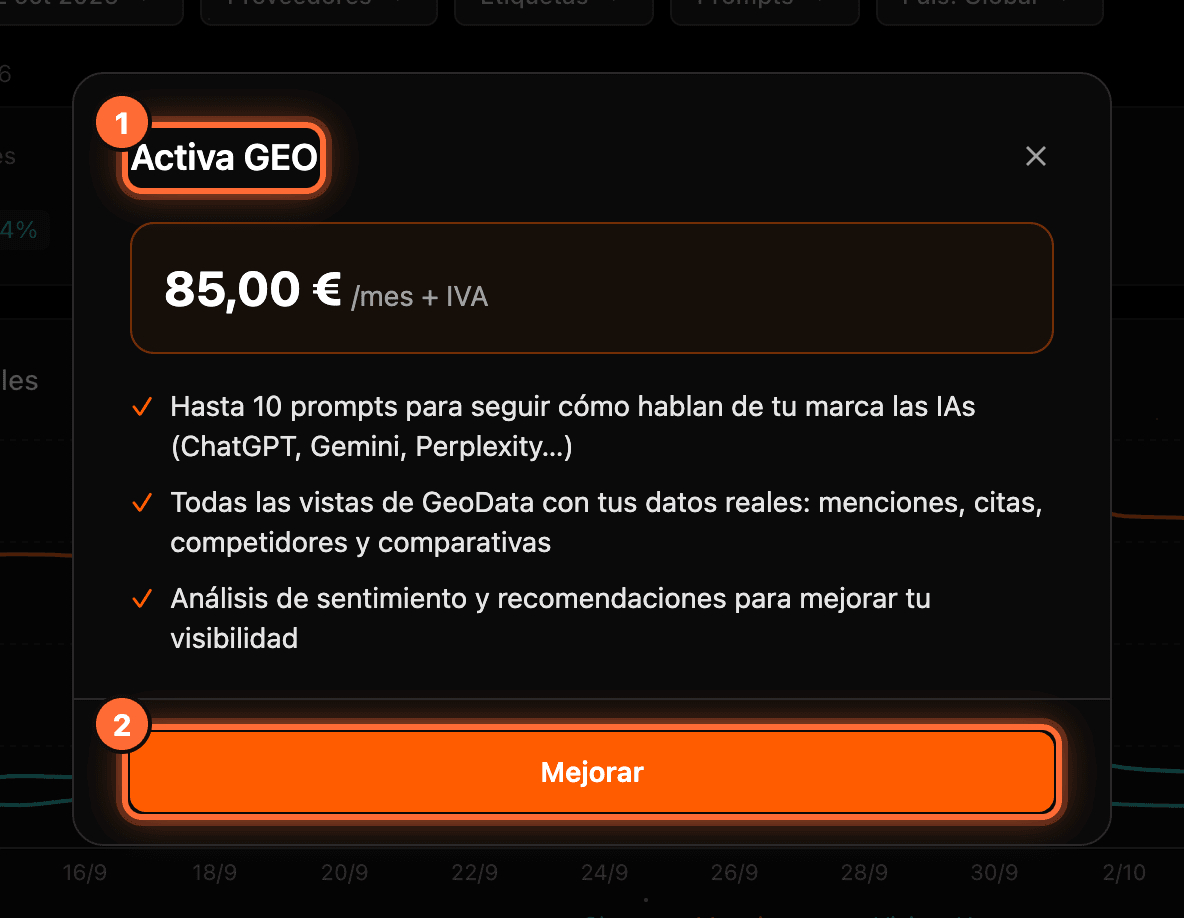
If the website has no PLUS or PRO plan, the window is titled "Activa GEO" (Activate GEO) (①) and offers GEO on its own, for example "85,00 € /mes + IVA". Clicking "Mejorar" (②) opens the payment page in a new tab. Complete it there; the window reminds you: "Completa el pago en la pestaña nueva. Si GEO no aparece activo en esta web en unos minutos, escríbenos." (Complete the payment in the new tab. If GEO doesn't show as active on this website in a few minutes, write to us.)
Step 10
If it asks you to check your billing
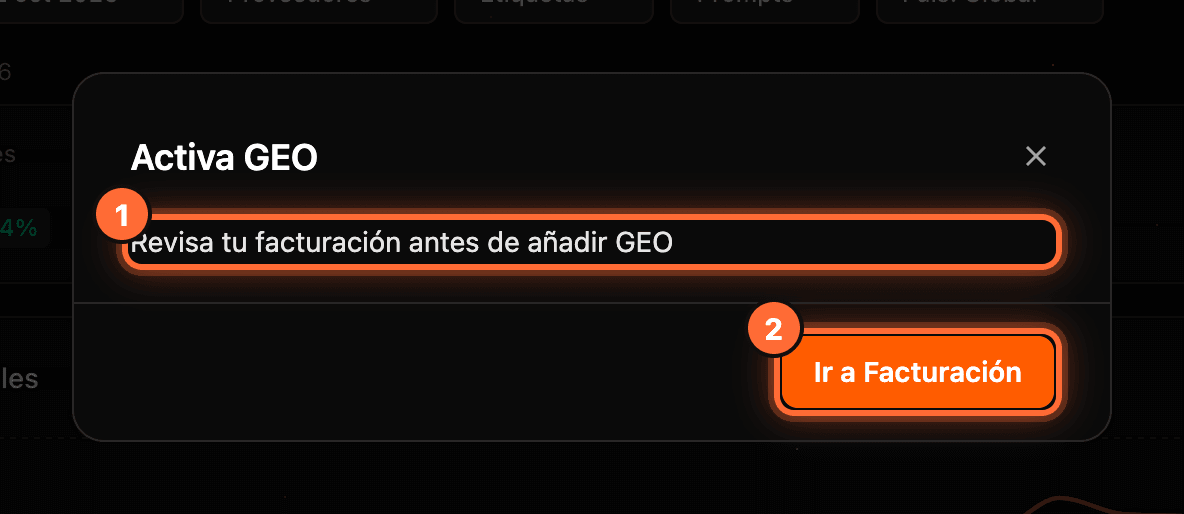
If your plan has a pending payment or a scheduled cancellation, the window doesn't offer the upgrade and shows "Revisa tu facturación antes de añadir GEO" (Check your billing before adding GEO) (①). Click "Ir a Facturación" (Go to Billing) (②) to sort it out, then come back to GeoData.
Step 11
If you are the agency: send the GEO payment link to your client
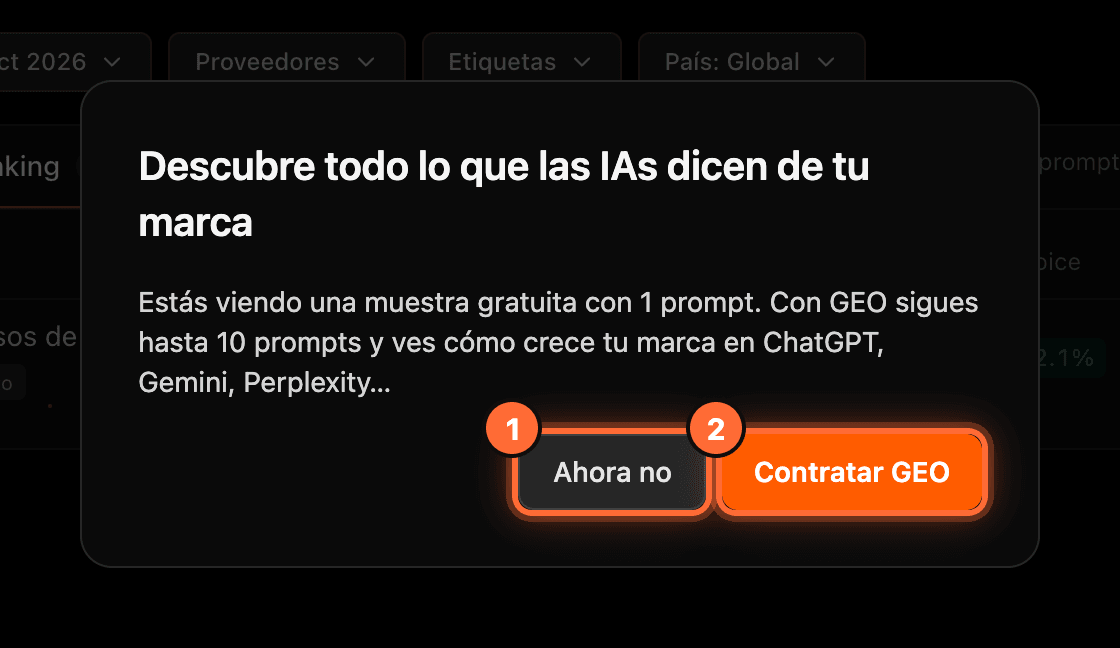
Agencies don't have the "Facturación" tab or the "Mejorar" window. For you, the create buttons open the window "Descubre todo lo que las IAs dicen de tu marca" (Discover everything AIs say about your brand): "Ahora no" (Not now) (①) closes it and "Contratar GEO" (②) takes you to get it.
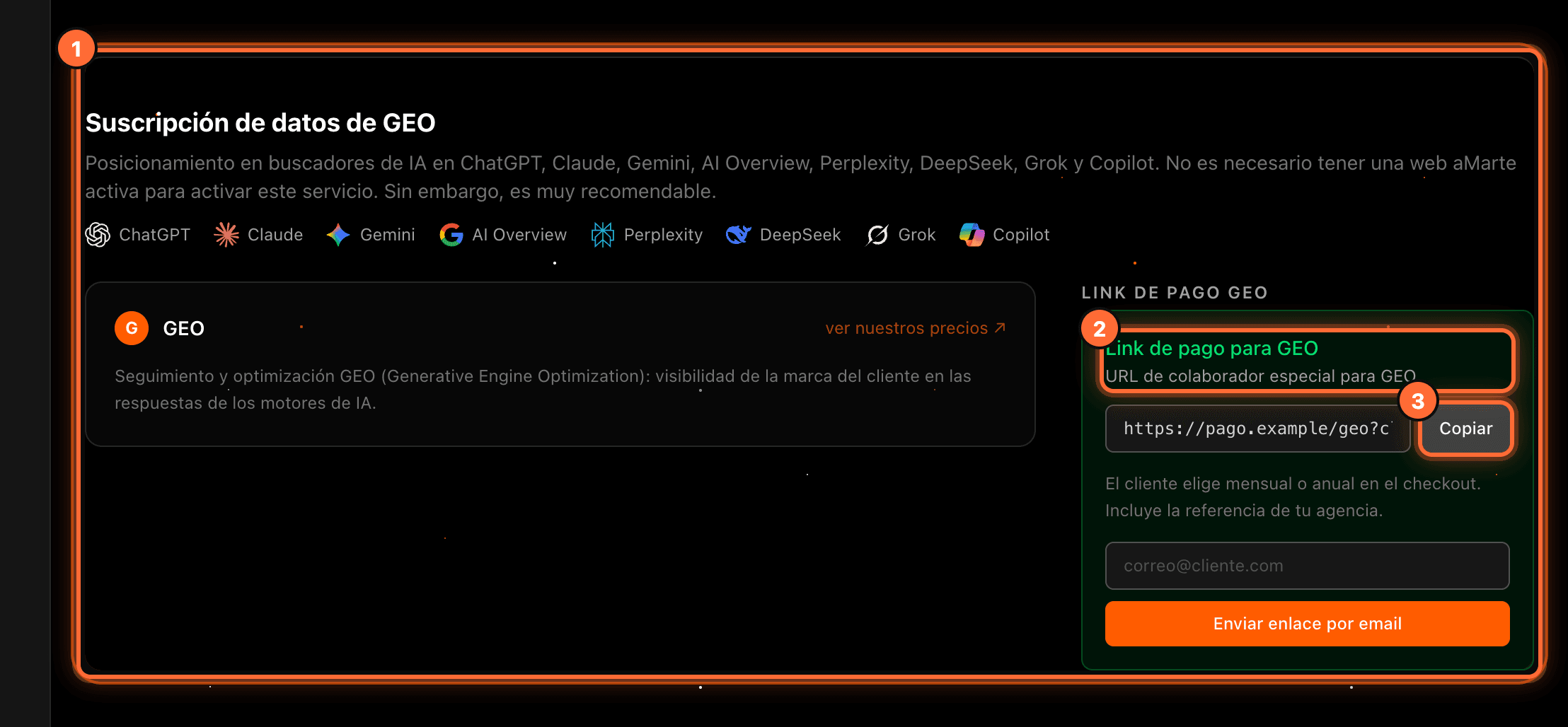
"Contratar GEO" (in that window or in the notice) opens your "Nuevo proyecto" (New project) view, scrolls down to "Suscripción de datos de GEO" (GEO data subscription) and highlights it (①). There you'll find the "Link de pago para GEO" (GEO payment link) (②), which carries your agency's reference. Click "Copiar" (Copy) (③) to paste it wherever you want, or enter your client's email and click "Enviar enlace por email" (Send link by email).
Step 12
If your website has neither GEO nor a sample
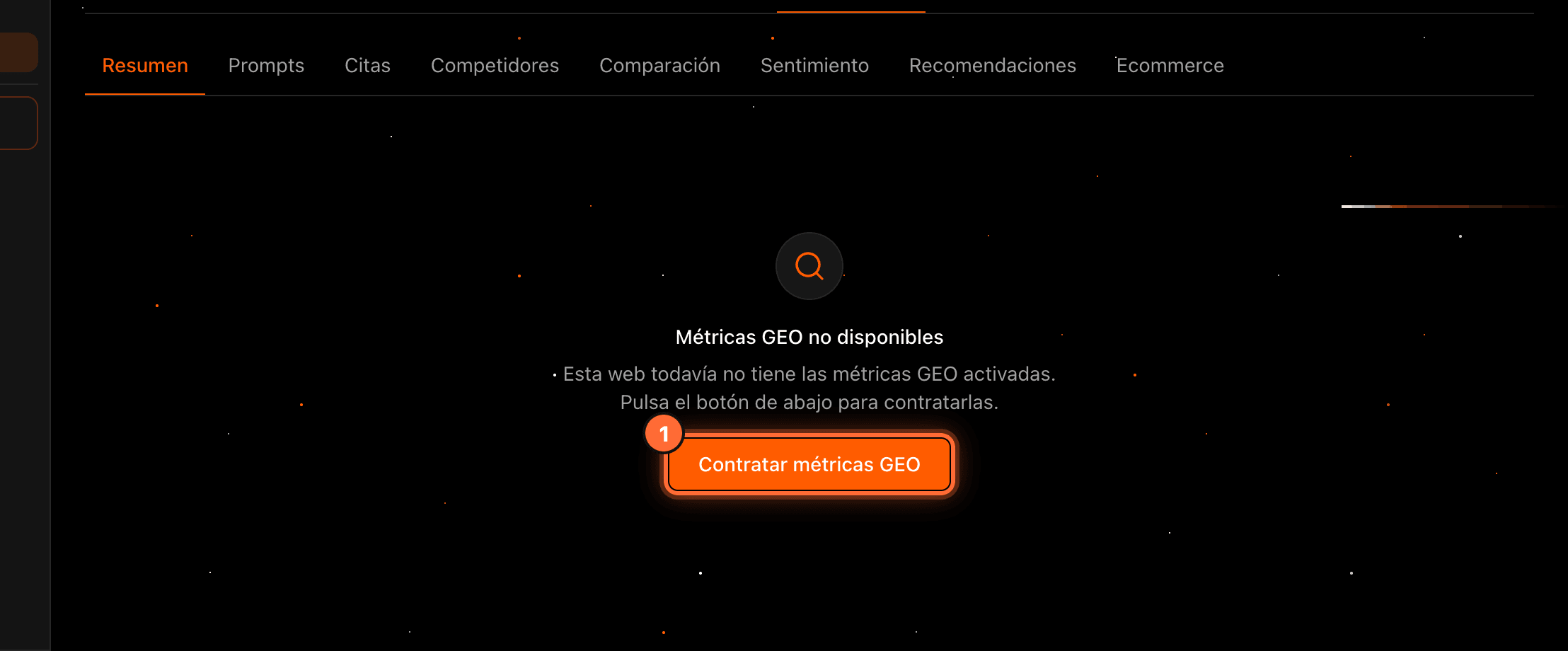
If your website doesn't have GEO yet, the "GeoData" sub-tabs show "Métricas GEO no disponibles" (GEO metrics not available) with the "Contratar métricas GEO" (Get GEO metrics) button (①), which opens the GEO payment page in a new tab.
Step 13
On mobile
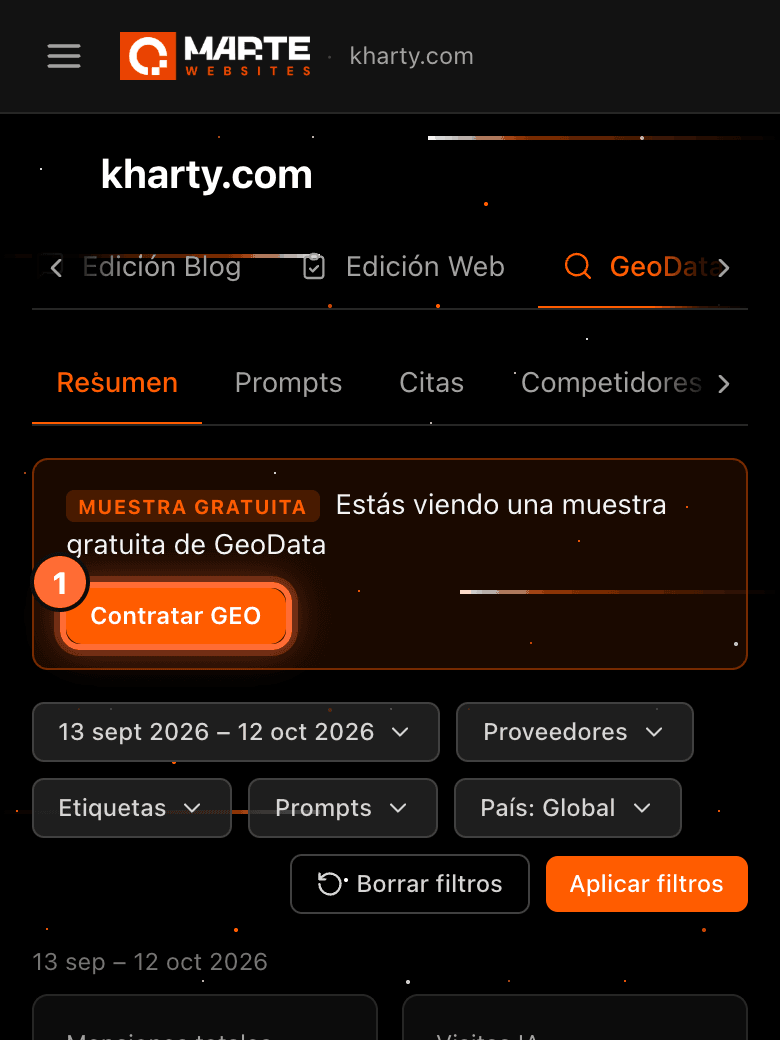
On mobile, the "Contratar GEO" button (①) sits below the notice text, and the upgrade window fills the screen, with "Mejorar" (①) at the bottom. It works the same as on a computer.
Frequently asked questions
How do I get the free sample?
The aMarte team enables it for your website; it can't be requested from the panel. If you are interested, talk to aMarte or to your agency.
Do I lose the sample data when I subscribe?
No. The sample prompt stays on your website with its data and counts towards your prompt limit (10 by default).
How much does GEO cost?
GEO costs €85.00/month + VAT; PLUS+GEO, €99.00/month + VAT; and PRO+GEO, €120.00/month + VAT. When you move up to a pack you only pay today the prorated part until your next invoice; the window shows you the exact amount before you click "Mejorar".
Can I pay for GEO yearly?
When annual payment is available for your plan, you'll see the "Mensual" | "Anual" selector in the window. If it doesn't show, GEO is activated with the frequency you already pay with.
Can I cancel GEO later?
Yes, whenever you want, from your website's "Facturación" (Billing) tab.