
Ecommerce: Store
Show the cart in your store header
What is it?
If customers can pick a product in your store but have no way to reach the cart to pay, the cart icon is most likely hidden. It is controlled by a single website setting, «Show cart icon in header», found in Global Settings. Set it to Visible and the cart icon appears in the header so customers can review their order and complete it.
Tip: This setting affects the whole store. To stop selling one specific product, use that product's «Enable purchase options» toggle instead.
Step by step
Step 1
Open Global Settings
Go to your website editor (yourdomain.com/admin) and click «Global Settings» in the main menu on the left.
Inside, open «Settings of Product Pages».
Step 2
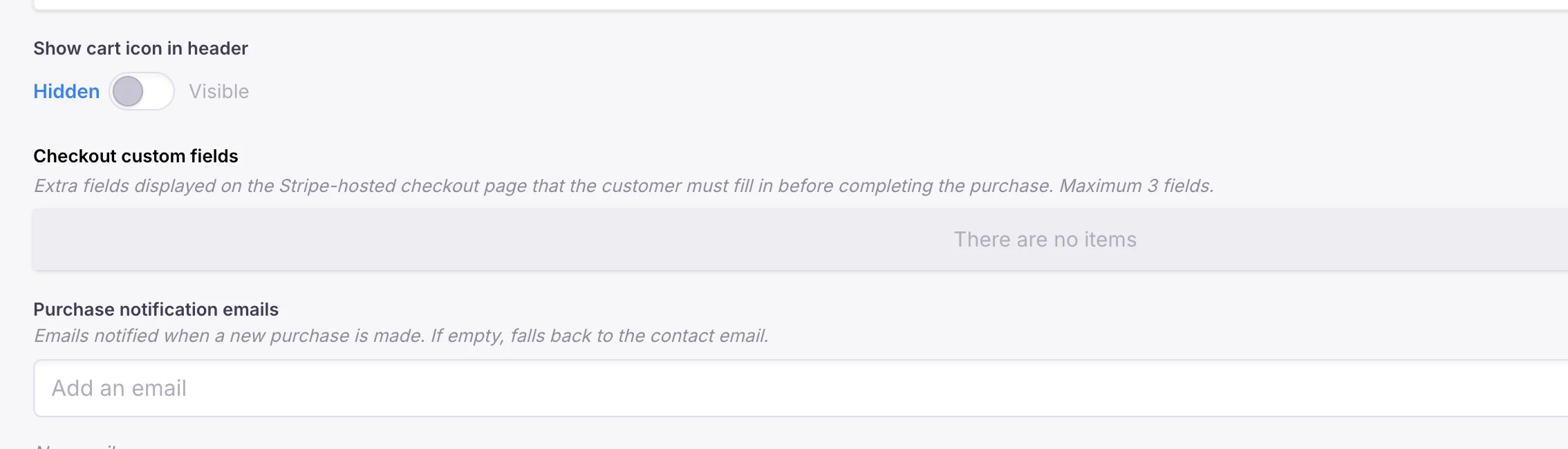
Set «Show cart icon in header» to Visible
Scroll down to the «Show cart icon in header» setting. It is a toggle with two positions:
• Hidden (blue): the cart is not shown in the header. • Visible: the cart is shown in the header.
Click the toggle to set it to Visible.
Step 3
Save your changes
Click the blue «Save» button to apply the change. Wait a few minutes and reload your website: the cart icon will appear in the header.
Frequently asked questions
Where do I find «Settings of Product Pages»?
In your website editor, inside «Global Settings». It holds the general store settings: product categories, cart icon, extra checkout fields and purchase notification emails.
How long does the change take to show?
A few minutes after clicking «Save». If you do not see it, reload the page.
The cart is visible but I cannot buy a product, what should I do?
Check that the product has its «Enable purchase options» toggle turned on. It is explained in the guide on turning sales of a product on or off.