

Marte Guide
How do I add a Form?
With Marte CMS you can easily add two types of forms to your site: the Contact form, ideal for general messages, and the Form form, which offers more customisable options for collecting specific data. In this guide we explain how to create and customise a Form-type form so you can adapt it to your page's needs.
Step 1: Create the form
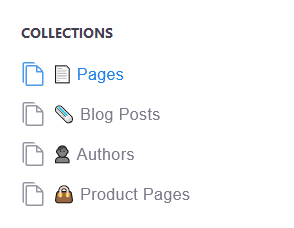
- Go to your site's page list via the "Pages" option in the side menu.
- Select the page where you want to add the form.
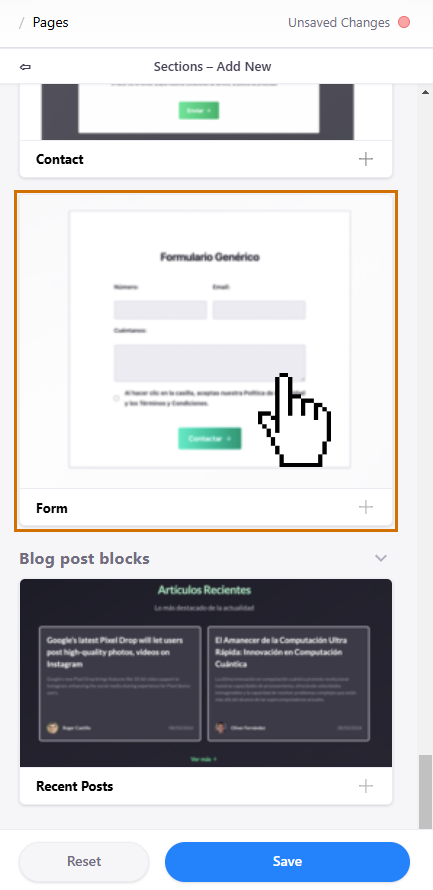
- You will open the page editor. Click the blue circle with the "+" symbol in the "Sections" area.
- Find the Form block in the list and click it.
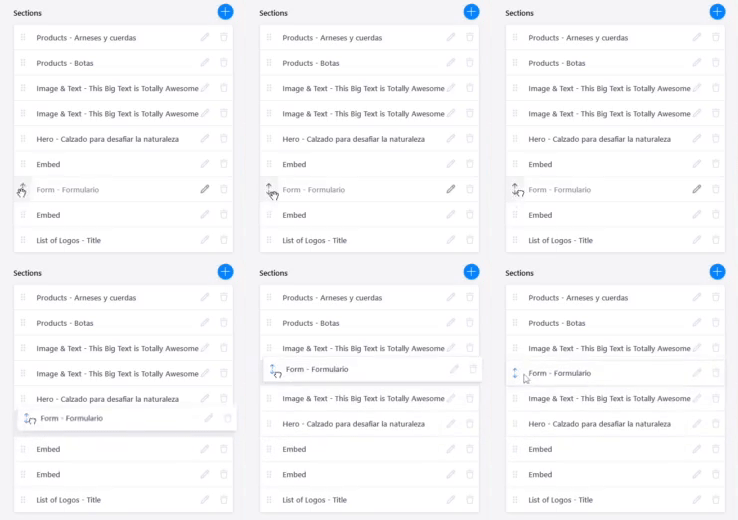
- Your "Form -Title" form will appear in "Sections". Use the example to move it as you like.
Step 2: Edit the form
- Click the form on the page view. You can also select it from the "Sections" list in the page editor.
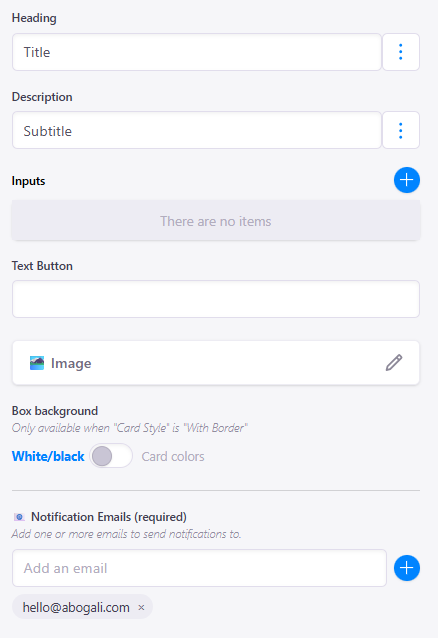
- To change the title and description, type in the "Heading" and "Description" text boxes.
- To change the submit button text, type in "Text Button".
- In "Notification Emails (required)" enter the email addresses where you want the form sent.
- Click the blue circle with the "+" symbol in the "Inputs" area.
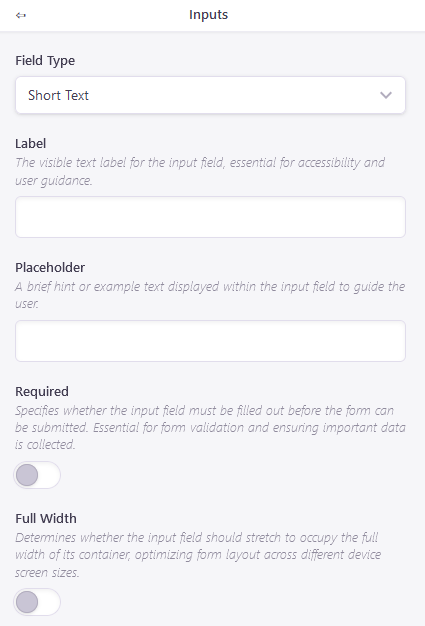
- A new "No label (Short Text)" input will appear in the Inputs list. Click it to access its options.
- In the input editor's "Field Type" section, select the type of data the input will accept (e.g. Email to validate emails).
- In the "Label" section, enter the text that will appear above the input.
- In the "Placeholder" section you can add helper text shown inside the field.
- Turn on the "Required" switch so the user must fill the input before submitting.
- In "Full Width" you can choose whether the input takes half or the full row.
- Add as many inputs as you need by repeating this process.
- Remember to save your changes with the blue "Save" button.
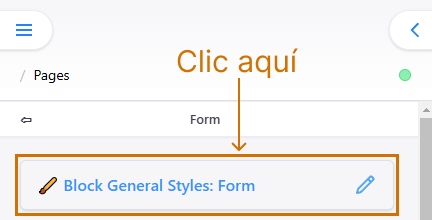
- You can style the form (colour, background image) from "Block General Styles: Form" in the form's general options.
How do I add an image?
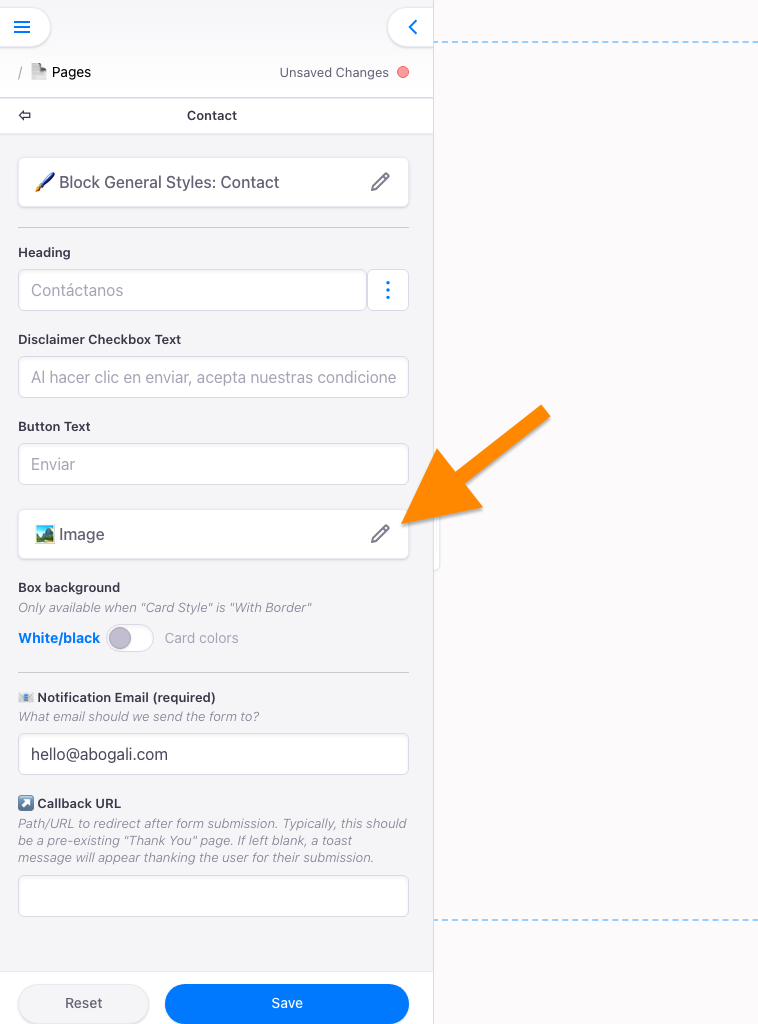
Add an accompanying image to increase your form's conversions. Both the Form and Contact blocks support it. Simply add the image from the options in the side panel:
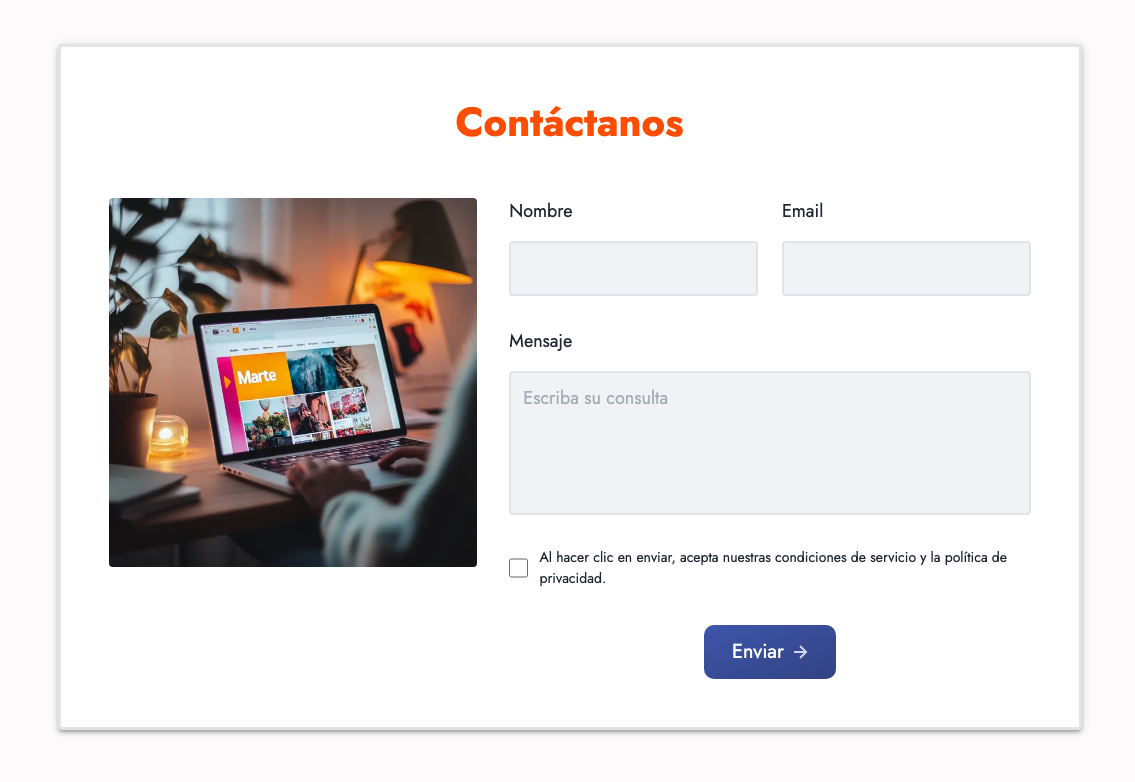
Example form with image