

User guide
How to configure your website's domain
Connect, verify and publish your website's domain directly from the Amarte dashboard, without needing to write to us or use any external system.
Access the panelWhat the Domains tab is
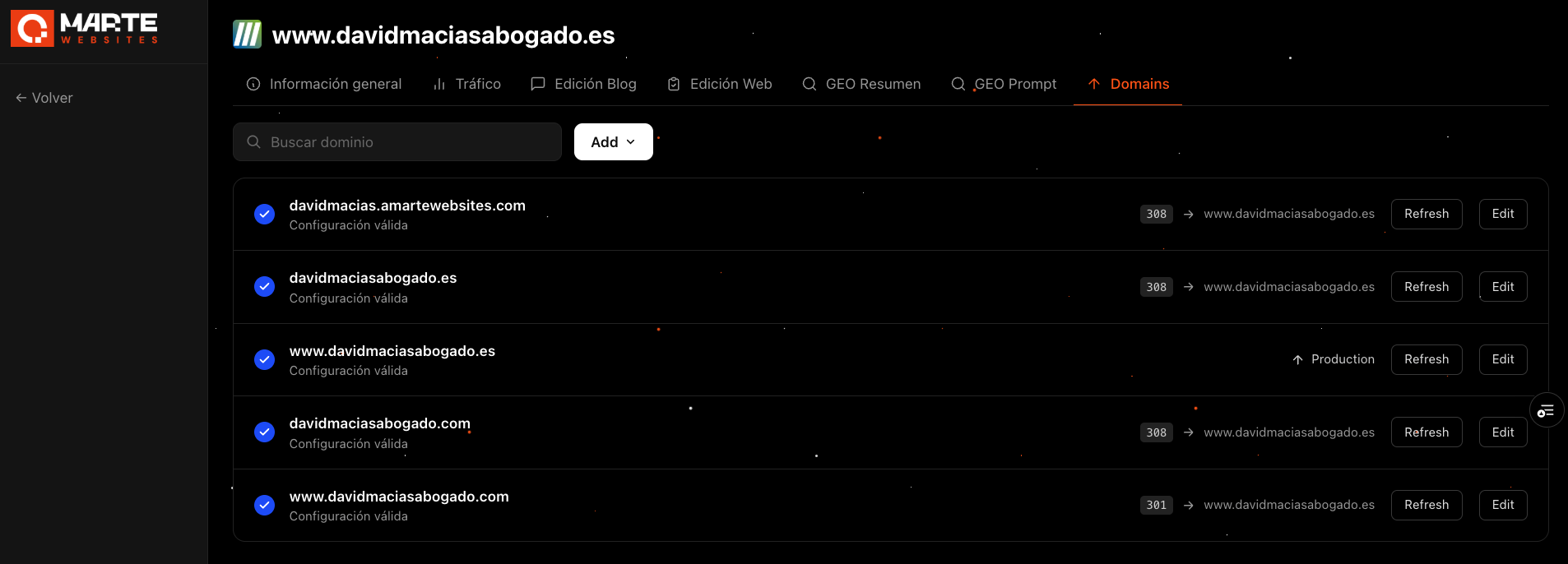
Inside each of your websites' workspace, at app.amartewebsites.com, you have a tab called **Domains**. There you can view and manage the domains connected to your website, with the same level of detail you'd see in a technical panel, but without needing your own account or technical knowledge.
You access it by entering your website's workspace and selecting the **Domains** tab, next to General Information, Traffic, Editing and GEO.
Your domain's status
For each domain connected to your website, the list shows:
- –Domain name.
- –Configuration status: an indicator tells you whether it's correctly verified or still missing a step.
- –Production or redirect: whether it's the main domain your visitors use, or whether it redirects to another domain (and with which code).
If something isn't ready, you don't need to wait for us to explain it: the panel itself tells you exactly what's missing.
Add a new domain
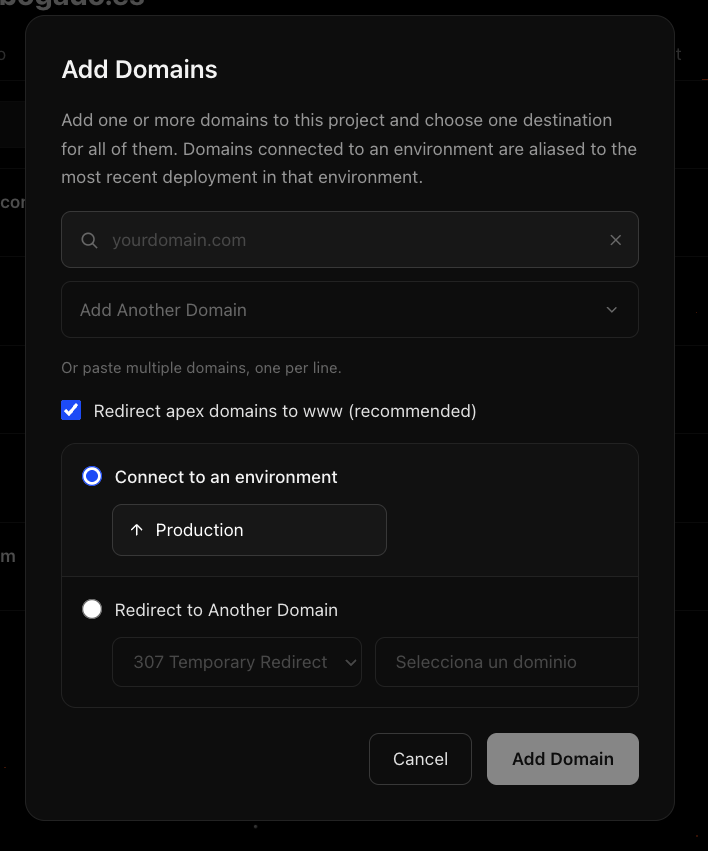
From the **Add Domains** button you can connect a new domain to your website without leaving the dashboard:
- –Enter the domain, or paste several at once if you have more than one.
- –Turn on the option to automatically redirect the "www" version to the non-"www" version (or the other way around), if you need it.
- –Choose whether the domain connects directly to your website (Production) or redirects to another domain you've already added.
If a domain can't be added, for example because it's already in use on another site, the panel explains the exact reason right away.
Verify the DNS configuration
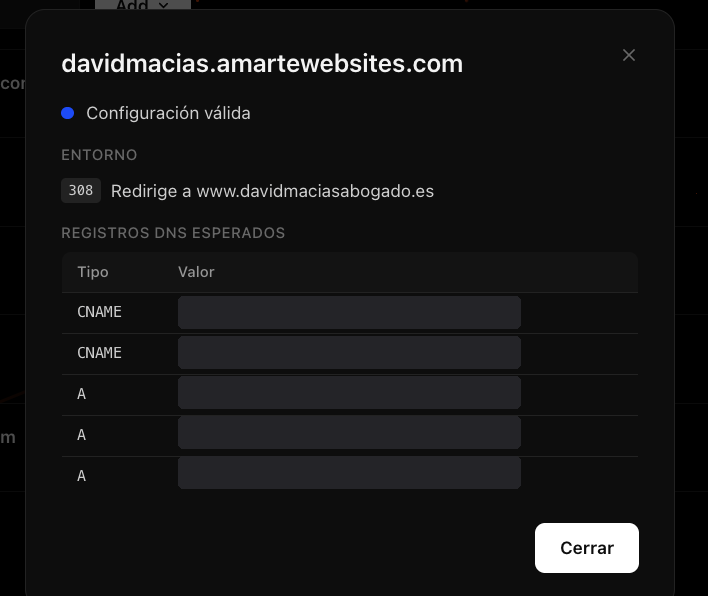
Opening any domain's detail shows you exactly what's missing for it to be fully active, without depending on us explaining it step by step.
This is especially useful right after buying a new domain, when it hasn't fully propagated yet: instead of waiting to write to us, the answer appears instantly in your own panel.
With the **Refresh** button you can force a new check at any time, to see whether propagation has finished.
Publish your domain
Once the domain's configuration is validated, it becomes published: it's the real domain your visitors use to reach your website.
DNS propagation can take anywhere from a few minutes to a few hours, depending on where your domain is registered. In the meantime, you can keep using the **Refresh** button to check its status.
Once published, that domain is also the one reflected in your website's General Information tab.
Coming soon: buy your domain without leaving the panel
We're working on the natural next step: being able to buy your domain directly from the platform, at an exceptional price, without having to manage it with a separate registrar. There's no date yet, but that's the direction we're heading.
Ready to configure your website's domain?