
Panel: GeoData
How to use "Sugerir prompts"
Before you start
"Sugerir prompts" (Suggest prompts) proposes prompts that people ask AIs about your website, sorted by search volume. The ideas come from your website and the keywords you enter, and you can add them as ranking prompts in one click. It's in the "Prompts" sub-tab of GeoData, for websites with a plan with GEO.
Tip: Every time you generate suggestions one run is used; previous ones stay saved in "Historial" (History) and cost nothing. In this guide we use the fictional website "Kharty" (kharty.com) as an example.
Step by step
Step 1
Open "Sugerir prompts"
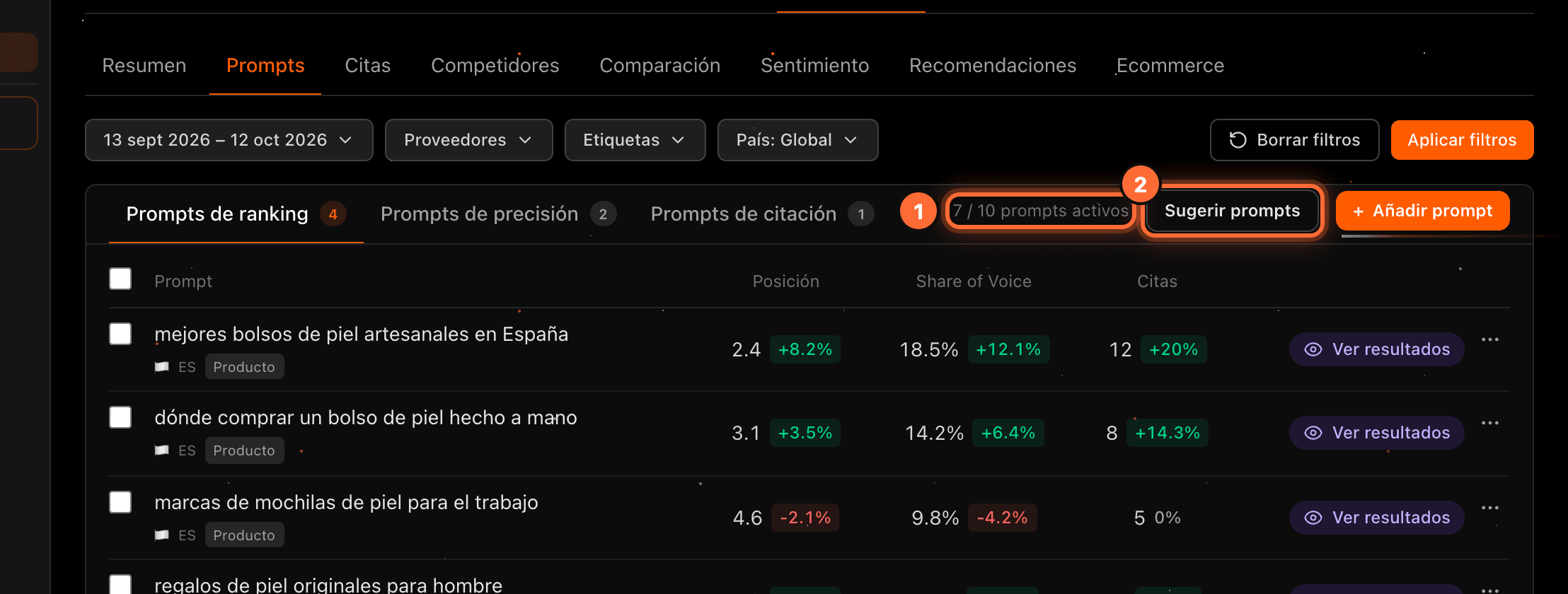
In the "Prompts" sub-tab, next to the active prompts counter (①), click "Sugerir prompts" (②).
Step 2
The "Sugerir prompts" window
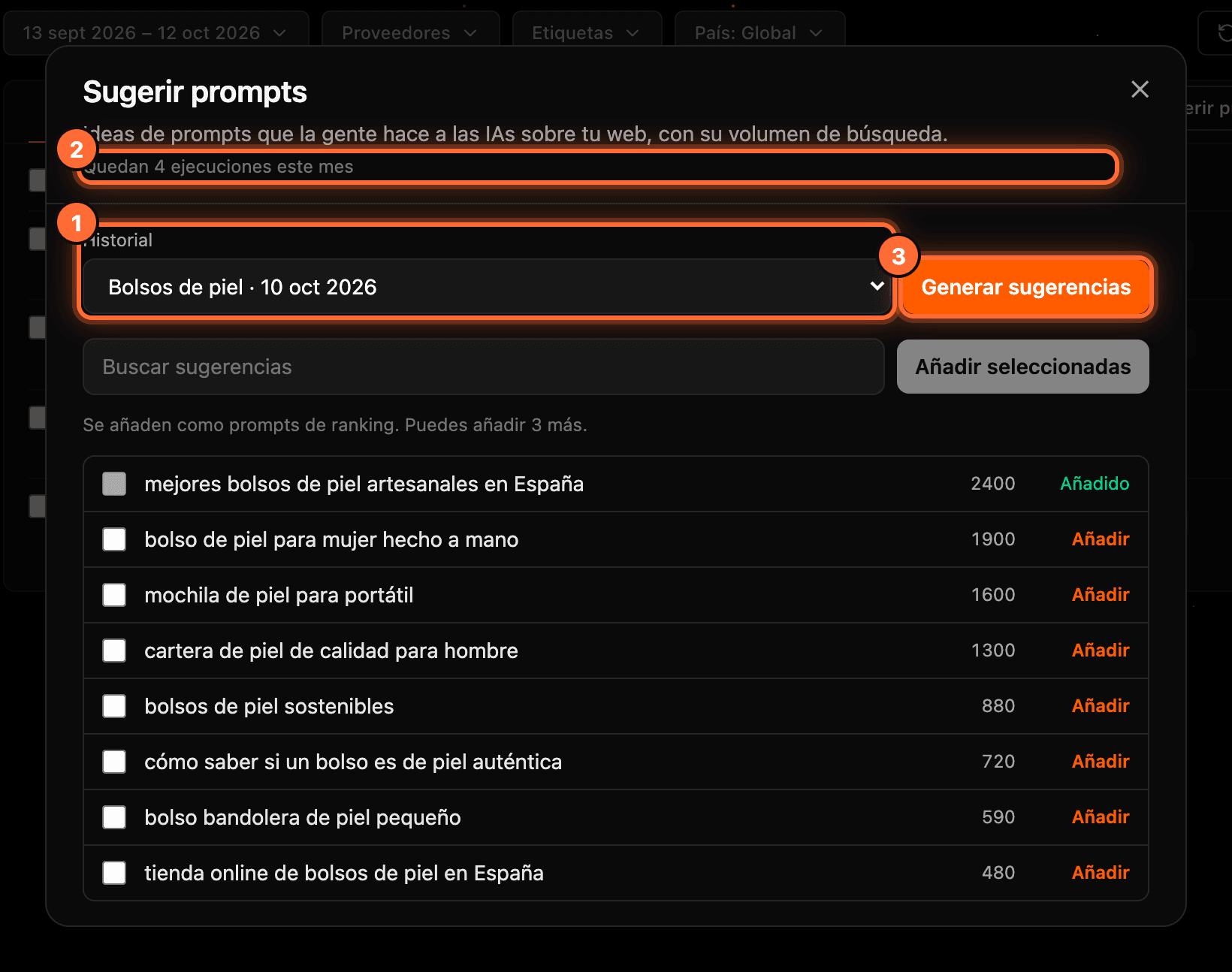
The "Sugerir prompts" window opens: • "Historial" (History) (①): the times suggestions have already been generated for your website. The latest finished one opens. • Below the title (②), how many runs you have left, for example "Quedan 4 ejecuciones este mes" (4 runs left this month). • "Generar sugerencias" (Generate suggestions) (③) to ask for new ideas.
If it's the first time, the form to generate them opens straight away.
Step 3
Generate new suggestions
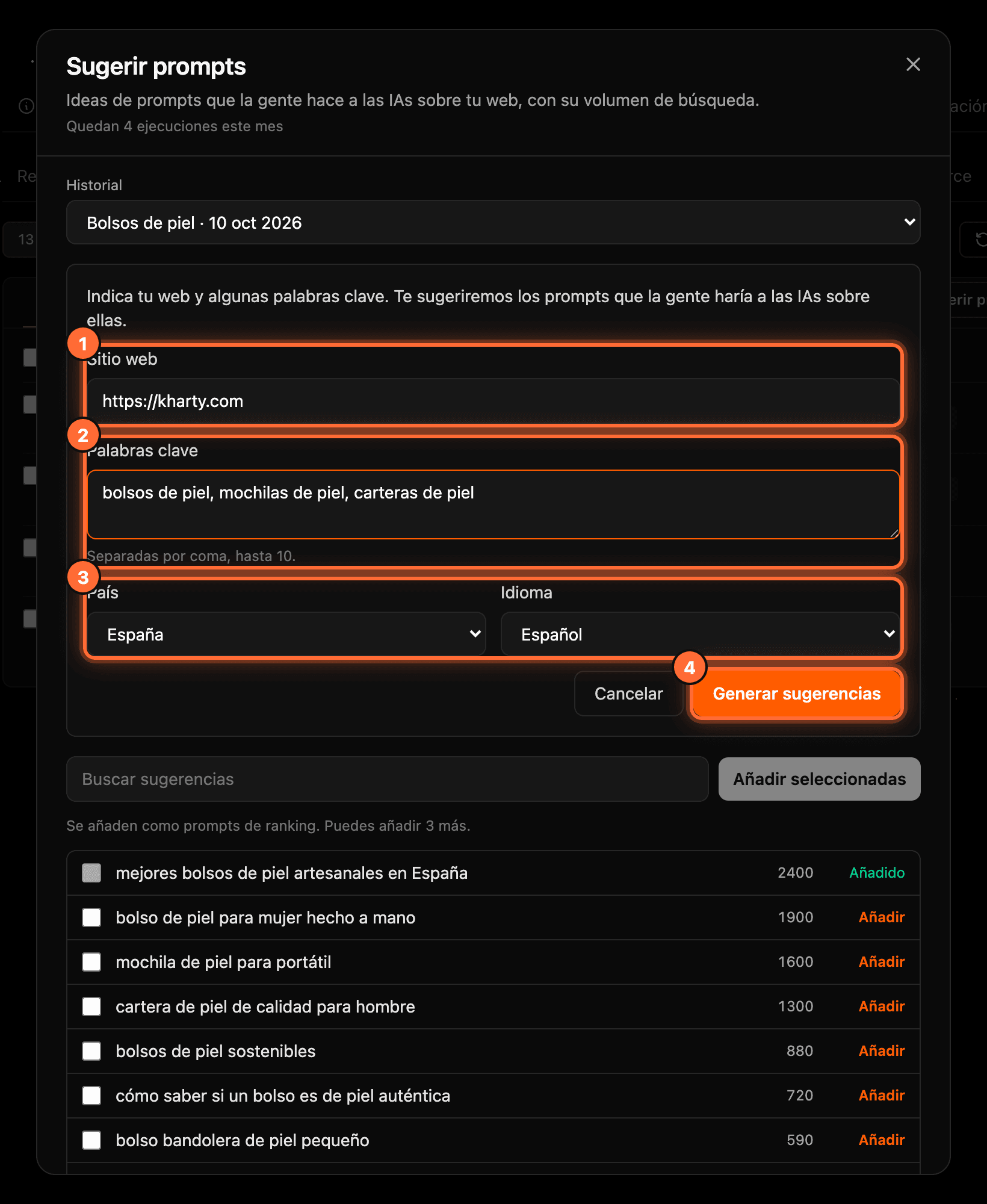
Fill in the form: • "Sitio web" (Website) (①): pre-filled with your website's address. • "Palabras clave" (Keywords) (②): comma-separated, up to 10, for example "bolsos de piel, mochilas de piel, carteras de piel". • "País" (Country) and "Idioma" (Language) (③): the language is "Español" (Spanish) by default.
Click "Generar sugerencias" (④). One run is used.
Step 4
Wait for them to finish
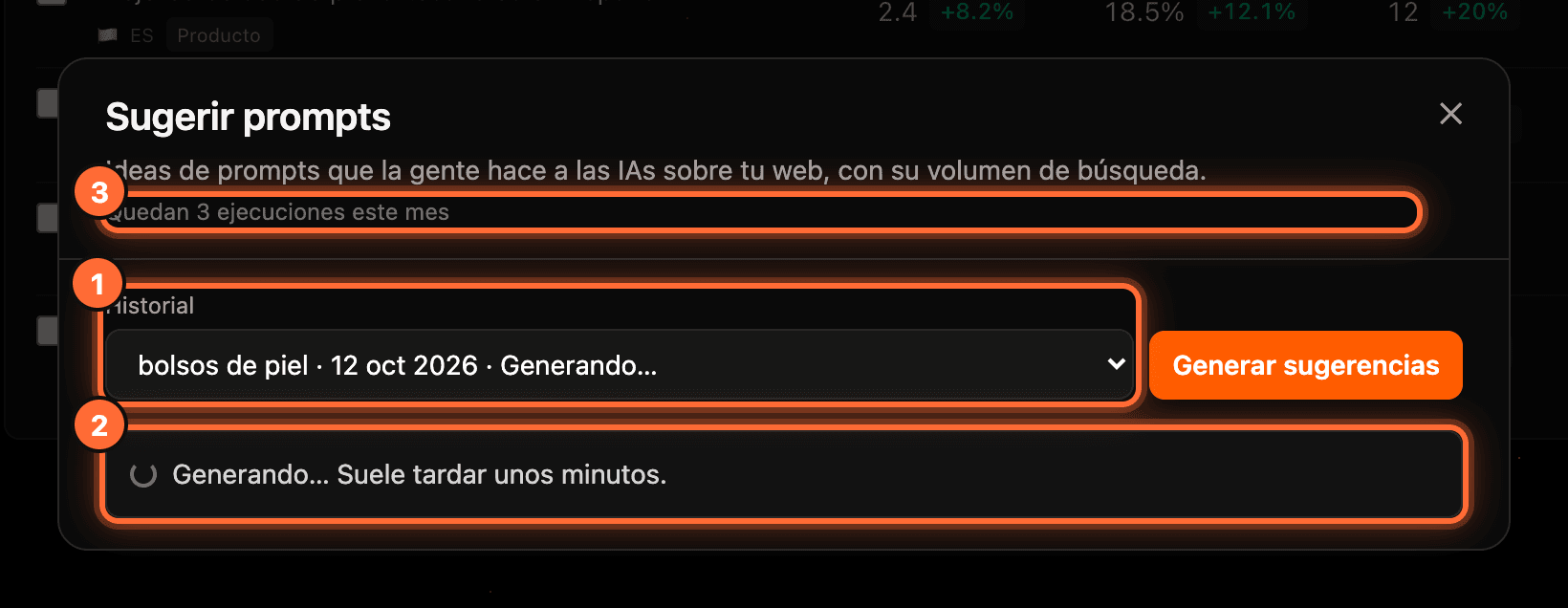
The new run shows in "Historial" with "Generando…" (Generating…) (①) and the window shows "Generando… Suele tardar unos minutos." (Generating… It usually takes a few minutes.) (②). The window checks on its own and shows the suggestions when they are ready. The counter goes down (③), for example to "Quedan 3 ejecuciones este mes".
You can close the window and come back later: you'll find it in "Historial".
Step 5
Choose the suggestions
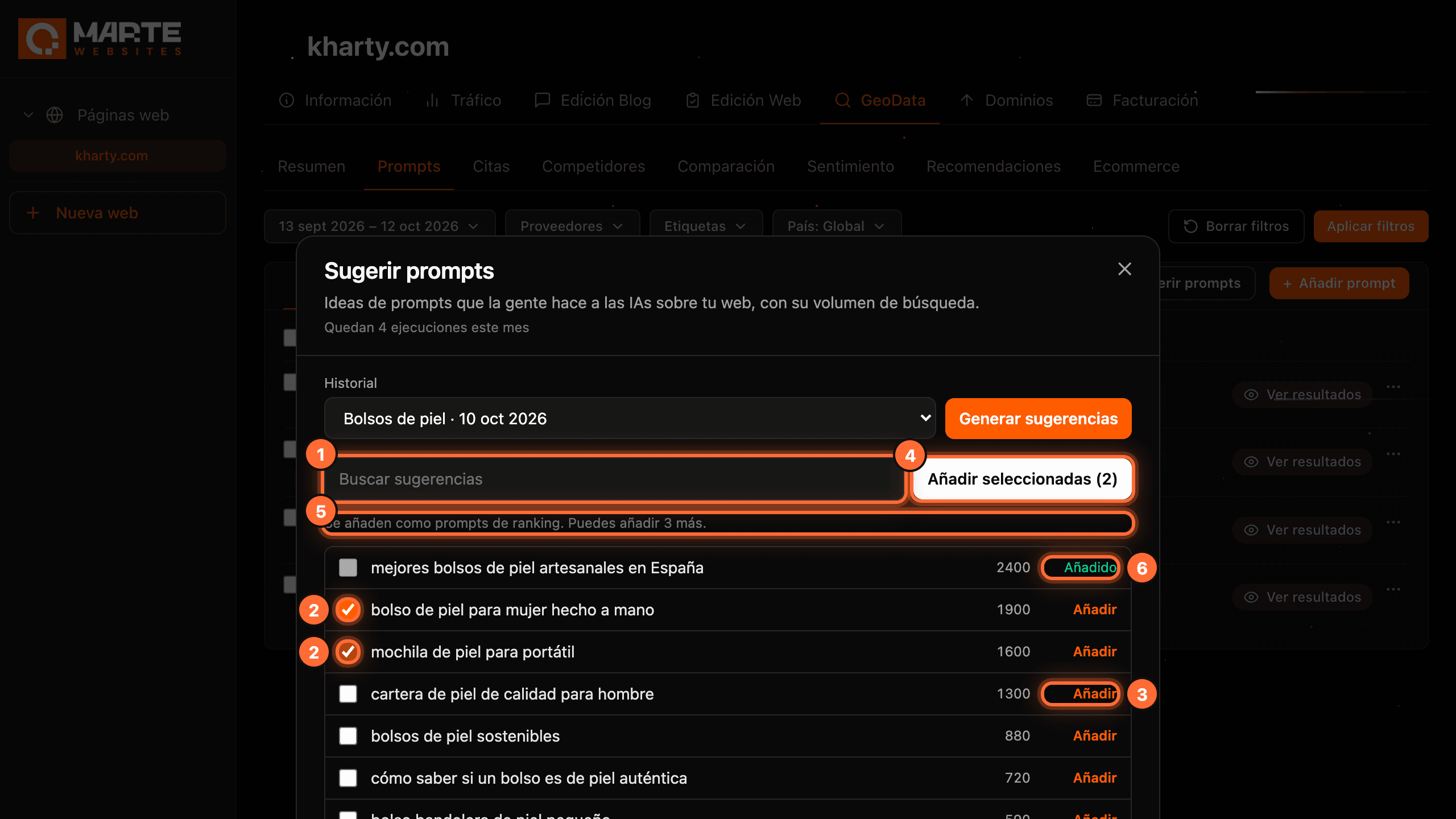
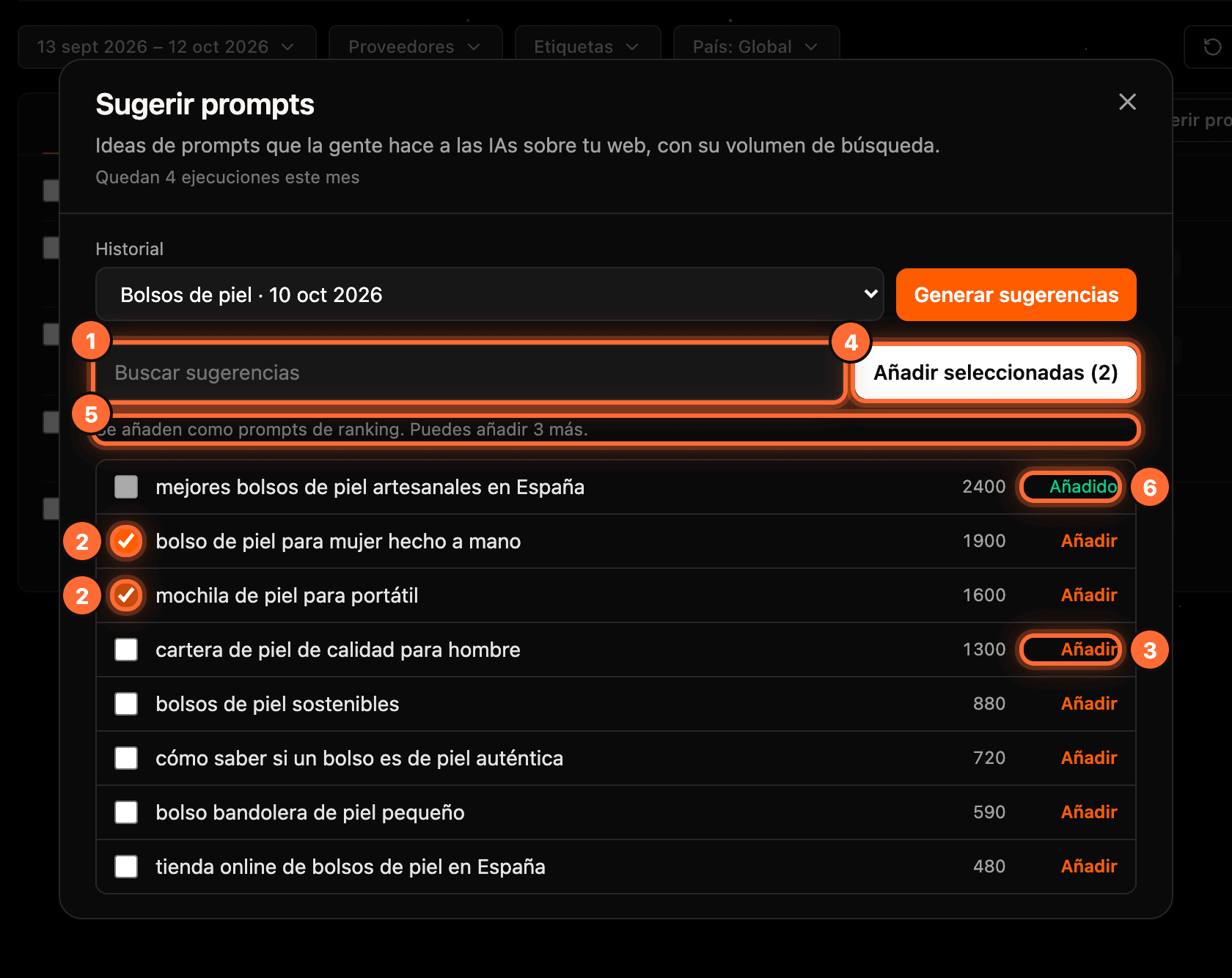
Each suggestion shows its search volume, from highest to lowest. You can: • Search among them with "Buscar sugerencias" (Search suggestions) (①). • Tick the ones you like (②) and click "Añadir seleccionadas (2)" (Add selected) (④). • Add a single one with its "Añadir" (Add) (③).
Below the search box (⑤) you see how many you can add, for example "Se añaden como prompts de ranking. Puedes añadir 3 más." (They are added as ranking prompts. You can add 3 more.): you can't tick more than fit in your website's limit. The ones that are already prompts of your website show "Añadido" (Added) (⑥).
Step 6
Check that they were added
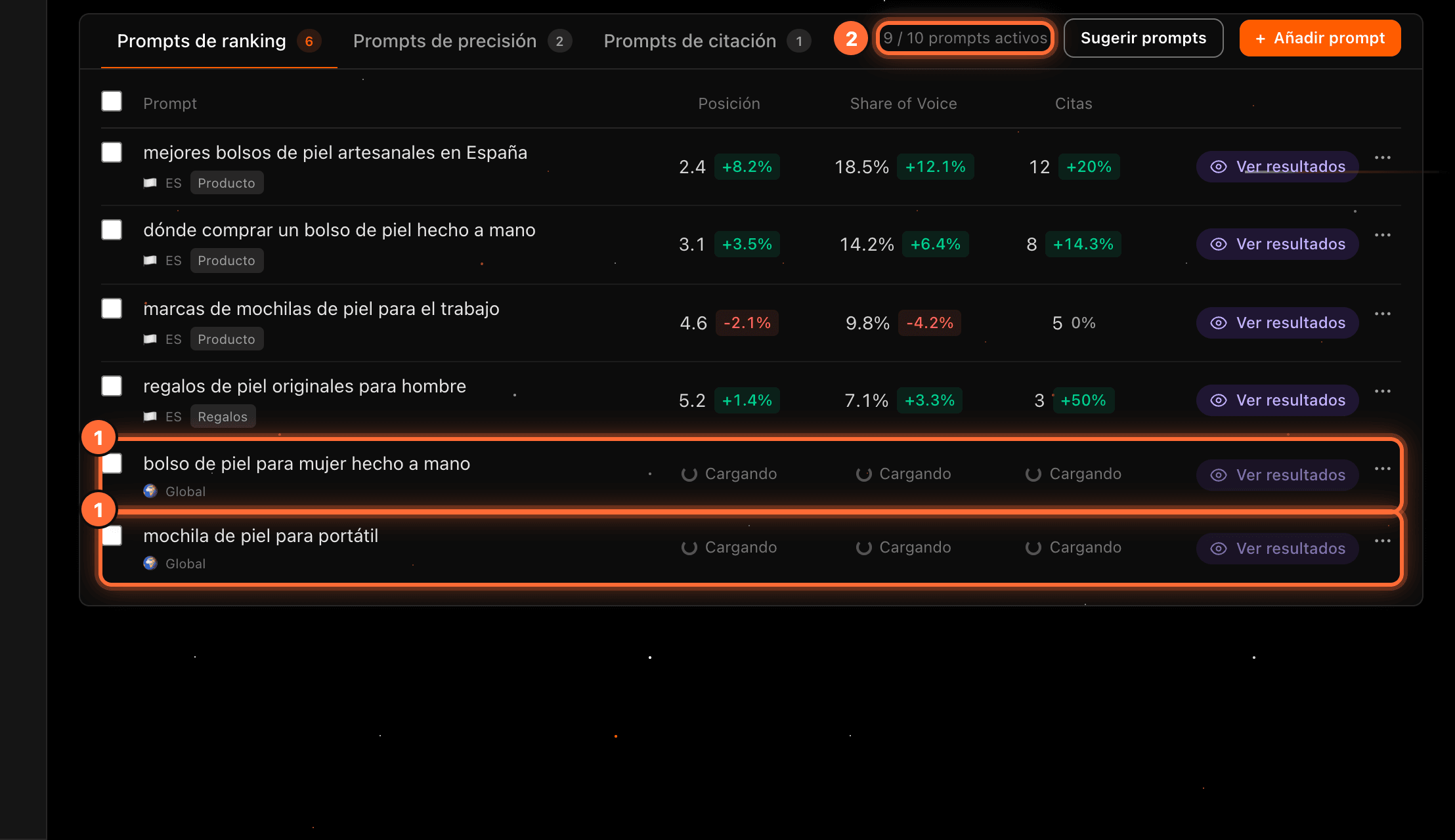
The suggestions you added change to "Añadido" (①). When you close the window, you'll see them in the ranking prompts list (①) showing "Cargando" (Loading) while their first data is fetched, and the counter goes up (②), in the example to "9 / 10 prompts activos".
They are added as ranking prompts, with country "Global" and no tags. You can change that later with "Editar" (see the guide "How to manage your prompts").

Step 7
If you have no free prompts left
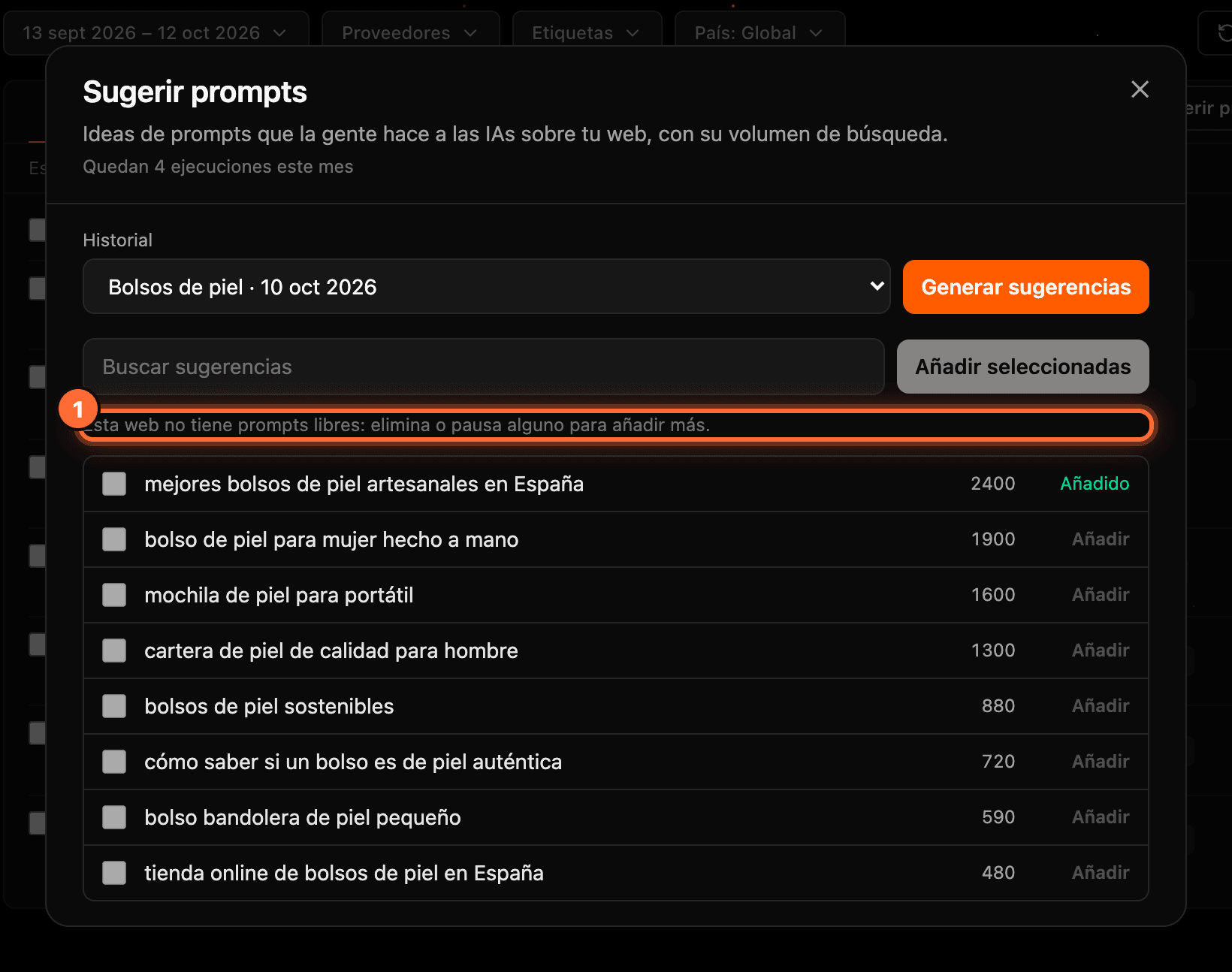
If your website already has all its prompts active, you'll see "Esta web no tiene prompts libres: elimina o pausa alguno para añadir más." (This website has no free prompts: delete or pause one to add more.) (①) and you can't add suggestions. You can still browse them; to free a slot, pause or delete a prompt.
Frequently asked questions
What type of prompts are added?
Always ranking prompts. If you want an accuracy or citation prompt, add it with "Añadir prompt".
Do I use a run when I open the history?
No. A run is only used when you click "Generar sugerencias" in the form. Browsing or adding suggestions from previous runs costs nothing.
What happens if I have no runs left?
You can't generate new suggestions, but you can still browse the previous ones in "Historial" and add prompts from them.
Why can't I tick more suggestions?
Because you've already ticked as many as your website has free prompts. Pause or delete a prompt to free a slot.