Skip to content
Stripe

How to delay a subscription's next charge in Stripe

Has a customer asked you to move their subscription's next charge to a different date? In Stripe you can do this by adding free trial days to the active subscription: this pushes the next charge to the exact date you choose, without cancelling the subscription or affecting the rest of its billing.

1

Open the customer's subscription

Find the customer (if you're not sure how, check the guide “How to find a customer in Stripe”) and scroll down to the Subscriptions section of their profile. There you'll see the active subscription along with its next invoice date.
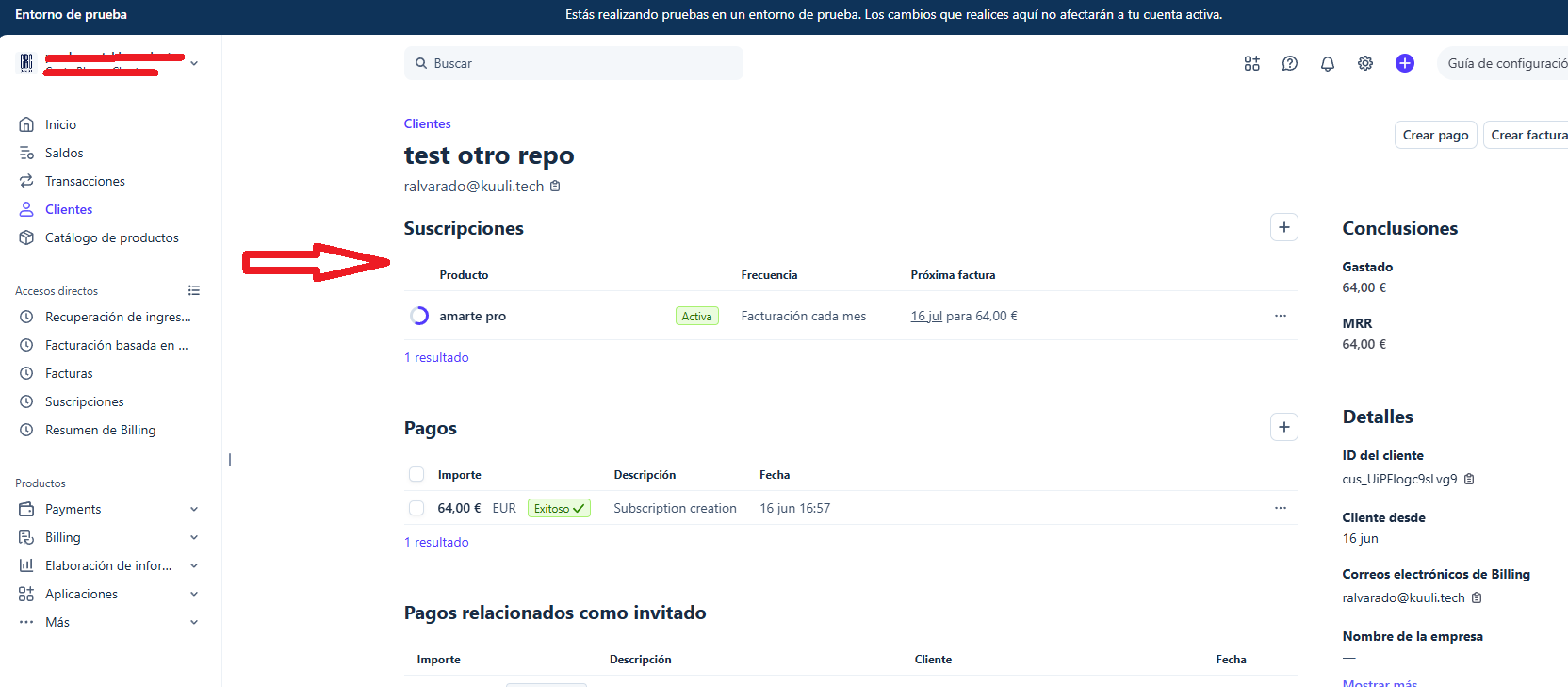
Stripe customer profile with the Subscriptions section highlighted
2

Click the edit icon

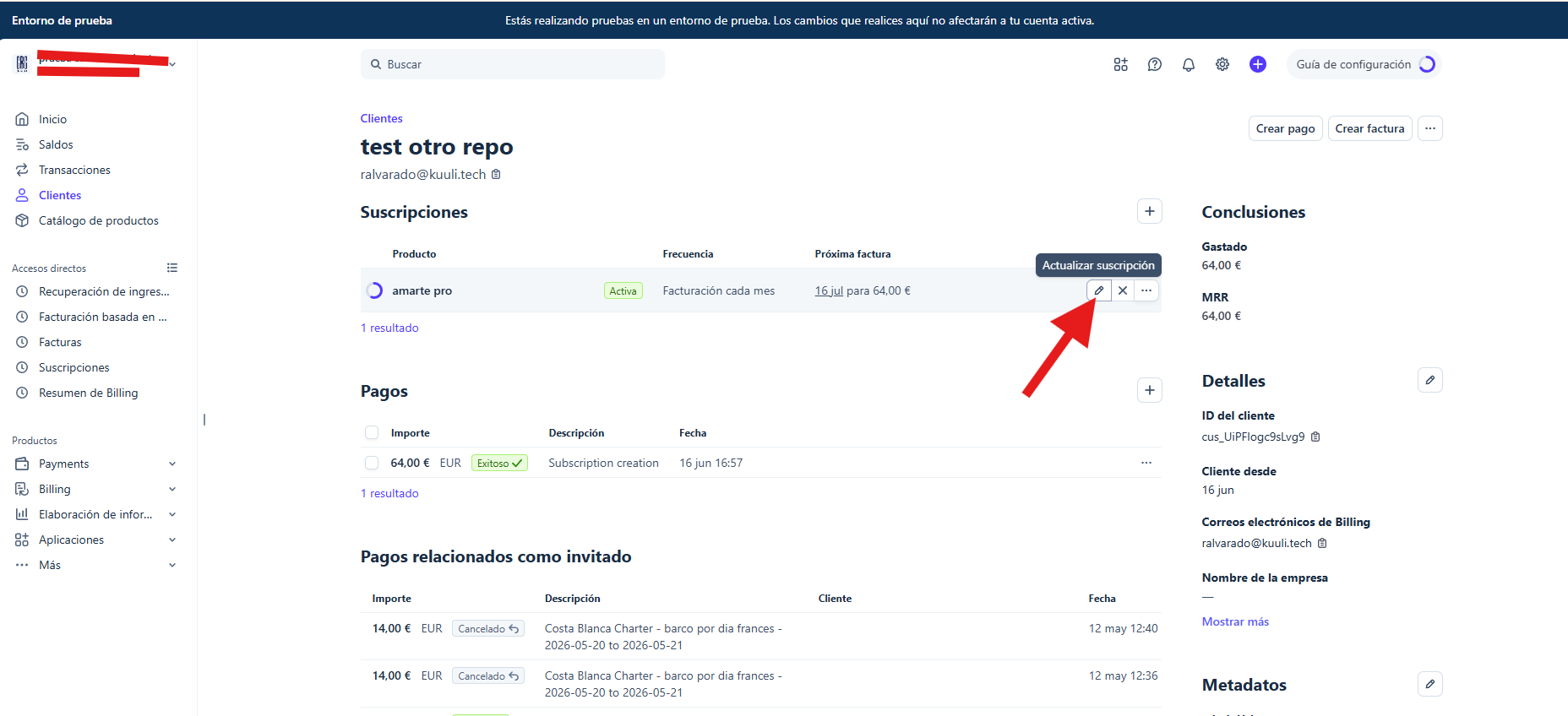
On the subscription row, click the pencil icon (Update subscription), to the right of the next invoice date.

Icon to update the subscription in Stripe
3

Add free trial days

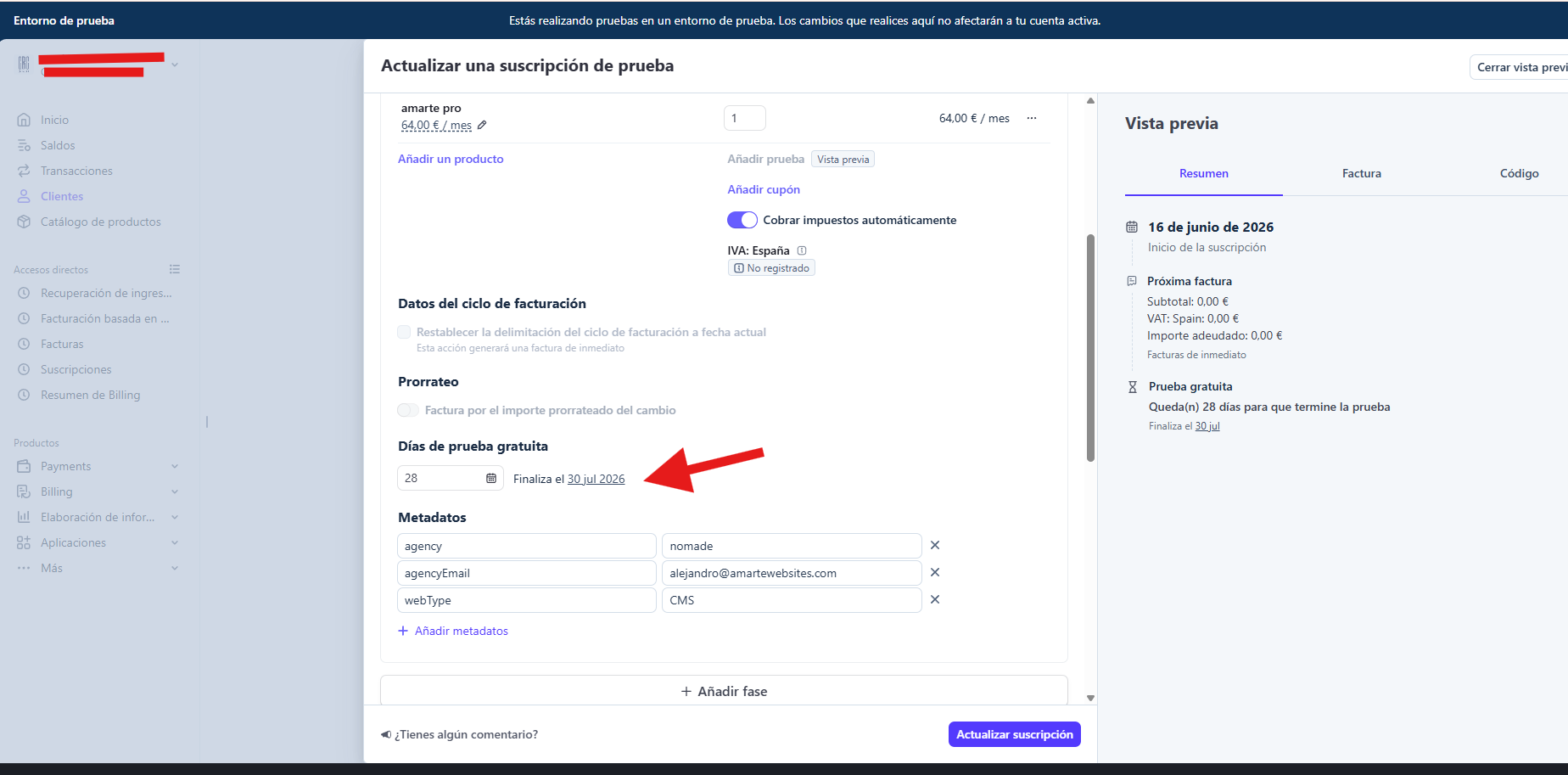
In the update form, find the Free trial days field. Type the number of days you want to delay the charge by — next to the field you'll see “Ends on [date]”, which is the new date your customer will be charged.

Check the Preview panel on the right to confirm the date matches what you need before continuing. Once it's correct, click Update subscription.

Free trial days field in Stripe with the new charge date
4

Check that it was updated

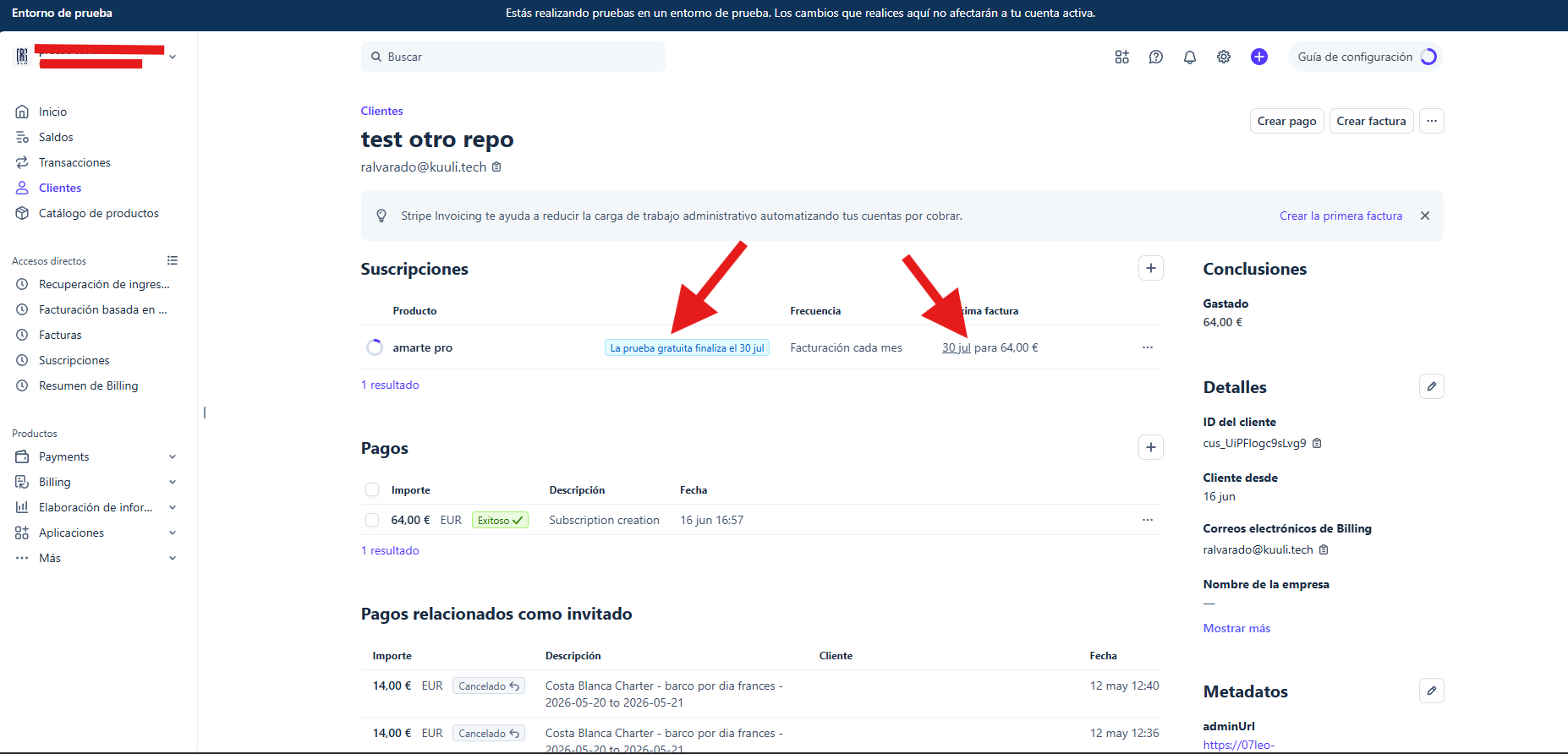
Back on the customer's profile you'll see a blue label showing how long the free trial lasts, and the Next invoice column with the new date.

If you just made the change and the Next invoice column still shows the old date, don't worry: it can take a moment to refresh. Reload the page (F5) and it should show the correct date.

Stripe subscription with the free trial and the new next invoice date