
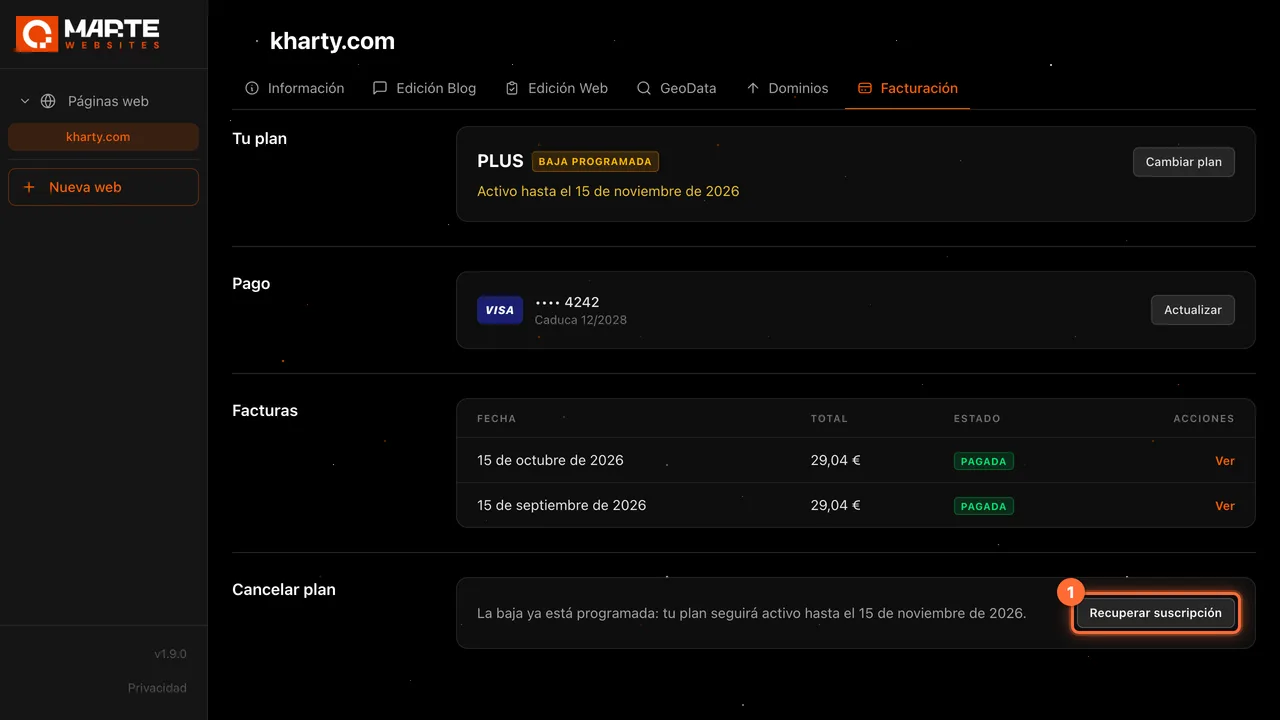
Panel: Billing
How to recover a cancelled subscription
Before you start
When you cancel your plan, the cancellation is never immediate: it is scheduled and your plan stays active until the end of the period you have already paid for. While your plan is still active you can change your mind: in the "Cancelar plan" (Cancel plan) section of the "Facturación" (Billing) tab you click "Recuperar suscripción" (Recover subscription) and the plan renews as usual, with no charge at that moment. The "Facturación" tab is visible to the website's client and to the aMarte team; an agency does not see it. The panel is in Spanish, so this guide quotes its labels in Spanish with their meaning in brackets.
Tip: If what you want is to pay less, moving to a cheaper plan may suit you better than leaving: see the guide "How to change your plan".
Step by step
Step 1
Open your website's "Facturación" (Billing) tab
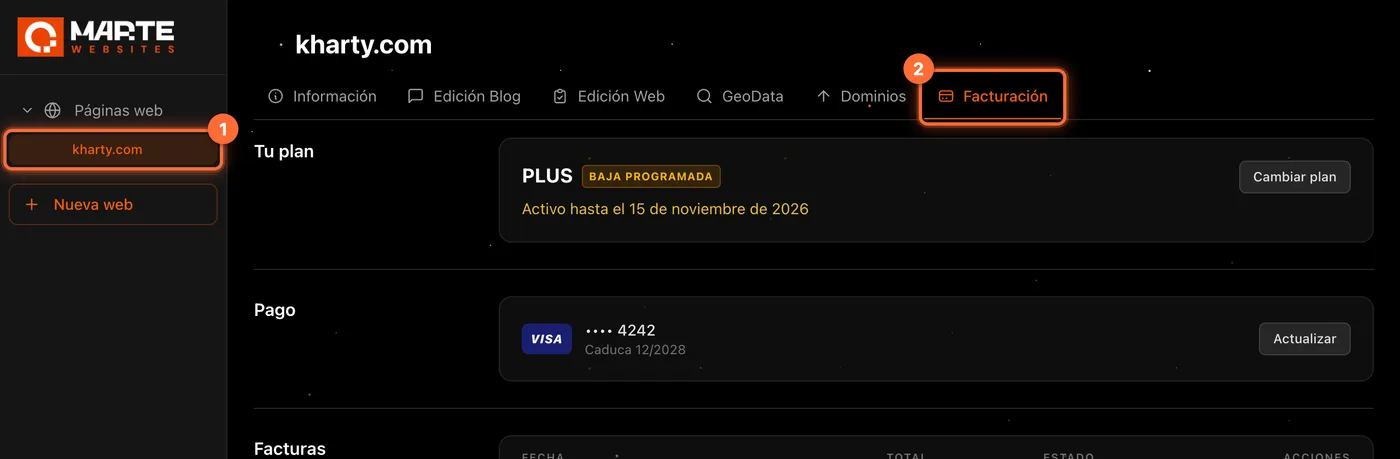
Sign in to the aMarte Websites panel, click your website in the left-hand menu (①) and open the "Facturación" tab (②).
If the cancellation is scheduled, "Tu plan" (Your plan) shows the status "Baja programada" (Cancellation scheduled) and the text "Activo hasta el 15 de noviembre de 2026" (Active until 15 November 2026): that is the date your plan would end if you do nothing.
Step 2
Click "Recuperar suscripción"
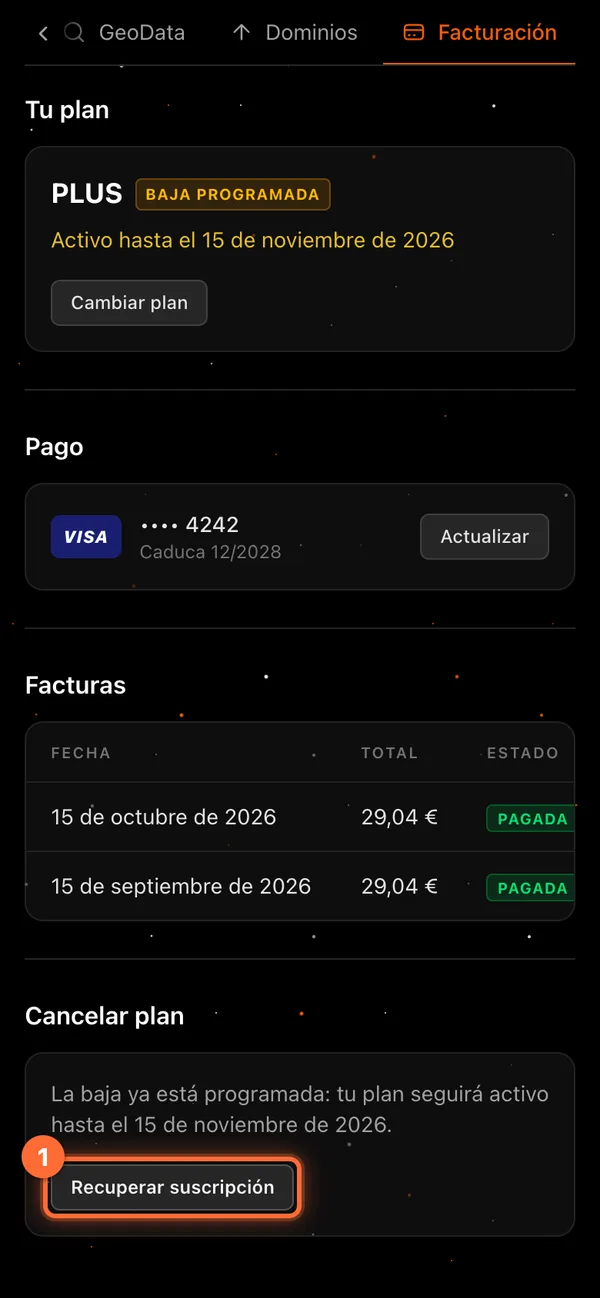
Scroll down to the last section, "Cancelar plan". With the cancellation scheduled you will see the text "La baja ya está programada: tu plan seguirá activo hasta el 15 de noviembre de 2026." (The cancellation is already scheduled: your plan will stay active until 15 November 2026.) and, next to it, the "Recuperar suscripción" button (①). Click it.

Step 3
Confirm in the "Recuperar suscripción" window
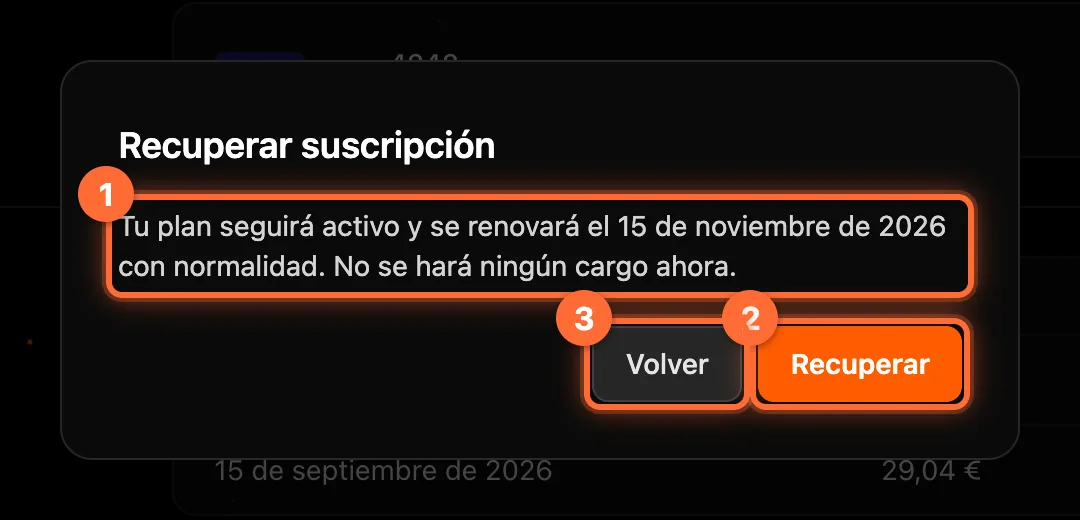
The "Recuperar suscripción" window opens. It tells you what is going to happen (①): "Tu plan seguirá activo y se renovará el 15 de noviembre de 2026 con normalidad. No se hará ningún cargo ahora." (Your plan will stay active and will renew as usual on 15 November 2026. You will not be charged anything now.)
Click "Recuperar" (②) to undo the cancellation, or "Volver" (③) if you prefer not to change anything. If something fails, the reason appears inside the same window and you can try again.
Step 4
Check that your plan is active again
The window closes and "Tu plan" updates: the status goes back to "Activo" (①) and the "Próxima factura" (Next invoice) with the renewal date reappears (②).
The "Cancelar plan" section shows "Cancela tu plan al final del periodo de facturación actual." (Cancel your plan at the end of the current billing period.) with the "Cancelar" button again, in case you want to schedule another cancellation later.



Step 5
If only part of your plan has a scheduled cancellation
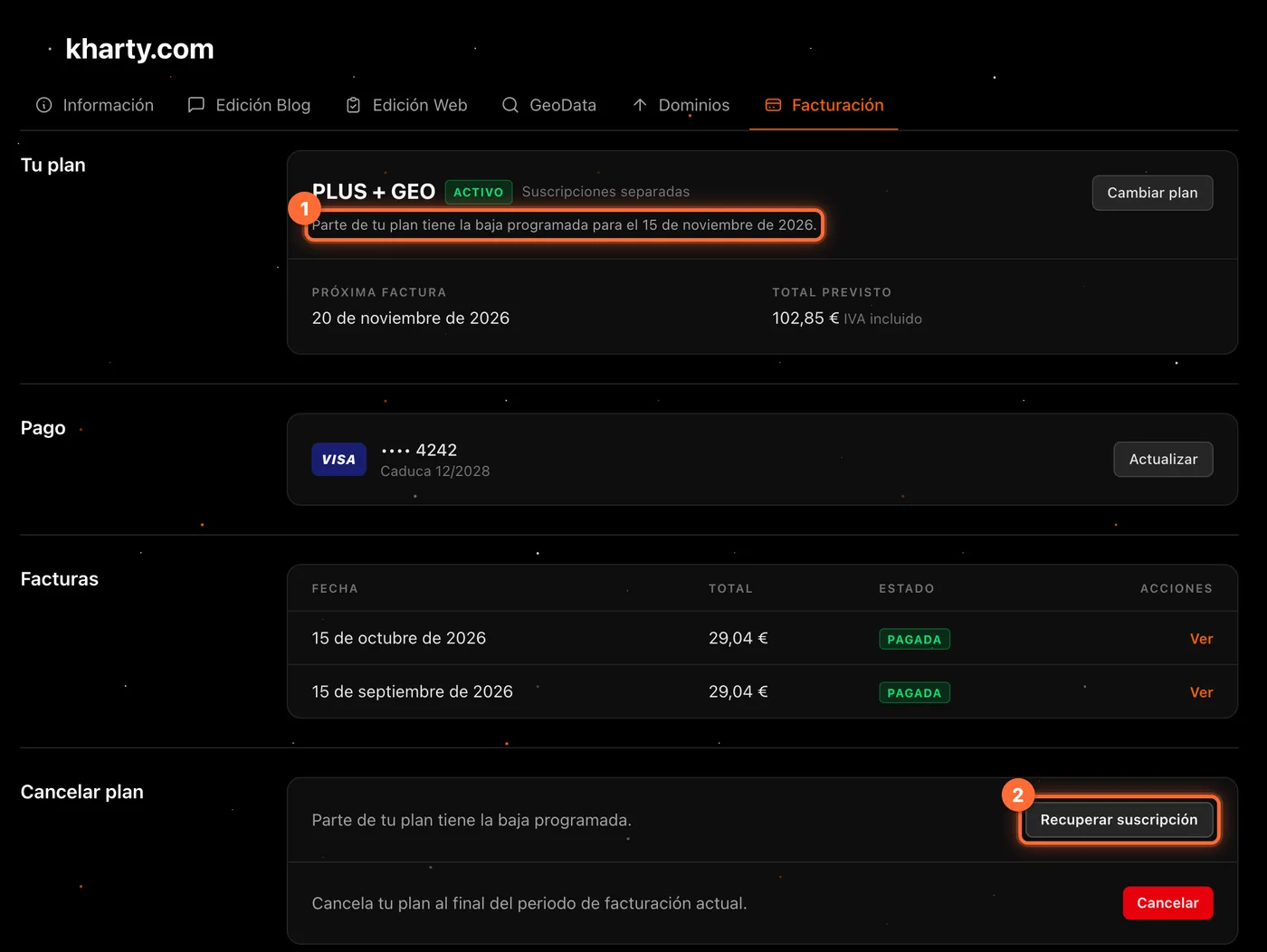
If you have PLUS (or PRO) and GEO as two separate subscriptions and you cancelled only one, "Tu plan" shows "Parte de tu plan tiene la baja programada para el 15 de noviembre de 2026." (Part of your plan has its cancellation scheduled for 15 November 2026.) (①). In "Cancelar plan" you will see "Parte de tu plan tiene la baja programada." with the "Recuperar suscripción" button (②) above the "Cancelar" button.
"Recuperar suscripción" does not let you choose: it recovers every plan subscription that has a scheduled cancellation. The ones that were not cancelled are left alone.
Frequently asked questions
Am I charged anything when I recover the subscription?
No. The window itself says so: "No se hará ningún cargo ahora" (you will not be charged anything now). Your plan renews on its usual date and the fee is charged then, like in any other renewal.
Until when can I recover it?
While your plan is still active, that is, until the date shown in "Activo hasta el…". Once that date arrives the subscription ends and it can no longer be recovered from the panel: contact support.
Can I cancel again after recovering?
Yes. After recovering, the "Cancelar plan" section shows the "Cancelar" button again and you can schedule a new cancellation whenever you want.
Can I change plan while the cancellation is scheduled?
No: the panel warns "Tu plan tiene la baja programada, no se puede cambiar de plan" (your plan has a scheduled cancellation, the plan can't be changed). Recover the subscription first and then change plan from "Cambiar plan".