
Panel: your account
How to recover your panel password
Before you start
If you don't remember your aMarte Websites panel password, you can choose a new one in a couple of minutes: request a link at https://app.amartewebsites.com/forgot-password, open it from your email and type the new password. If the link has expired, the screen itself lets you request another one. The panel is in Spanish, so this guide quotes its labels in Spanish with their meaning in brackets.
Tip: If you sign in to the panel with "Continuar con Google" (Continue with Google), you don't need a password: use that button. This guide uses the fictitious website "Kharty", with the email facturacion@kharty.com, as its example.
Step by step
Step 1
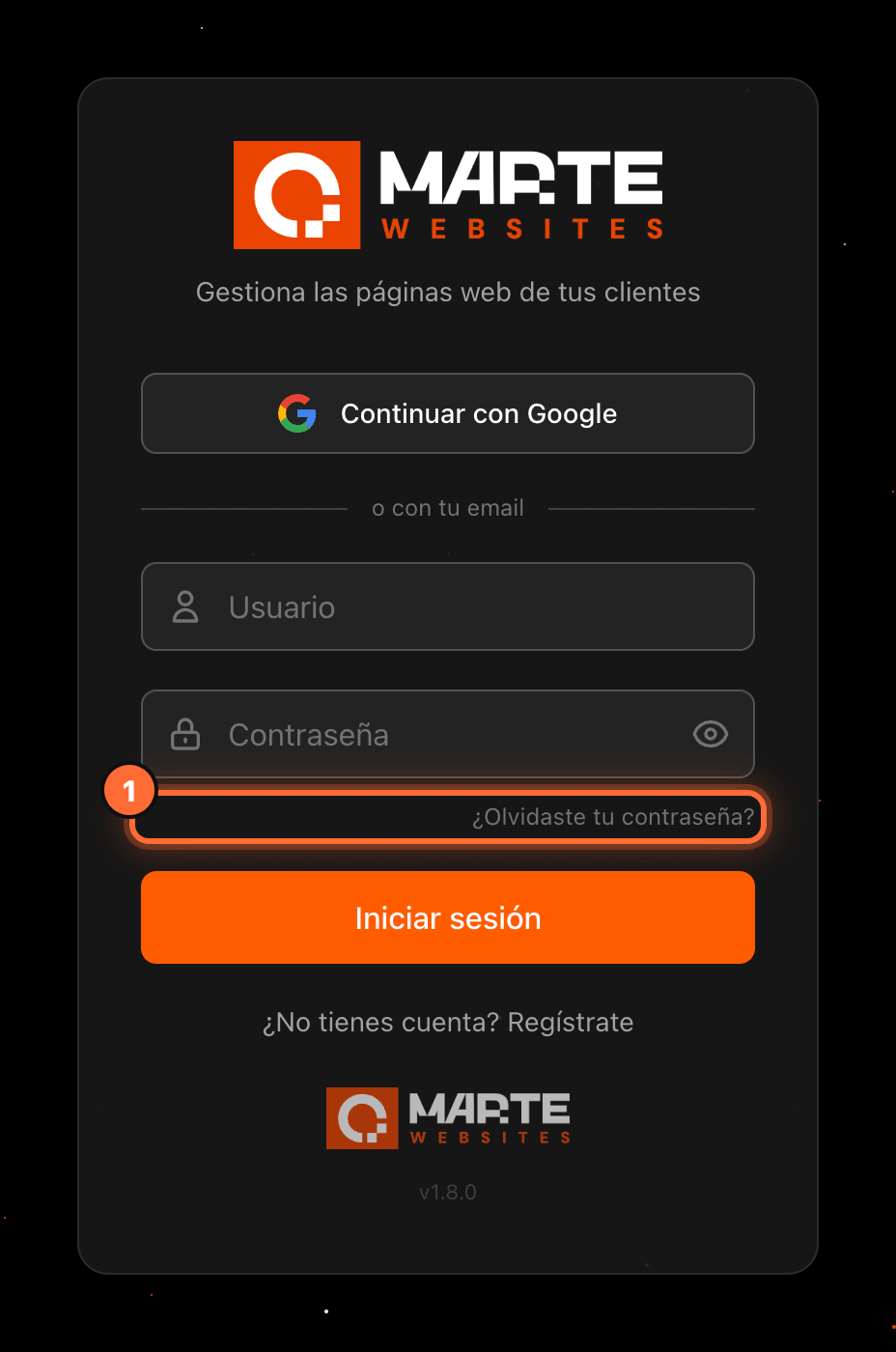
Click "¿Olvidaste tu contraseña?" (Forgot your password?)
Go to https://app.amartewebsites.com/login (or click "Log in" in the amartewebsites.com header). Below the password field, click "¿Olvidaste tu contraseña?" (Forgot your password?) (①).
The screen to request the link opens, at its own address: https://app.amartewebsites.com/forgot-password.
Step 2
Type your email and click "Enviar enlace" (Send link)
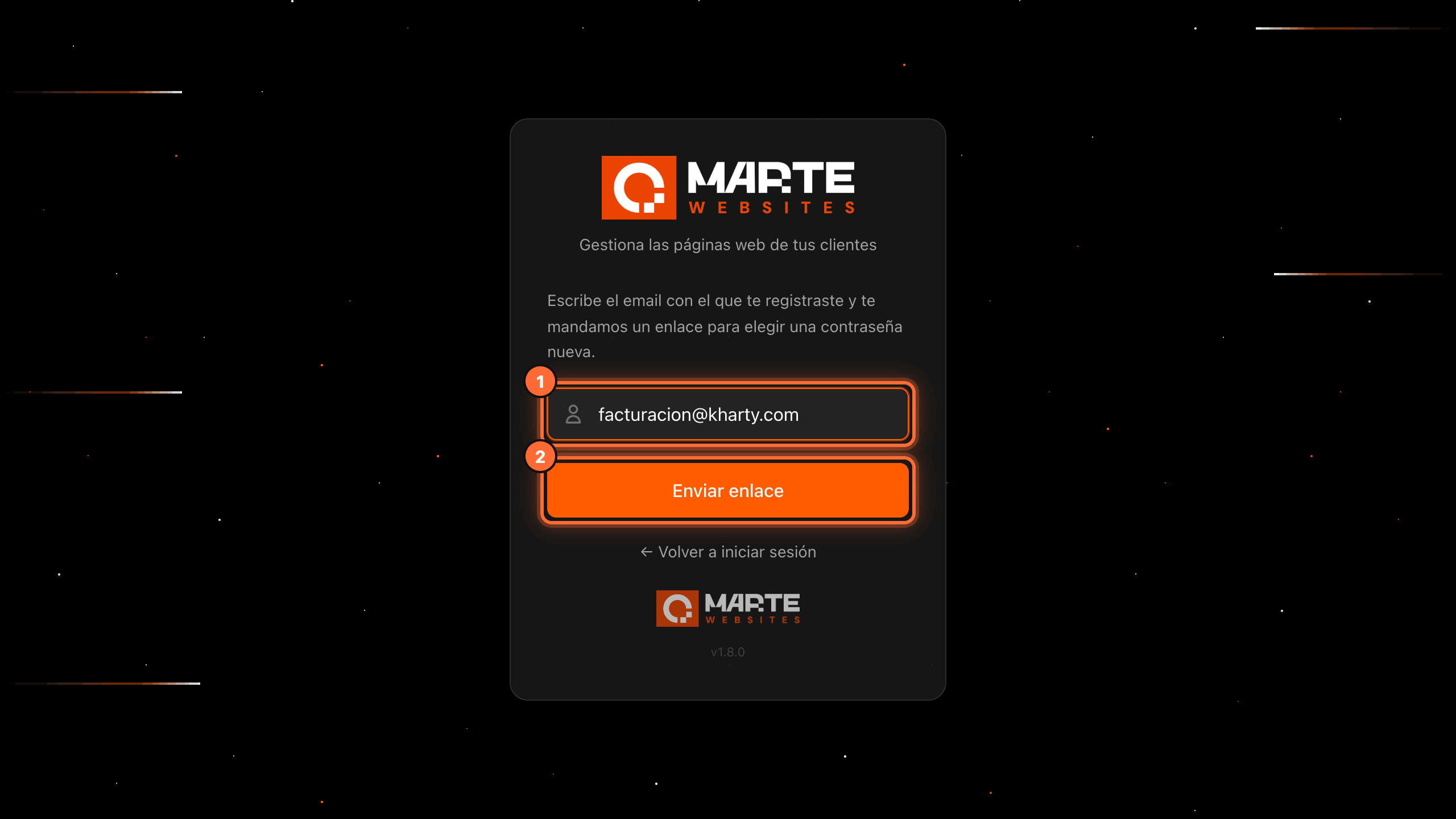
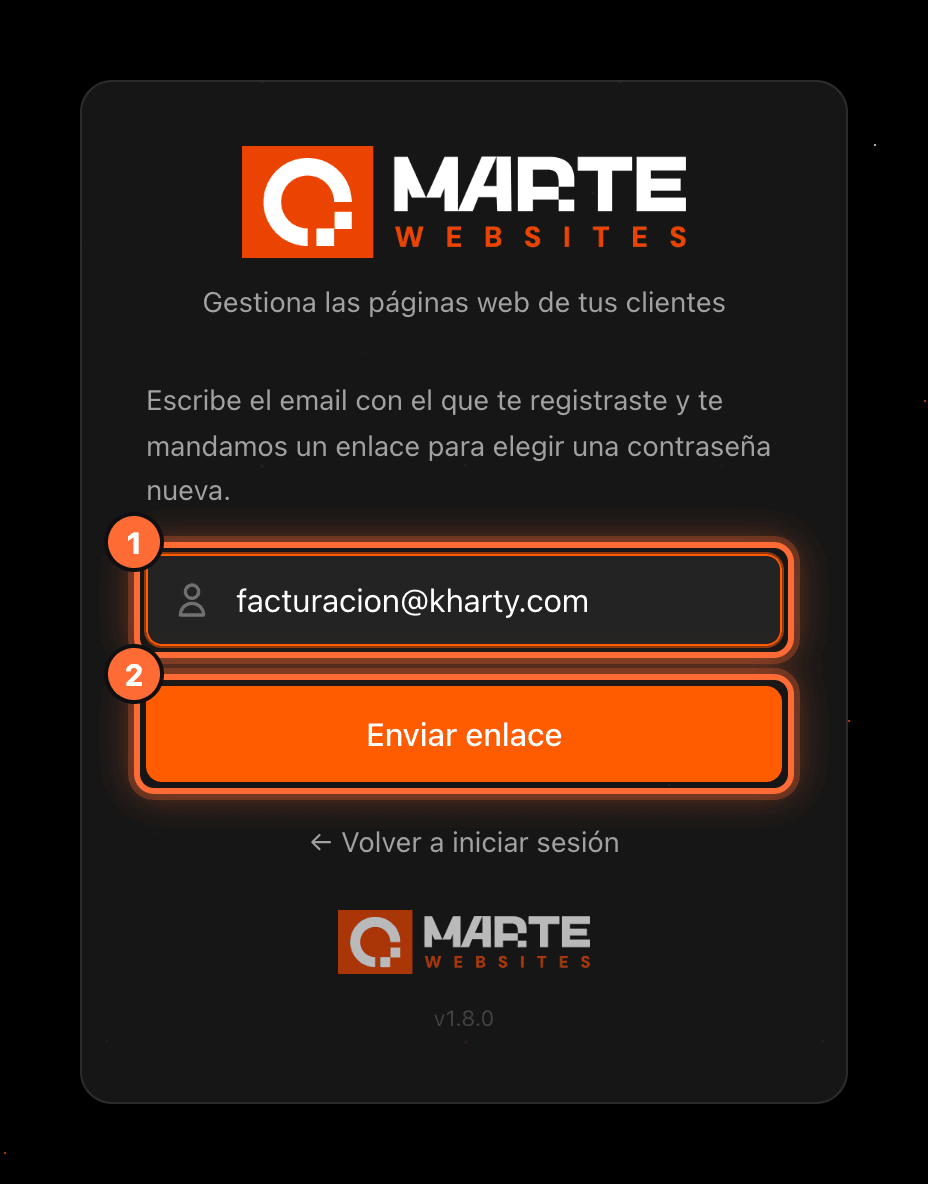
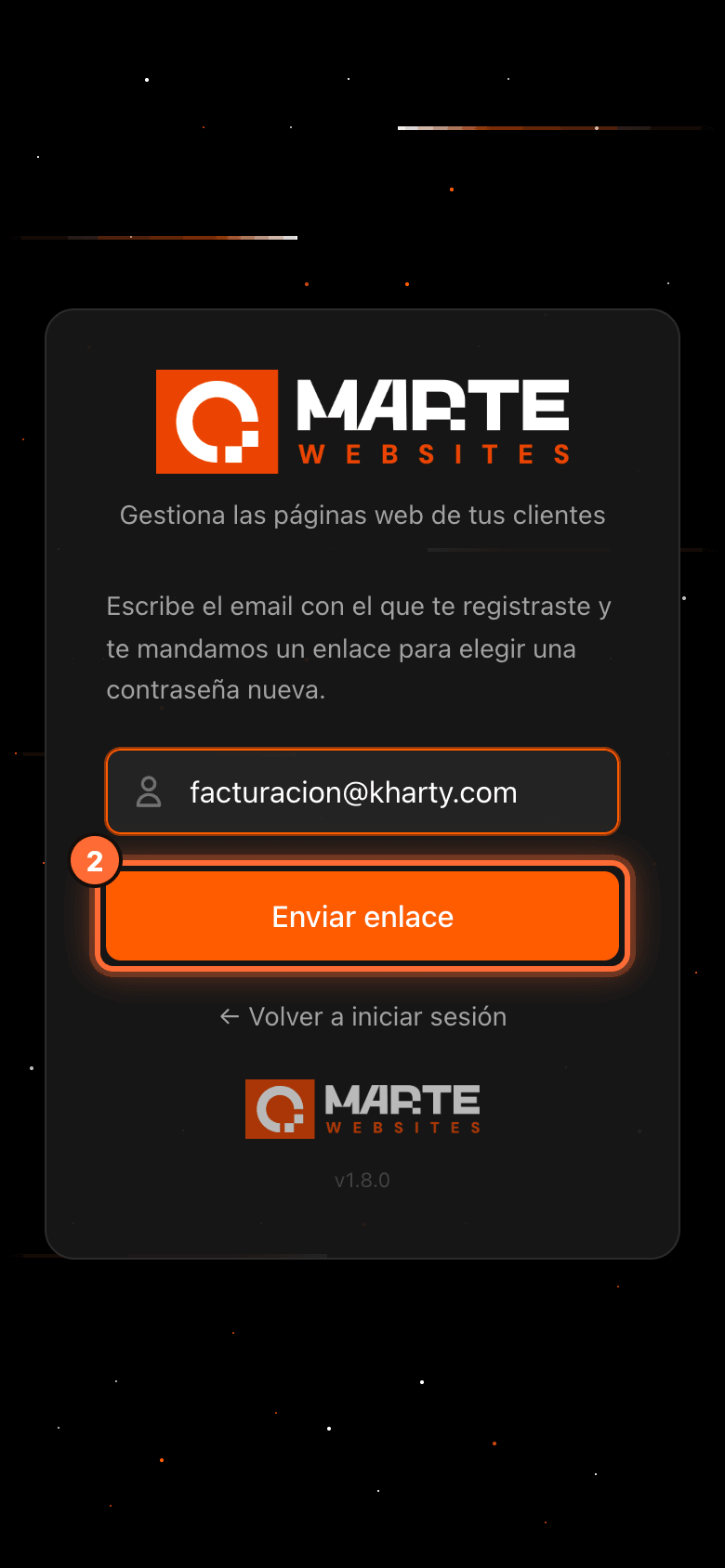
Type the email you signed up with (①) and click "Enviar enlace" (Send link) (②).
If you are on the wrong screen, "← Volver a iniciar sesión" (Back to sign in) takes you back to the sign-in screen.
Step 3
Open the email with the link
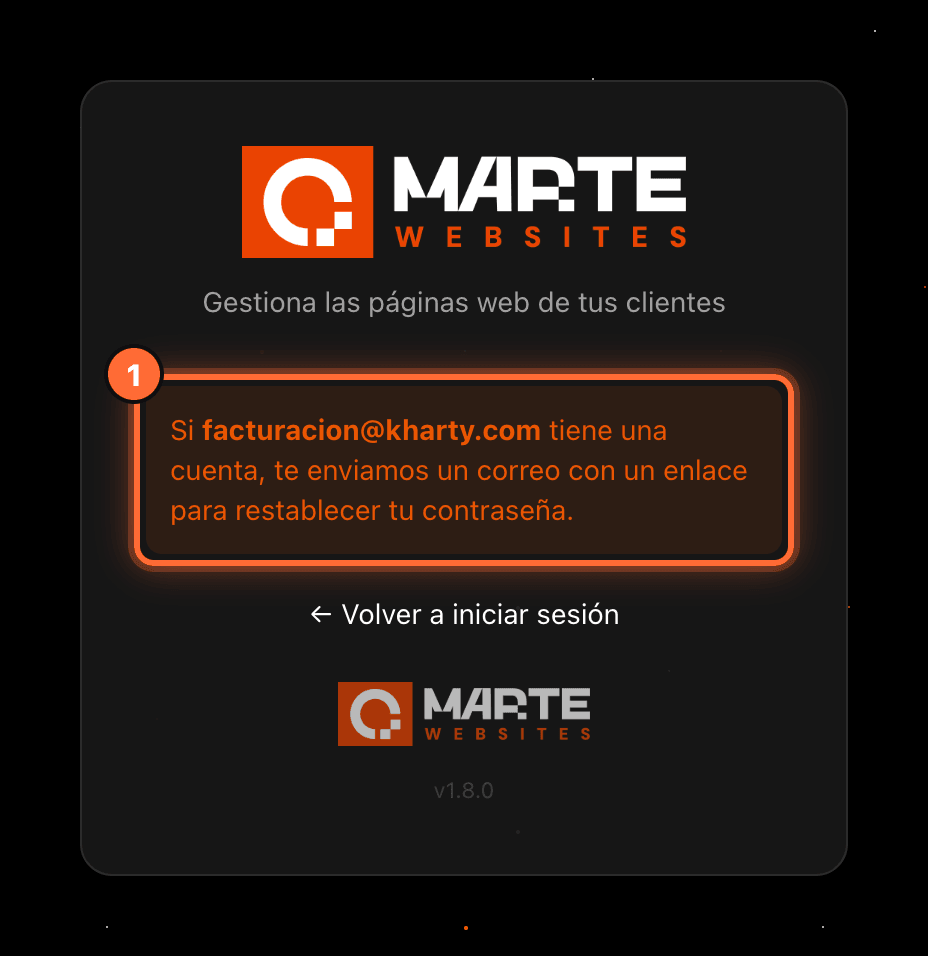
You will see the message "Si … tiene una cuenta, te enviamos un correo con un enlace para restablecer tu contraseña" (If … has an account, we sent you an email with a link to reset your password) (①). For security, the message is the same whether or not the email has an account.
Open that email and click the link. You can open it on a different device or browser from the one you used to request it.
There is no screenshot of the email because it arrives in your own mailbox and how it looks depends on your email app.
Step 4
Choose your new password
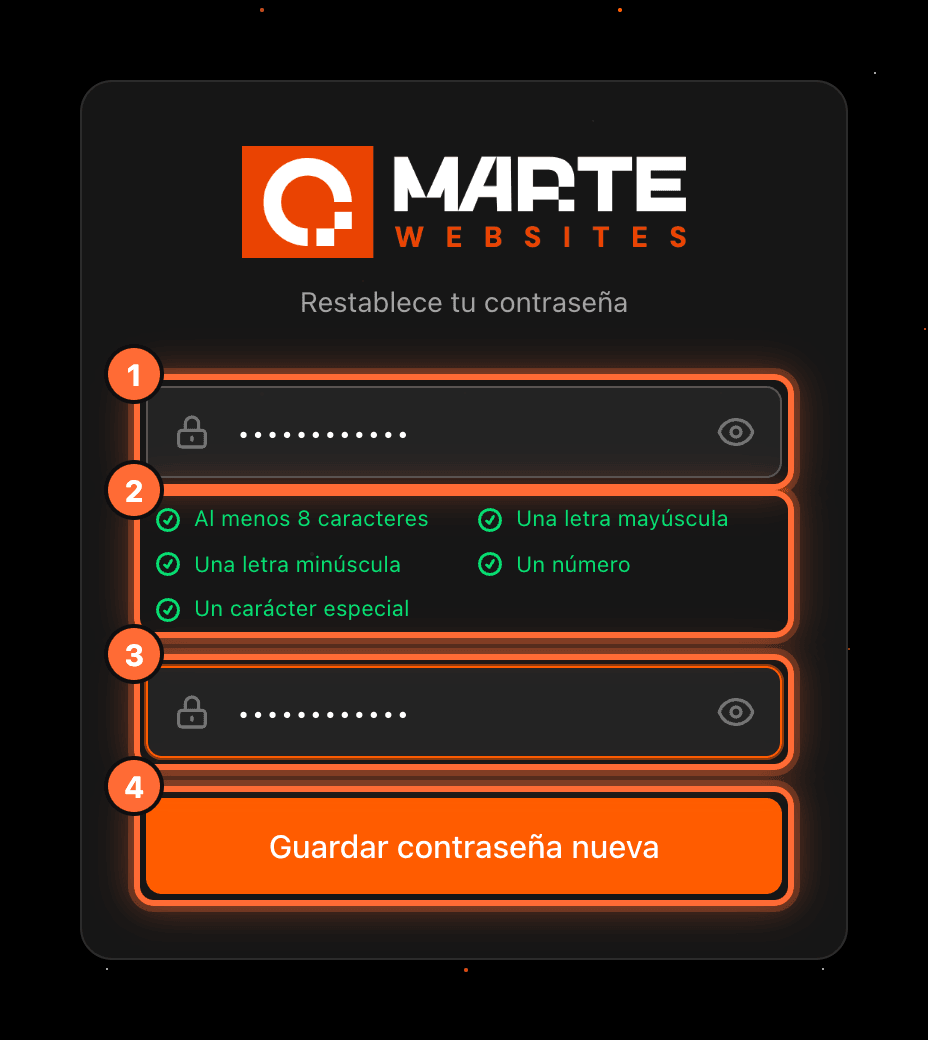
The link opens the "Restablece tu contraseña" (Reset your password) screen. Type the new password (①); its requirements appear below (②) and turn green once met: at least 8 characters, an uppercase letter, a lowercase letter, a number and a special character.
Repeat it in "Confirmar contraseña nueva" (Confirm new password) (③) and click "Guardar contraseña nueva" (Save new password) (④). The button only becomes active when the password meets every requirement and both fields match.
Step 5
Sign in with your new password
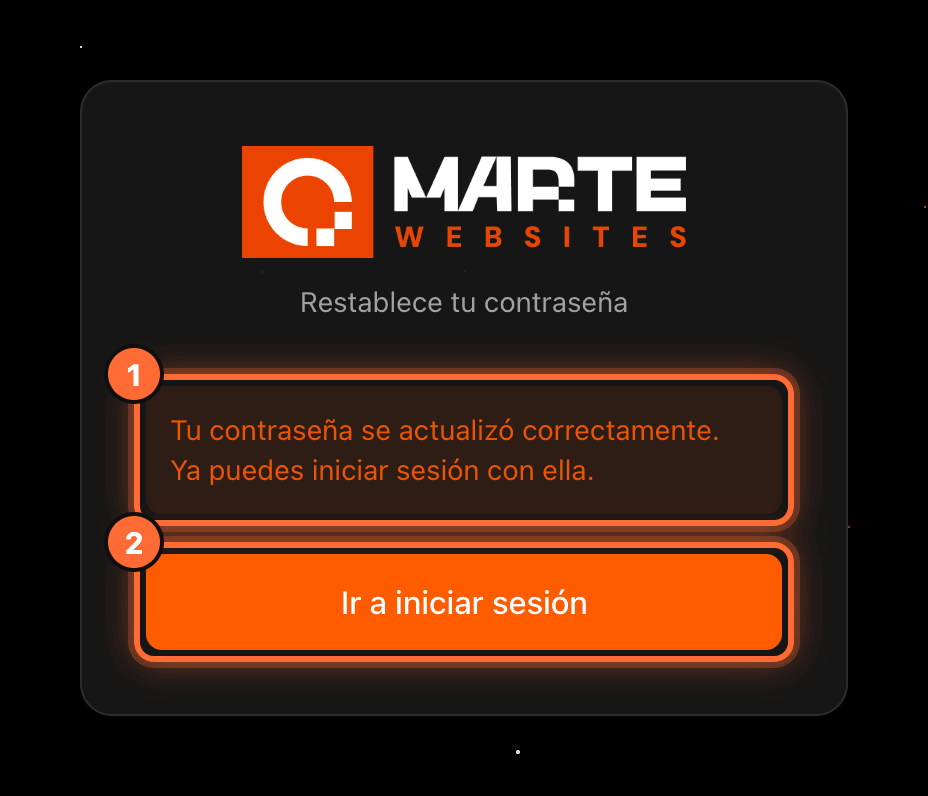
You will see the message "Tu contraseña se actualizó correctamente. Ya puedes iniciar sesión con ella." (Your password was updated. You can now sign in with it.) (①). Click "Ir a iniciar sesión" (Go to sign in) (②) and sign in with your email and the new password.
Your previous password stops working.
Step 6
If the link has expired, request a new one
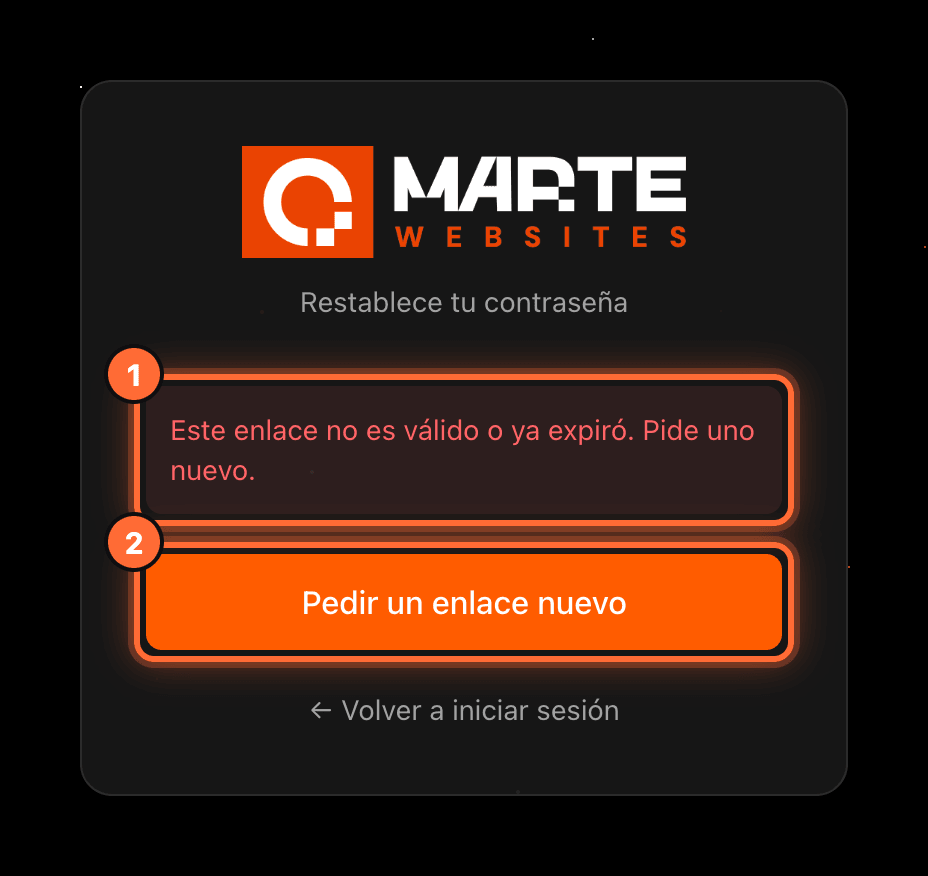
Recovery links expire after a while. If, when you open it, you see "Este enlace no es válido o ya expiró. Pide uno nuevo." (This link is invalid or has expired. Request a new one.) (①), click "Pedir un enlace nuevo" (Request a new link) (②).
It takes you straight to the screen to request the link (https://app.amartewebsites.com/forgot-password): repeat this guide from step 2 and use the most recent email.
Frequently asked questions
The password reset email doesn't arrive
Wait a few minutes and check your spam and promotions folders. Check that you typed the same email you signed up with: the panel shows the same message even if the email has no account. If it still doesn't arrive, write to us from the contact page.
Can I open the link on another device?
Yes. You can request the link on your computer and open it on your phone, or the other way round. It works in any browser.
I sign in with Google. Do I need to recover my password?
No. If you signed up with "Regístrate con Google" (Sign up with Google), always sign in with "Continuar con Google" (Continue with Google) on the sign-in screen: you don't need a password.
The link says it is invalid or has expired
Click "Pedir un enlace nuevo" (Request a new link) on that same screen, type your email again and open the most recent email. Earlier links may have stopped working.