
Panel: GeoData
How to read your GEO data
Before you start
The "GeoData" tab shows how your brand appears in the answers of AI engines (ChatGPT, Gemini, Perplexity, Claude and others): how often you are mentioned, in which position, which pages are cited and how you compare with your competitors. The website's client, its agency and the aMarte team can see it.
Tip: Filters are saved in the page link. If you bookmark a view with filters, opening it shows exactly the same thing. In this guide we use the fictional website "Kharty" (kharty.com), a leather bag shop, as an example; its competitors and figures are made up.
Step by step
Step 1
Open the GeoData tab
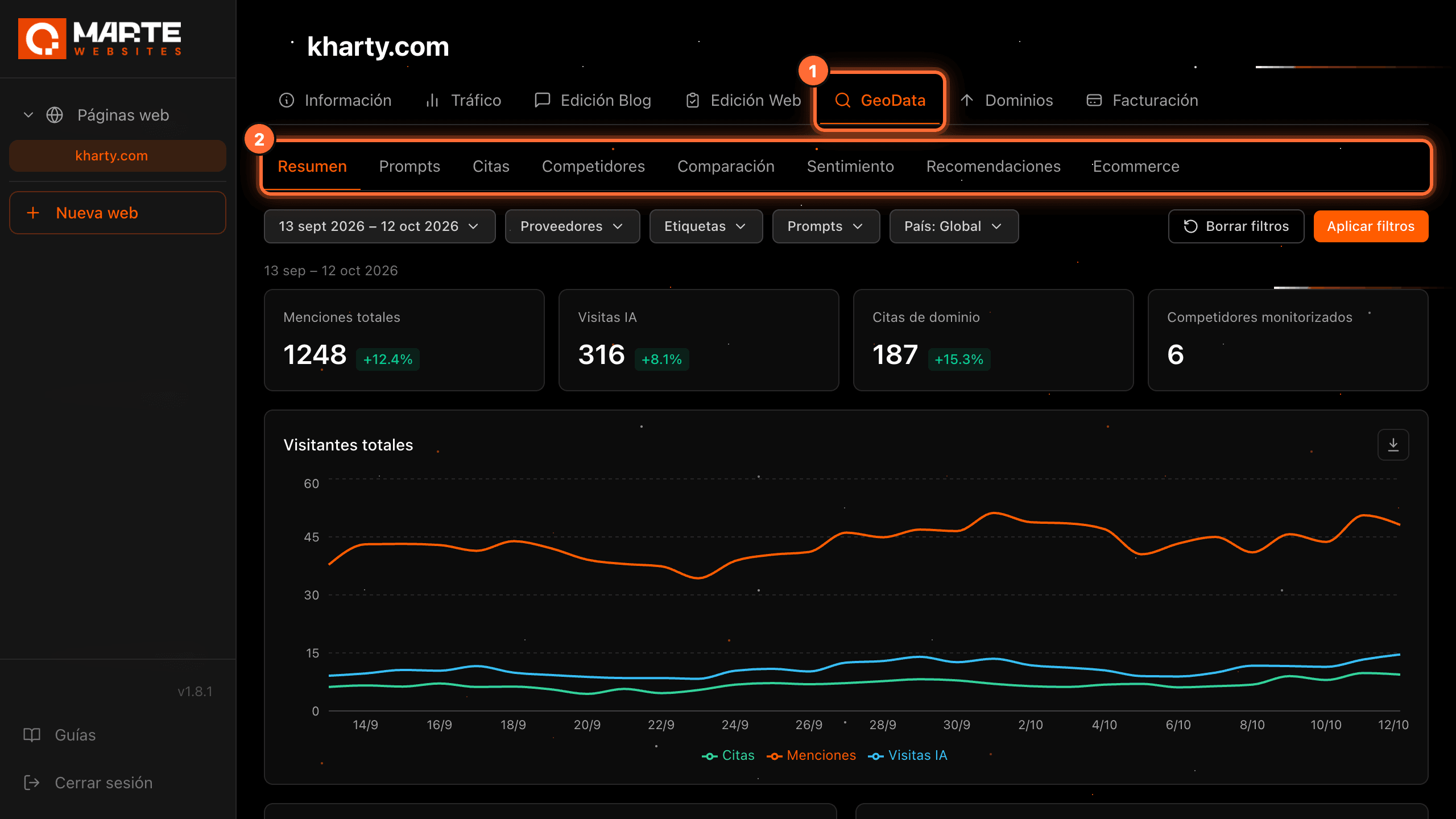
Log in to the panel, open your website under "Páginas web" (Websites) and click the "GeoData" tab (①).
Below it there is a second row with its 8 sub-tabs (②): "Resumen" (Summary), "Prompts", "Citas" (Citations), "Competidores" (Competitors), "Comparación" (Comparison), "Sentimiento" (Sentiment), "Recomendaciones" (Recommendations) and "Ecommerce". GeoData always opens on "Resumen".
Step 2
Get to know the filter bar
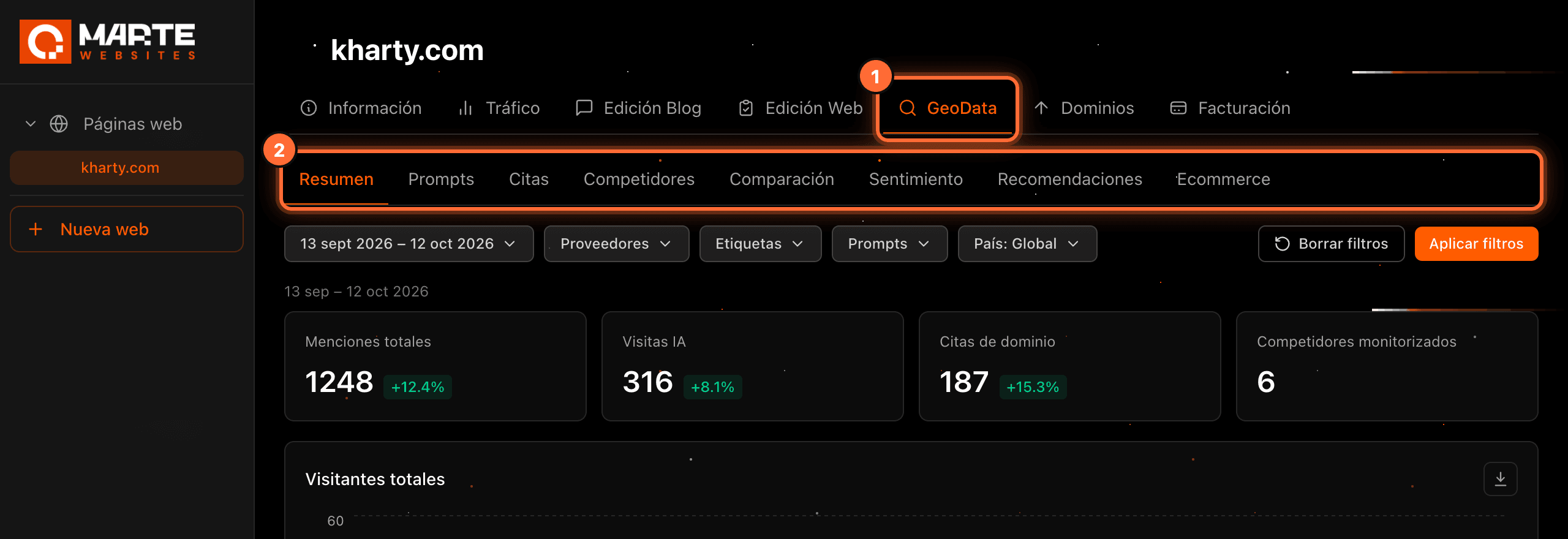
Below the sub-tabs is the filter bar: • ① Dates: by default, the last 30 days (today included). • ② "Proveedores" (Providers): the AI engines you want to see. • ③ "Etiquetas" (Tags): your website's prompt groups. • ④ "Prompts": one or more specific prompts. • ⑤ "País" (Country): "Global" means worldwide. • ⑥ "Aplicar filtros" (Apply filters) applies the changes.
Each sub-tab only shows the filters it uses. For example, "Prompts" has no "Prompts" filter, "Comparación" has the dates inside each panel, and "Sentimiento" and "Recomendaciones" have no filters.

Step 3
Apply a filter
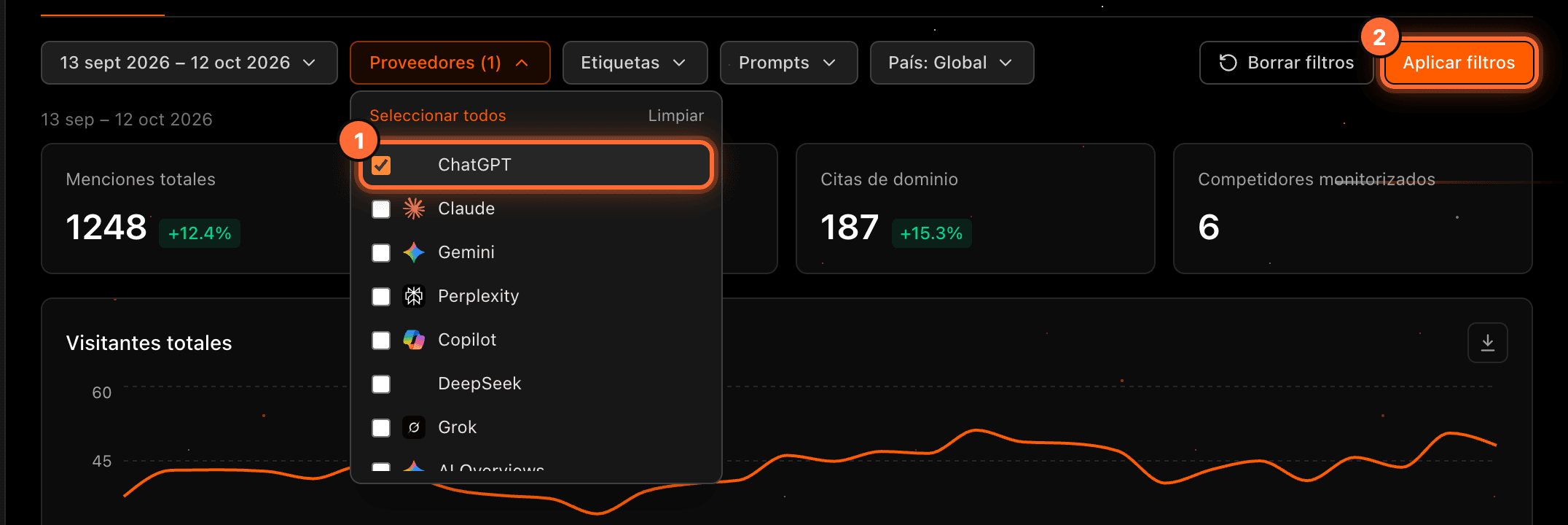
Open a filter, for example "Proveedores", and tick what you want to see, such as "ChatGPT" (①). Then click "Aplicar filtros" (②).
The date range is applied as soon as you click "Aplicar" (Apply) inside its calendar. "Borrar filtros" (Clear filters) removes every filter, dates included, and goes back to the last 30 days.
Filters are kept when you switch sub-tabs and are saved in the page link.
Step 4
Read the Summary
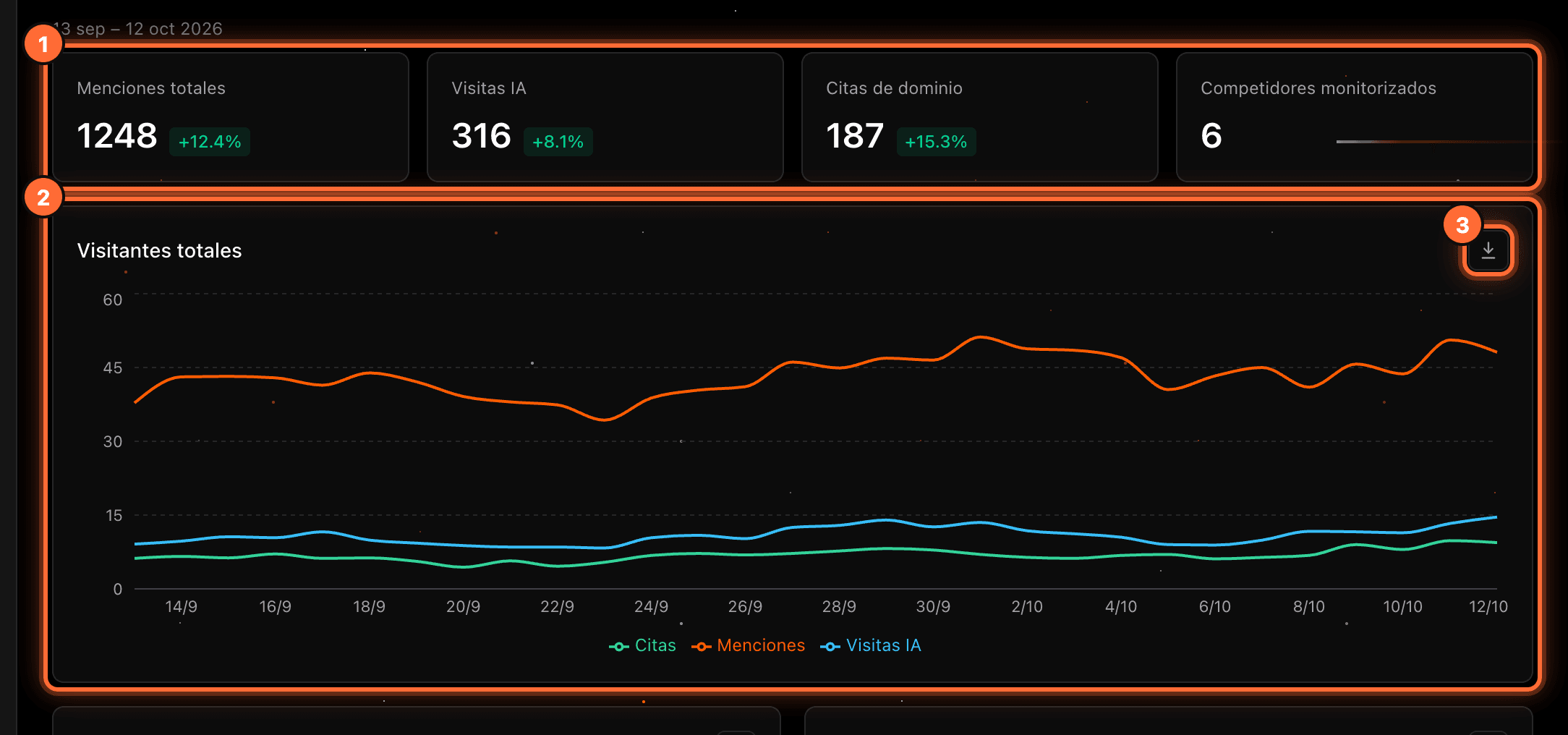
"Resumen" gathers the key figures for the period: • ① The cards "Menciones totales" (Total mentions), "Visitas IA" (AI visits), "Citas de dominio" (Domain citations) and "Competidores monitorizados" (Tracked competitors). The first three show the % change versus the previous period. • ② The "Visitantes totales" (Total visitors) chart, with the mentions, AI visits and citations of each day. • Further down: "Menciones de marca" (Brand mentions), "Share of Voice en el tiempo" (Share of Voice over time), the top citations and competitors, and the metrics of each AI engine.
The download icon (③) saves the chart as a PNG image with the aMarte logo, the title and the dates. GeoData charts have it.
Step 5
Review your prompts
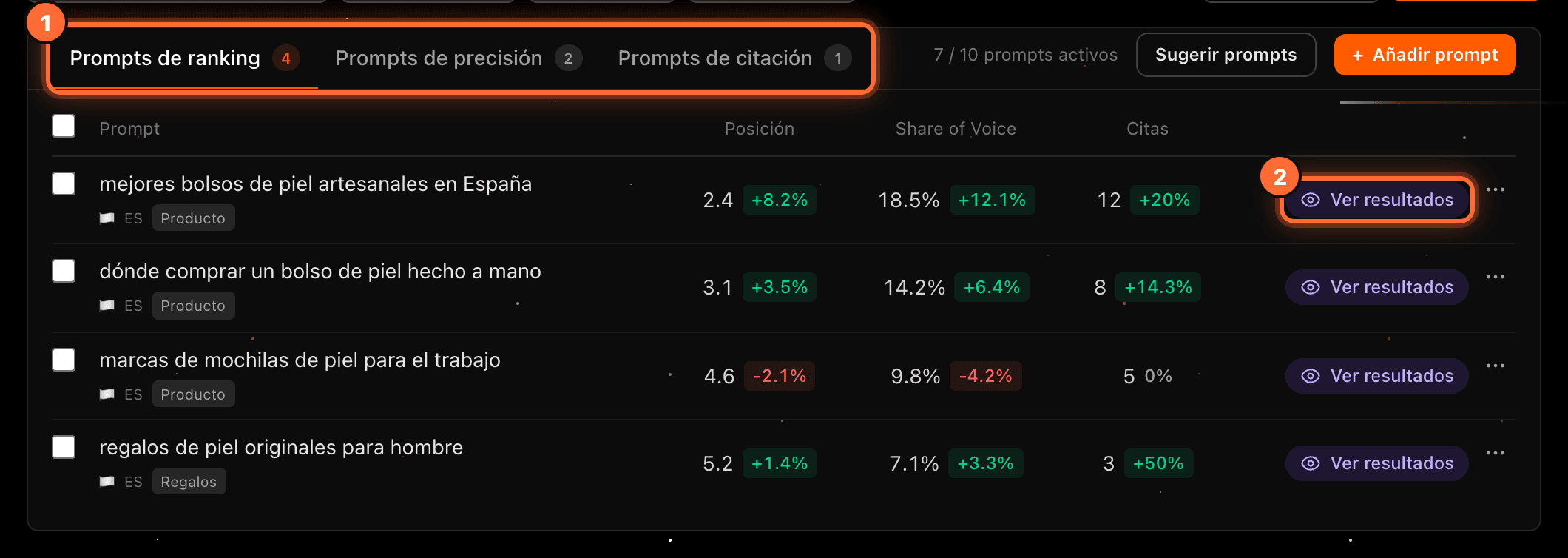
A prompt is a question asked to the AI engines to see what they answer about your sector and your brand. In "Prompts" they are grouped in three tabs (①): • "Prompts de ranking" (Ranking prompts): your position, your Share of Voice and your citations in each answer. • "Prompts de precisión" (Accuracy prompts): whether each AI engine answers what you expect about your brand. • "Prompts de citación" (Citation prompts): how often the AI cites pages of your website.
For position, a lower number is better. Click "Ver resultados" (View results) (②) to open a prompt's details. To add prompts, see the guide "How to add a prompt". To edit, pause or delete them, see "How to manage your prompts in GeoData".
Step 6
Open a prompt's details
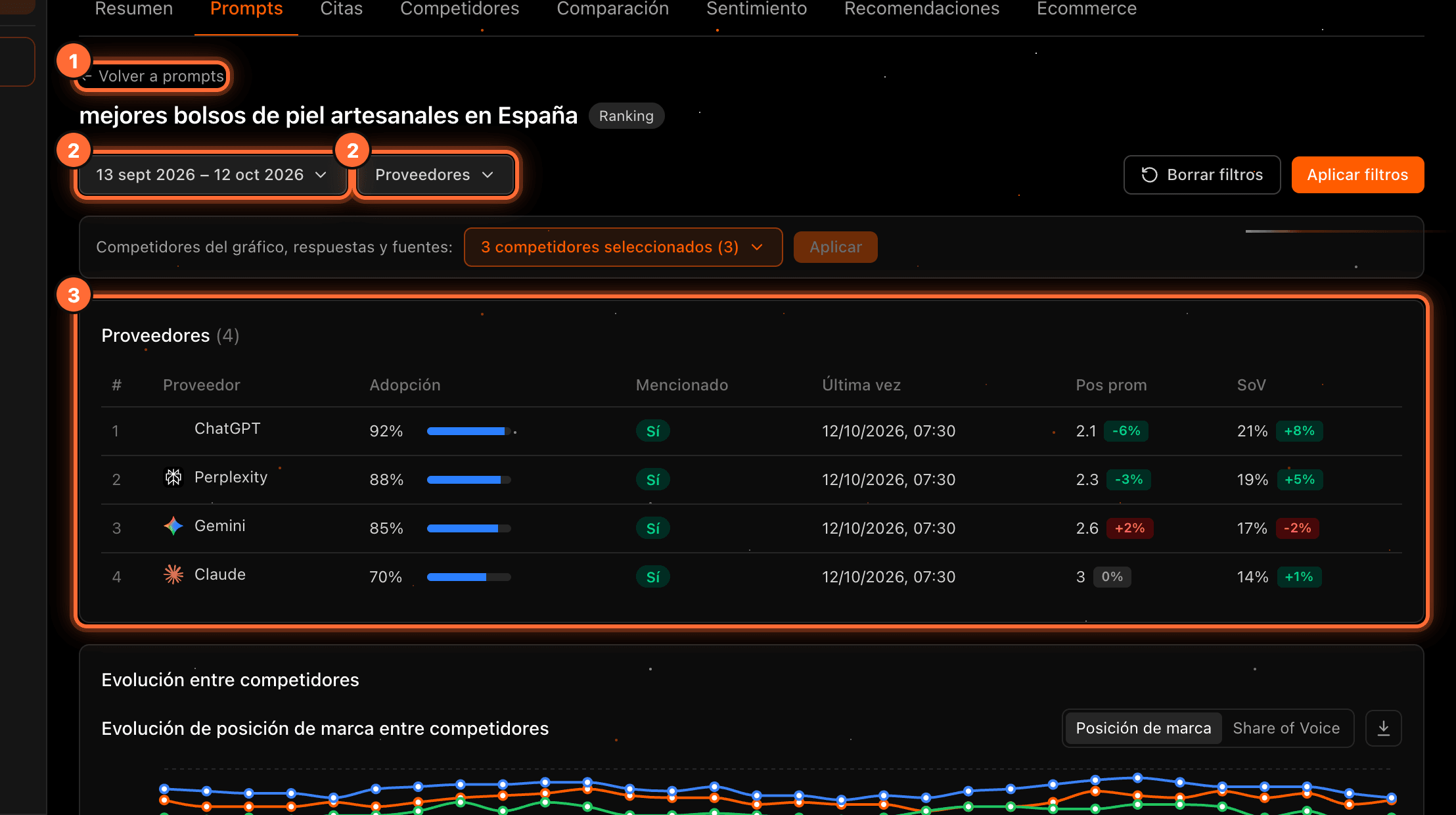
The details page shows the prompt and its type. "Volver a prompts" (Back to prompts) (①) takes you back to the list with the same filters.
The details page has its own dates and "Proveedores" filters (②). The "Proveedores" table (③) shows, for each AI engine, the adoption, whether it mentioned you, when it last did, your average position and your Share of Voice. Further down are the evolution against your competitors, the AI answers and the sources they cite.
Step 7
See who cites you in Citations
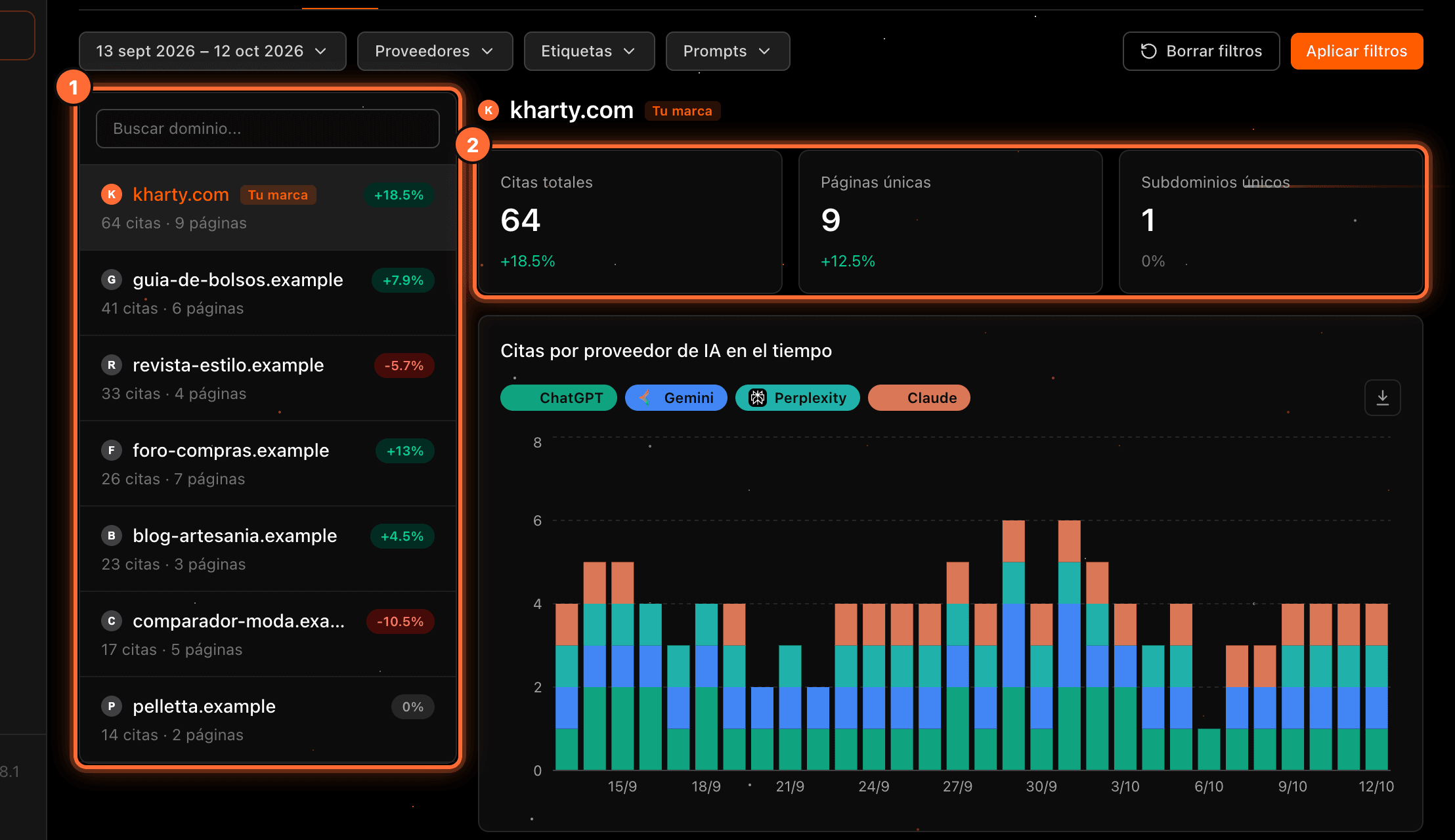
"Citas" lists the domains the AI engines cite in their answers (①); yours comes first, tagged "Tu marca" (Your brand). You can search for a domain and click it.
On the right you see its details (②): "Citas totales" (Total citations), "Páginas únicas" (Unique pages) and "Subdominios únicos" (Unique subdomains), the "Citas por proveedor de IA en el tiempo" (Citations per AI provider over time) chart and the "Desglose por prompt" (Breakdown by prompt), with the specific pages that were cited.
Step 8
Analyse your competitors
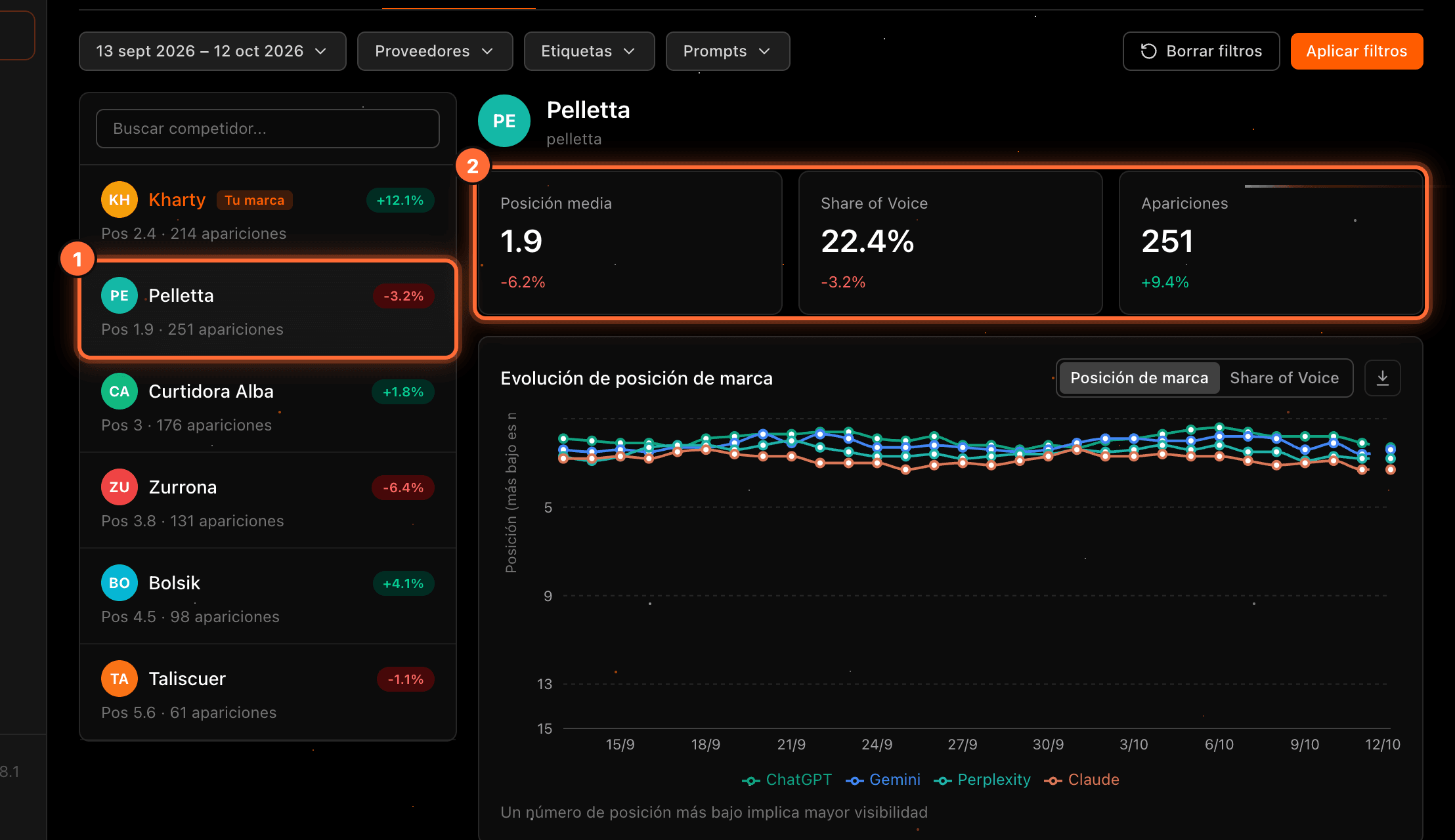
"Competidores" lists the brands that appear in the AI answers, with their average position and appearances. Click one (①) to see its details (②): "Posición media" (Average position), "Share of Voice" and "Apariciones" (Appearances) with their change, the evolution chart per AI engine (you can switch between "Posición de marca" (Brand position) and "Share of Voice") and the "Desglose de prompts" (Prompt breakdown).
Step 9
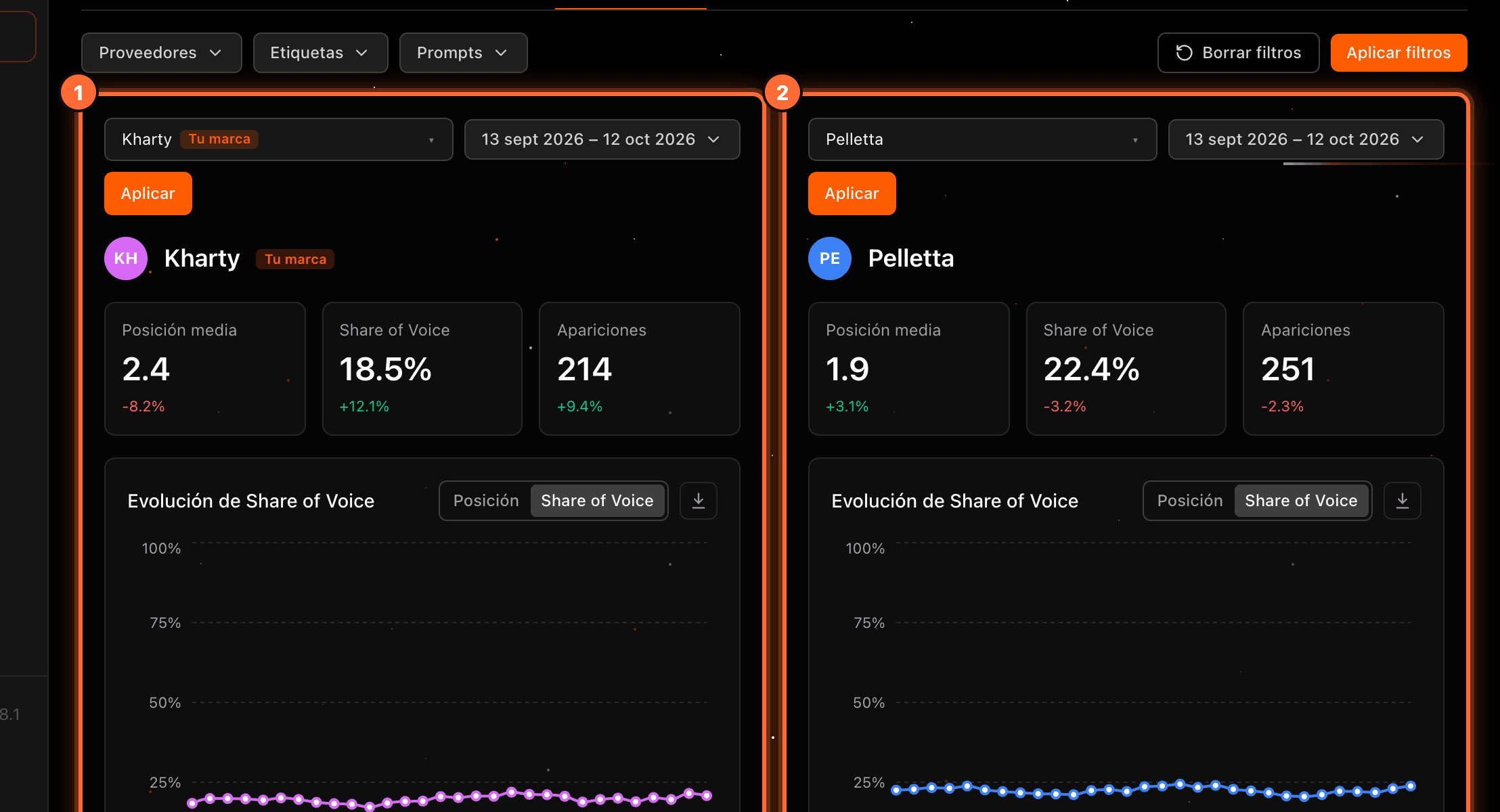
Compare two brands
"Comparación" places two panels side by side: "Marca A" (Brand A) (①) and "Marca B" (Brand B) (②). Each has its own brand and date range. We explain it step by step in the guide "How to compare your brand with a competitor".
Step 10
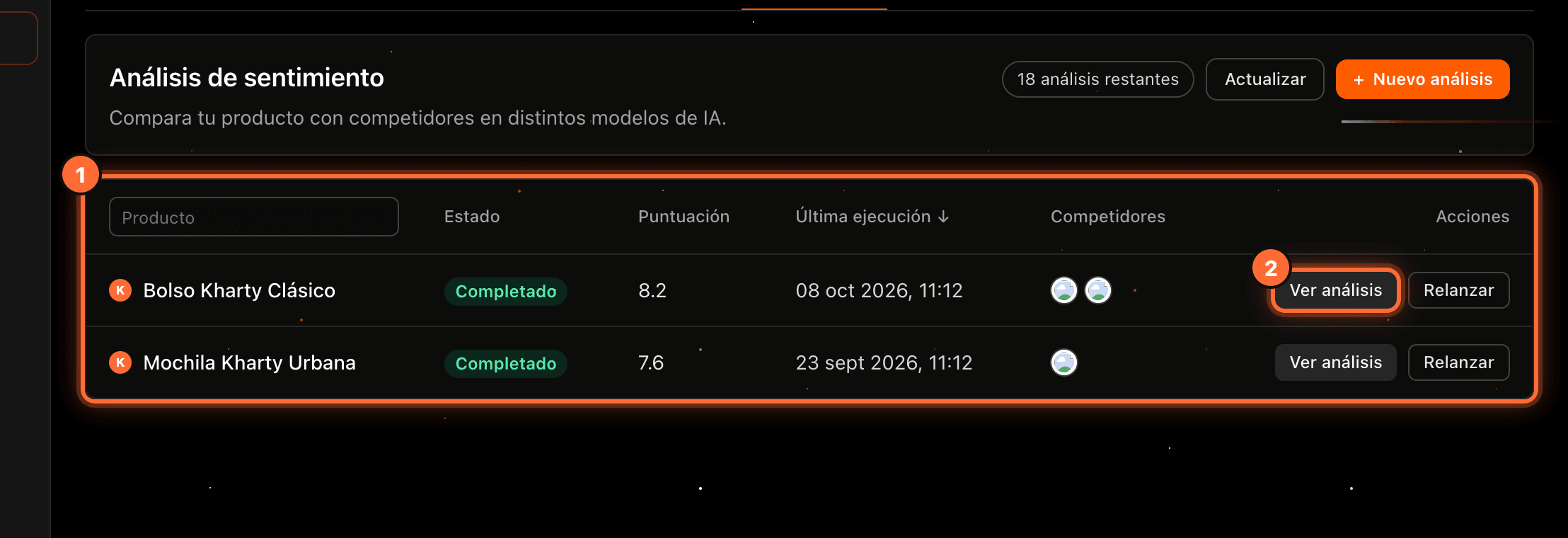
Check the Sentiment analyses
"Sentimiento" compares one of your products with competing products across several AI models. The table (①) shows each analysis with its status, its score, the date of the last run and the competitors. "Ver análisis" (View analysis) (②) opens each AI model's assessment.
With an active GEO plan, "Nuevo análisis" (New analysis) starts a new one. At the top you can see how many analyses you have left ("N análisis restantes").
Step 11
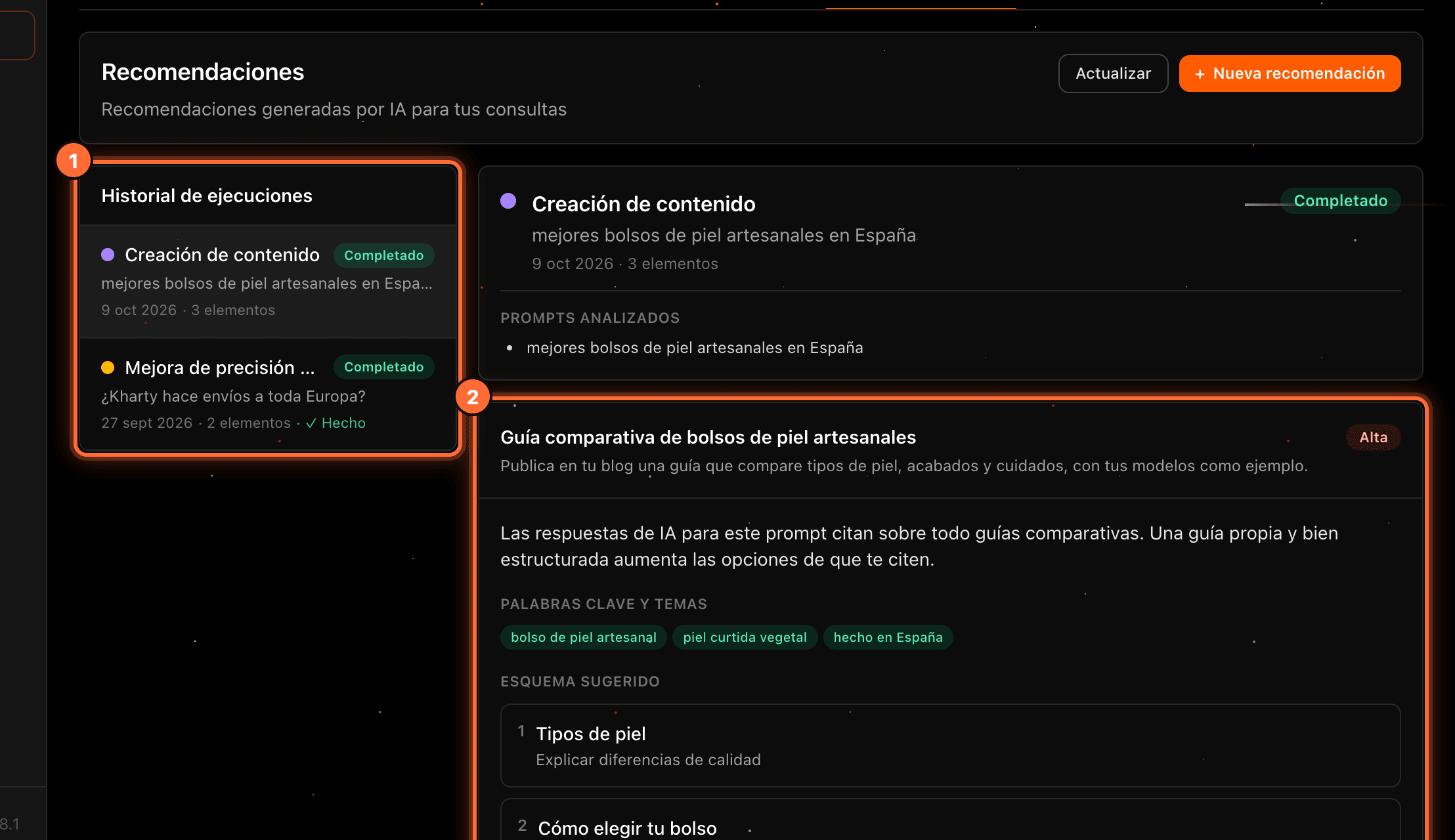
Act on the Recommendations
"Recomendaciones" keeps the proposals the AI generates to improve your visibility. On the left is the "Historial de ejecuciones" (Run history) (①). When you pick one, its recommendations appear on the right (②), with their priority, description, keywords and, when available, a suggested outline.
With an active GEO plan, "Nueva recomendación" (New recommendation) generates a new one. It can take a few minutes; you can leave and come back later.
Step 12
Check Ecommerce
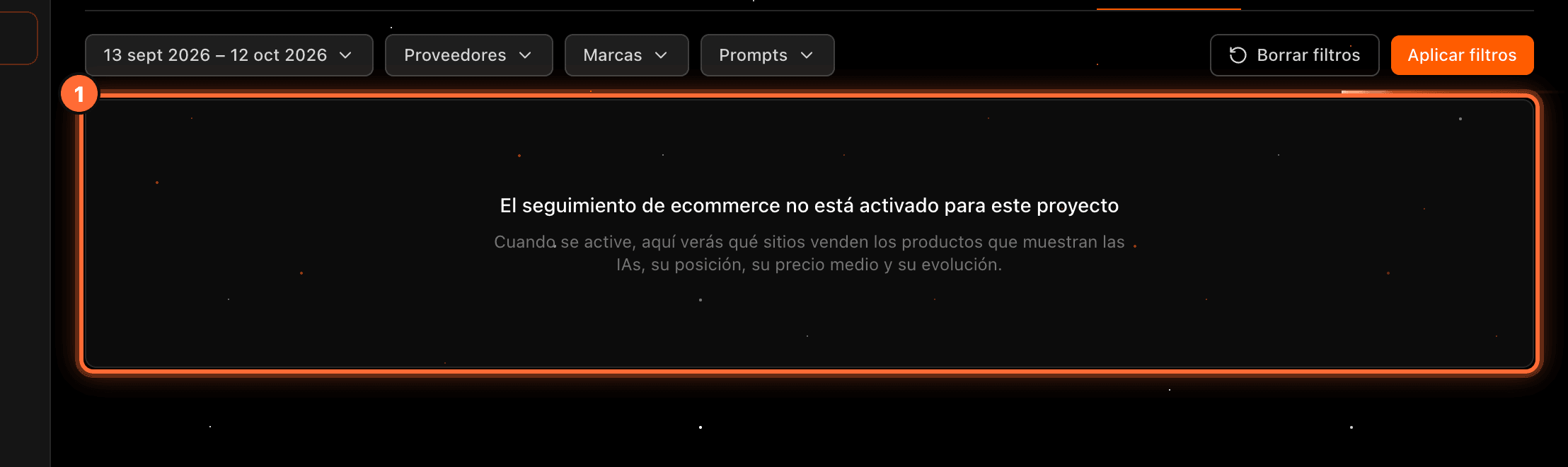
"Ecommerce" shows which online shops sell the products the AI engines display, with their position, average price and evolution. It has its own filter, "Marcas" (Brands).
If ecommerce tracking isn't enabled for your website, you'll see the notice "El seguimiento de ecommerce no está activado para este proyecto" (Ecommerce tracking is not enabled for this project) (①).
Step 13
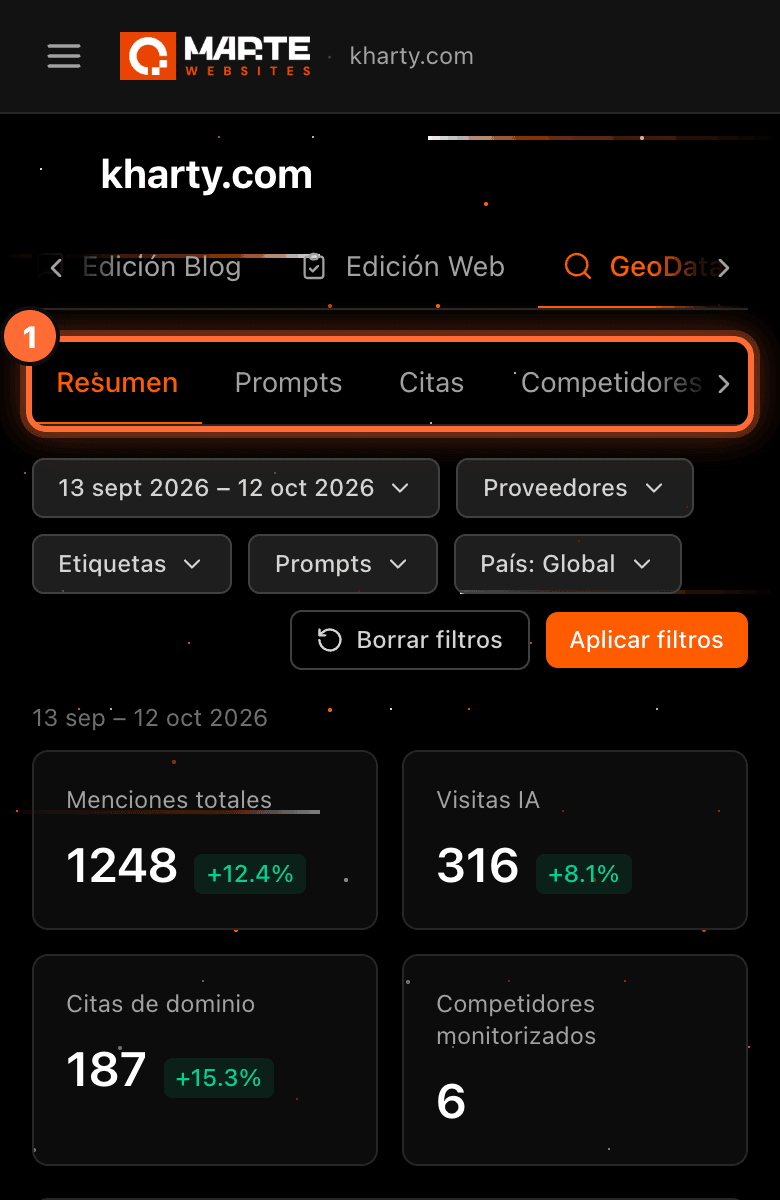
It works the same on mobile
On mobile, the row of sub-tabs scrolls horizontally (①) and the filters wrap onto several lines. Everything else works as on a computer.
Frequently asked questions
Which period do I see if I don't change the dates?
The last 30 days, today included. The % changes compare that period with the previous one.
Why don't all sub-tabs show the same filters?
Each sub-tab only shows the filters it uses. The others are kept and apply again when you go back to a sub-tab that has them.
Can I share a view with its filters?
Yes. The filters are part of the page link. Anyone with access to that website in the panel will see the same view when they open it.
I see "Métricas GEO no disponibles" or the "Muestra gratuita" notice. What does it mean?
"Métricas GEO no disponibles" (GEO metrics not available) means your website doesn't have GEO yet. "Muestra gratuita" (Free sample) means you are viewing a sample with real data. Both cases are explained in the guide "The free GEO sample and how to get GEO".