
Meta Pixel
How to Install Your Meta Pixel in Marte Website Builder: Step-by-Step Guide
If you have created your website with Marte Website Builder and want to measure the performance of your Facebook and Instagram campaigns, this guide will show you how to integrate the Meta Pixel quickly and easily.
Unlike other platforms, Marte Website Builder greatly simplifies this process, as you do not need to copy and paste the full pixel code. You only need your Pixel ID!
Step 1: Find Your Meta Pixel ID
- Before going to your Marte panel, you must first locate your Pixel ID.
- Open the Meta Events Manager.
- In the left-hand menu, make sure you have selected the correct pixel you want to install.
- Just below your pixel name, you will see a long number. That is your Pixel ID. Copy it.
Step 2: Go to Settings in Marte Website Builder
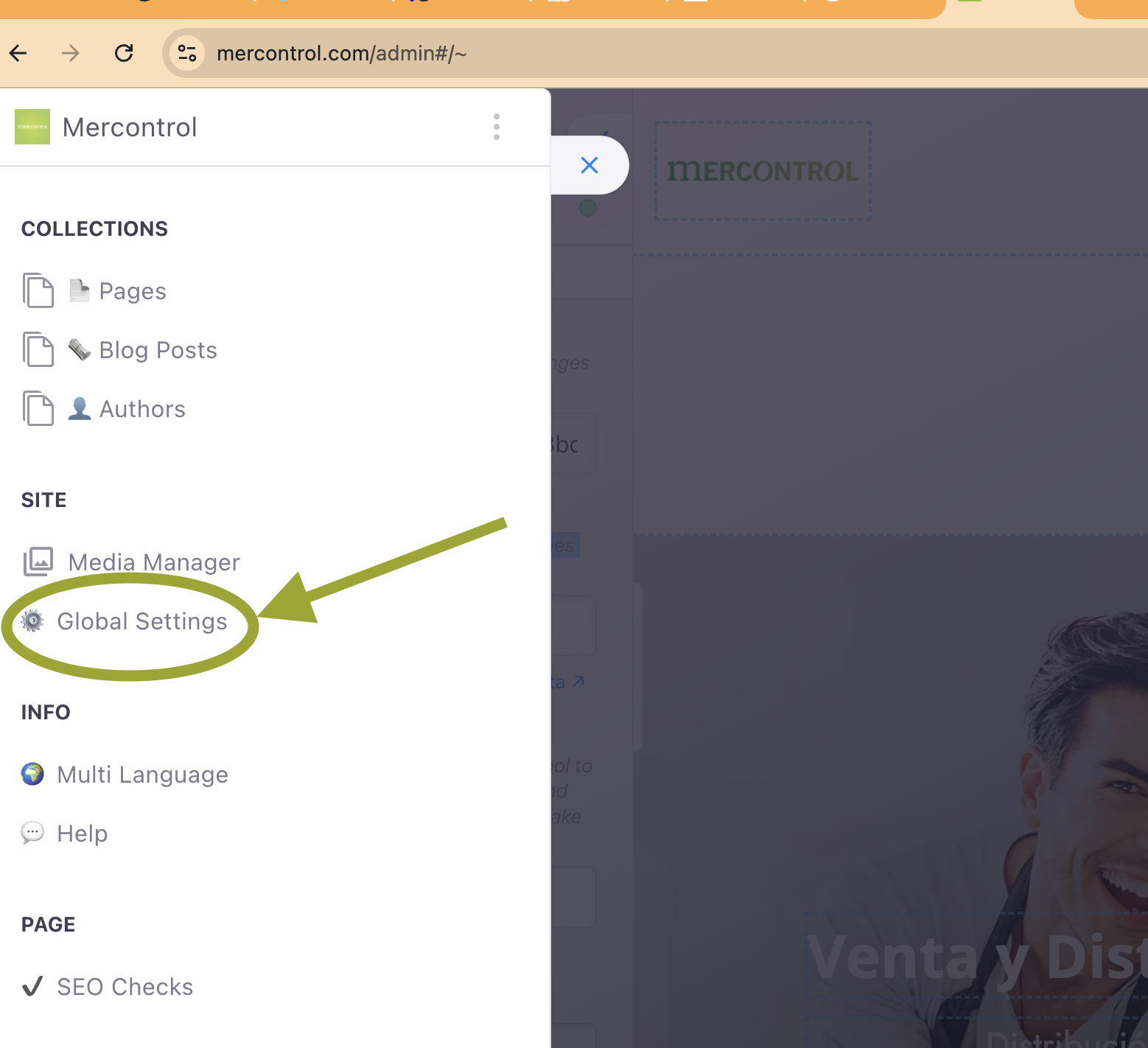
- Now, with your Pixel ID copied, log in to the admin panel of your Marte website.
- In the main menu on the left, find and click the "Global Settings" option, which usually has a gear icon.
Step 3: Access External Services
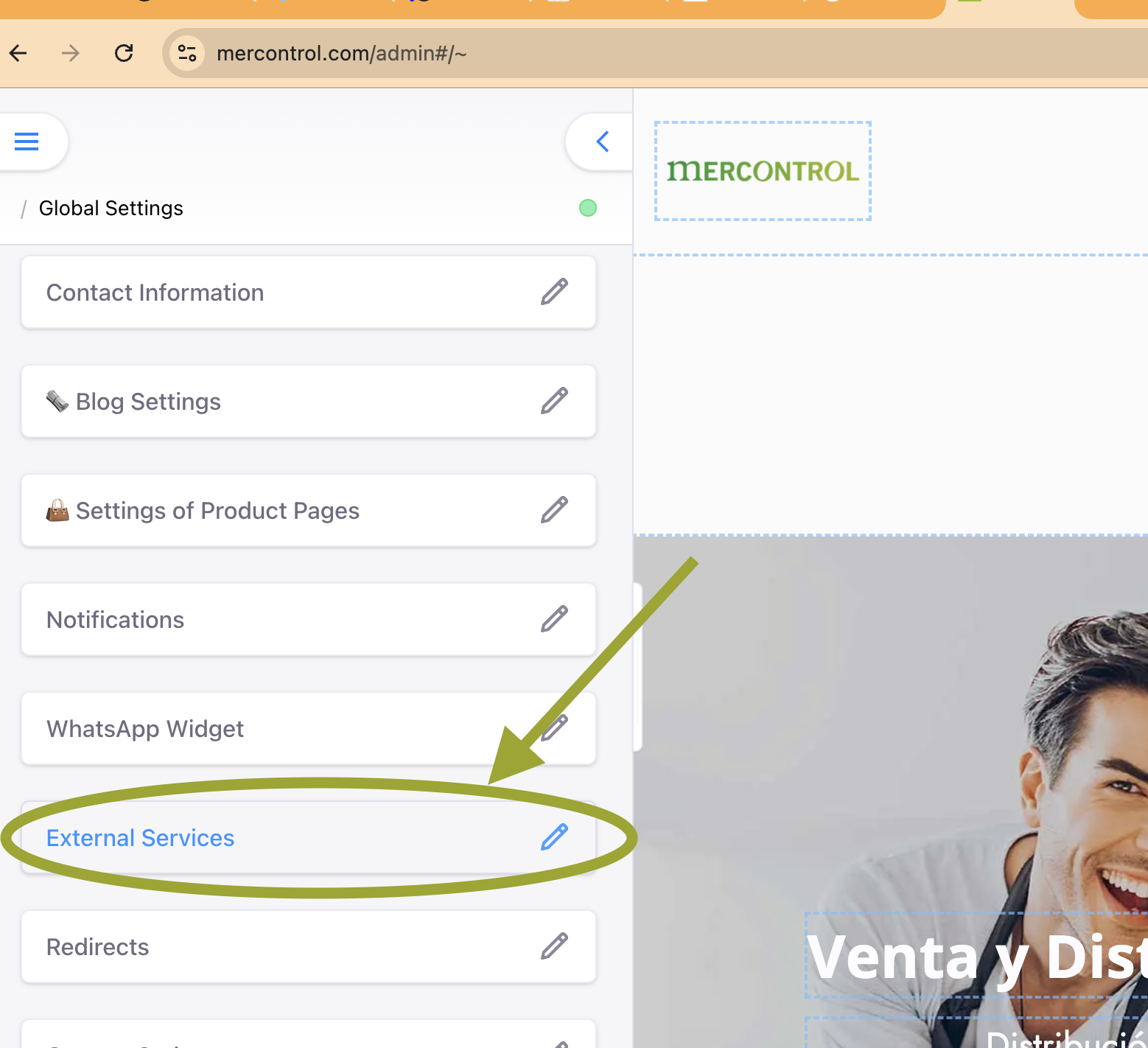
- Within the "Global Settings" menu, you will find several options to configure your site.
- Locate and click on the "External Services" section.
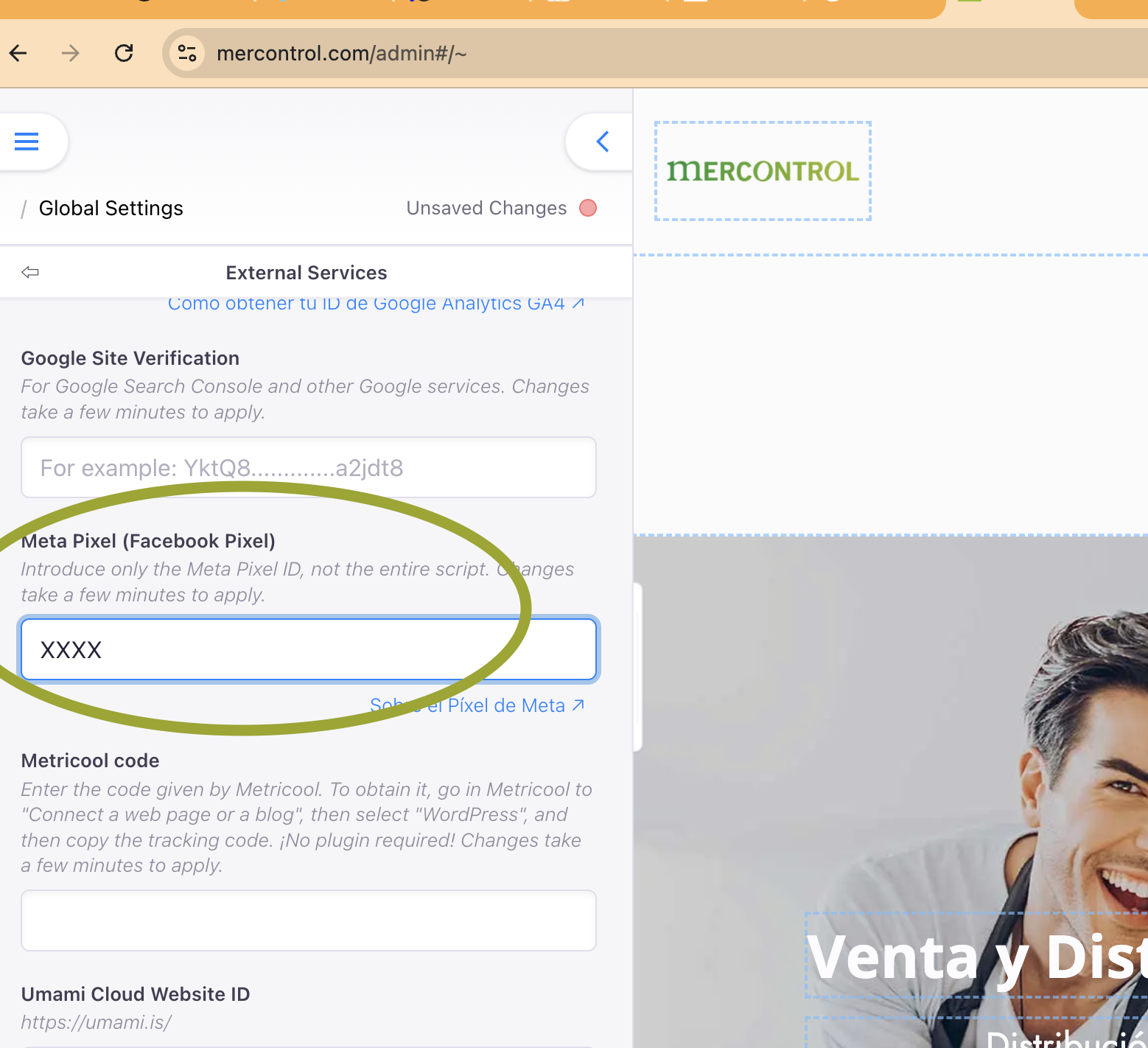
Step 4: Paste Your Meta Pixel ID
- This section is where Marte allows you to connect with third-party tools.
- Find the specific field for "Meta Pixel (Facebook Pixel)".
- Paste the Pixel ID you copied in the first step.
- Important! Make sure you paste only the identification number (the ID), not the full JavaScript code that Meta provides.
- Save the changes.
Step 5: Verification and Patience
- Wait a few minutes: as the platform indicates, changes may take a few minutes to apply across your entire website.
- Verify the installation: to confirm the pixel is working you can use Meta's tool (go back to Events Manager, go to the "Test events" tab, enter your site URL and click "Open website"; you should see the activity recorded) or install the "Meta Pixel Helper" extension in Google Chrome (visit your site and the extension icon will light up in blue if it detects the pixel correctly).
That's it! You have successfully connected your Marte Website Builder site with the Meta Pixel, and you are now ready to track conversions, create retargeting audiences and optimise your ads.