
Panel: GeoData
How to manage your prompts
Before you start
From the "Prompts" sub-tab of GeoData you can change the country and tags of several prompts at once, edit a prompt, pause it, resume it or delete it. The website's client, its agency and the aMarte team can all do it, as long as the website has a plan with GEO.
Tip: A prompt's text can't be edited. If you want to change it, delete it and add a new one (you'll lose the old one's history). In this guide we use the fictional website "Kharty" (kharty.com) as an example.
Step by step
Step 1
Select the prompts
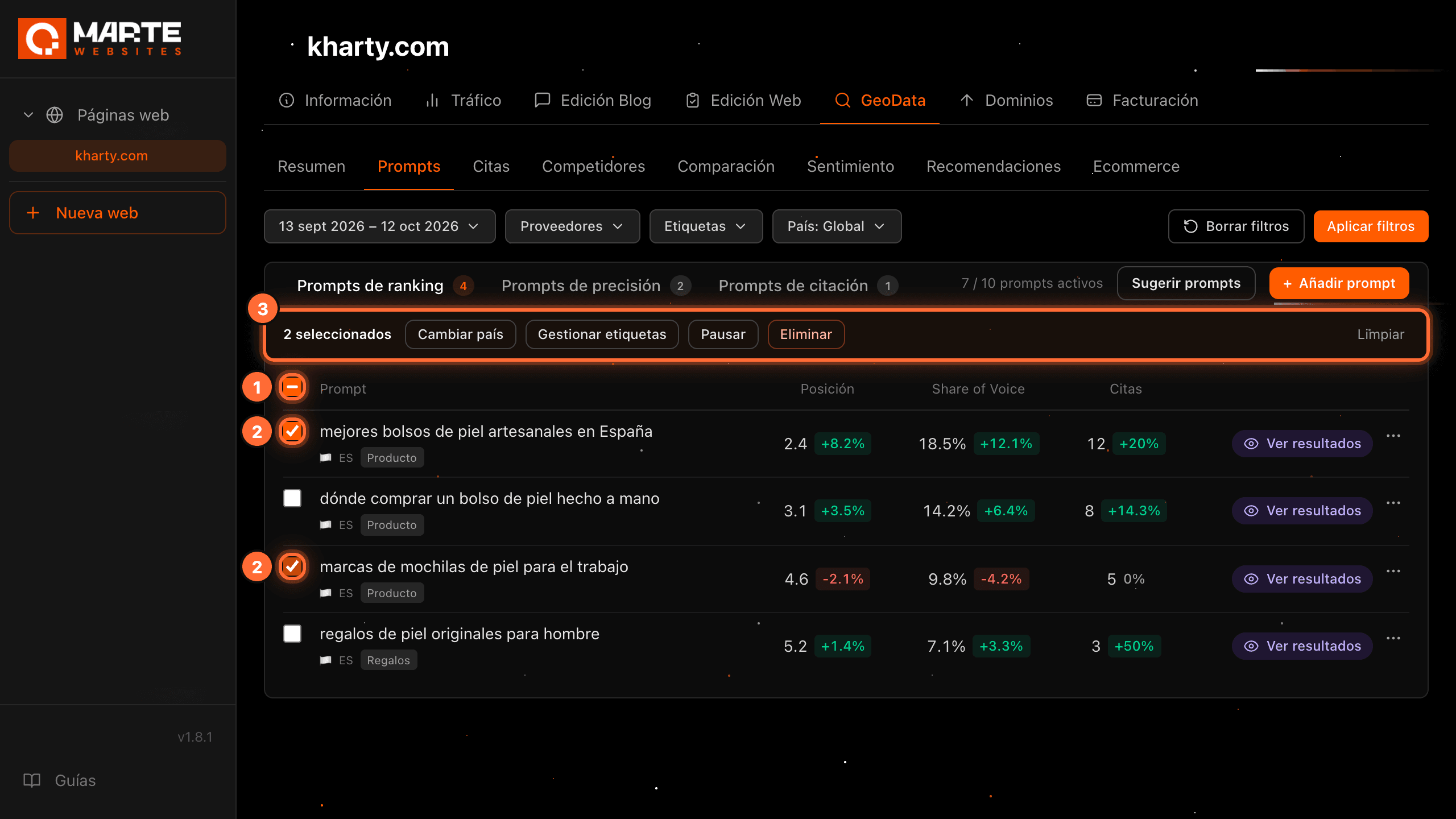
In "Prompts", every row has a checkbox (②). The header checkbox, "Seleccionar todos" (Select all) (①), ticks or unticks every prompt in the list you are viewing.
As soon as you tick one, the action bar appears above the table (③). The selection belongs to the visible list: it's cleared when you switch between ranking, accuracy and citation, and after every action.
Step 2
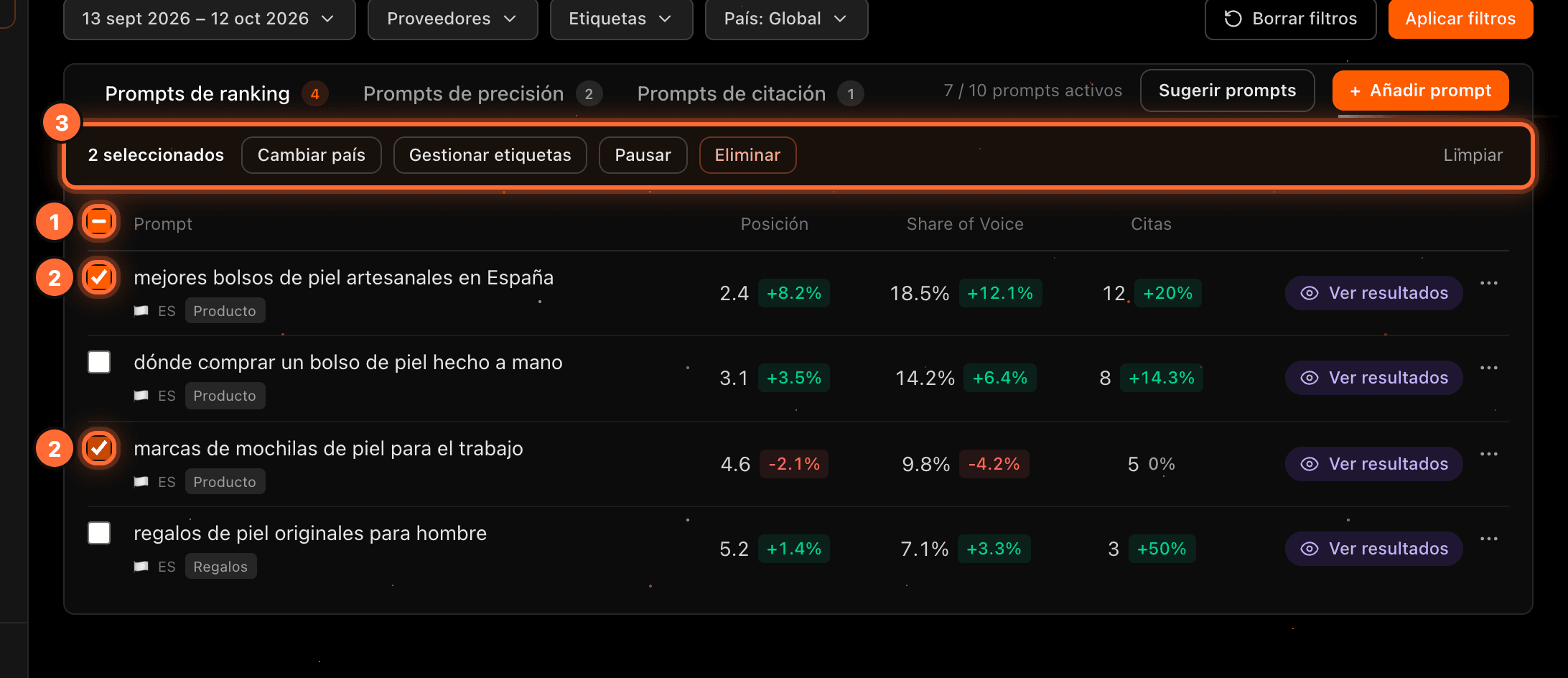
The action bar
The bar shows how many prompts you've ticked, for example "2 seleccionados" (2 selected) (①), and offers: • "Cambiar país" (Change country) (②): one country for all of them. • "Gestionar etiquetas" (Manage tags) (③): ranking and accuracy only. • "Pausar" (Pause) or "Reanudar" (Resume) (④), depending on the state of the ticked prompts. If you mix active and paused ones, both appear. • "Eliminar" (Delete) (⑤). • "Limpiar" (Clear) (⑥) clears the selection.

Step 3
Change the country of several prompts
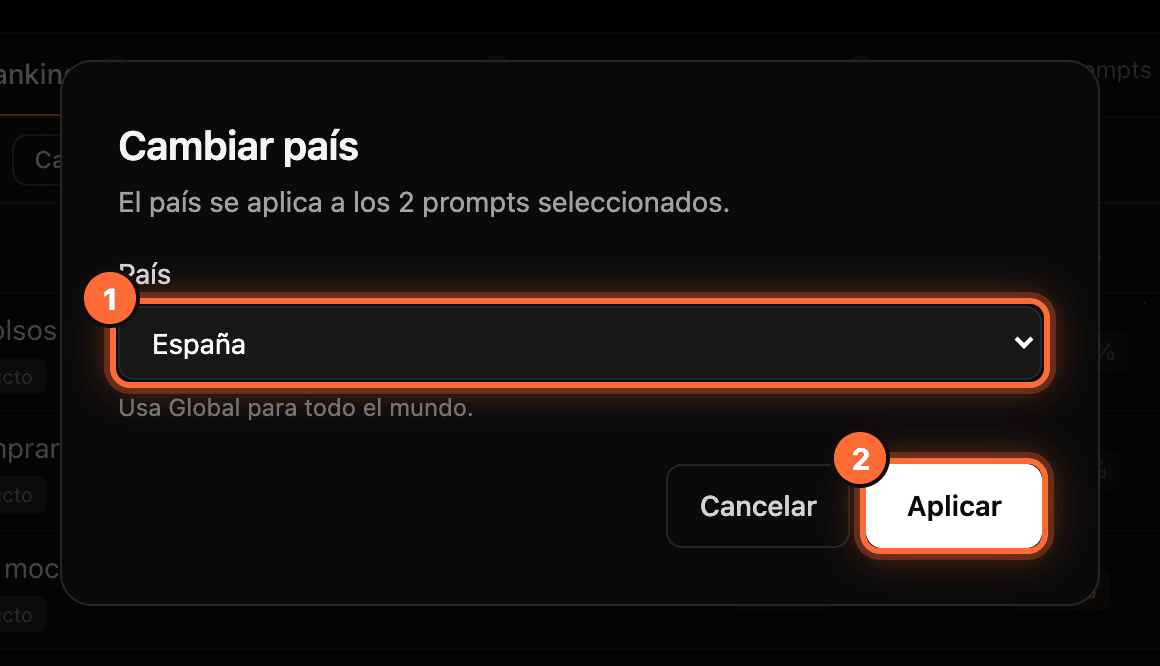
"Cambiar país" opens a window with the "País" (Country) selector (①). Choose the country the question is asked from, or "Global" for the whole world, and click "Aplicar" (Apply) (②). It applies to every ticked prompt.
Step 4
Add or replace tags
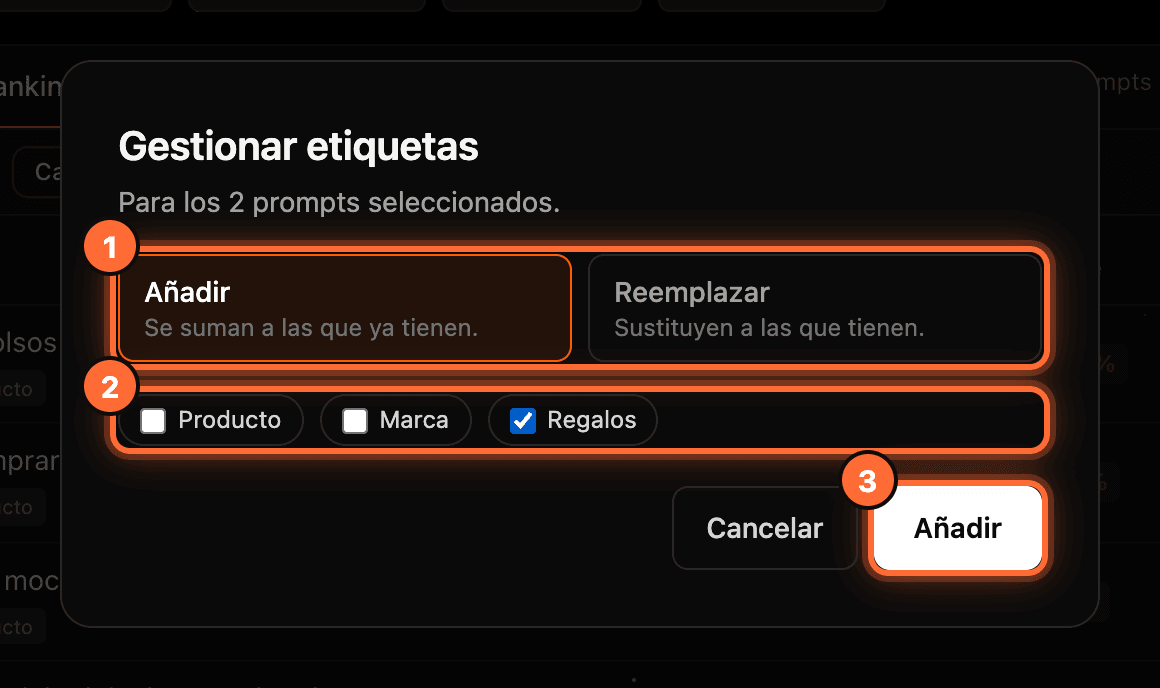
In "Gestionar etiquetas", first choose the mode (①): • "Añadir" (Add): the tags are added to the ones they already have. • "Reemplazar" (Replace): they replace the ones they have.
Tick the tags (②) and click the button (③), which is called "Añadir" or "Reemplazar" depending on the mode.
Step 5
The "…" menu of each prompt
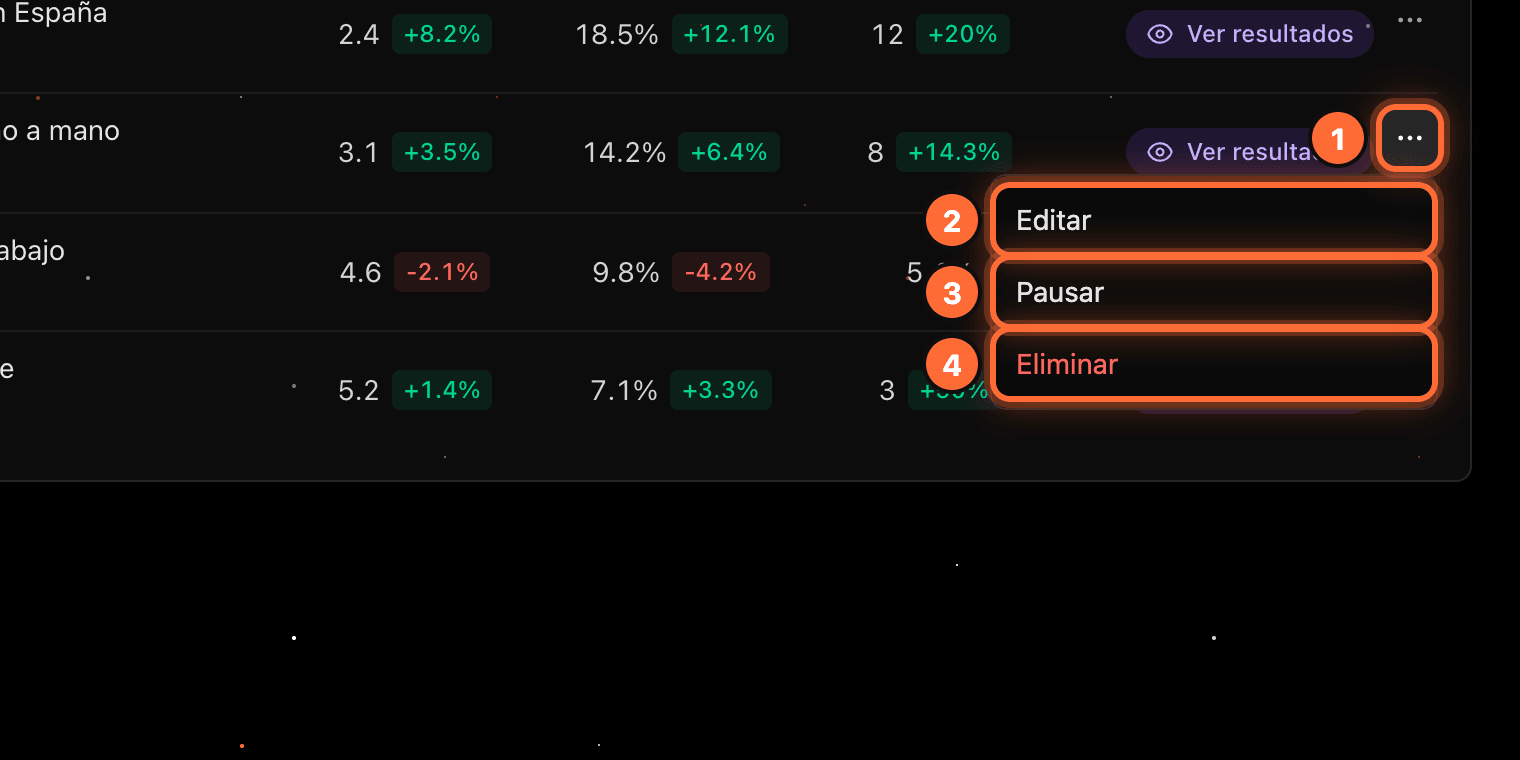
To act on a single prompt, click "…" at the end of its row (①). The menu has "Editar" (Edit) (②), "Pausar" or "Reanudar" (③) and "Eliminar" (④).
Step 6
Edit a prompt
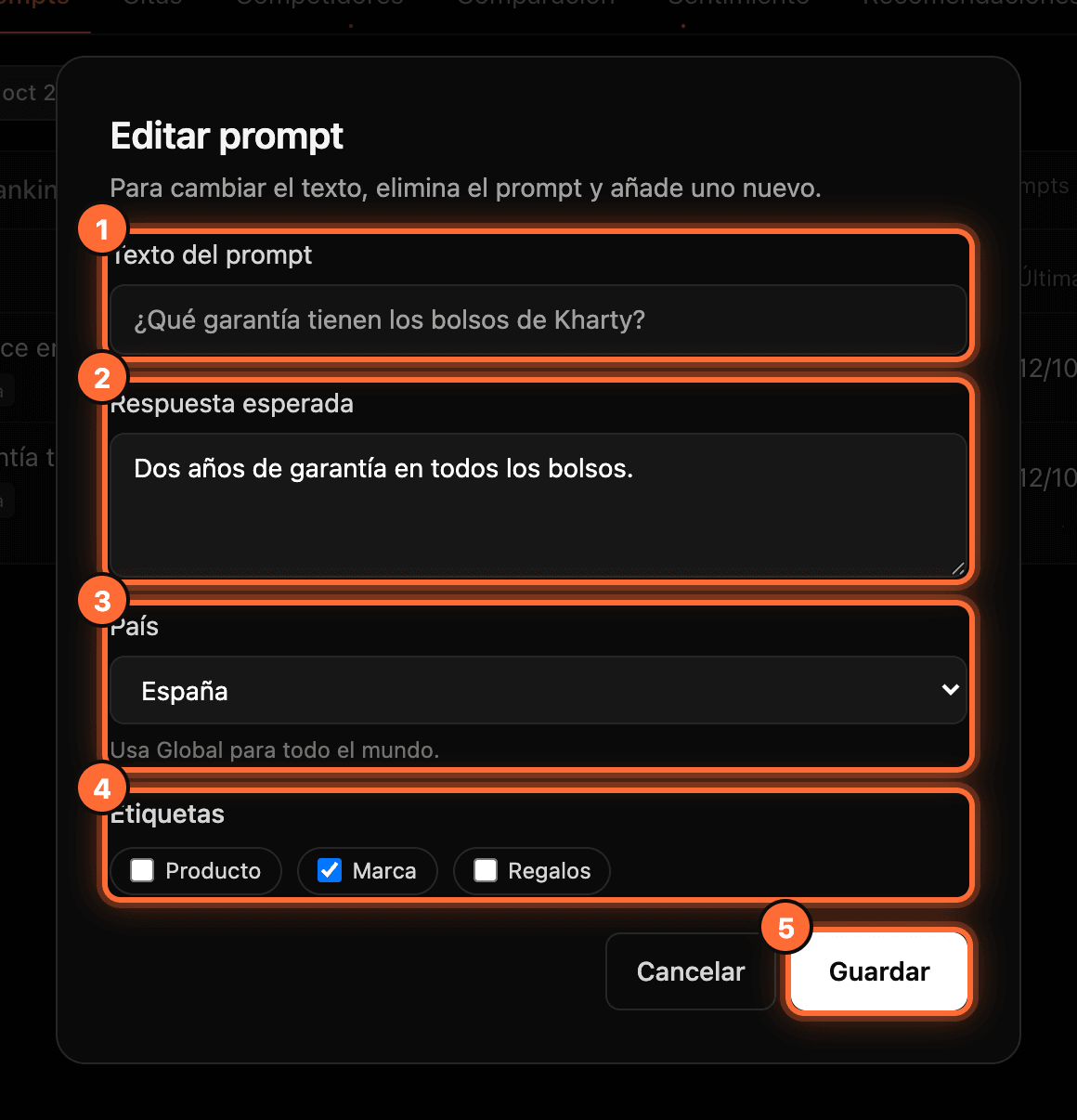
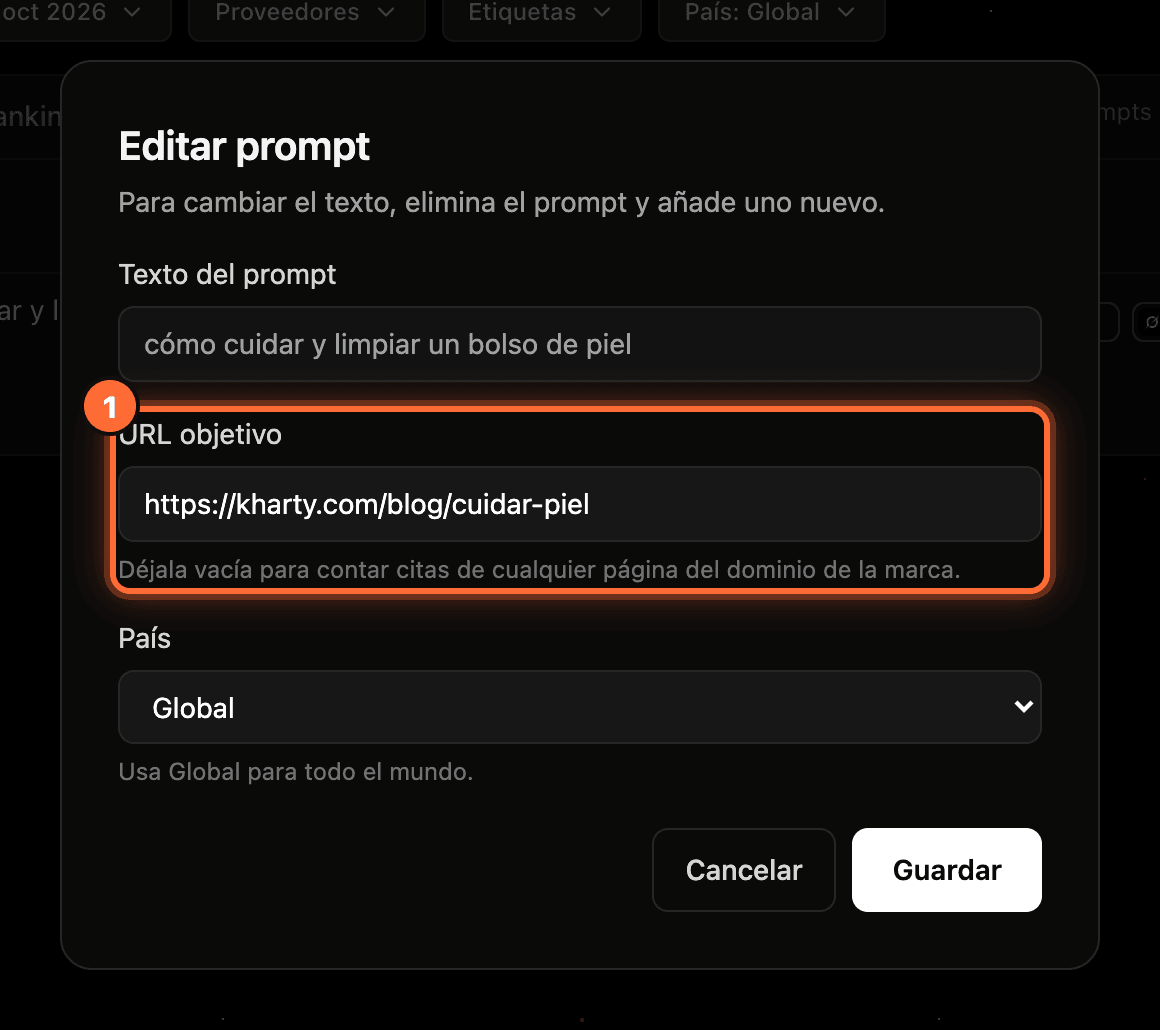
"Editar" opens the "Editar prompt" (Edit prompt) window, with the note "Para cambiar el texto, elimina el prompt y añade uno nuevo" (To change the text, delete the prompt and add a new one). The "Texto del prompt" (Prompt text) (①) is shown but can't be changed. You can change: • "Respuesta esperada" (Expected answer) (②), on accuracy prompts. • "URL objetivo" (Target URL), on citation prompts (leave it empty to count citations of any page of your domain). • "País" (③). • "Etiquetas" (Tags) (④), on ranking and accuracy prompts.
Click "Guardar" (Save) (⑤). You'll see the notice "Prompt actualizado." (Prompt updated.)
Step 7
Pause a prompt
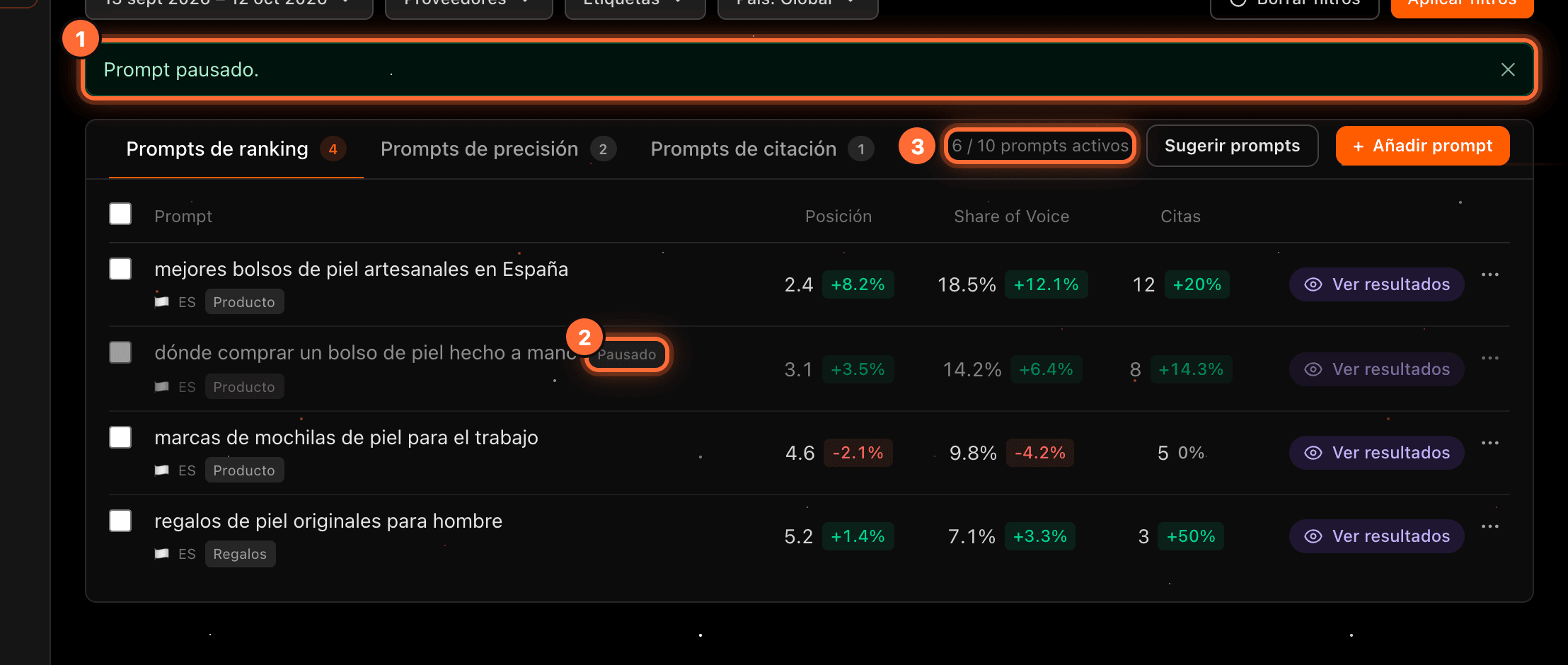
With "Pausar" (from the "…" menu or the bar) the prompt is no longer asked to the AI engines. You'll see the notice "Prompt pausado." (Prompt paused.) (①), the row dimmed with the "Pausado" (Paused) tag (②), and the counter goes down (③): paused prompts don't count towards your limit, so pausing one frees a slot for another.
Step 8
Resume a prompt (after 24 hours)
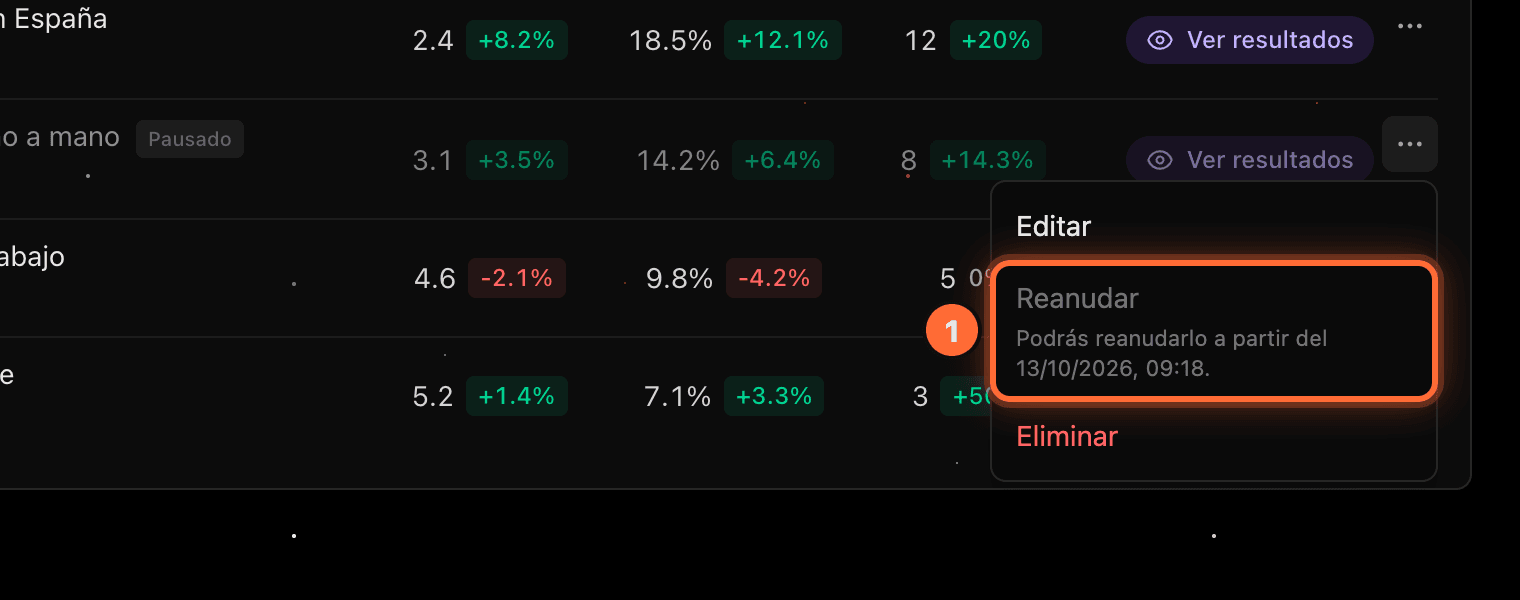
A prompt has to stay paused for at least 24 hours before you can resume it. Until then, "Reanudar" is disabled in its menu (①) with the date: "Podrás reanudarlo a partir del …" (You can resume it from …).
When you resume it, it counts towards your limit again, so you need a free slot.
Step 9
Delete prompts
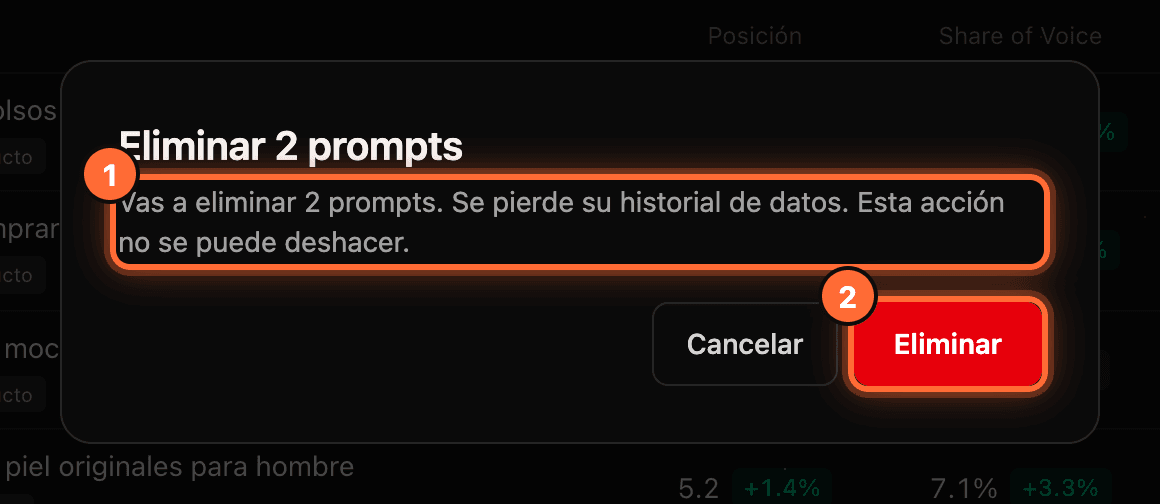
"Eliminar" always asks for confirmation. The window warns you (①): "Vas a eliminar 2 prompts. Se pierde su historial de datos. Esta acción no se puede deshacer." (You are about to delete 2 prompts. Their data history is lost. This action can't be undone.) Click the red "Eliminar" button (②) to confirm, or "Cancelar" (Cancel).
⚠ Deleting a prompt loses all its data history and it can't be recovered. If you only want to stop measuring it for a while, pause it.
Step 10
Check the result
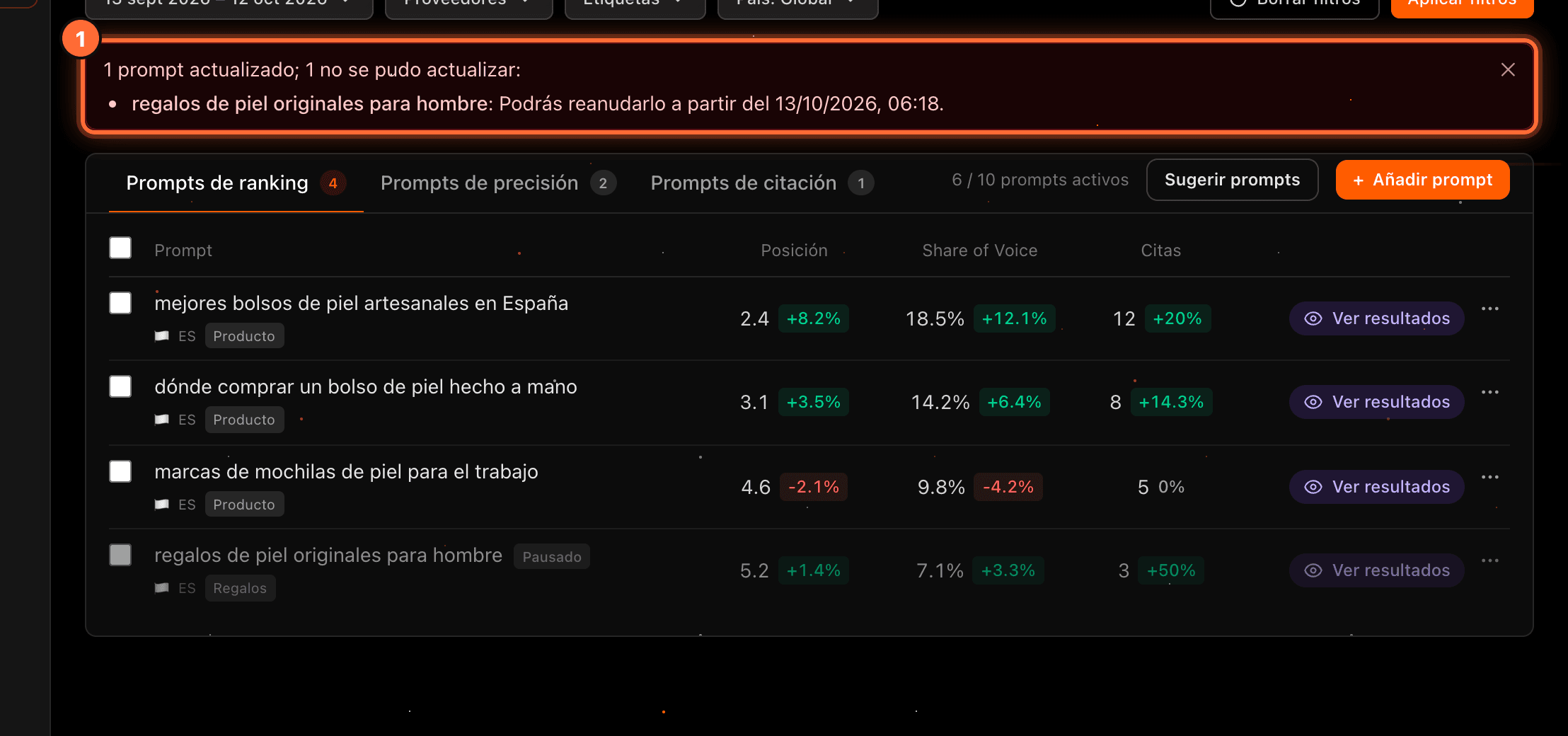
After every action the list reloads and a green notice confirms what was done, for example "2 prompts pausados." (2 prompts paused.)
If any couldn't be changed, the notice (①) says how many worked and which didn't, with the reason. In the example, of the two prompts ticked to resume, one was resumed and the other wasn't, because 24 hours hadn't passed since it was paused: "Podrás reanudarlo a partir del …". Close the notice with the X.
Step 11
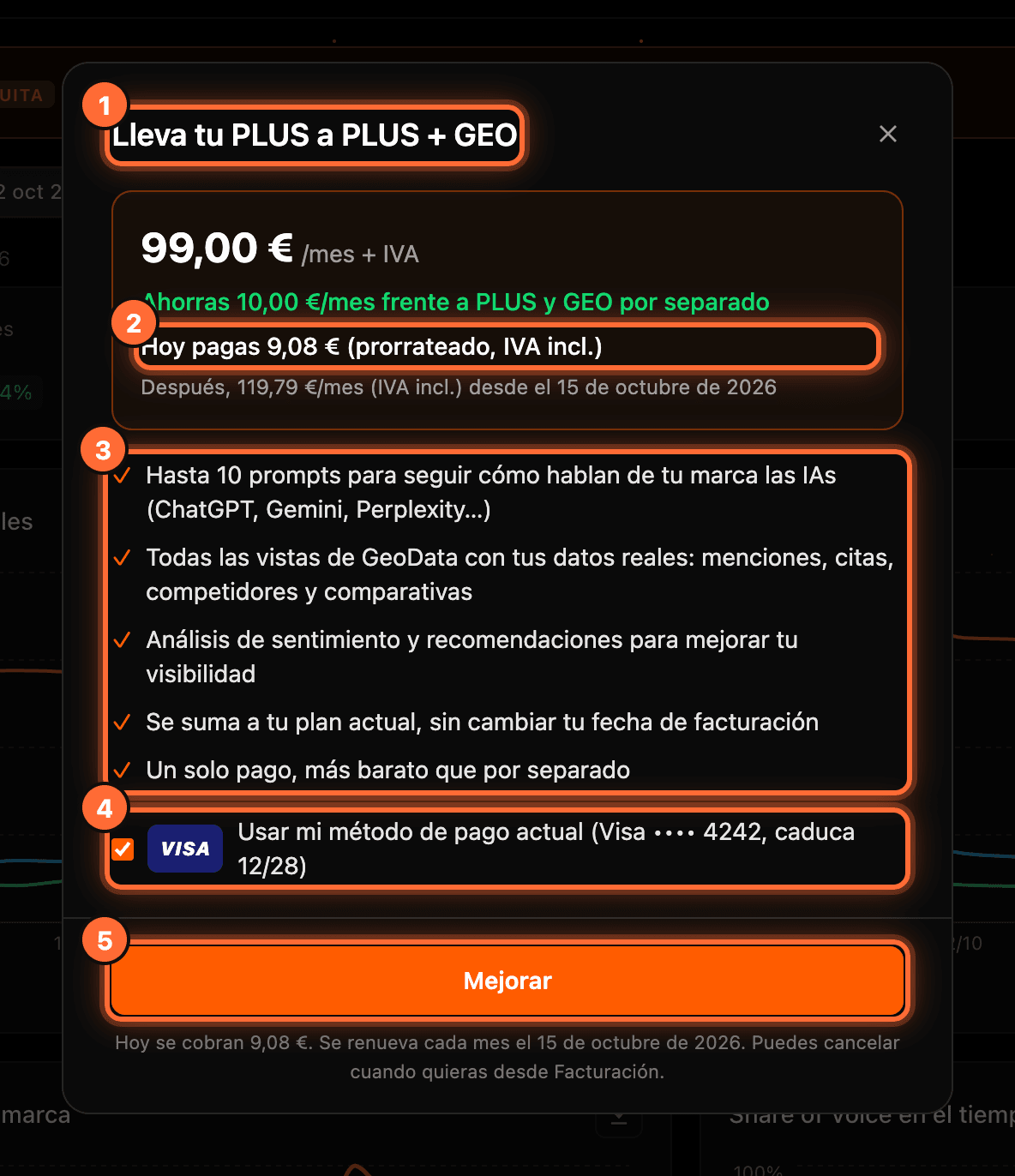
Without a GEO plan, the window to get it opens
If your website is on the free sample or has no plan with GEO, the checkboxes and the "…" menu are visible, but clicking them opens the window to get GEO. We explain it in the guide "The free GEO sample and how to get GEO".
Step 12
On mobile
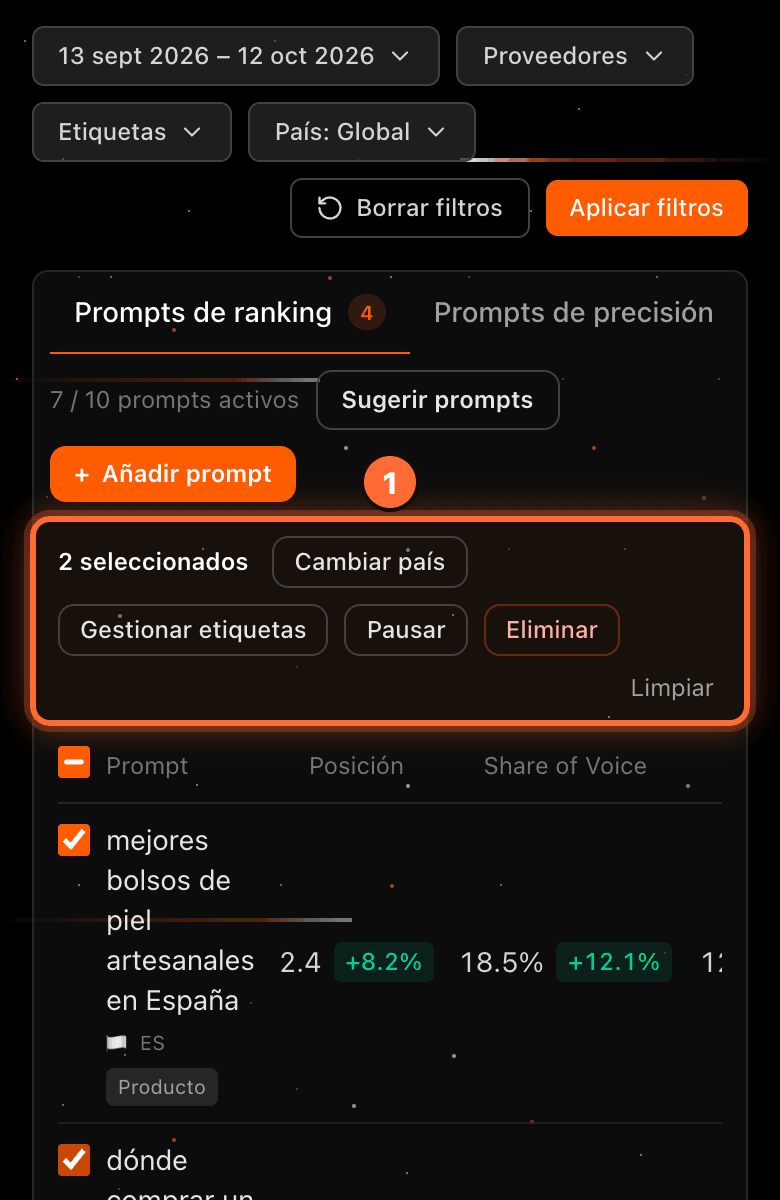
On mobile, the action bar (①) wraps onto several lines so that every button fits. It works the same as on a computer.
Frequently asked questions
Can I change a prompt's text?
No. If you need a different text, delete the prompt and add a new one with "Añadir prompt". The new prompt starts without history.
Do paused prompts count towards the limit?
No. Only active ones count. When you resume one it counts again, so you need a free slot.
Why can't I resume a prompt?
Because it has been paused for less than 24 hours. The menu tells you from when you can: "Podrás reanudarlo a partir del …". It also fails if your website already has all its prompts active.
Can I recover a deleted prompt?
No. Deleting it loses its data history. If you want to measure it again, add it again; it will start without history.