
Panel: your account
How to create your account in the panel
Before you start
Signing up for the aMarte Websites panel has its own page: https://app.amartewebsites.com/register. You get there with the "Try aMarte" button in this website's header or from the sign-in screen. All you need is an email and a password (or your Google account), and to confirm your email before signing in for the first time. The panel is in Spanish, so this guide quotes its labels in Spanish with their meaning in brackets.
Tip: Sign up with the same email you used to buy your website (the one that receives the invoices): that way the panel recognises it and shows it to you when you sign in. This guide uses the fictitious website "Kharty", with the email facturacion@kharty.com, as its example.
Step by step
Step 1
Open the sign-up page
In the amartewebsites.com header, click "Try aMarte" (①), the button on the right. It takes you straight to the panel's sign-up page.
You can also type https://app.amartewebsites.com/register into your browser.

Step 2
On the sign-in screen? Click "Regístrate" (Sign up)
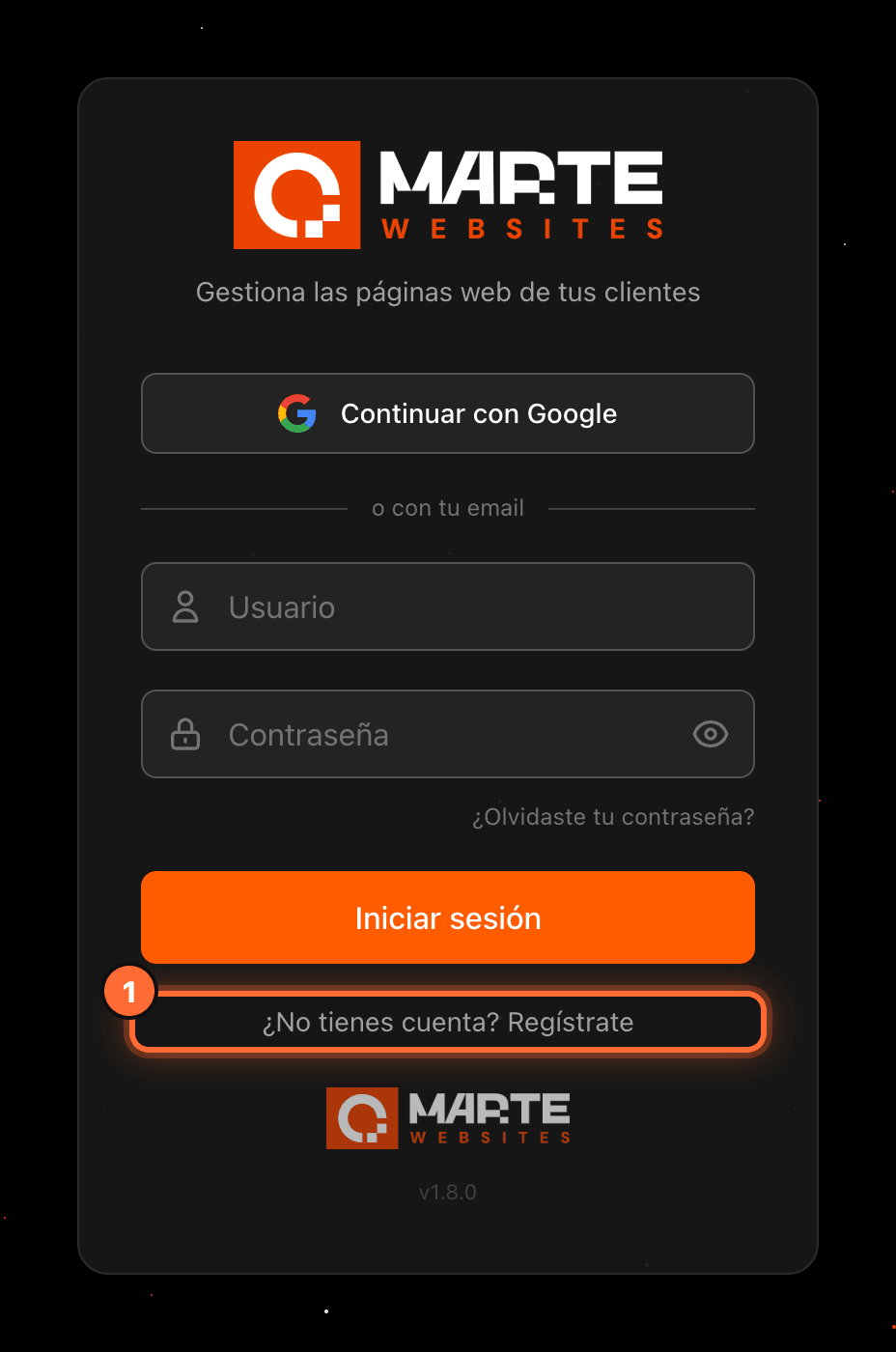
If you landed on the panel's sign-in screen (https://app.amartewebsites.com/login), click "¿No tienes cuenta? Regístrate" (Don't have an account? Sign up) (①), below the "Iniciar sesión" (Sign in) button. The same sign-up page opens.
Step 3
Fill in the form and click "Crear cuenta" (Create account)
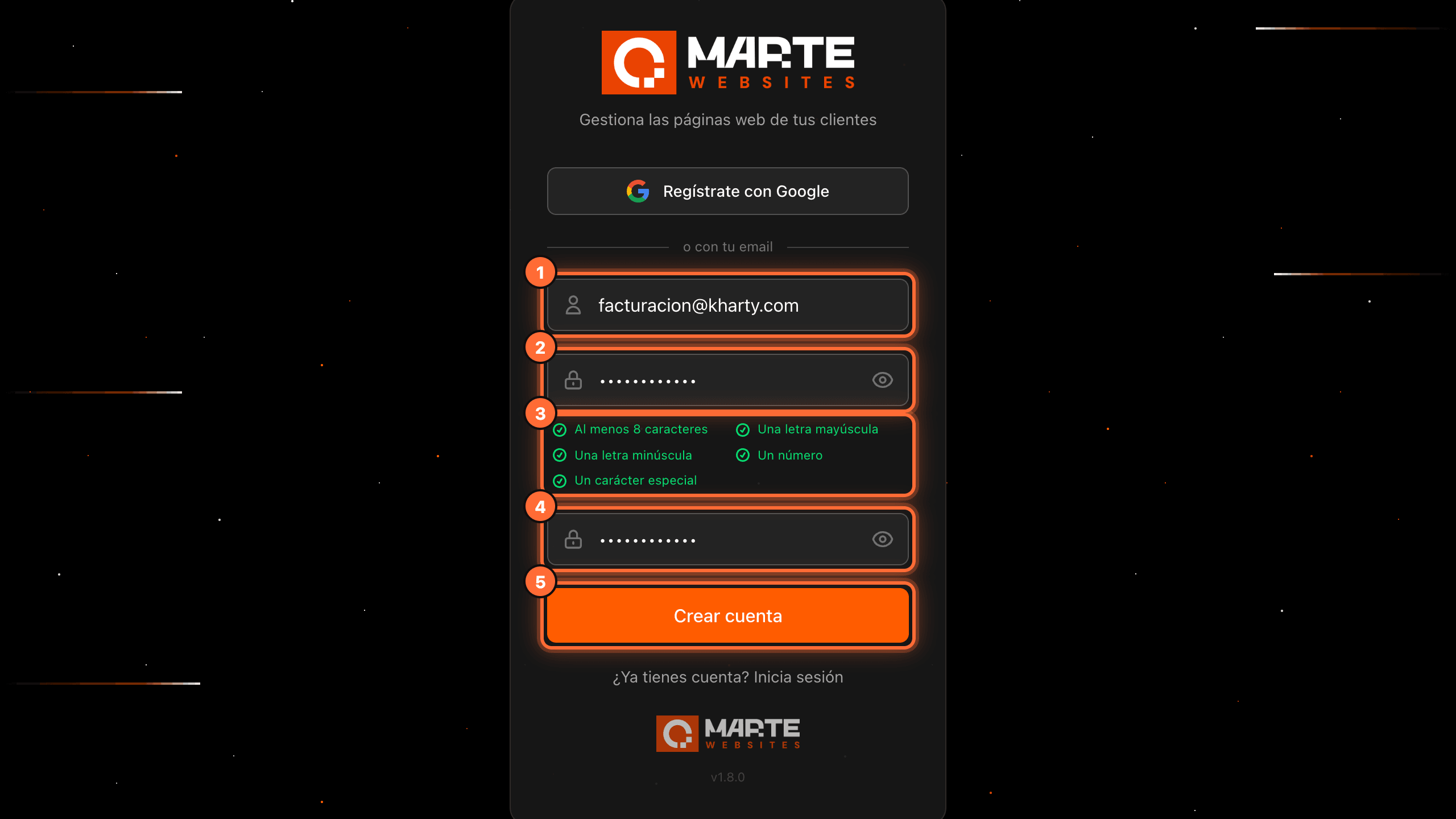
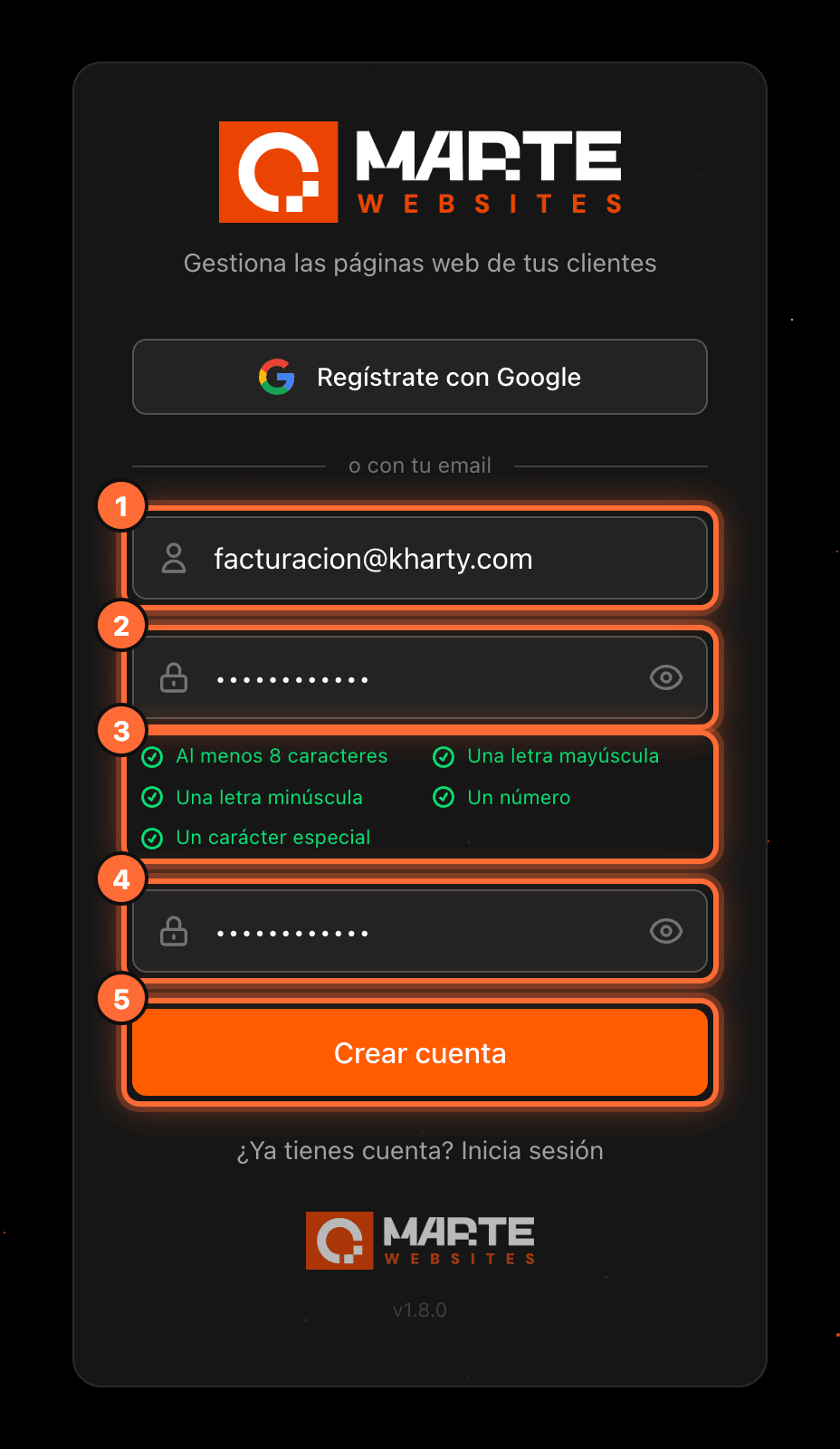
Type your email (①) and choose a password (②). As you type, its requirements appear below (③); each one turns green once it is met: • At least 8 characters • An uppercase letter • A lowercase letter • A number • A special character
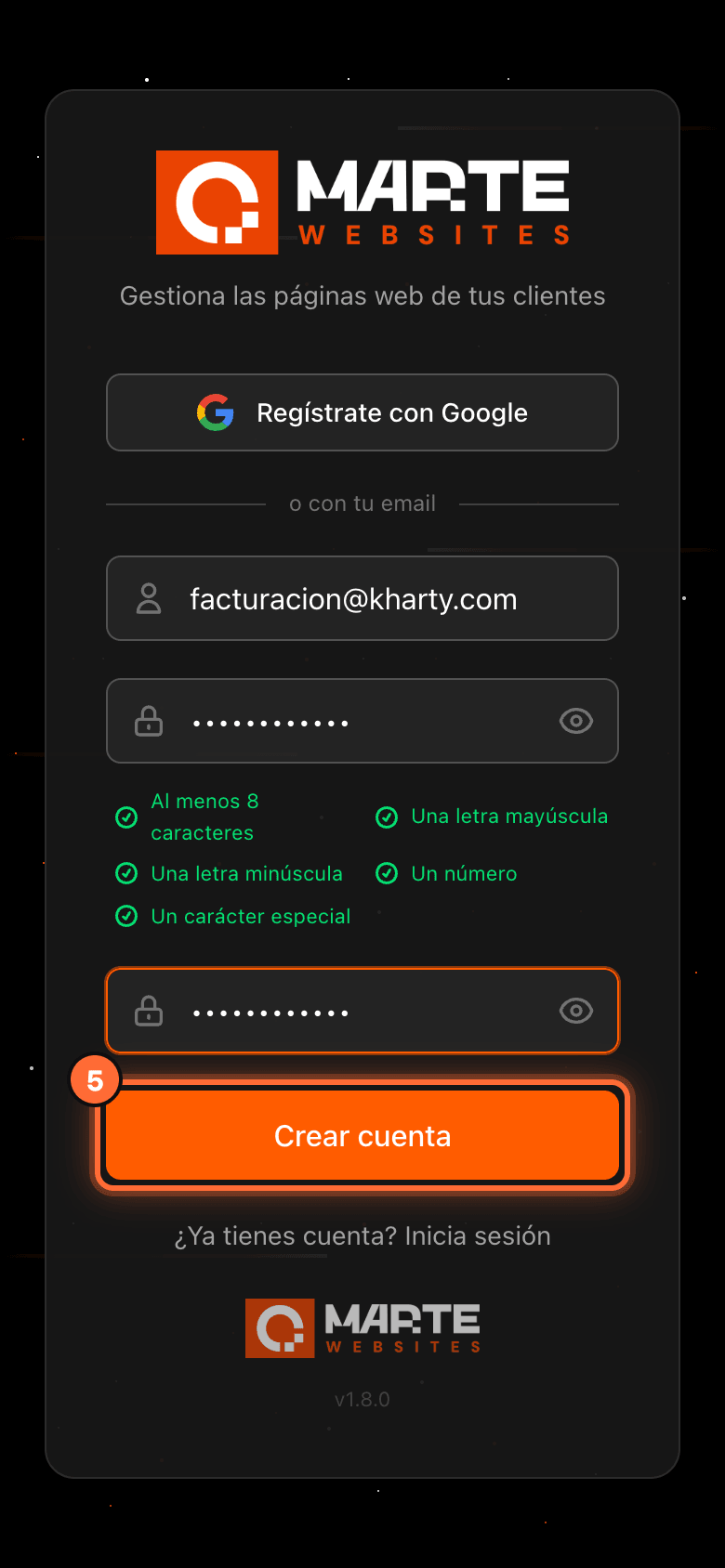
Repeat the password in the confirmation field (④) and click "Crear cuenta" (Create account) (⑤). The button only becomes active when the password meets every requirement and both fields match.
Would you rather not create a password? Click "Regístrate con Google" (Sign up with Google), above the form, and pick your Google account.
Step 4
Confirm your email
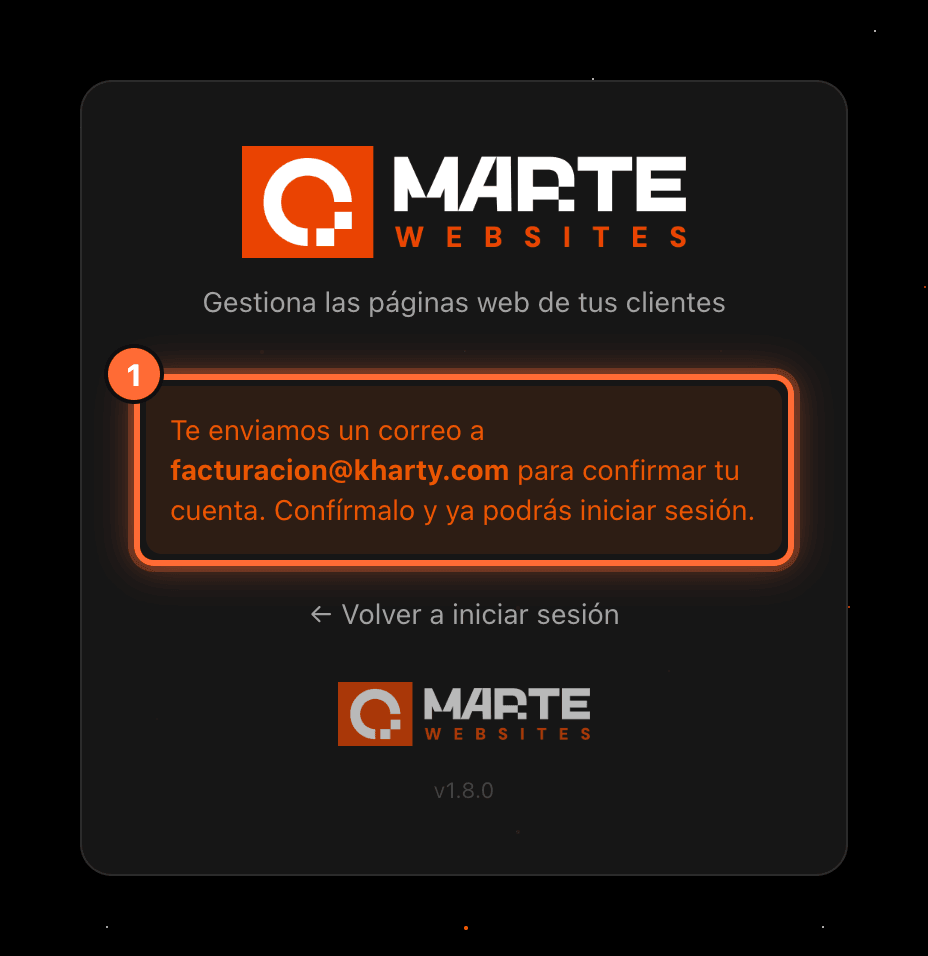
Once the account is created you will see the message "Te enviamos un correo a … para confirmar tu cuenta" (We sent an email to … to confirm your account) (①).
Open that email in your inbox and click the confirmation link. Until you confirm it you cannot sign in with your email and password.
There is no screenshot of the email because it arrives in your own mailbox and how it looks depends on your email app.
Step 5
Sign in and find your website
With your email confirmed, go to https://app.amartewebsites.com/login and sign in with your email and password (or with "Continuar con Google" (Continue with Google) if you signed up with Google).
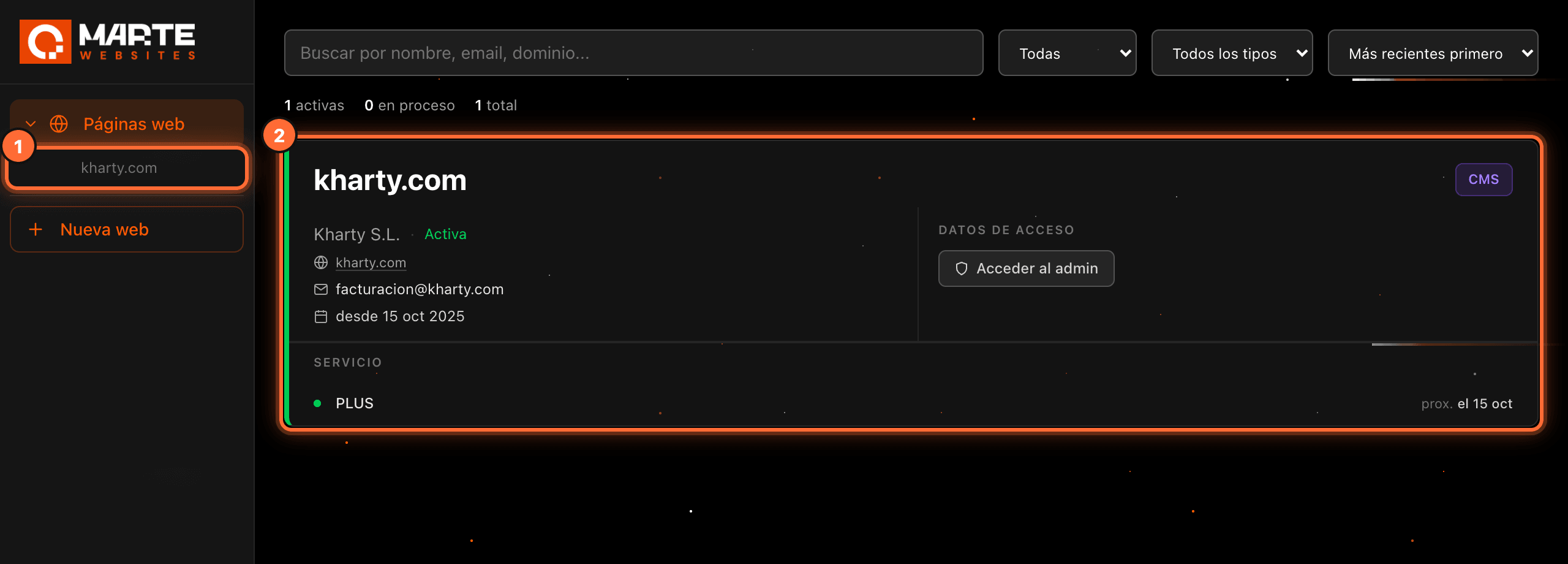
If your email belongs to a website you have bought, you will see it in the left-hand menu under "Páginas web" (Websites) (①) and in the list (②). Click it to open its tabs.
If you don't have a website with us yet, you will see "Adquiere tu página web aquí" (Get your website here) with the "Ver planes y precios" (See plans and prices) button (①), which takes you to our plans.

Frequently asked questions
Which email should I sign up with?
The one you used to buy your website, which receives the aMarte Websites invoices. With that email the panel recognises your website automatically. If you sign up with a different one, you will get in without any website; in that case, write to us from the contact page.
The confirmation email doesn't arrive. What should I do?
Wait a few minutes and check your spam and promotions folders. Also check that you typed your email correctly in the form. If it still doesn't arrive, write to us from the contact page.
Can I sign up with my Google account?
Yes. Click "Regístrate con Google" (Sign up with Google) on the sign-up page and pick your account. You won't need a password: to sign in again, click "Continuar con Google" (Continue with Google) on the sign-in screen.
I already had an account. How do I sign in again?
Click "Log in" in the amartewebsites.com header or, from the sign-up page, "¿Ya tienes cuenta? Inicia sesión" (Already have an account? Sign in). If you don't remember your password, follow the guide "How to recover your panel password".