
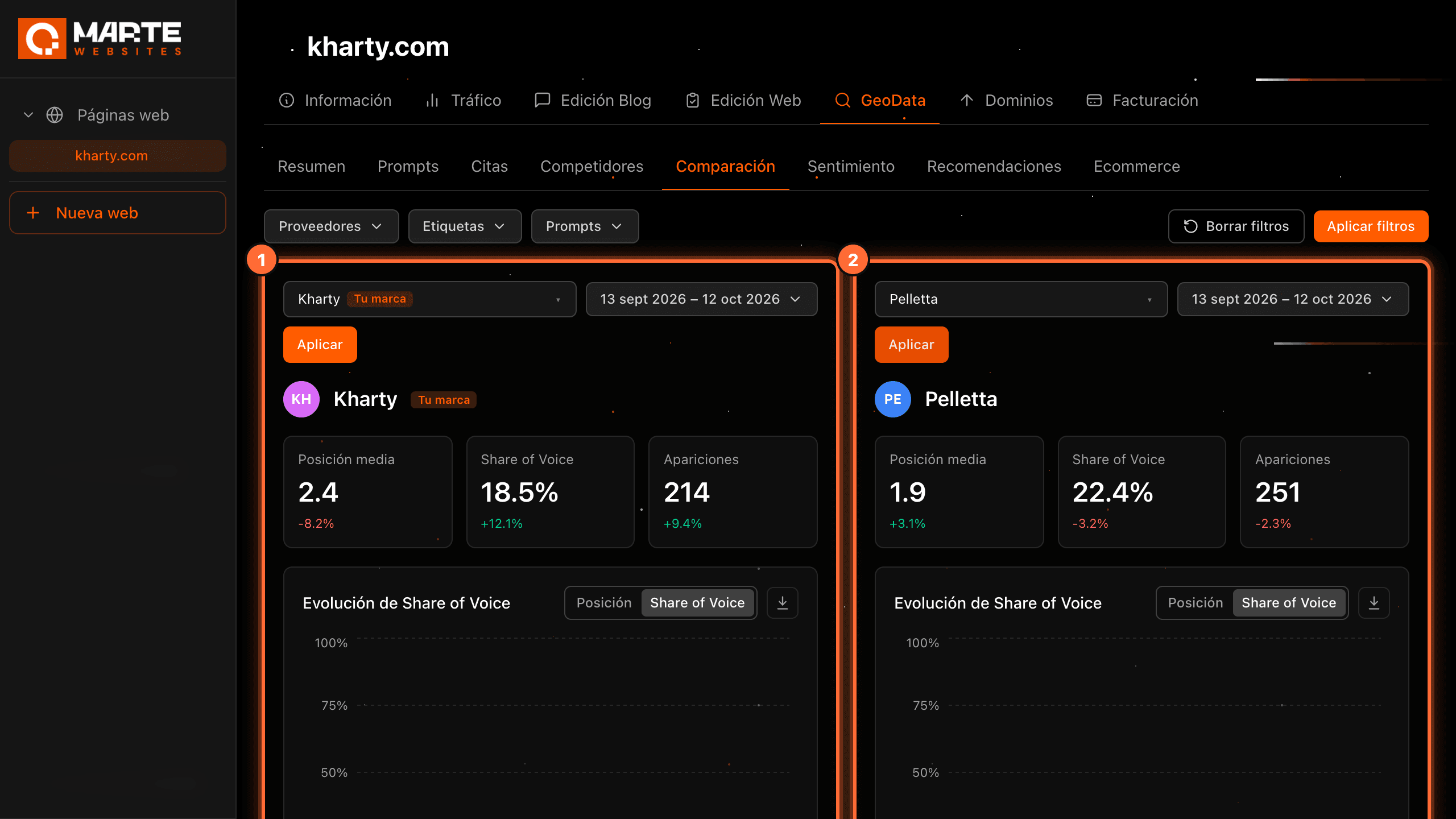
Panel: GeoData
How to compare your brand with a competitor
Before you start
The "Comparación" (Comparison) sub-tab of GeoData places two brands side by side: their average position, Share of Voice, appearances, evolution, the prompts they appear in and the domains that get cited. Each panel has its own brand and date range, so you can also compare your brand with itself across two periods.
Tip: Share of Voice is your share of mentions against every brand that appears in the answers. For position, a lower number is better. In this guide we use the fictional website "Kharty" (kharty.com) and the made-up competitor "Pelletta" as examples.
Step by step
Step 1
Open Comparison
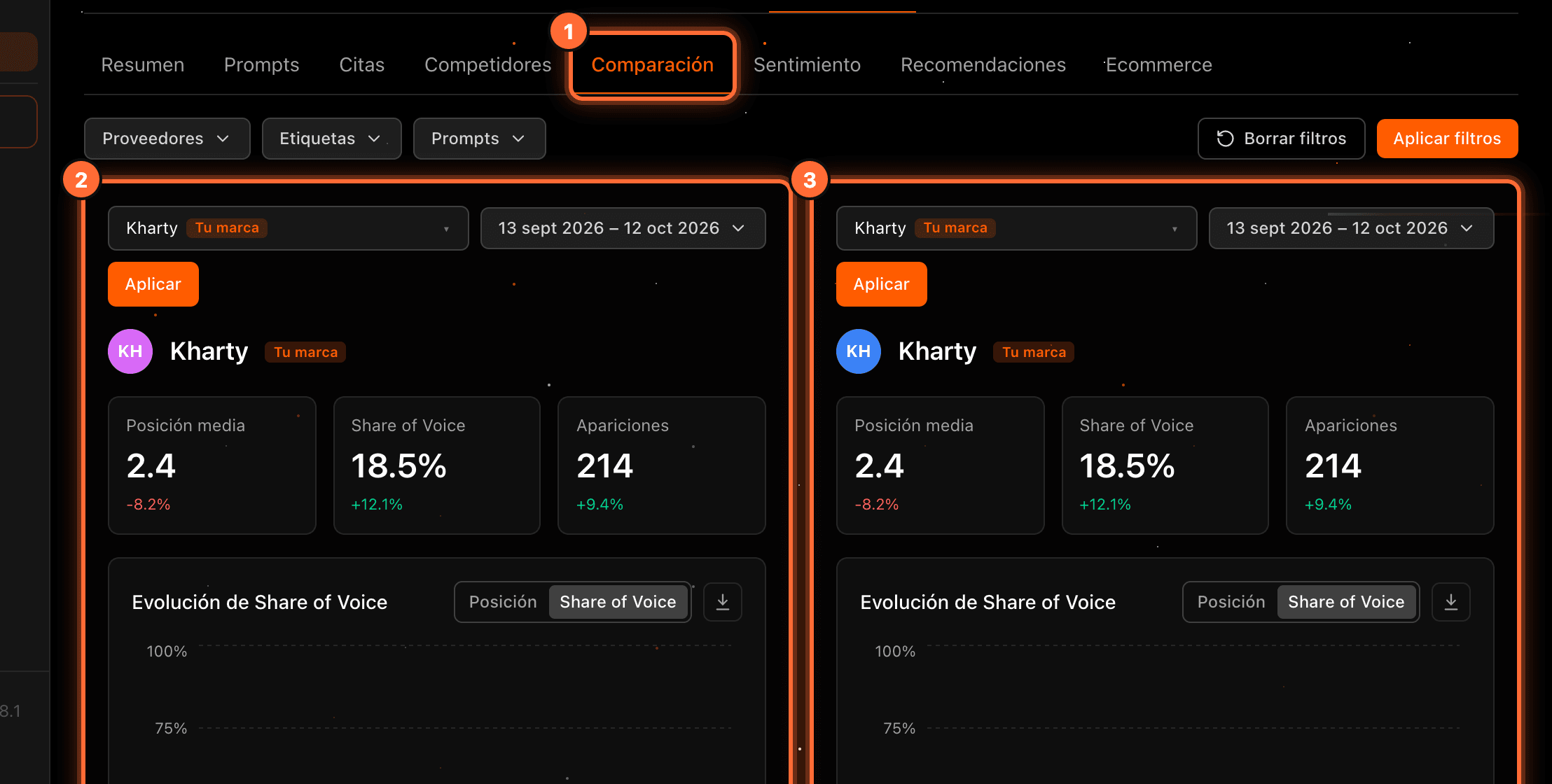
Open your website, go to "GeoData" and click the "Comparación" sub-tab (①).
You'll see two panels: "Marca A" (Brand A) (②) and "Marca B" (Brand B) (③). When you open it, both show your brand (tagged "Tu marca", Your brand) and the last 30 days.
Step 2
Choose the brand of the second panel
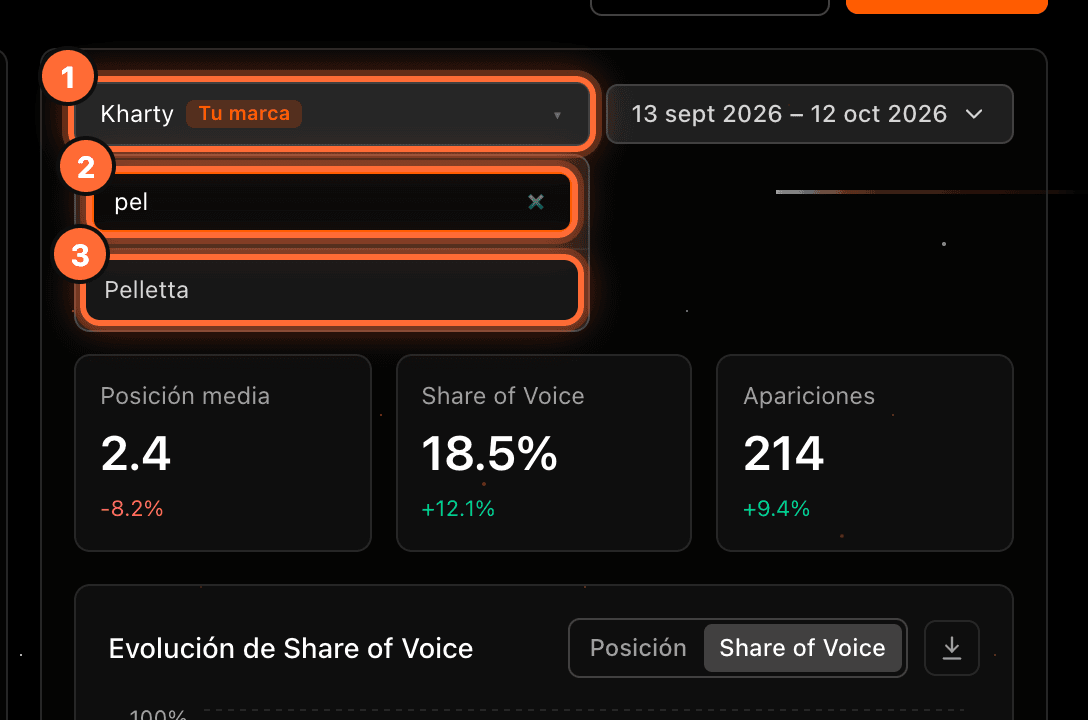
In the right-hand panel, open the brand selector (①). Type part of the name in the search box (②) and pick the brand (③), for example "Pelletta".
The list includes the brands that appear in the AI engines' answers to your prompts.
Step 3
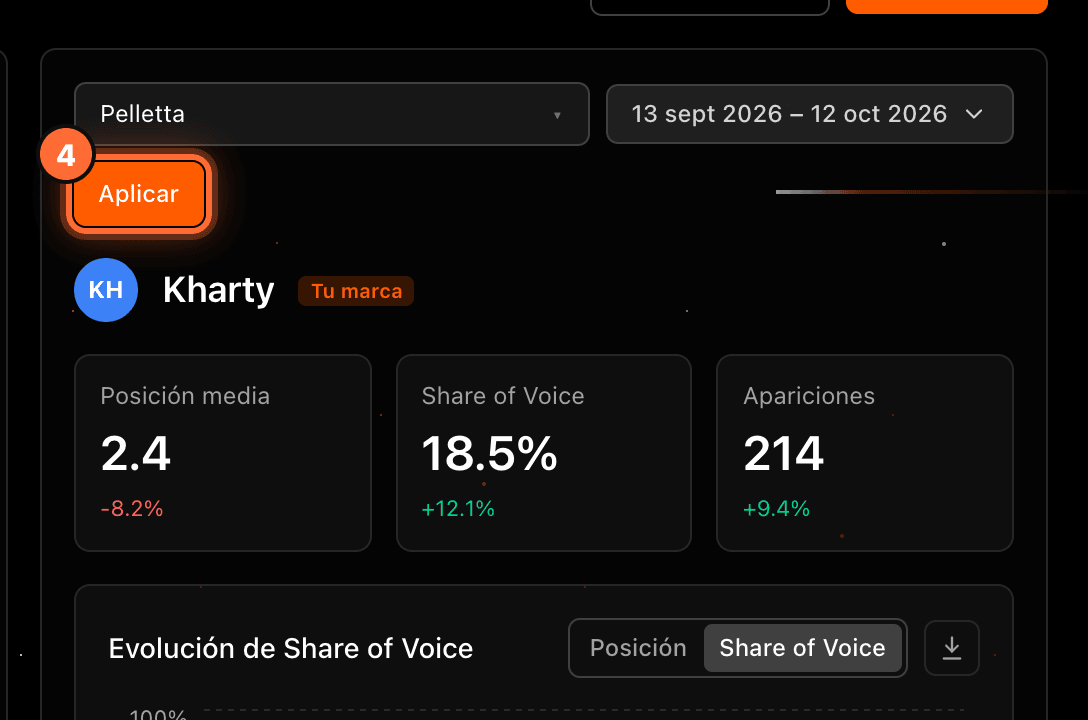
Click Apply
Click that panel's "Aplicar" (Apply) button (④). Only that panel reloads; the other one doesn't change.
Step 4
Compare the figures
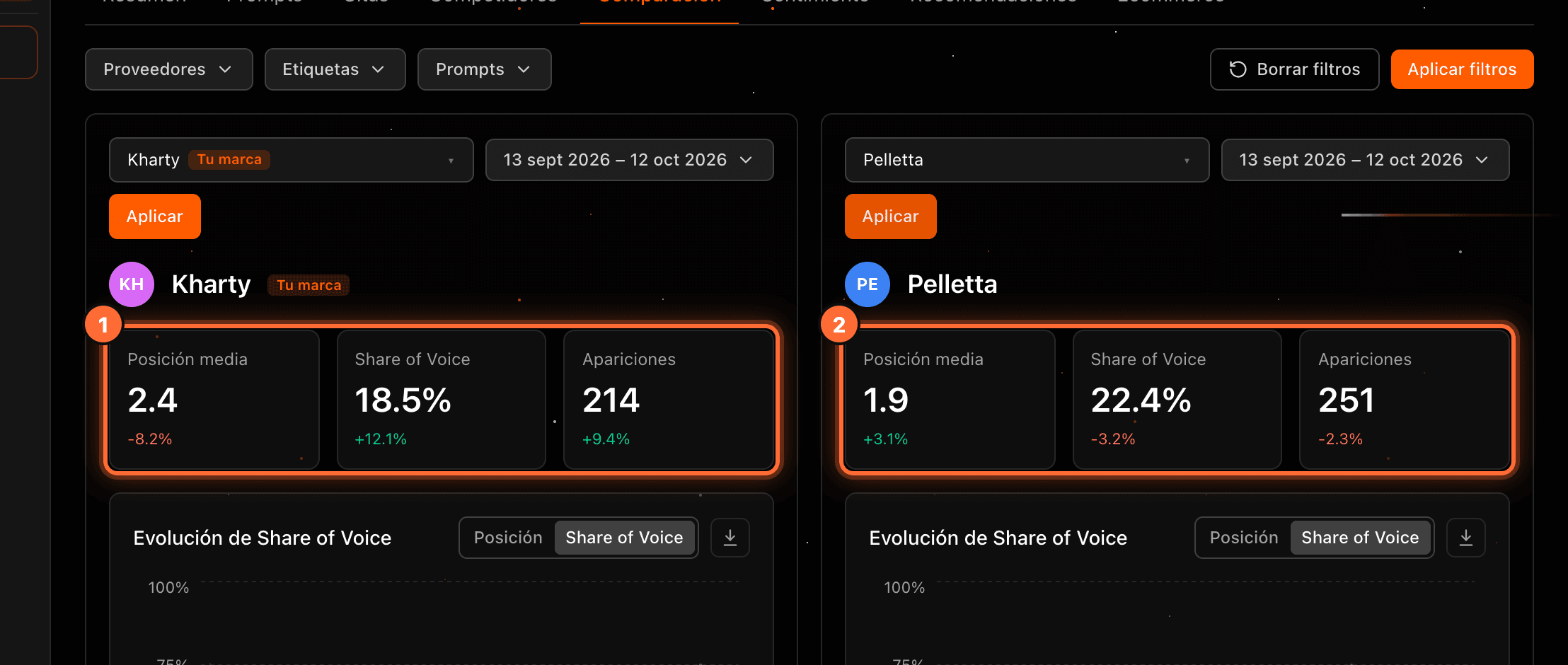
Each panel shows three cards (① and ②): • "Posición media" (Average position): the brand's average place in the answers. Lower is better. • "Share of Voice": its share of mentions against every competitor. • "Apariciones" (Appearances): how many times it appears.
Below each figure is its % change versus the previous period.
Step 5
Change a panel's date range
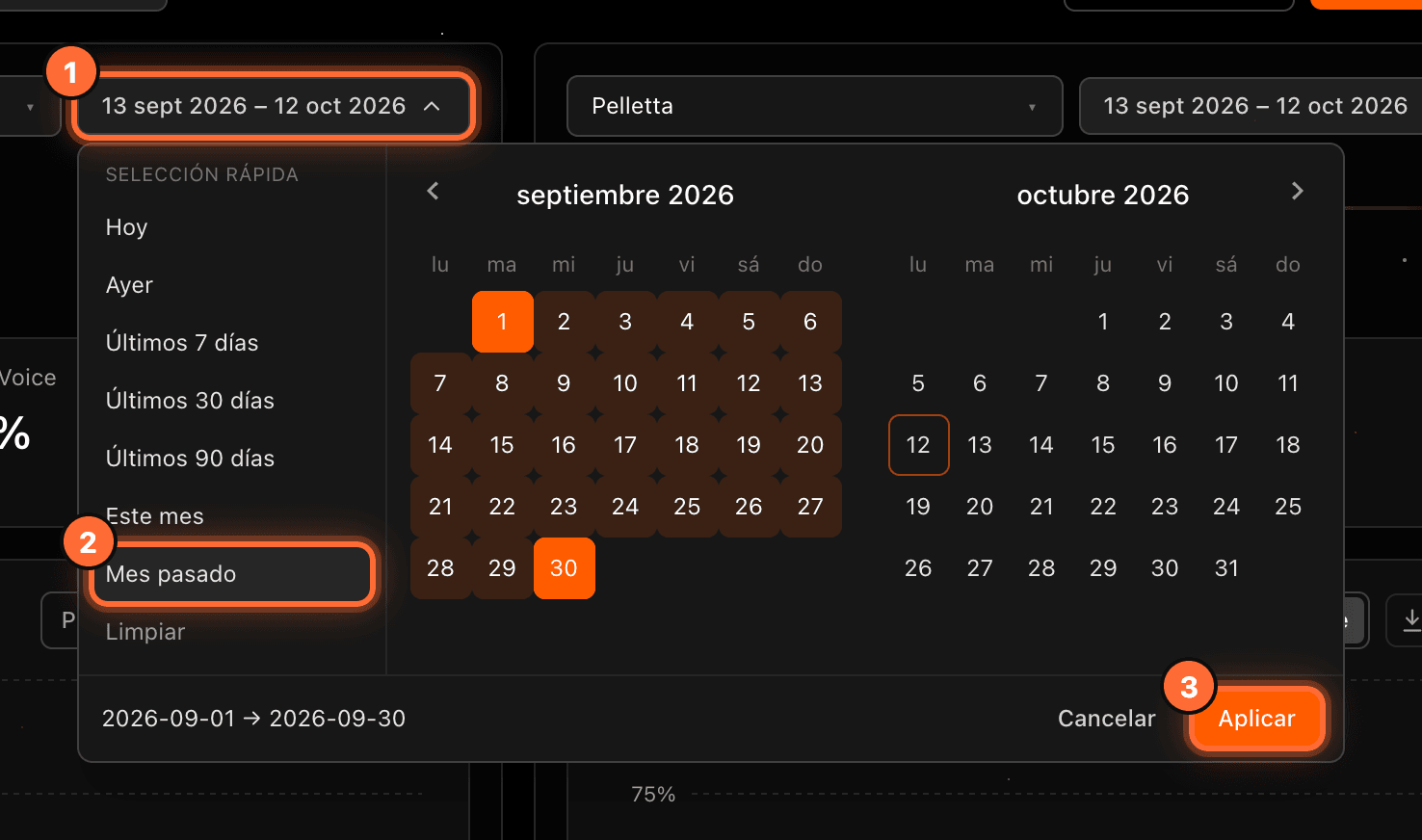
Each panel has its own range. Click the panel's dates (①), pick a "Selección rápida" (Quick selection) option such as "Mes pasado" (Last month) (②) or select the days in the calendar, and click "Aplicar" (③).
To compare your brand with itself, choose your brand in both panels and set a different range in each.
Step 6
Use the evolution chart
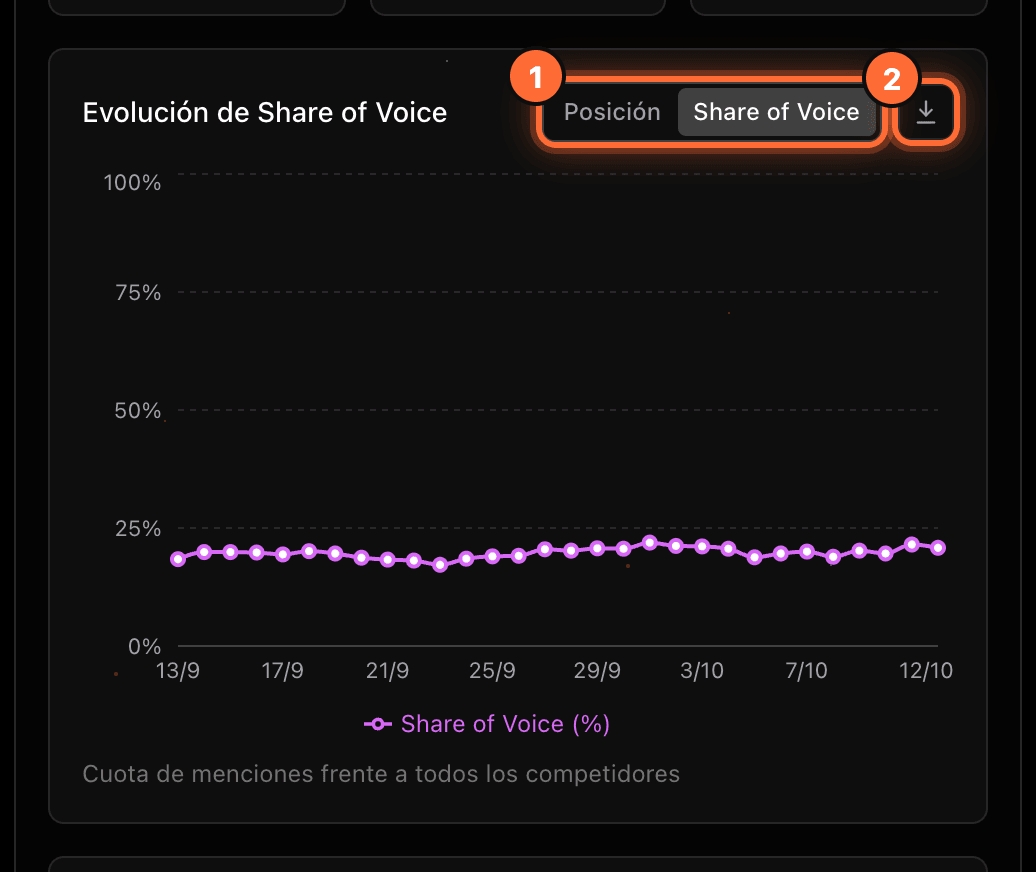
Each panel's chart shows the day-by-day evolution. The switch (①) toggles between "Posición" (Position) and "Share of Voice". The download icon (②) saves the chart as a PNG image with the aMarte logo, the brand and the dates.
Step 7
Review prompts and domains
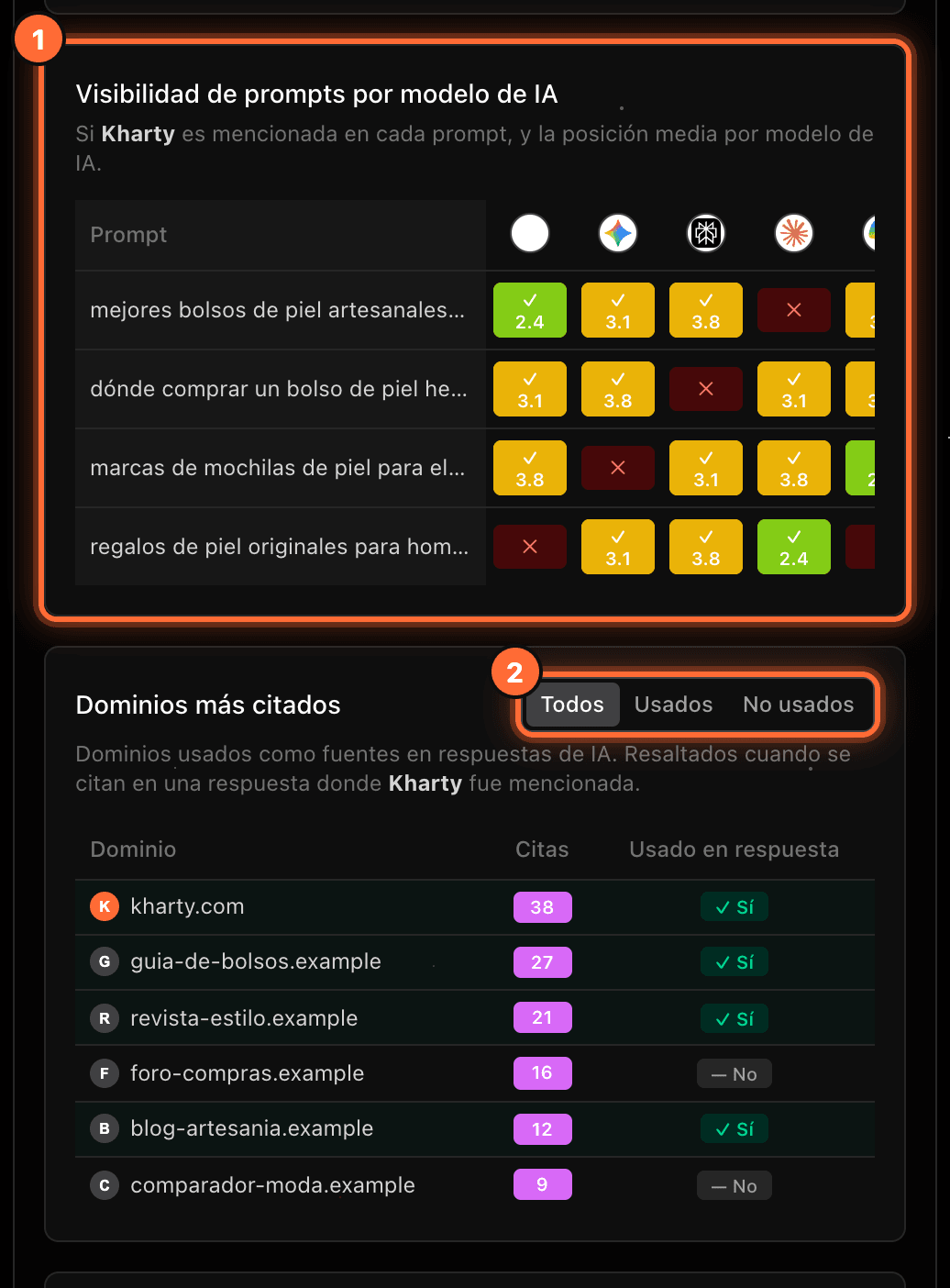
"Visibilidad de prompts por modelo de IA" (Prompt visibility per AI model) (①) shows which prompts the brand appears in with each AI engine: ✓ with its average position, or ✗ if it isn't mentioned.
"Dominios más citados" (Most cited domains) and "Páginas más citadas" (Most cited pages) show the sources the AI uses. With "Todos / Usados / No usados" (All / Used / Not used) (②) you filter the ones cited in an answer that mentioned the brand. "Ver más" (See more) shows the remaining rows.
Step 8
Filter both panels at once
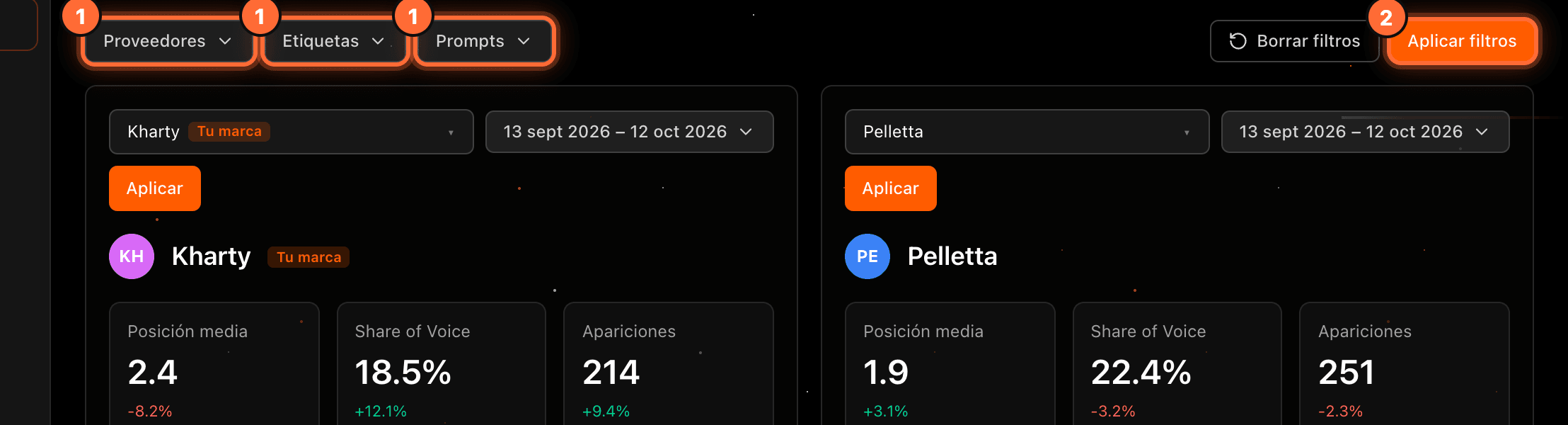
The filters at the top, "Proveedores" (Providers), "Etiquetas" (Tags) and "Prompts" (①), apply to both panels when you click "Aplicar filtros" (Apply filters) (②). "Comparación" has no country filter.
The brands and dates of both panels are saved in the page link: you can bookmark it or open it again with the same comparison.
Step 9
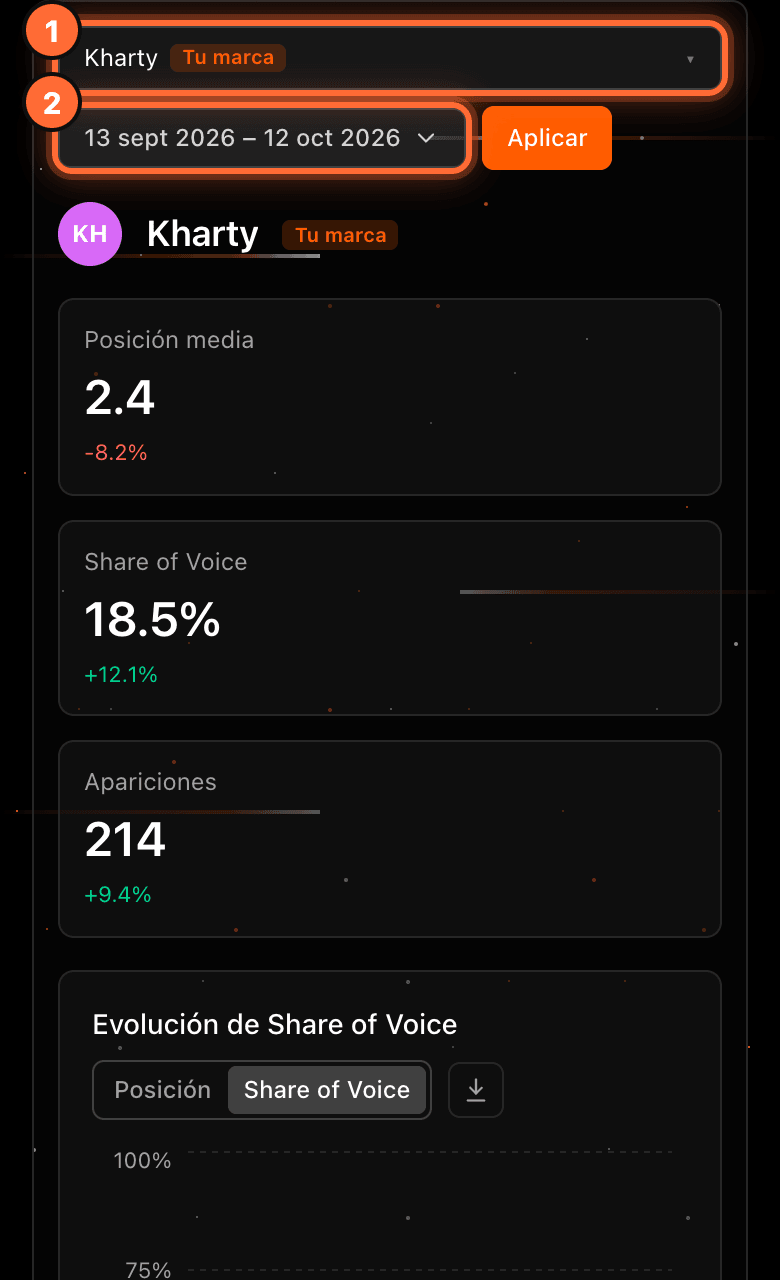
On mobile, one panel below the other
On mobile the panels stack: first "Marca A" and "Marca B" below it. Each keeps its brand selector (①) and its dates (②).
Frequently asked questions
Can I compare two competitors with each other?
Yes. You can pick any brand from the list in either panel, even if neither of them is yours.
Why is there no country filter?
Comparison data can't be split by country, so "Comparación" only offers "Proveedores", "Etiquetas" and "Prompts", plus each panel's dates.
A brand isn't in the list. Why?
The list only includes brands that have appeared in the AI engines' answers to your website's prompts.
Does comparing change any of my data?
No. "Comparación" is read-only: it doesn't change your prompts or your data.