
Payments: Billing
How to cancel your plan
Before you start
You can cancel your plan yourself from the "Cancelar plan" (Cancel plan) section of the "Facturación" (Billing) tab. The cancellation is never immediate: your plan stays active until the end of the period you have already paid for and, from that date on, nothing more is charged. The panel is in Spanish, so this guide quotes its labels in Spanish with their meaning in brackets.
Tip: If what you want is to pay less, moving to a cheaper plan may suit you better than leaving: see the guide "How to change your plan".
Step by step
Step 1
Open your website's "Facturación" (Billing) tab
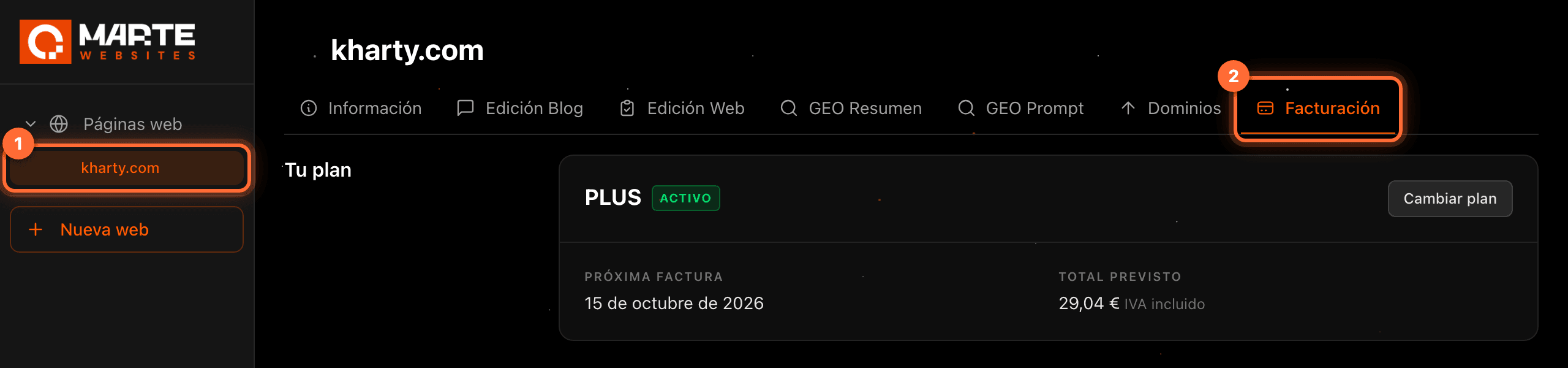
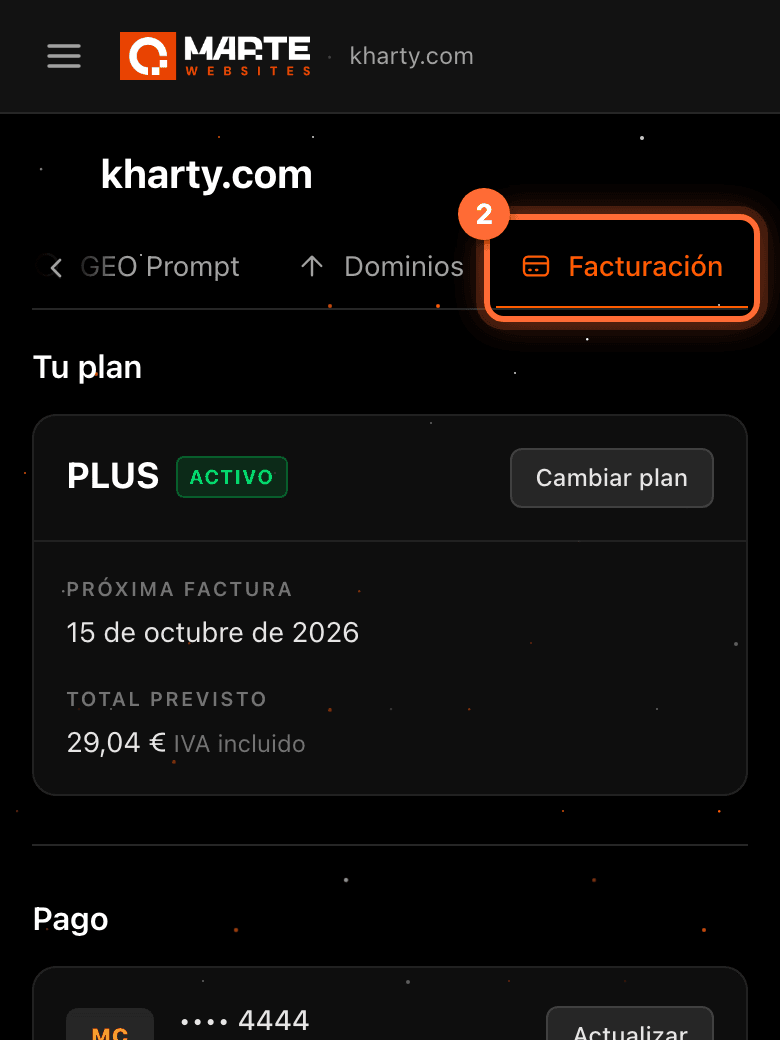
Sign in to the aMarte Websites panel, click your website in the left-hand menu (①) and open the "Facturación" (Billing) tab (②). Scroll down to the last section, "Cancelar plan" (Cancel plan).
Step 2
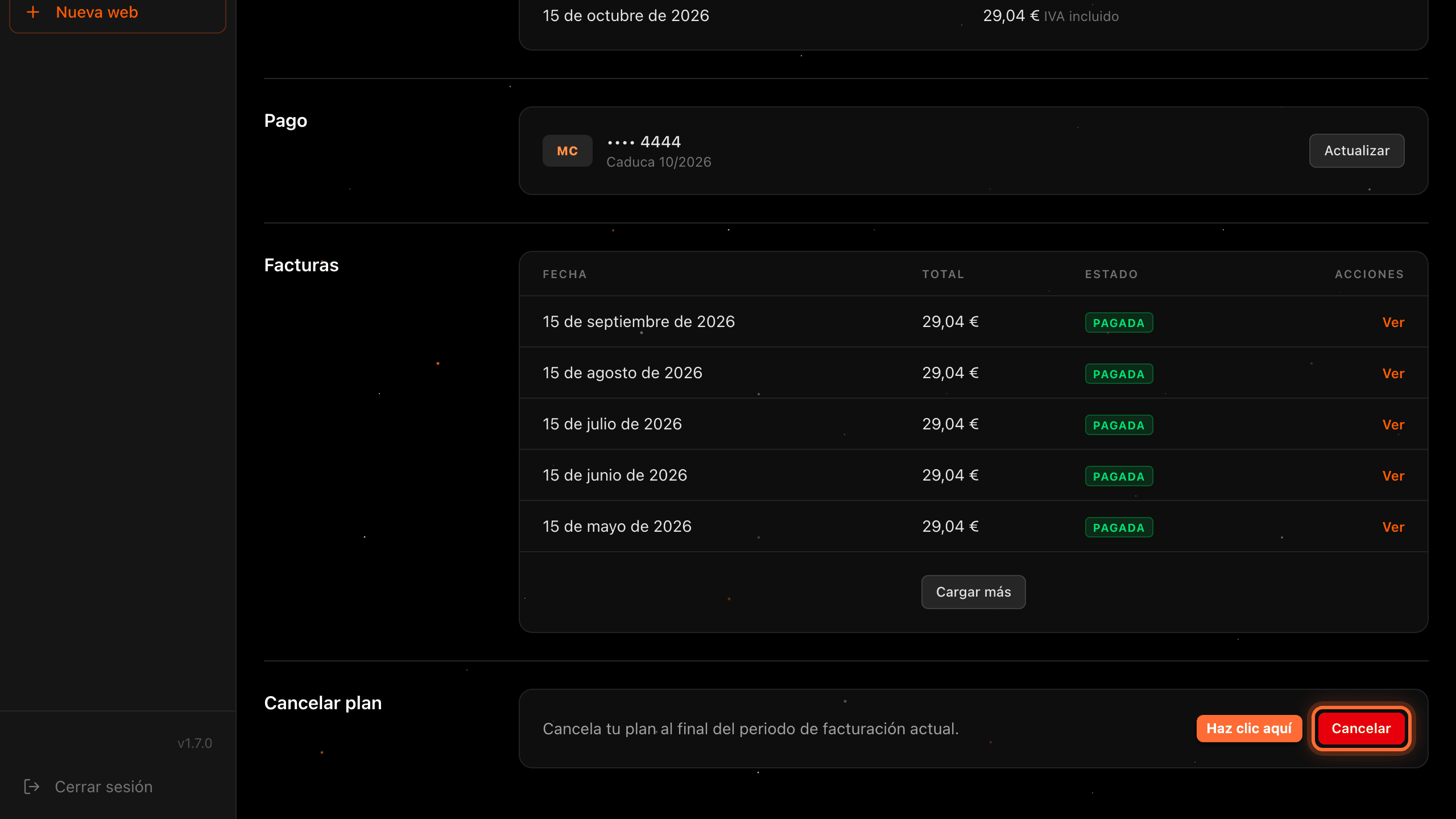
Click "Cancelar" (Cancel)
The "Cancelar plan" section reads "Cancela tu plan al final del periodo de facturación actual." (cancel your plan at the end of the current billing period). Click the red "Cancelar" (Cancel) button.

Step 3
Tell us why (optional) and click "Cancelar plan" (Cancel plan)
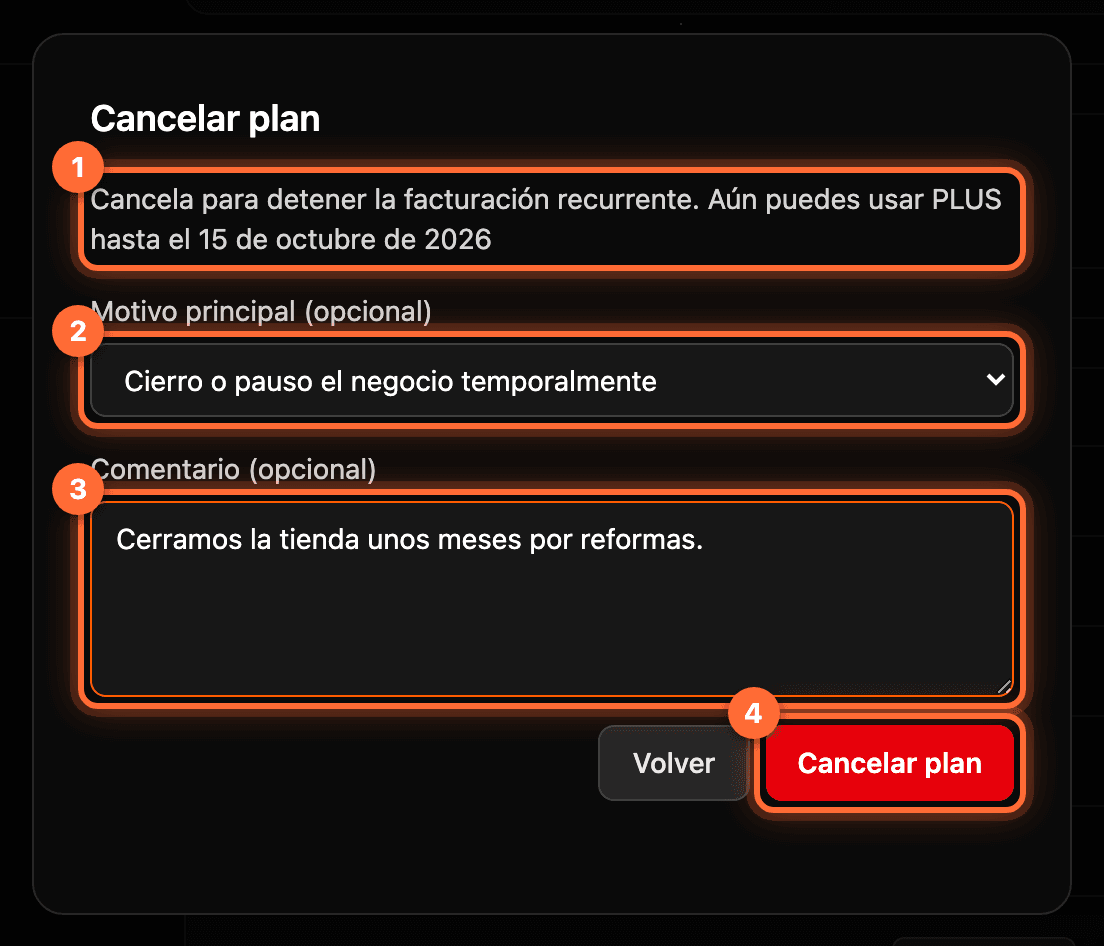
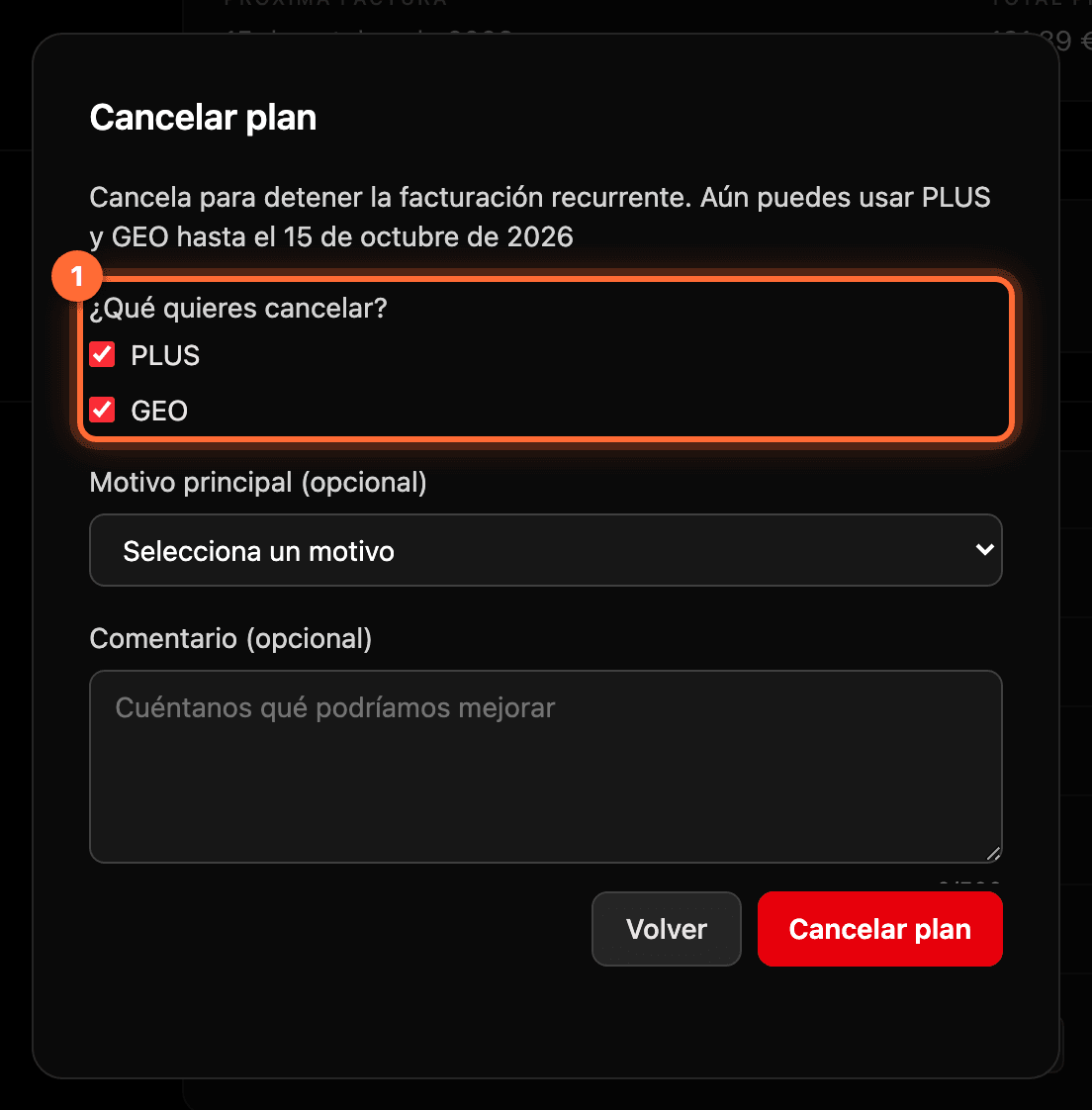
The "Cancelar plan" window opens. At the top (①) it says until when you can keep using your plan, for example: "Cancela para detener la facturación recurrente. Aún puedes usar PLUS hasta el 15 de octubre de 2026" (cancel to stop recurring billing; you can still use PLUS until 15 October 2026).
If you like, tell us why you are leaving: choose a "Motivo principal (opcional)" (main reason, optional) (②) and write a "Comentario (opcional)" (comment, optional) (③) of up to 500 characters. Both are optional, but they help us improve.
Click "Cancelar plan" (Cancel plan) (④) to schedule the cancellation, or "Volver" (Back) if you change your mind.
⚠ Once you click "Cancelar plan" the cancellation is scheduled and can't be undone from the panel. If you change your mind, contact support.
Step 4
If you have PLUS and GEO separately, choose what to cancel
If you signed up for PLUS (or PRO) and GEO as two separate subscriptions, the window asks "¿Qué quieres cancelar?" (What do you want to cancel?) (①), with one checkbox for each. Both are ticked: untick the one you want to keep. At least one must stay ticked.
Each subscription ends at the end of its own period. Any other services you have (for example, email or domains) are not cancelled with this button: ask support what happens to them.
Step 5
What happens next
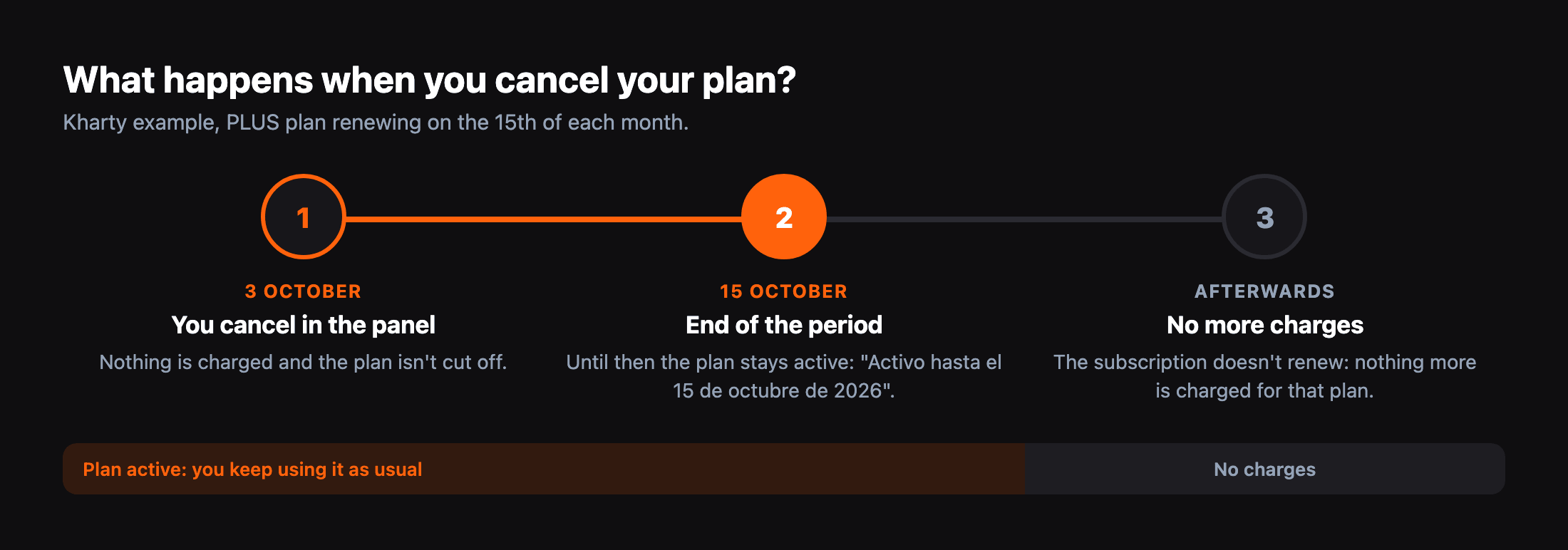
Example with Kharty, whose PLUS plan renews on the 15th of each month and which cancels on 3 October: • Nothing is charged today and the plan keeps working as usual. • The plan stays active until 15 October, the end of the period already paid for. • From that date the subscription doesn't renew and nothing more is charged for that plan.
Step 6
Check that the cancellation is scheduled
The window closes and "Tu plan" (Your plan) changes: the status goes from "Activo" (Active) to "Baja programada" (Cancellation scheduled) and "Activo hasta el 15 de octubre de 2026" (active until 15 October 2026) appears, the date your plan ends.
The "Cancelar plan" section now reads "La baja ya está programada: tu plan seguirá activo hasta el 15 de octubre de 2026." (the cancellation is already scheduled: your plan stays active until 15 October 2026).



Frequently asked questions
Can I undo the cancellation?
Not from the panel. If you change your mind or want to change anything about the cancellation, contact support.
Will I be charged anything after cancelling?
Not for the cancelled plan. Your plan stays active until the end of the period you have already paid for and, after that, nothing more is charged for it.
Can I change plan while the cancellation is scheduled?
No. While the cancellation is scheduled, trying to change plan shows the message "Tu plan tiene la baja programada, no se puede cambiar de plan" (your plan has a scheduled cancellation, the plan can't be changed). If you want to change plan instead of leaving, contact support.