
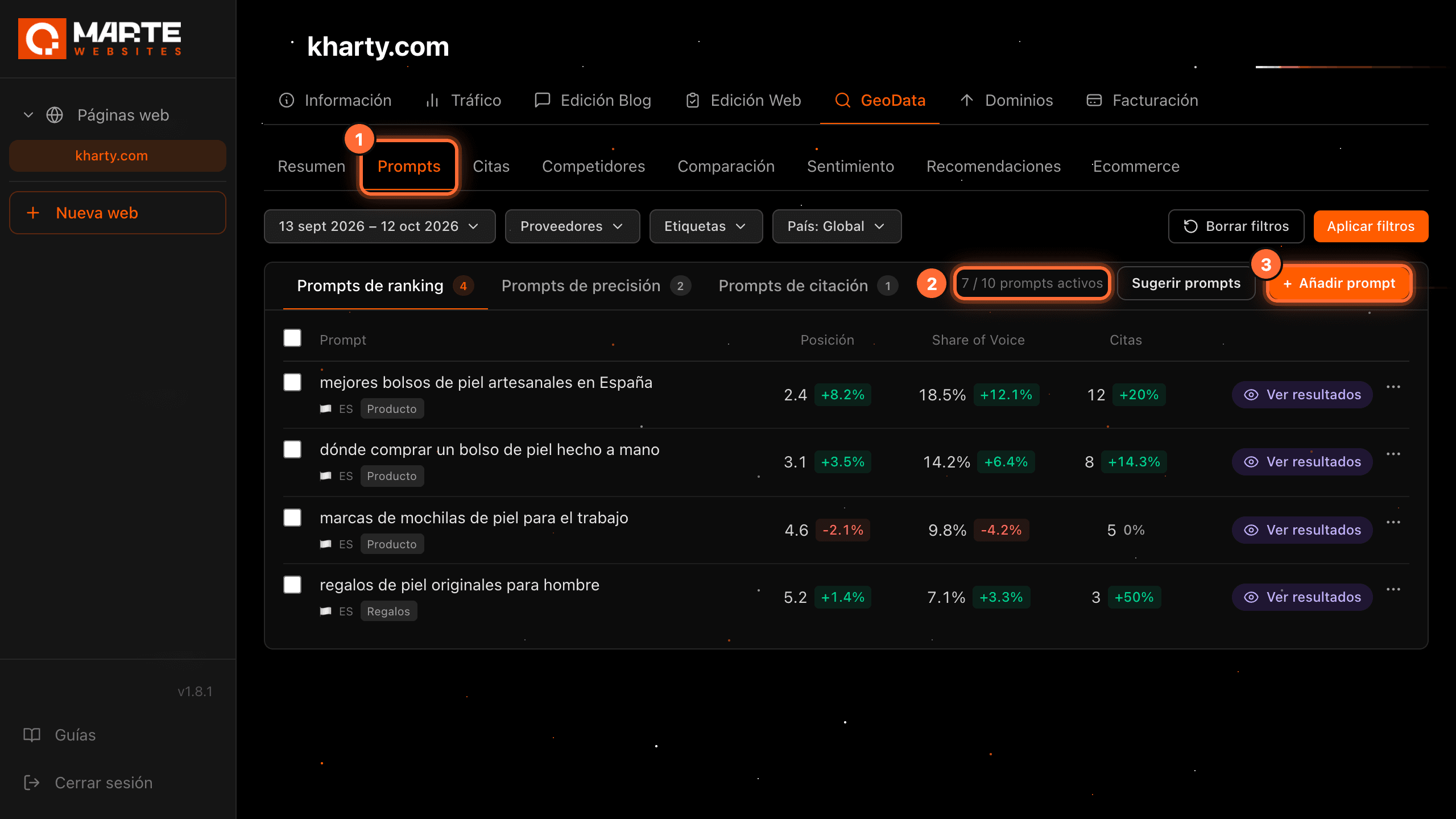
Panel: GeoData
How to add a prompt
Before you start
A prompt is a question asked regularly to the AI engines to measure how your brand appears in their answers. You can add prompts from the "Prompts" sub-tab of GeoData if your website has a plan with GEO. By default, each website can have up to 10 active prompts.
Tip: Write the prompt the way one of your customers would ask ChatGPT, for example "bolsos de piel para viajar" (leather travel bags). In this guide we use the fictional website "Kharty" (kharty.com) as an example.
Step by step
Step 1
Go to the Prompts sub-tab
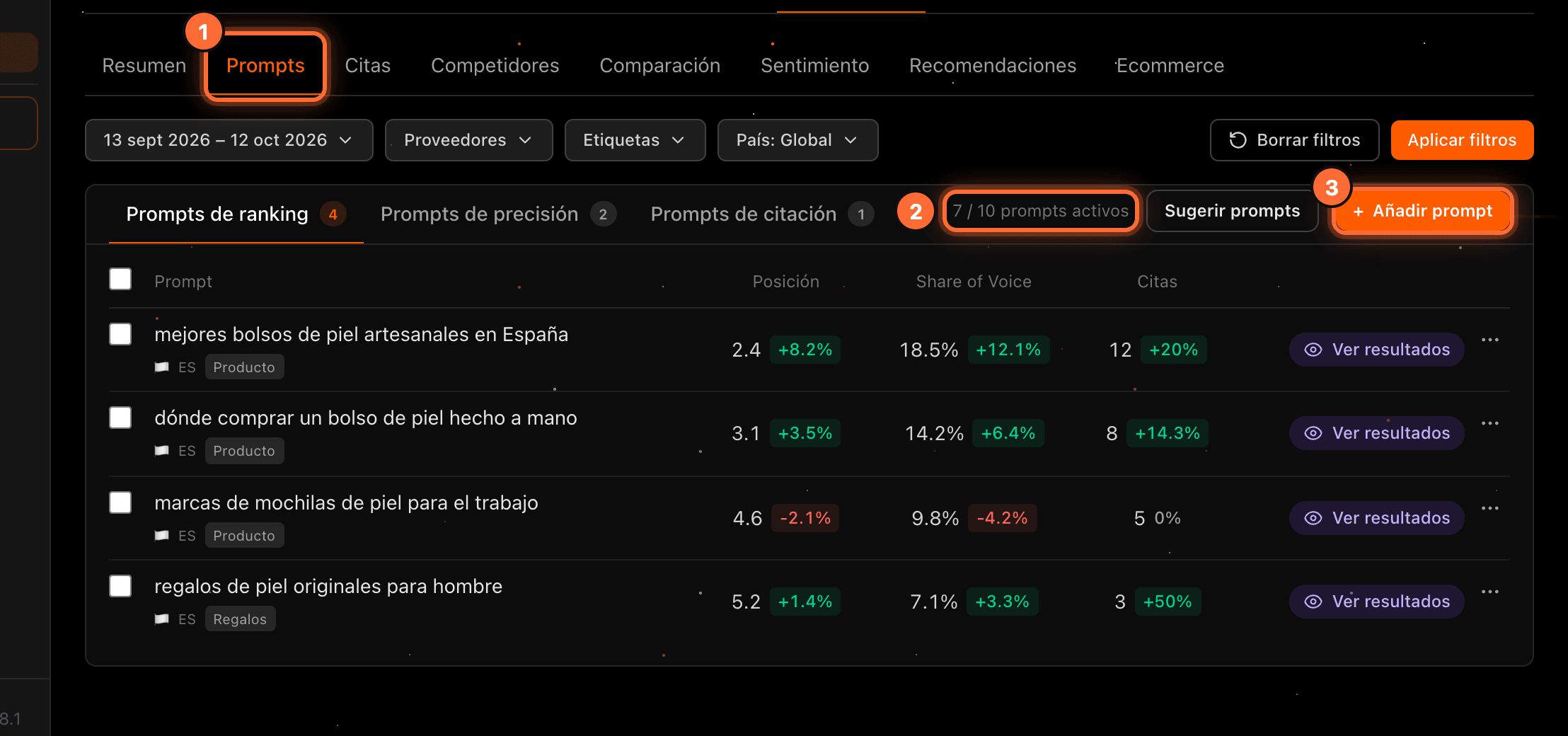
Open your website, go to the "GeoData" tab and click "Prompts" (①).
On the right you'll see the active prompts counter, for example "7 / 10 prompts activos" (7 / 10 active prompts) (②), and the "Añadir prompt" (Add prompt) button (③). Click it.
Next to it is "Sugerir prompts" (Suggest prompts), which proposes ideas based on your website (we explain it in the guide "How to use Sugerir prompts").
Step 2
Choose the type and write the prompt
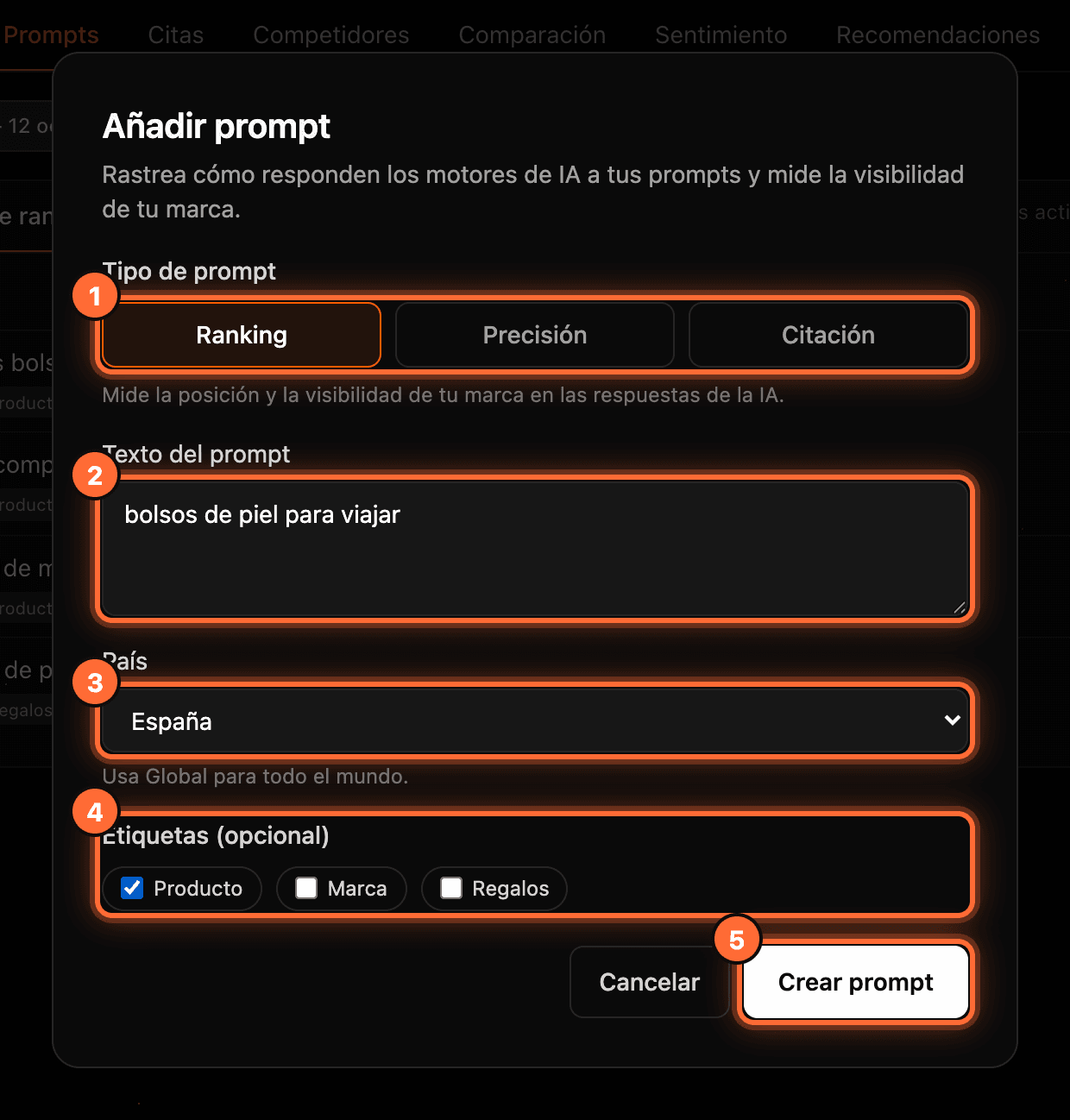
The "Añadir prompt" window opens: • ① "Tipo de prompt" (Prompt type): "Ranking" measures your position and visibility in the answers; "Precisión" (Accuracy) checks whether the AI answers what you expect about your brand; "Citación" (Citation) measures whether the AI cites pages of your website. • ② "Texto del prompt" (Prompt text): between 3 and 500 characters. • ③ "País" (Country): the country the question is asked from. Leave "Global" for worldwide. • ④ "Etiquetas (opcional)" (Tags, optional): to group the prompt and filter by it later. Only for ranking and accuracy. • ⑤ "Crear prompt" (Create prompt) saves it.
You add one prompt at a time.
Step 3
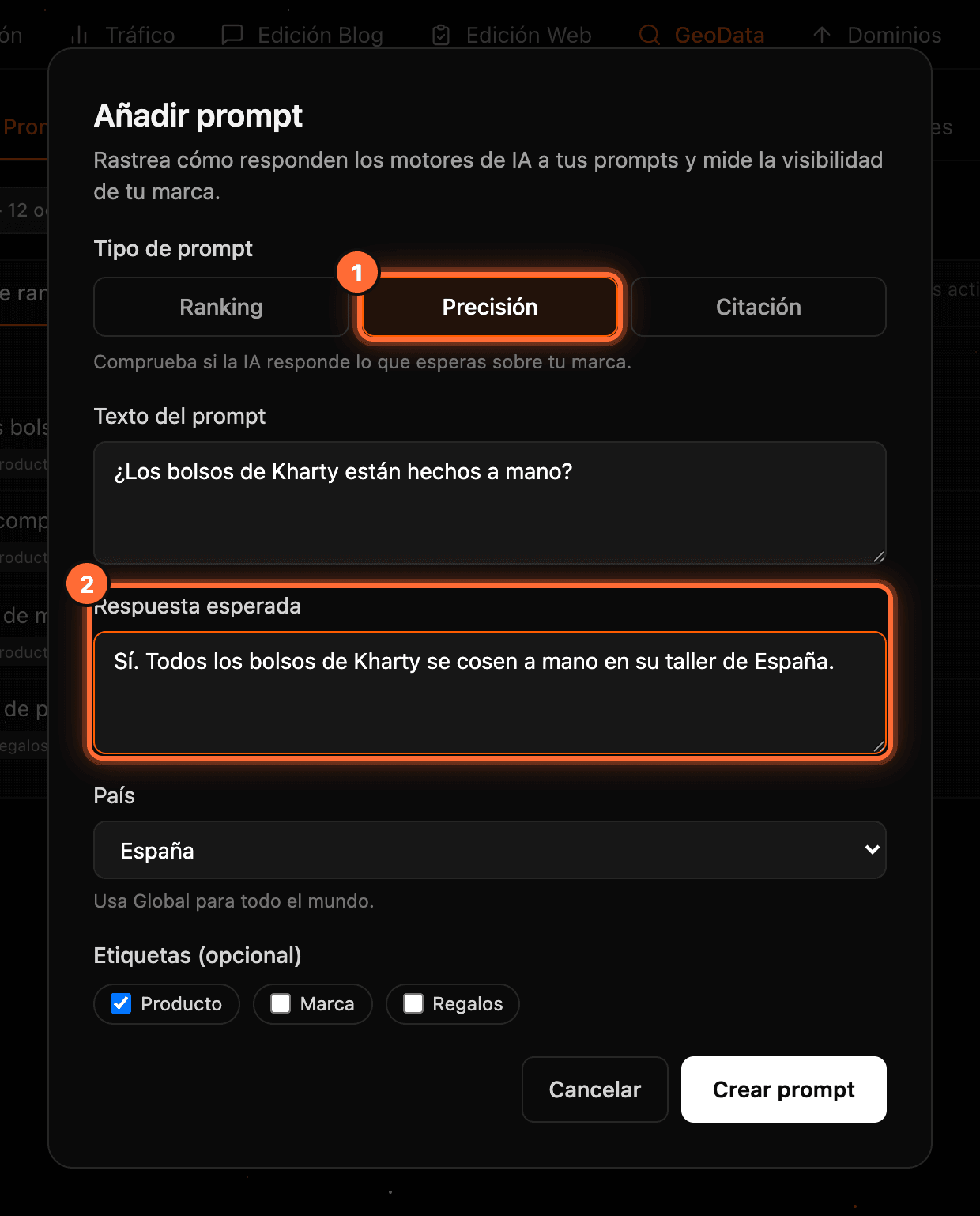
For an accuracy prompt, write the expected answer
With the "Precisión" type (①) the "Respuesta esperada" (Expected answer) field appears (②), and it is required. Write what the AI should answer, for example "Sí. Todos los bolsos de Kharty se cosen a mano en su taller de España" (Yes. All Kharty bags are hand-sewn in its workshop in Spain). Each AI answer is compared with it.
Step 4
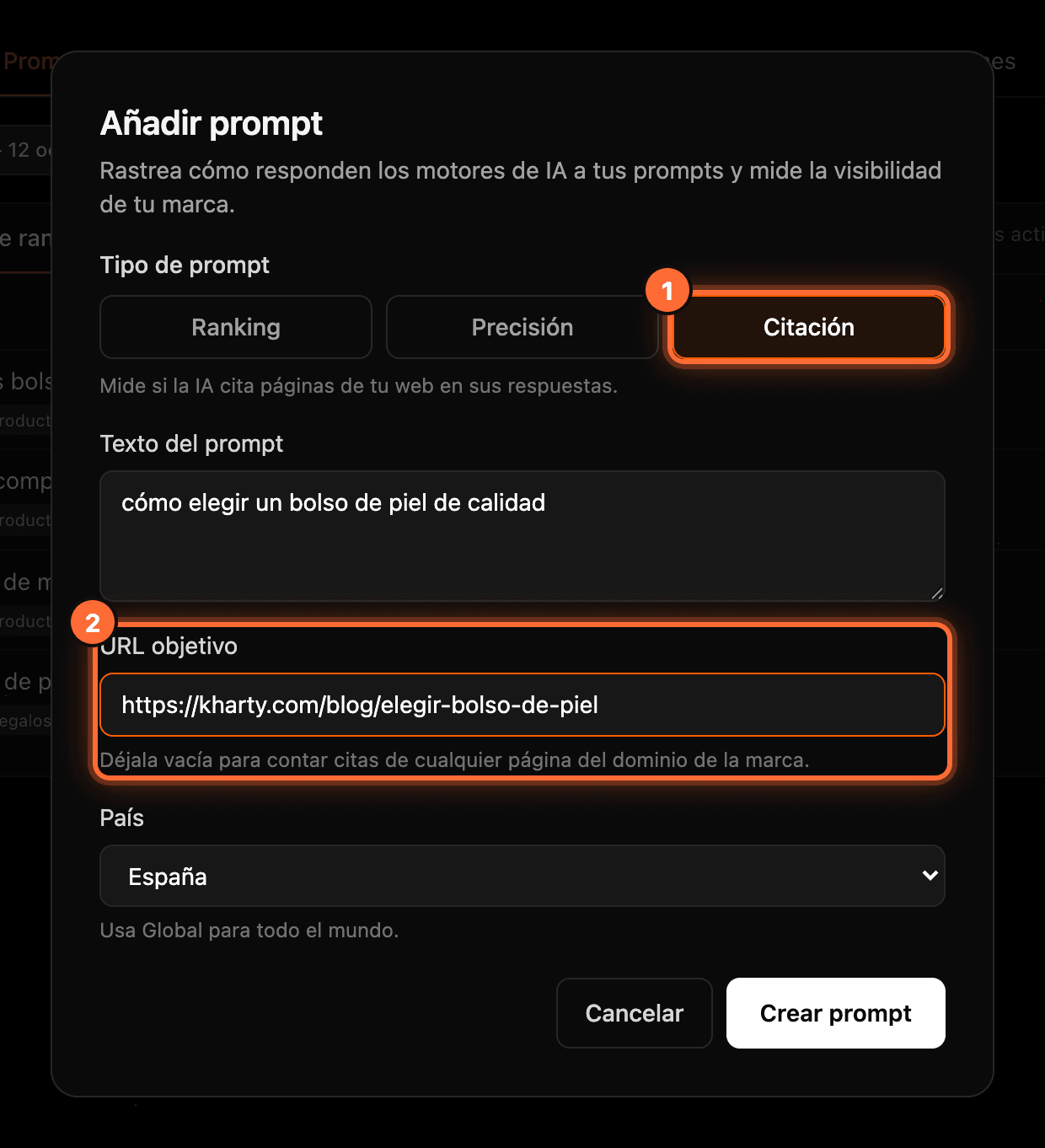
For a citation prompt, add the target URL (optional)
With the "Citación" type (①) the "URL objetivo" (Target URL) field appears (②). Enter the page of your website you want the AI to cite, starting with https://. Leave it empty to count citations of any page of your domain.
Citation prompts don't take tags.
Step 5
Check it has been added
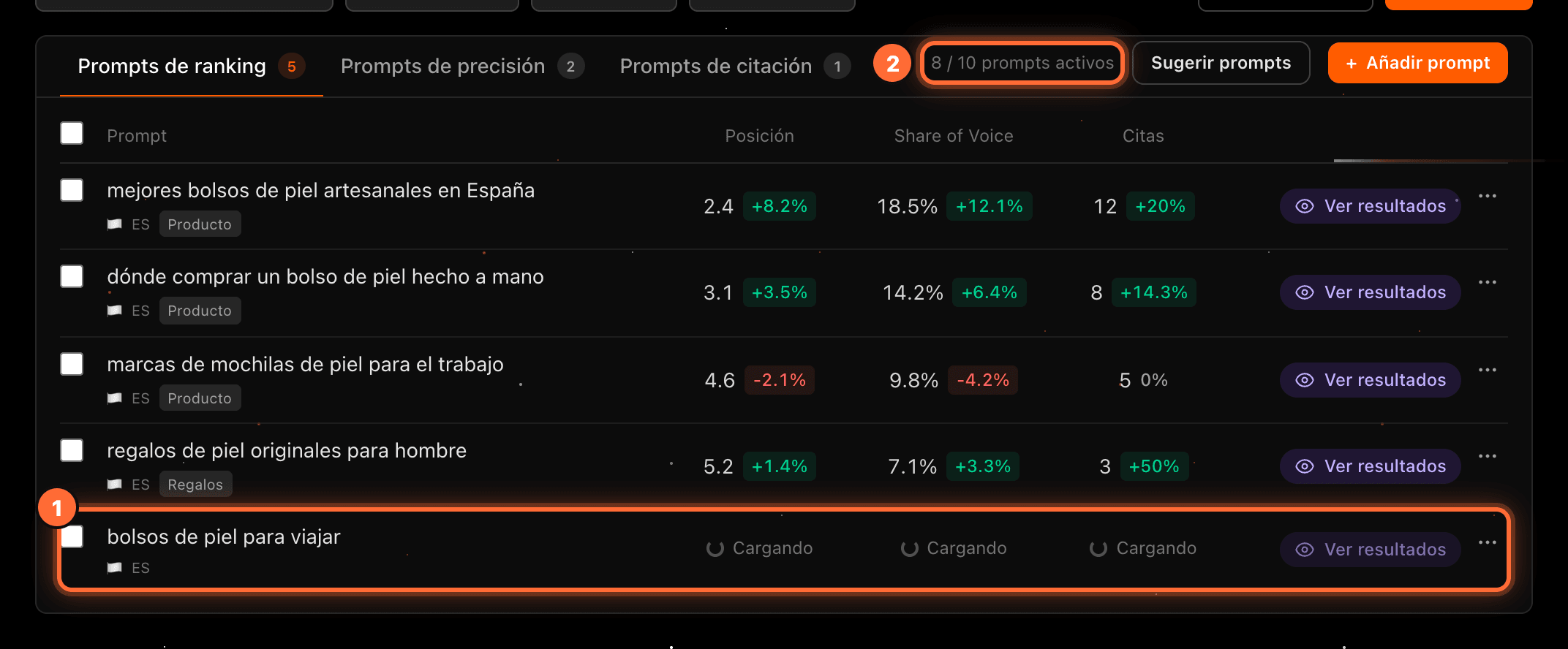
When you click "Crear prompt", the window closes and the prompt appears in the list (①). While its first data is being collected, its columns show "Cargando" (Loading) and "Ver resultados" is disabled.
The counter goes up, in the example to "8 / 10 prompts activos" (②).
Step 6
Disabled button: you have reached the limit
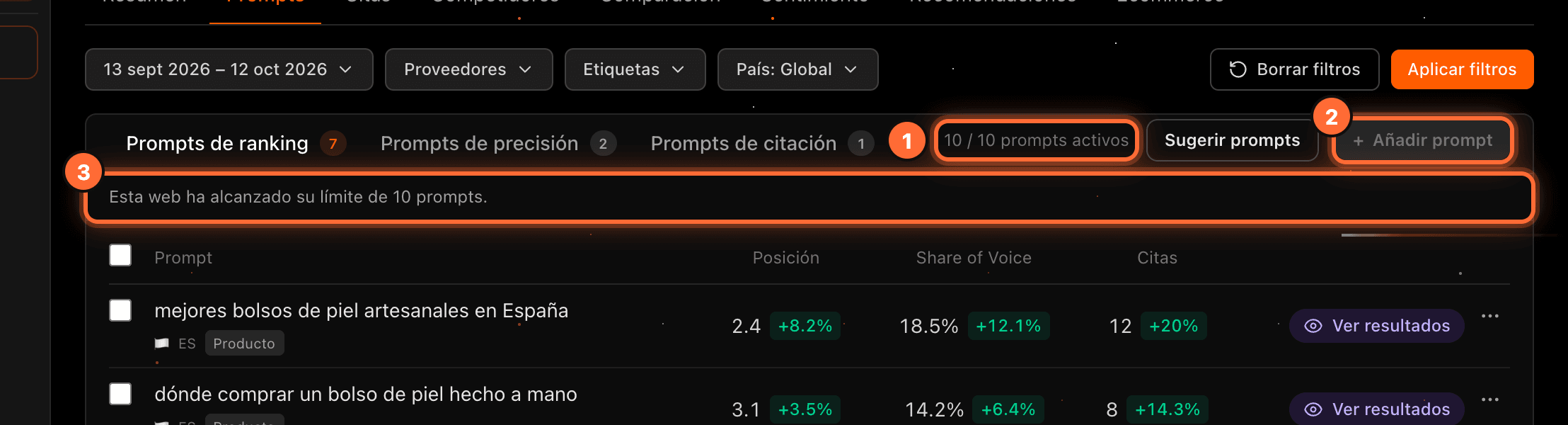
When the counter reaches the limit (①), the "Añadir prompt" button turns grey (②) and the reason appears below it (③): "Esta web ha alcanzado su límite de 10 prompts." (This website has reached its limit of 10 prompts.)
Active prompts of the three types count. By default the limit is 10; the aMarte team can set a different limit for your website.
Step 7
Disabled button: it can't be added right now
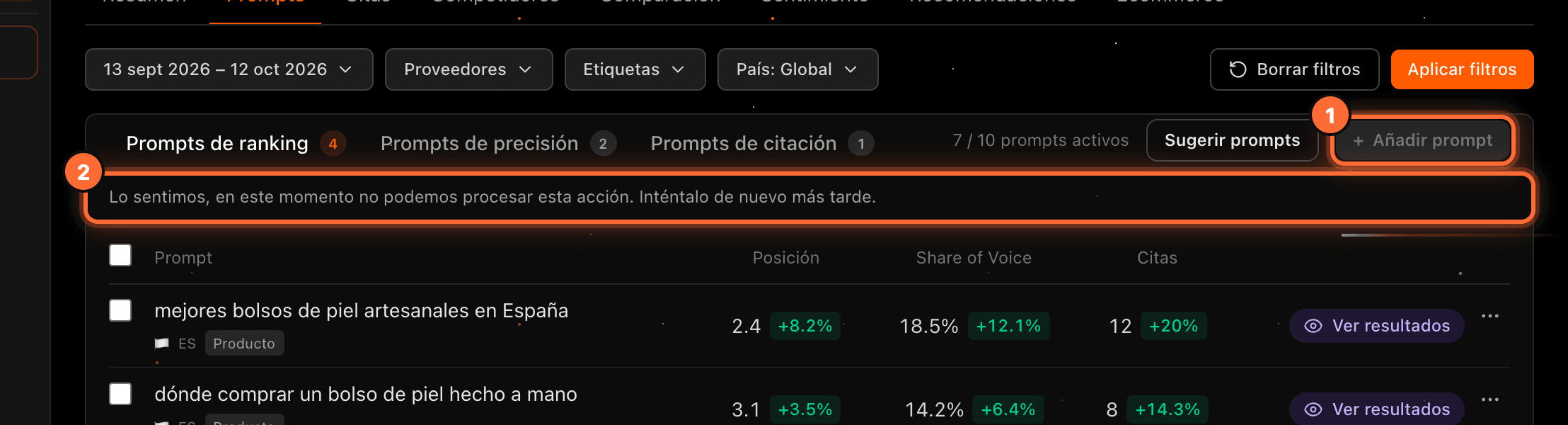
If the button is grey (①) and the message "Lo sentimos, en este momento no podemos procesar esta acción. Inténtalo de nuevo más tarde." (Sorry, we can't process this action right now. Please try again later.) appears (②), it is a temporary issue with the service, not with your website. Try again later.
Step 8
Without a GEO plan, the button offers to get it
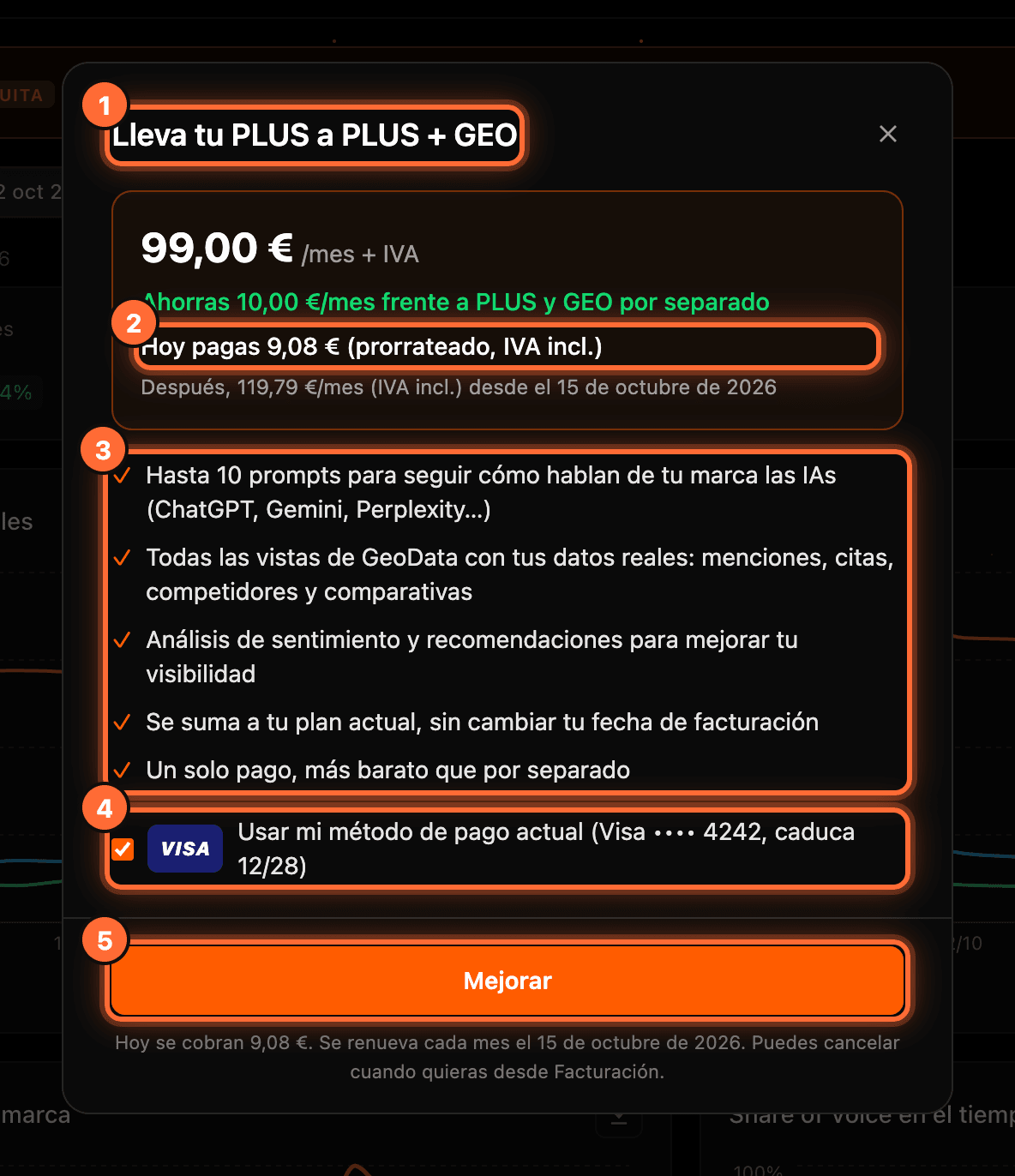
If your website is on the free GeoData sample or has no plan with GEO, "Añadir prompt" isn't grey: clicking it opens the window to get GEO. If you are the client, it's the "Lleva tu PLUS a PLUS + GEO" (Take your PLUS to PLUS + GEO) window (or your plan's), with the "Mejorar" (Upgrade) button; when you finish, "Añadir prompt" opens straight away. If you are the agency, "Descubre todo lo que las IAs dicen de tu marca" (Discover everything AIs say about your brand) opens, with "Contratar GEO" (Get GEO). We explain it in the guide "The free GEO sample and how to get GEO".
Step 9
If something goes wrong, the notice appears in the window
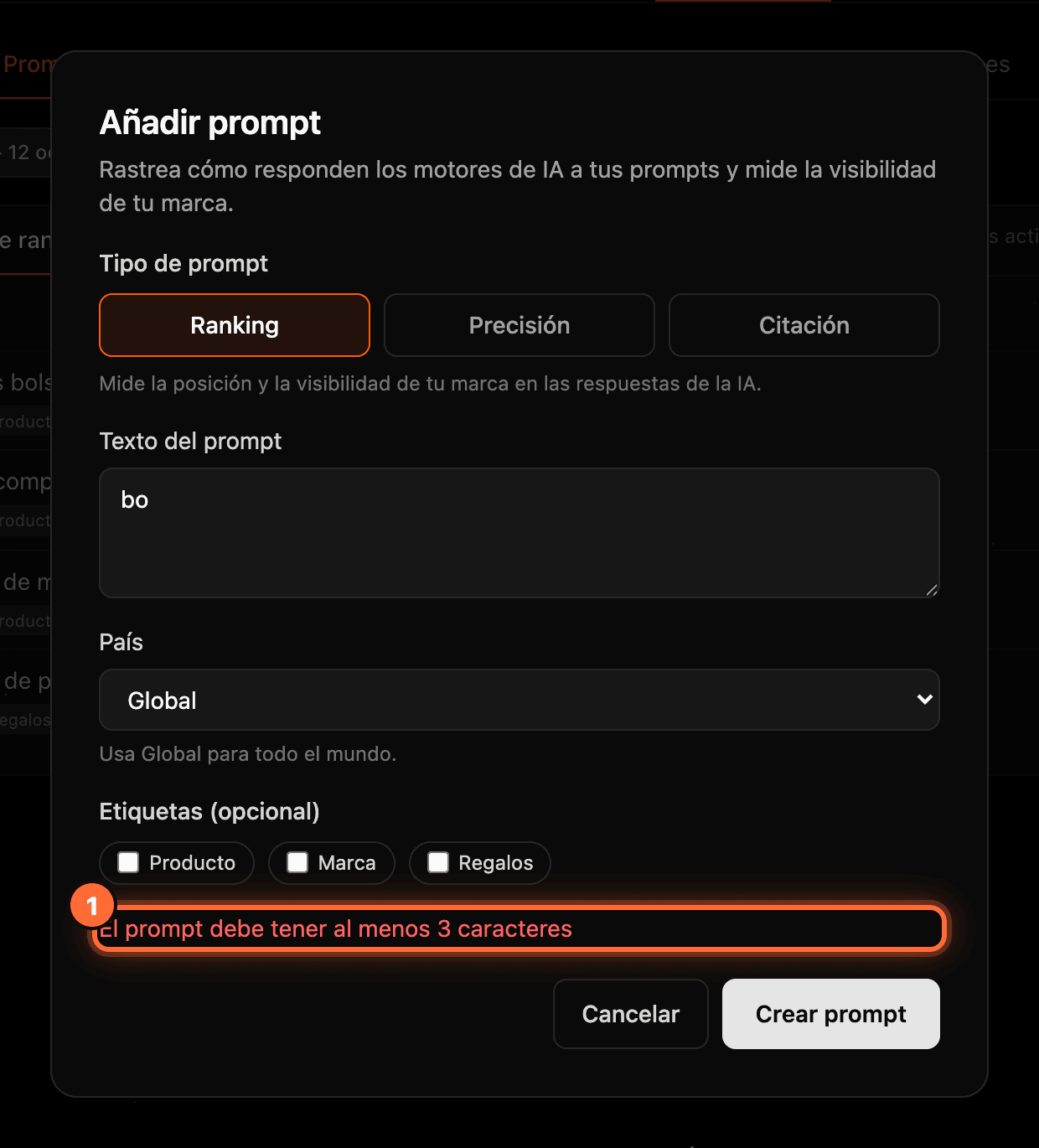
If something is missing or there is an error, the notice appears in red inside the window itself (①), which stays open so you can fix it. For example: • "El prompt debe tener al menos 3 caracteres" (The prompt must be at least 3 characters long) • "Escribe la respuesta esperada" (Write the expected answer) • "La URL objetivo debe empezar por http:// o https://" (The target URL must start with http:// or https://)
Frequently asked questions
Which prompts count towards the limit?
All the website's active prompts: ranking, accuracy and citation. Paused prompts don't count.
I had the free sample. Does its prompt count towards the 10?
Yes. The sample prompt is one more prompt of your website: when you get GEO you keep it, with its data, and it counts towards the limit.
Can I edit, pause or delete a prompt?
Yes. With the list's checkboxes or each prompt's "…" menu you can change its country, tags, expected answer or target URL, pause it, resume it or delete it. The text can't be edited. We explain it in the guide "How to manage your prompts in GeoData".
When will I see the new prompt's data?
When its first queries to the AI engines finish. Until then its columns show "Cargando".