
Payments: Billing
How to update your payment method
Before you start
If your card expires, you replace it or you want to pay with another one, you can update it yourself from the "Pago" (Payment) section of the "Facturación" (Billing) tab. The new card is then used for every subscription of that website and, in the same step, you can check the name, address and tax ID on your invoices. The panel is in Spanish, so this guide quotes its labels in Spanish with their meaning in brackets.
Tip: Change your card before it expires so that your next invoice doesn't fail to charge. "Pago" shows the expiry date of the saved card (for example, "Caduca 10/2026", expires 10/2026).
Step by step
Step 1
Open your website's "Facturación" (Billing) tab
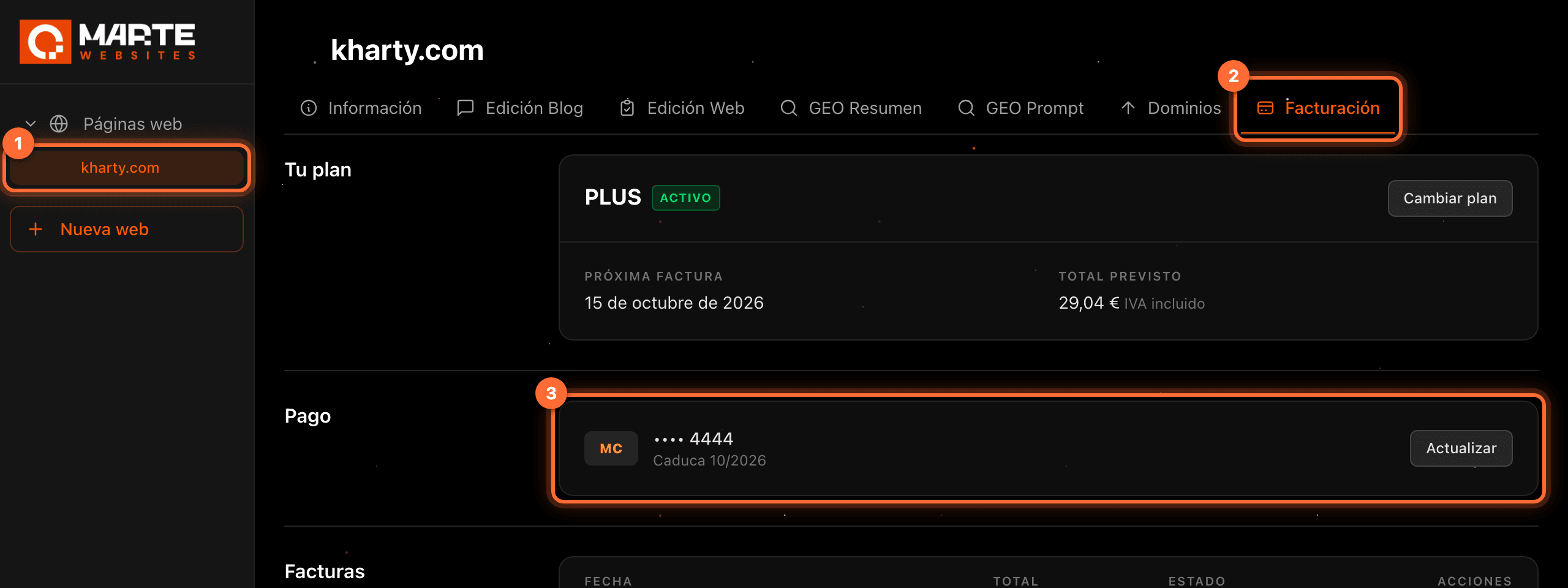
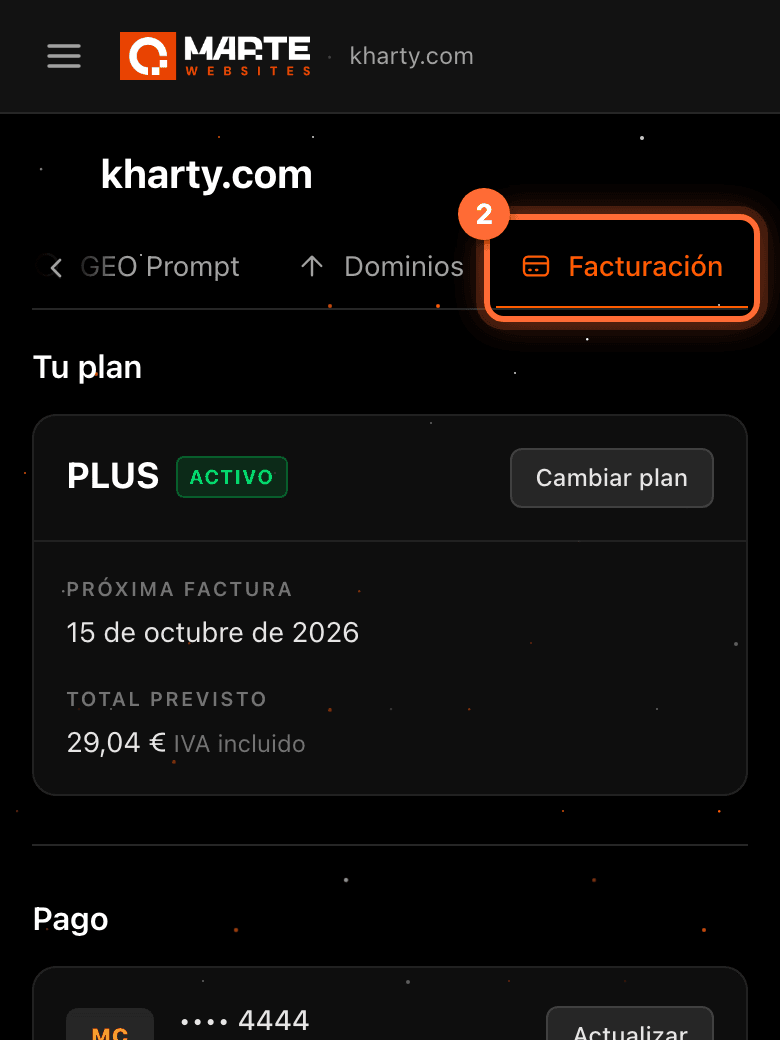
Sign in to the aMarte Websites panel, click your website in the left-hand menu (①) and open the "Facturación" (Billing) tab (②).
The second section is "Pago" (Payment) (③): it shows the saved card, with its brand, last 4 digits and expiry date.
Step 2
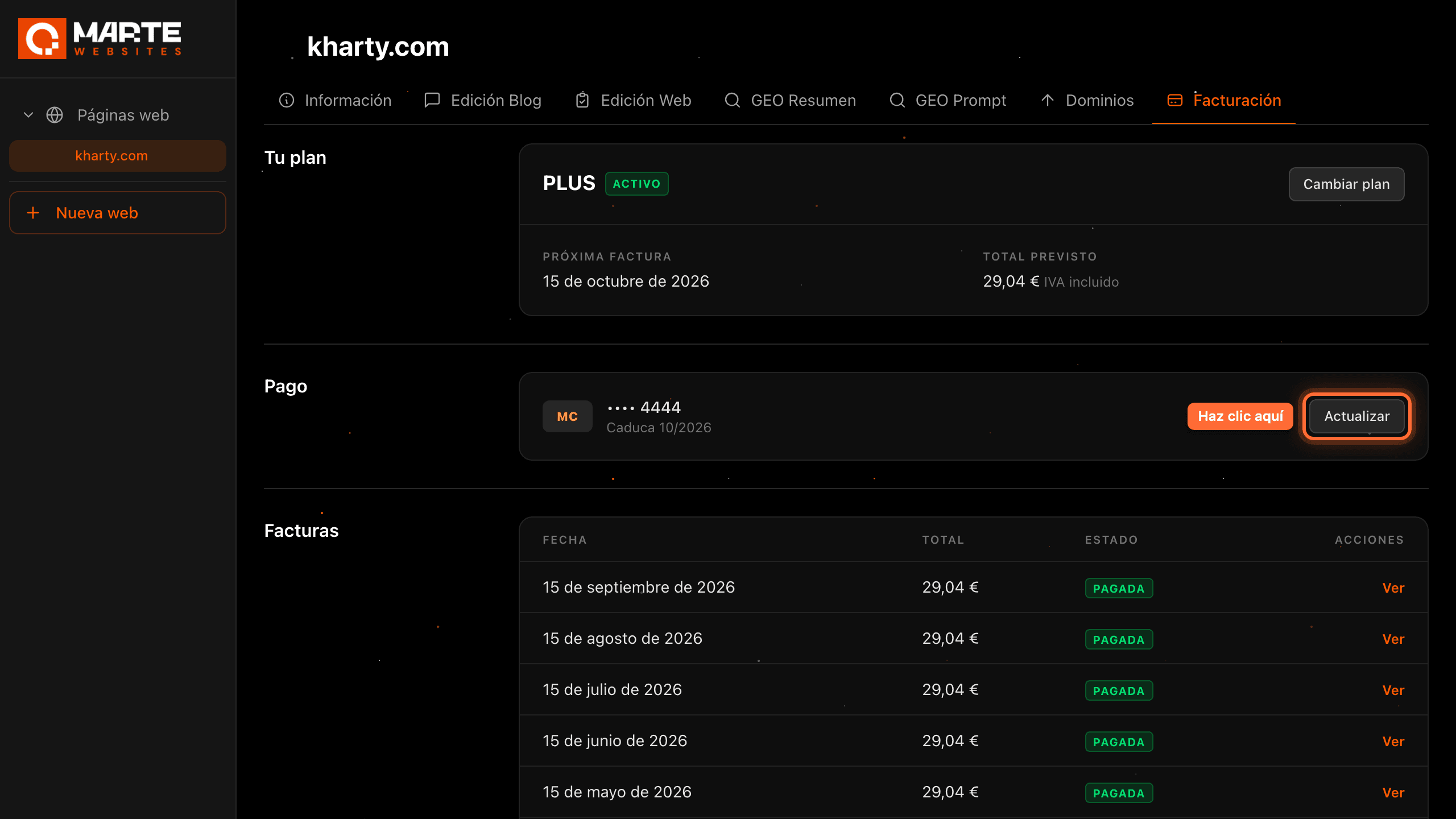
Click "Actualizar" (Update)
In the "Pago" section, click the "Actualizar" (Update) button. In the example, Kharty has a Mastercard saved that expires in 10/2026.

Step 3
Check your billing details
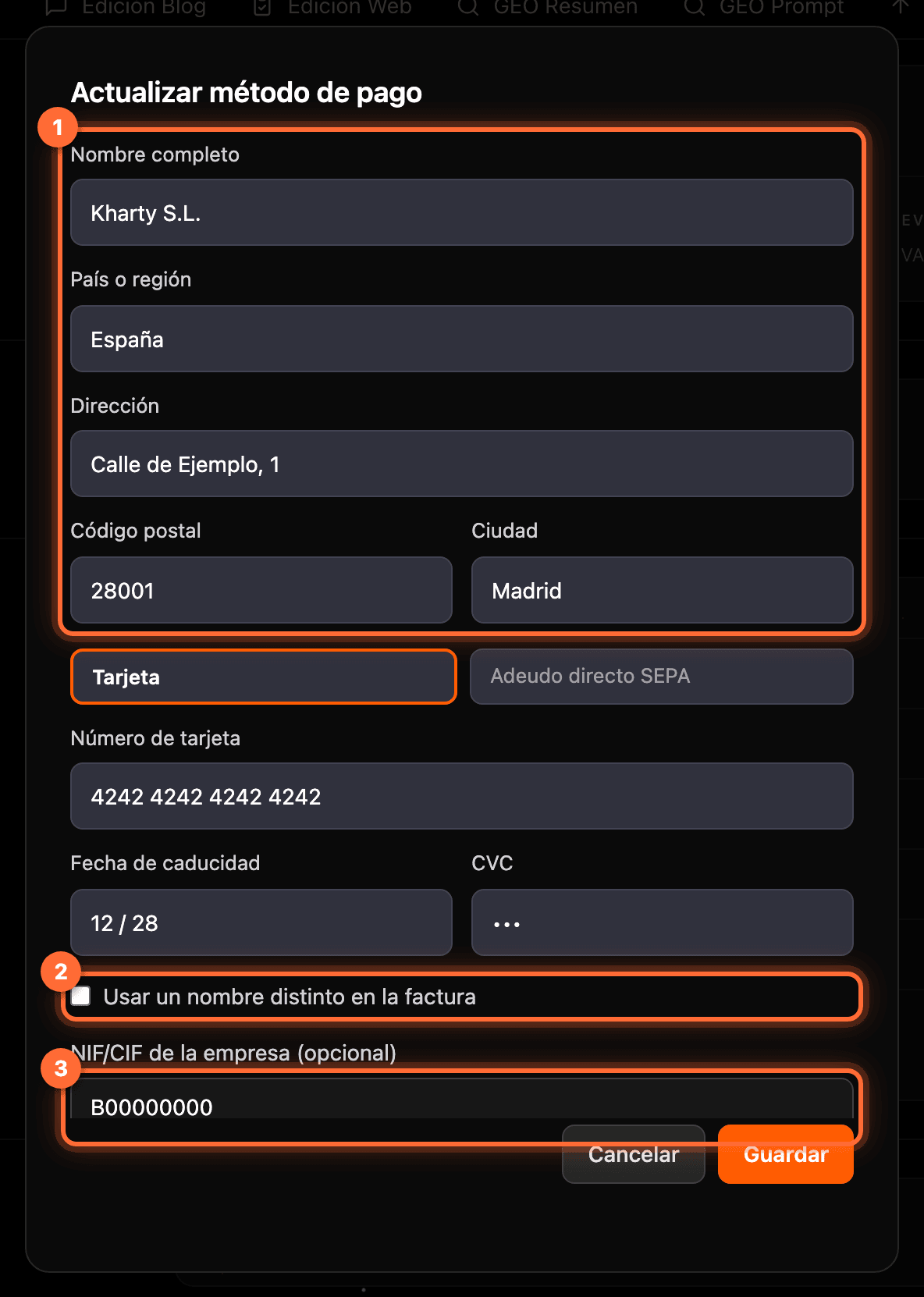
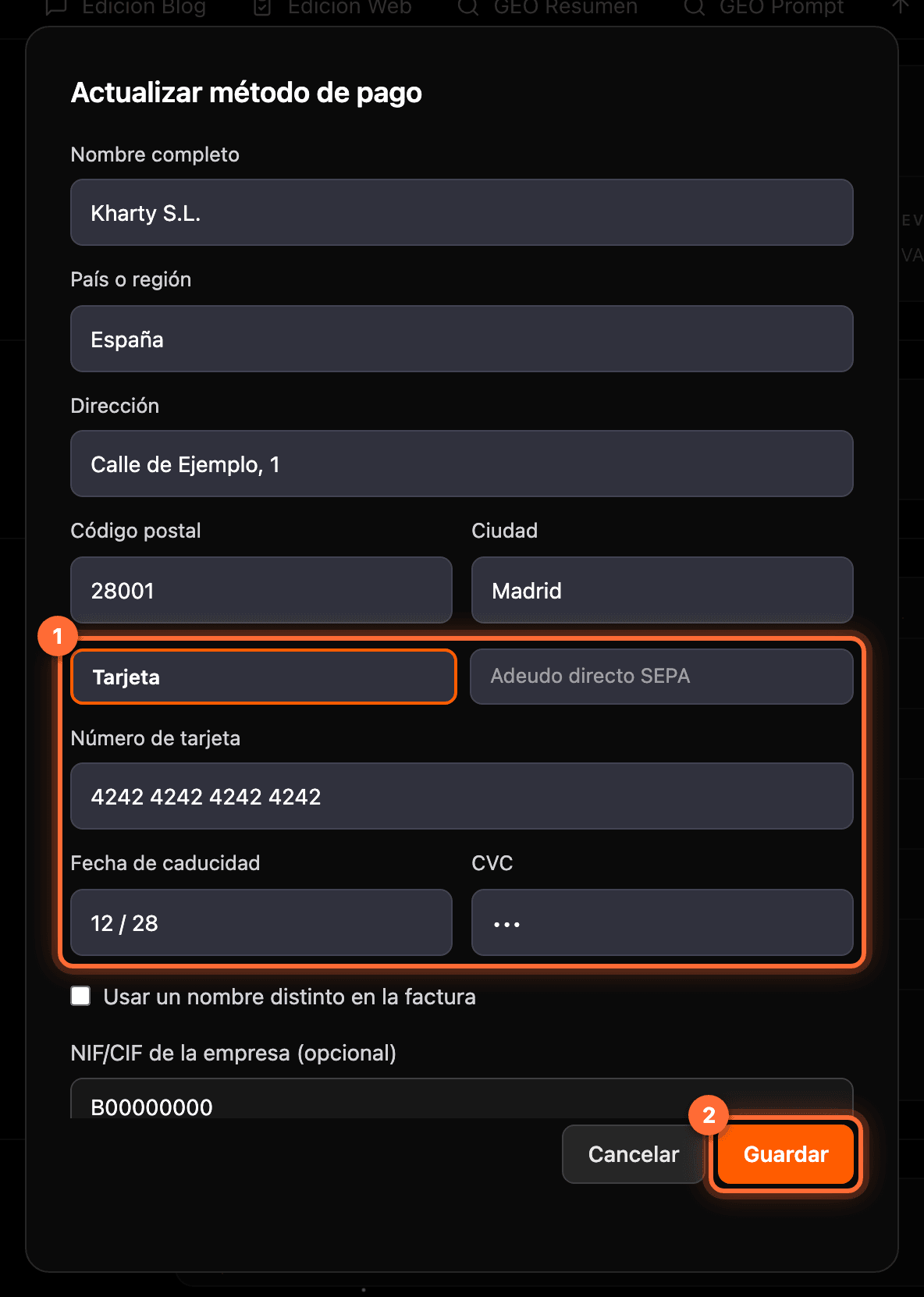
The "Actualizar método de pago" (Update payment method) window opens. At the top are your billing details (①): full name, country or region and address. They are pre-filled with the details we already have; correct them if needed.
If you want a different name on the invoice, for example your company's registered name, tick "Usar un nombre distinto en la factura" (Use a different name on the invoice) (②) and type it.
In "NIF/CIF de la empresa (opcional)" (company tax ID, optional) (③) you can enter your Spanish NIF, CIF or NIE, or an EU VAT number with its country prefix. If the format isn't valid, you will see "El NIF/CIF no tiene un formato válido".
Step 4
Enter the new card and click "Guardar" (Save)
Below is the secure payment form from Stripe, our payment provider (①). Enter the number, expiry date and security code (CVC) of the new card. Besides cards, the form may offer other methods, such as SEPA direct debit.
Click "Guardar" (Save) (②).
Step 5
If your bank asks, verify the card (3-D Secure)
Some banks ask you to verify the card (3-D Secure). If yours does, clicking "Guardar" opens a window from your bank over the same page, for example to approve it from its app. That screen belongs to your bank, so it is not shown here. Once you approve it, saving continues on its own.
If something goes wrong, the message appears inside the same window and you can try again.
Step 6
Check that the new card shows up
The window closes and "Pago" shows the new card, with its brand, last 4 digits and expiry date. In the example, Kharty now sees "Visa •••• 4242" and "Caduca 12/2028" (expires 12/2028).
From then on it is the payment method for every subscription of this website, including your next invoice.

Frequently asked questions
Is the new card used for all my subscriptions?
Yes, for all of that website's subscriptions. If you have several websites, each one has its own billing: repeat the steps in the "Facturación" tab of each website.
Can I save several cards or delete the old one?
Not from the panel. The last card you save becomes the one that is charged; managing several cards or deleting old ones isn't available in the panel.
I have an unpaid invoice. What do I do?
Update your card first. Then, in "Tu plan" (Your plan), you will see the message "Tienes una factura pendiente de pago de …" (you have an unpaid invoice of …) with the "Pagar factura" (Pay invoice) button to pay it.
Does changing the tax ID or the name affect the invoices I already have?
No. The new details are used on invoices issued from then on; invoices already issued don't change.