
Website · Legal pages
How to update your Terms and Conditions
Your website's Terms and Conditions are edited just like any other page, from the same content admin panel you use for the rest of the site. No code and no need to ask the dev team. This guide shows you where to find this page and how to edit its content.
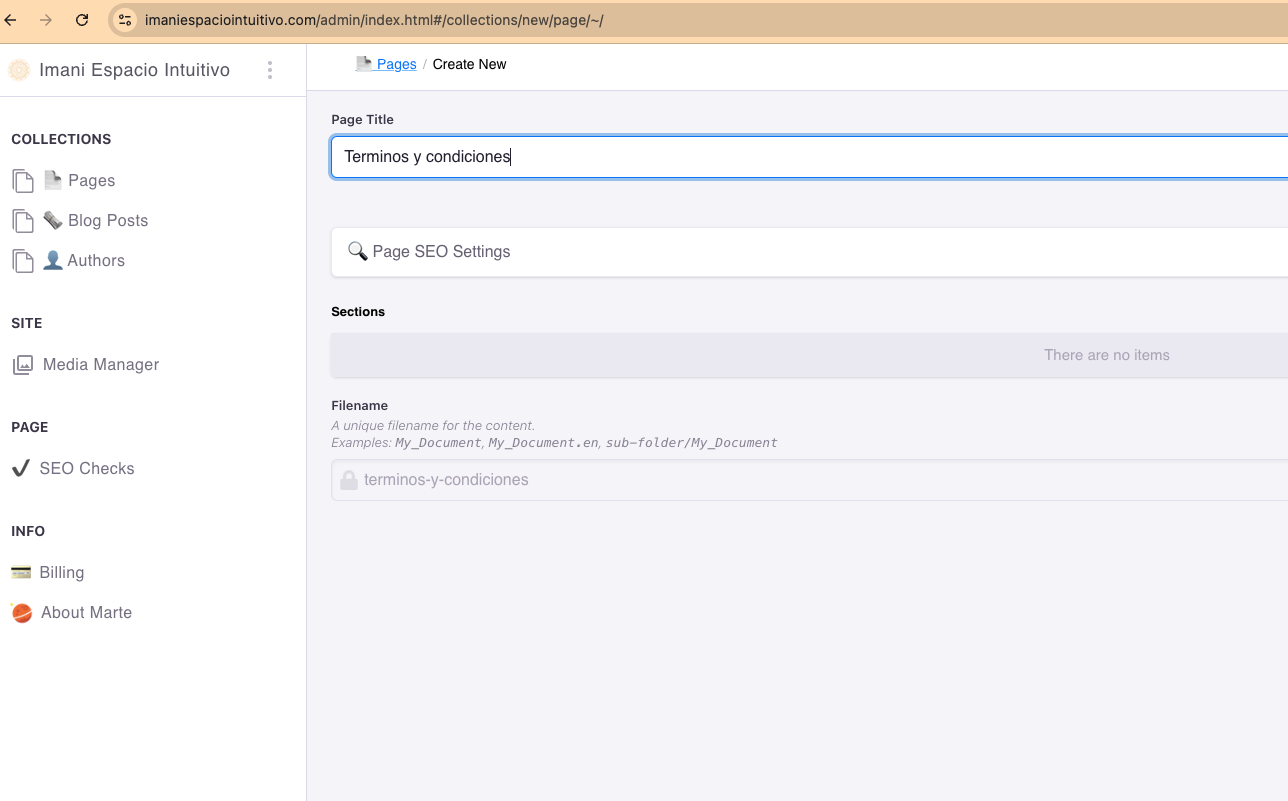
Step 1
Find the Terms and Conditions page
Log in to your admin panel (add /admin/index.html to the end of your domain) and go to the "Pages" section in the side menu. If your site already includes the Terms and Conditions page, it will show up in the list; you can also open it directly by adding #/~/tos to the panel's URL. If it doesn't exist yet, create it from "Create New" with the title "Terms and Conditions".
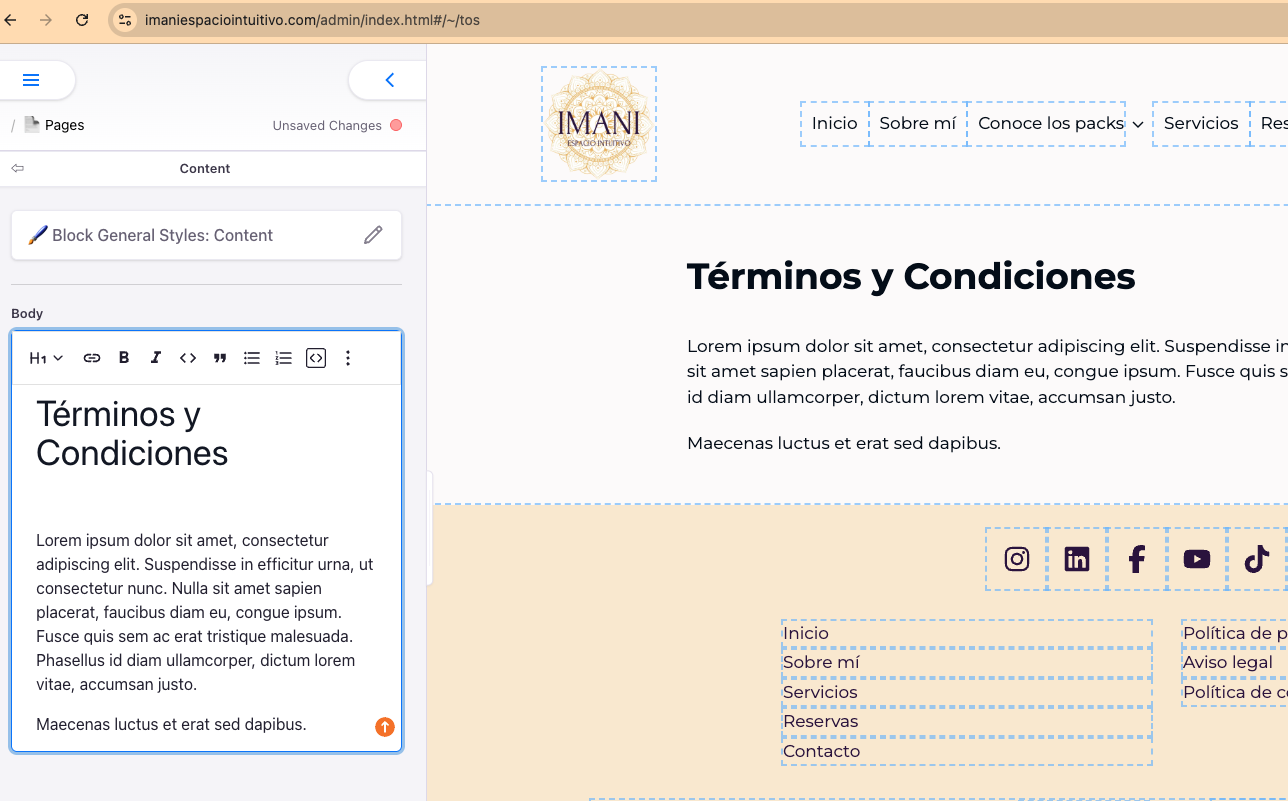
Step 2
Edit the text block content
Inside the page, click the "Content" block and then the "Body" field. There you can replace the placeholder text with your real terms and conditions: cancellation policy, refunds, terms of use, etc. Use the formatting toolbar to add headings, bold text, links or lists, just like in any text editor. When you're done, save your changes so they go live on the site.
Tip