
Marte Guide
Create redirects
Redirects let you automatically send traffic from one URL to another. You can use them to organise your site's content, fix broken links or, while your new website is under construction, send anyone who visits your domain straight to another published page.
Everything is managed from the Marte editor in a few clicks, with no technical knowledge needed.
Here is how to do it step by step.

Step 1: Access the redirects menu
- Open any page with your editor.
- Open the side menu.
- Click Global Settings.
- Select "Redirects" at the bottom of the list.
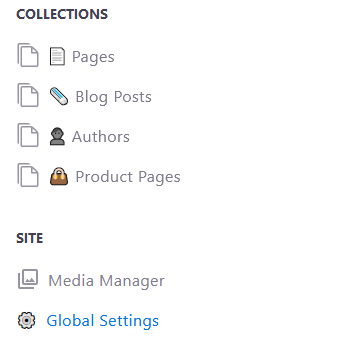
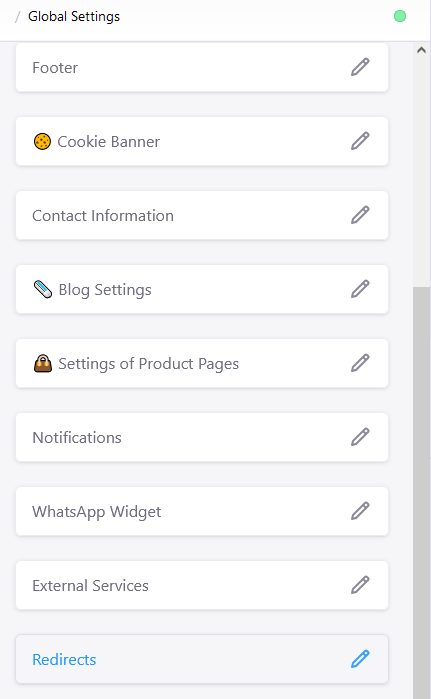
Step 2: Create an internal redirect
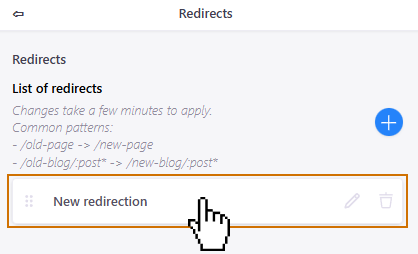
- Click the blue circle with the "+" symbol to add a redirect to the list.
- Select the new redirect that was created with the default name "New redirection" in the redirect list.
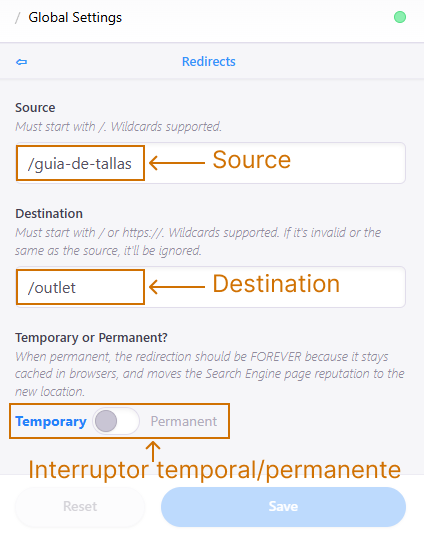
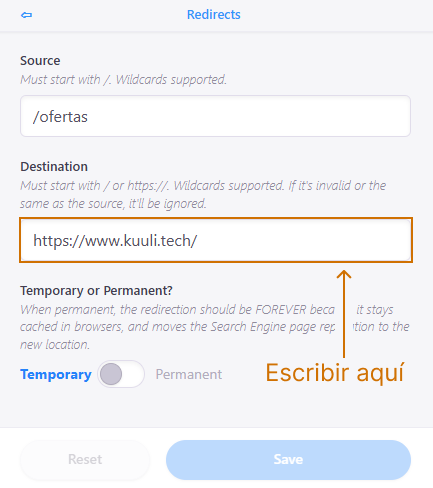
- The redirect editor will open with three sections: Source (the original URL to redirect), Destination (the target URL) and the Temporary/Permanent switch.
- Example of an internal redirect: enter "/size-guide" in Source and "/outlet" in Destination. Any visit to "/size-guide" will automatically land on "/outlet".
- Save with the blue "Save" button and wait a few minutes before testing.
Step 3: Redirect your whole domain to another website
- This is useful when your website is under construction and you want visitors who type your domain to land on another published page in the meantime.
- Follow the same steps above to create a new redirect.
- In the Source field, type / (a single forward slash). This represents the root of your domain — any visit to it.
- In the Destination field, enter the full URL you want to redirect to, for example https://www.colegioaquila.es/deportes.
- Choose Temporary if the change is provisional (while you build the site), or Permanent if the change is final and you will not be using that domain again.
- Save and wait a few minutes. Changes are applied automatically with no further steps needed.
Frequently asked questions
Common questions about redirects in Marte CMS
What is the difference between Temporary and Permanent?
Temporary tells the browser and Google that the change is provisional: the SEO ranking stays on the original URL. Use it when your site is under construction and you plan to use that path again soon. Permanent tells Google the change is final: the SEO and any links built up on the old URL transfer to the destination. Only use it when the change is for good.
Can I redirect to an external website, not just pages on my own site?
Yes. In the Destination field you can enter any full URL including an external domain and path: https://www.colegioaquila.es/deportes, https://www.yourbusiness.com/new-shop, etc. The visitor will land exactly on that address.
How long does it take for the redirect to work?
Changes from the Marte editor usually take effect within a few minutes. If you still see the old page after saving, try opening the browser in incognito mode or wait a little longer.