Marte integration with Mailchimp
Before you begin, make sure you meet three essential requirements: an active Mailchimp account with at least one audience (or list) created, a generated and saved Mailchimp API key, and admin access to the Marte Website Builder panel. If any of these are missing, take a moment to complete them so you can connect both platforms smoothly.
Generate the API key in Mailchimp
Log in to your Mailchimp account and go to your profile, where you will find the "Extras" section and within it "API keys". Click "Create A Key" and the system will generate a new code. Copy that key and store it in a safe place—you will need it in the next step. This identifier is the communication bridge that will allow your CMS to send contact data directly to Mailchimp.
Connect Mailchimp in Marte Website Builder
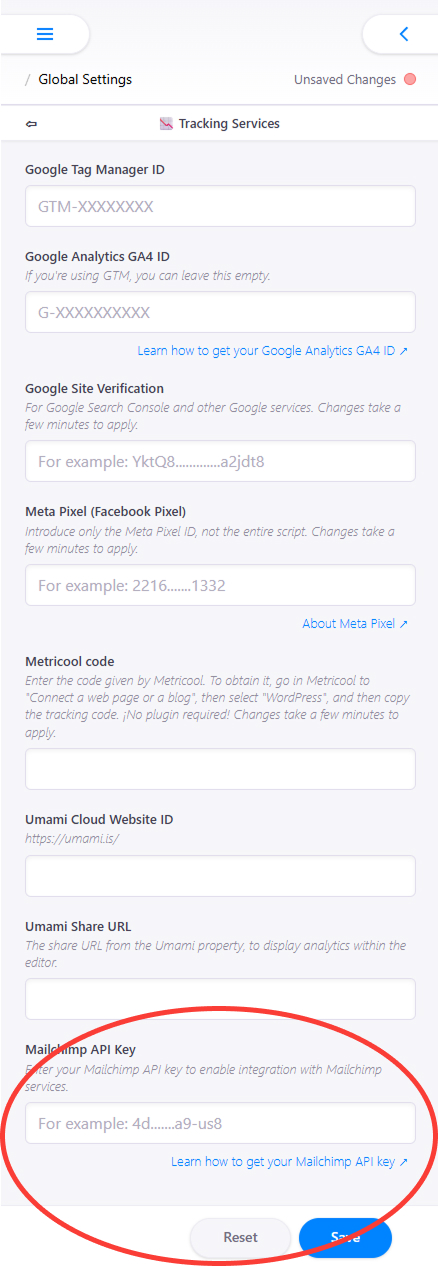
With the API key at hand, go to the Marte Website Builder admin panel and find the "Global Settings" section. Inside it you will find "Traking Services"; there you can locate the "Mailchimp API Key" section, where you can paste your API key. After clicking "Save", the technical connection between both tools is set.
Add the "Contact" block
Open the editor and find the block called "Contact". Drag it to the desired position in your template. This block asks for name, message and email address. Automatically, if the system detects a saved Mailchimp API Key, in addition to this message being sent to the email account configured in the block, this user will be added to your Mailchimp contact list.
_
-We have attached this explanatory video which we hope you find helpful: