

Website: Hero block
Add text and buttons to each Hero image
What is it?
When the Hero block's background is a slideshow (several images that change on their own), each image can have its own heading, description, alignment and buttons. That content is only shown while its image is on screen and changes together with it, so each image can present a different service, offer or message. The Hero's general heading, description and buttons don't change: they keep showing on every image.
Tip: All the fields are optional. You can leave an image without its own content: while it is shown, only the Hero's general content will appear.
Step by step
Step 1
Turn on the slideshow in the Hero
Open the page in the editor and go into the Hero block.
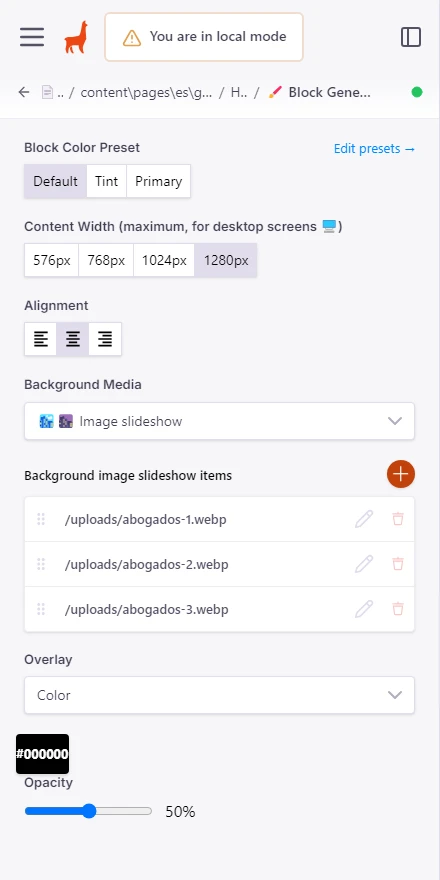
In «Block General Styles», choose «Image slideshow» in «Background Media».
In «Background image slideshow items» you will see the list of images. Add as many as you want with the «+» button and change their order by dragging them.
Step 2
Fill in each image's content
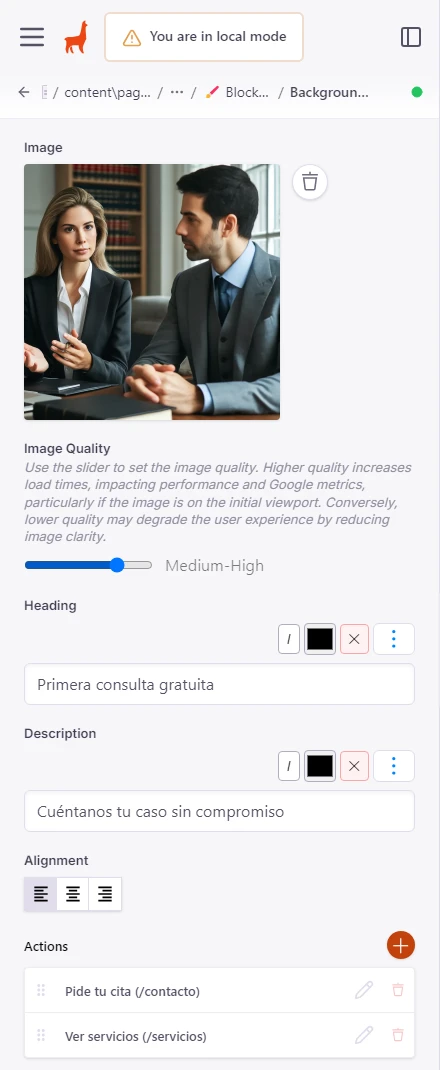
Click on an image in the list. Below «Image» and «Image Quality» you will find its fields:
• Heading: the heading of that image. • Description: a shorter text that goes below the heading. • Alignment: whether the content goes on the left, in the center or on the right. • Actions: the buttons of that image. Click «+» to add one, two or as many as you need, each with its own text and link.
Do the same with each image. The ones you leave empty will only show the general content.
Step 3
Adjust the heading's size and tag (optional)
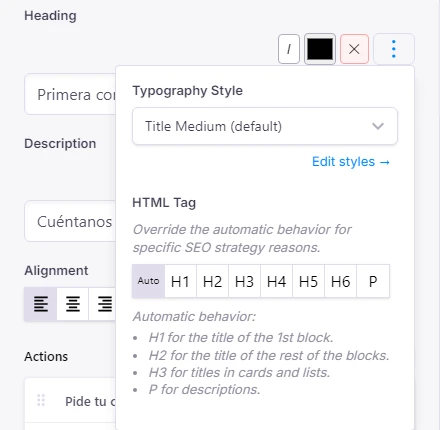
Next to «Heading» and «Description» you have the same buttons as in the general heading: italic, color and the «⋮» menu.
In the «⋮» menu you can change the text size in «Typography Style» and the tag in «HTML Tag». If you don't change anything, the image's heading uses the «Title Medium» size and is published as normal text (P), so it doesn't compete with the page's main heading. If you want it to count as a heading, choose H2.
Step 4
Choose the alignment
With «Alignment» you decide whether that image's content goes on the left, in the center or on the right. Each image can have a different alignment.
If you leave it unselected, the image uses the block's general alignment.

Step 5
Save and check the result
Click «Save». On the website, the Hero's general content stays at the top and, below it, the content of the image being shown appears. When it moves on to the next image, its content changes with it.
The Hero keeps the same height even if some images have more text than others, and the slideshow pauses while the visitor has the mouse over the image's buttons, so they can click them calmly.

Step 6
If your Hero has no general content
If you leave the Hero's general heading, description and buttons empty, each image's content takes their place and is vertically centered. This is useful when each image has a completely different message.

Step 7
How it looks on mobile
On mobile, the image's content is placed below the general content and the buttons move to the next line if they don't fit. Each image's alignment is also kept on small screens.

Frequently asked questions
Does it work if the Hero's background is a single image or a video?
No. Each image's content only appears when the background is «Image slideshow». If you change the background to an image or a video, what you wrote for each image is kept, but it isn't shown.
Can I remove the general buttons and keep only the ones of each image?
Yes. Delete the buttons in the Hero block's «Actions» and keep only those of each image. If you also remove the general heading and description, each image's content will be shown centered.
What happens if an image has no content?
While that image is on screen, only the Hero's general content will be shown.
How often do the images change?
Every 5 seconds. The slideshow pauses while the visitor has the mouse, or the keyboard focus, over the image's content.
Does it affect SEO?
By default, each image's heading is published as normal text (P), so the page's main heading is still the only H1. If you want an image's heading to count as a heading, choose H2 in its «⋮» menu.