Skip to content
Stripe

How to issue a refund in Stripe

Need to refund a payment to a customer? With Stripe you can refund any payment in just a few clicks. Follow these steps to do it safely from your dashboard.

1

Find the payment in the customer's profile

Open the customer's profile (if you're not sure how, check the guide “How to find a customer in Stripe”). Scroll down to the Payments section, find the payment you want to refund and click the refund icon (the ↩ arrow) on the right of the row.
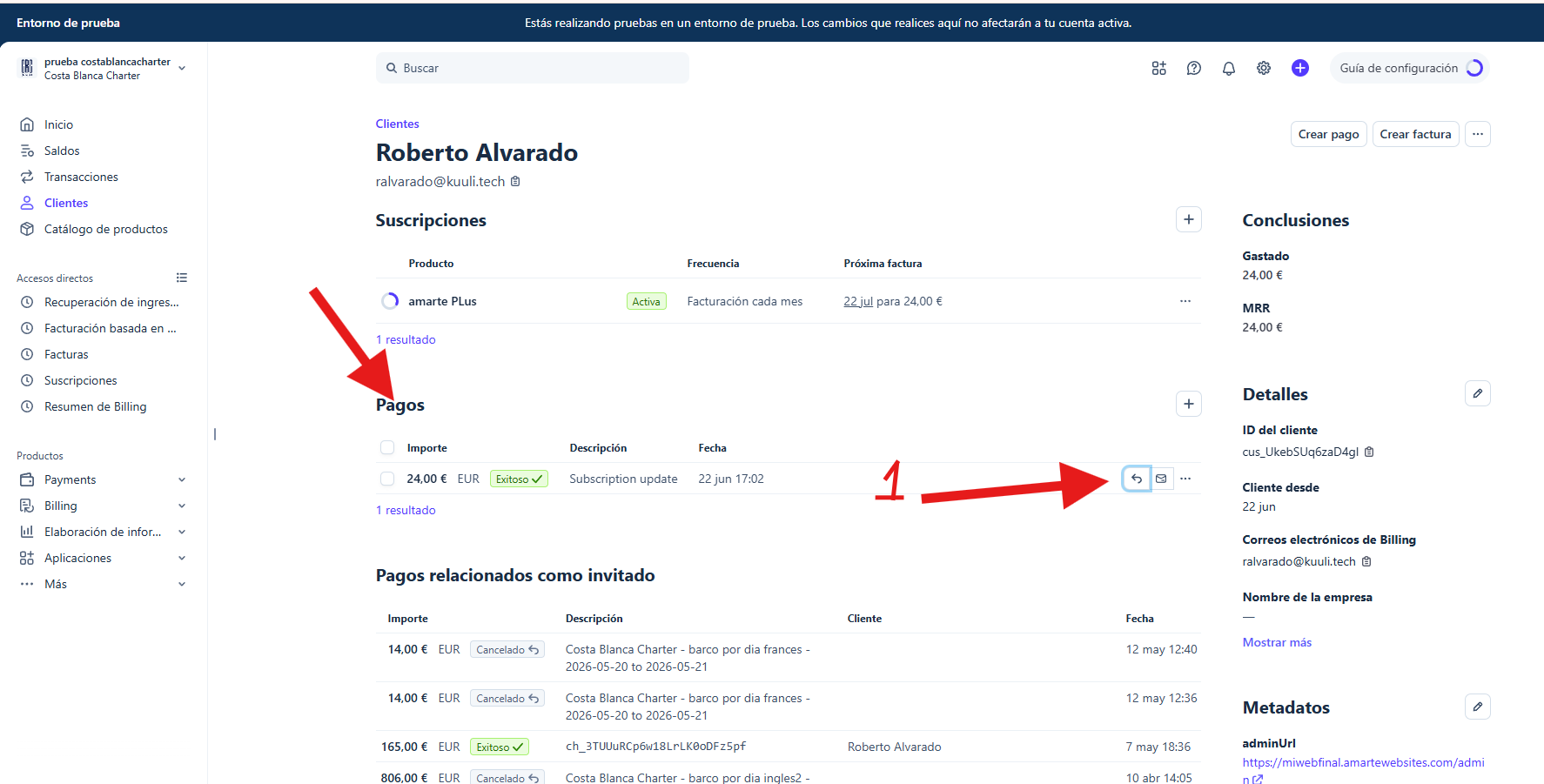
Stripe customer profile with the Payments section and the refund button highlighted
2

Check the amount and choose a reason

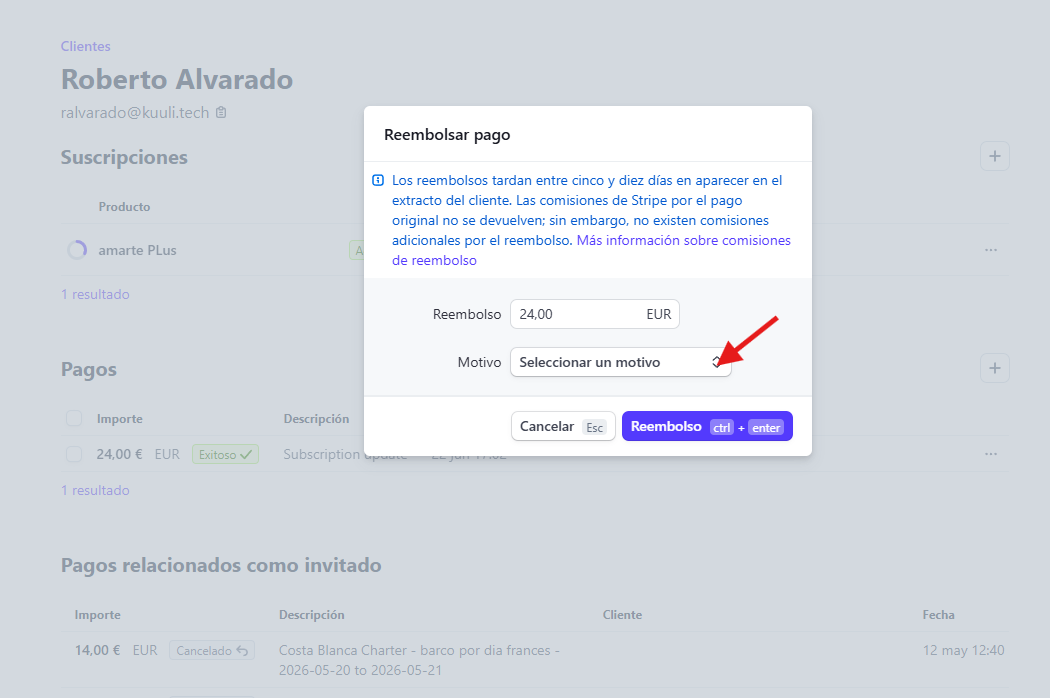
The Refund payment window will open. By default the full amount is refunded, but you can change it if you only want to refund part of it.

Click the Reason dropdown to indicate why you're issuing the refund.

Stripe refund window with the reason dropdown highlighted
3

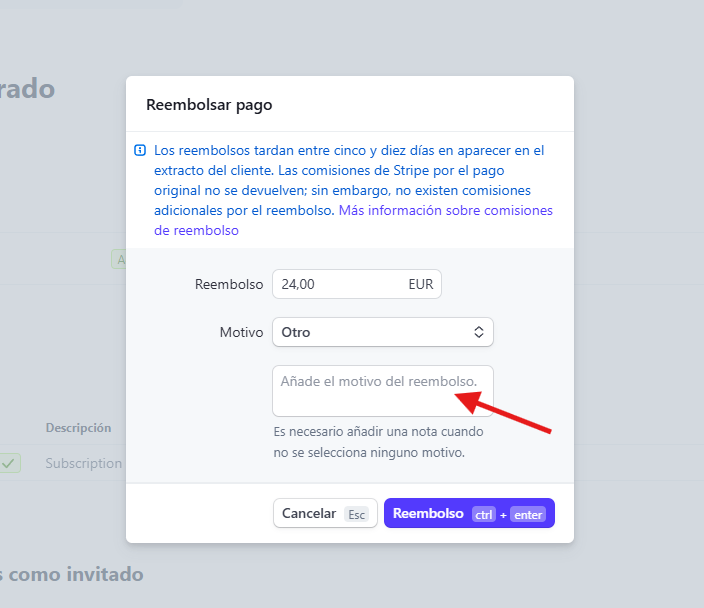
Add a note if you choose “Other”

If you select “Other” as the reason, Stripe will ask you to write a short note explaining the reason for the refund. In that case it is mandatory to fill it in.

Field to add the refund reason in Stripe
4

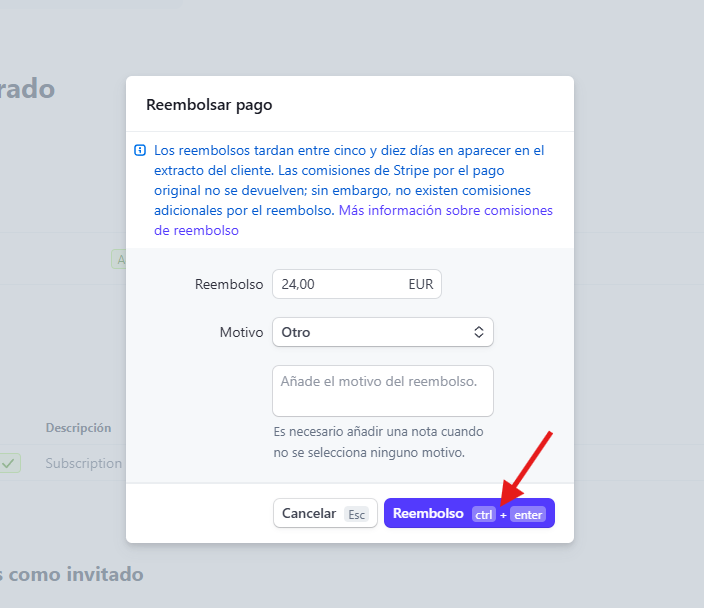
Confirm the refund

When everything is correct, click the Refund button. Keep in mind that refunds take between five and ten days to appear on the customer's statement. Stripe's fees on the original payment are not returned, but no additional fee is charged for the refund.

Button to confirm the refund in Stripe
5

Check that it was refunded

The payment status will change to “Refunded” in the Payments section. That confirms the refund has been processed correctly.

Payment with the Refunded label in Stripe