
Panel: your website
How to turn on anti-bot protection on your website
Before you start
"Configuración" (Settings) is the last tab of every website in the panel. It holds the "Protección antibot (hCaptcha)" (Anti-bot protection) card, where you turn on anti-bot protection for your website: it protects your website's forms from automated bot submissions with hCaptcha, a check that tells people apart from automated programs. The tab is the same whether you are the website's client or its agency. The panel is in Spanish, so this guide quotes its labels in Spanish with their meaning in brackets. The antibot module is free. hCaptcha usage has conditions: the first 1,000 assessments are free and, after that, it costs €1 per 1,000 assessments. An assessment is each time hCaptcha checks a submission of your website's form.
Important: Anti-bot protection cannot be turned off once it is on. This guide uses the fictitious website "Kharty" (kharty.com) as its example.
Step by step
Step 1
Open your website's "Configuración" (Settings) tab
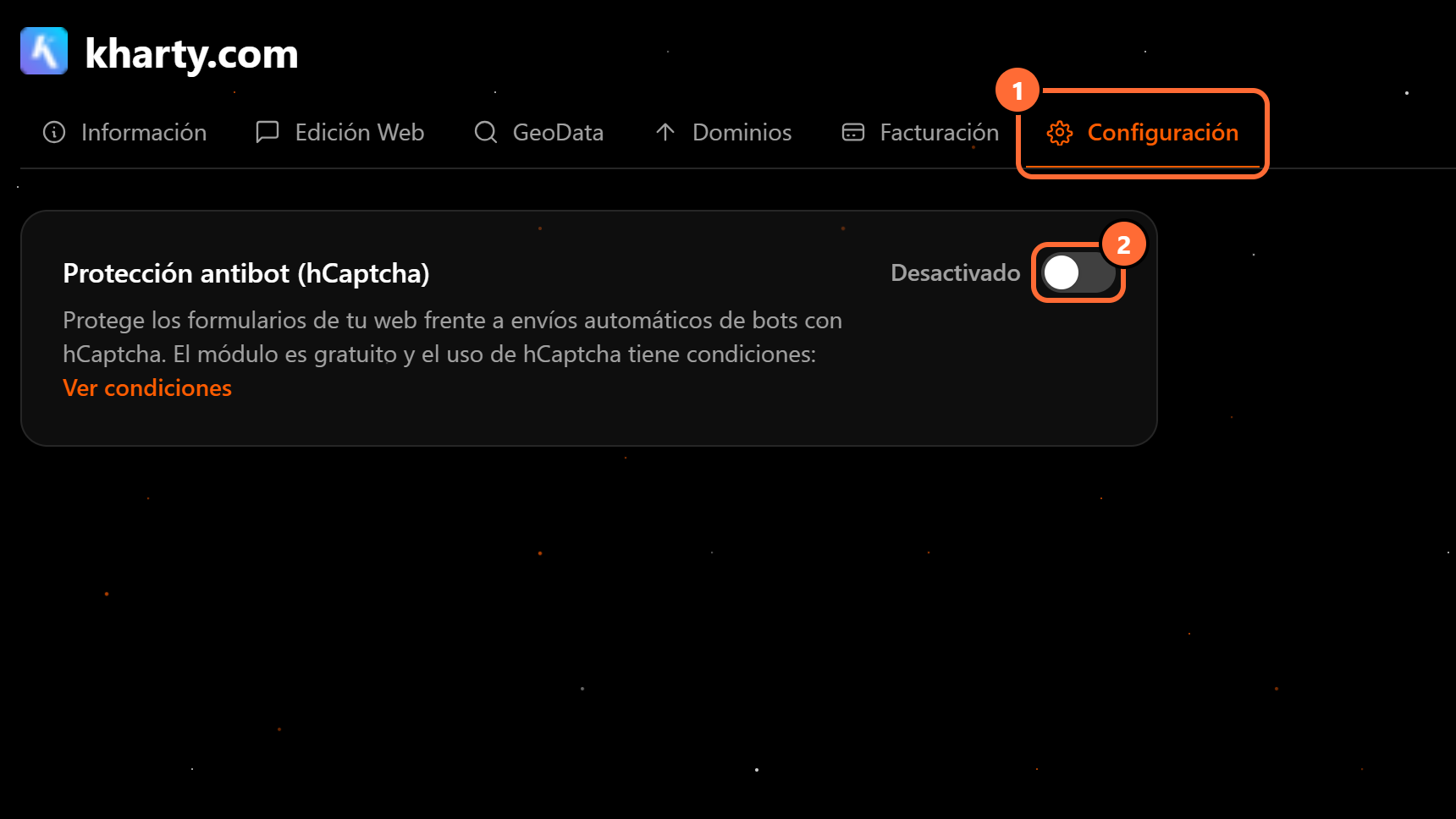
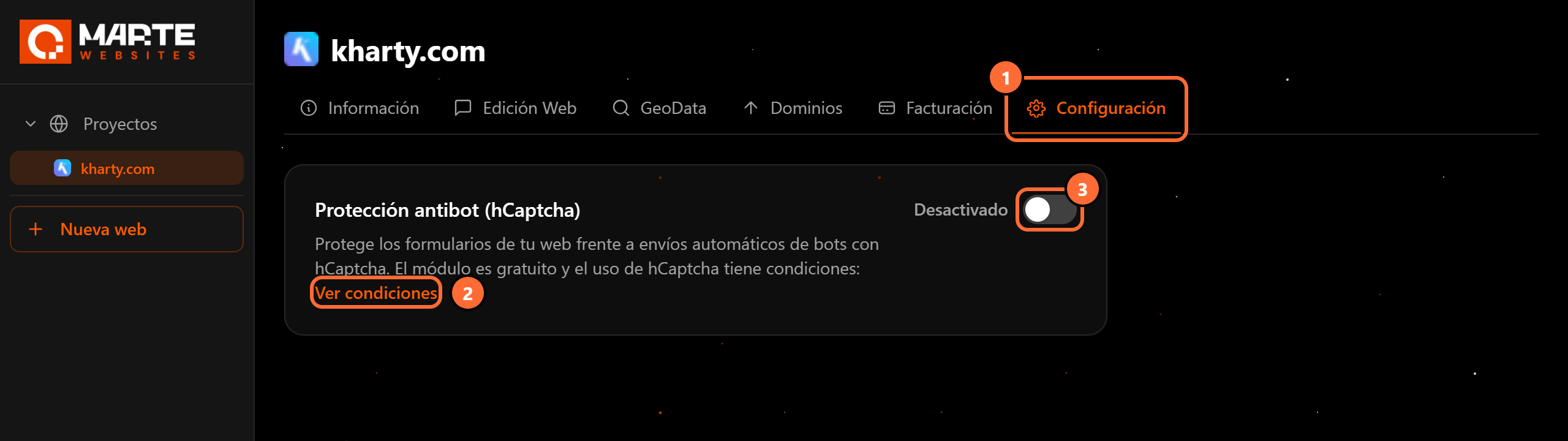
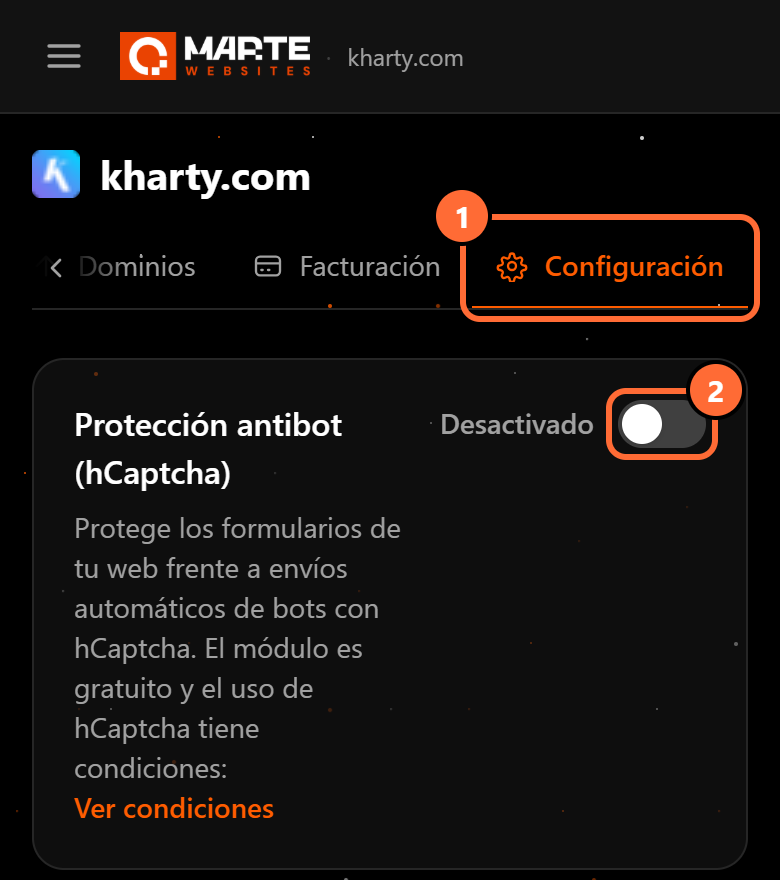
Sign in to the panel and click your website under "Proyectos" (Projects). At the top you have the website's tabs: "Configuración" (Settings) is the last one (①).
When you open it you see the "Protección antibot (hCaptcha)" (Anti-bot protection) card straight away. Its text ends with the "Ver condiciones" (See conditions) link (②), which opens the page with the hCaptcha usage conditions in a new tab. On the right is the switch (③): until you turn it on, it reads "Desactivado" (Off).
On a phone, the tab bar scrolls sideways: swipe to the end to find "Configuración".
Step 2
Click the switch and confirm with "Activar" (Turn on)
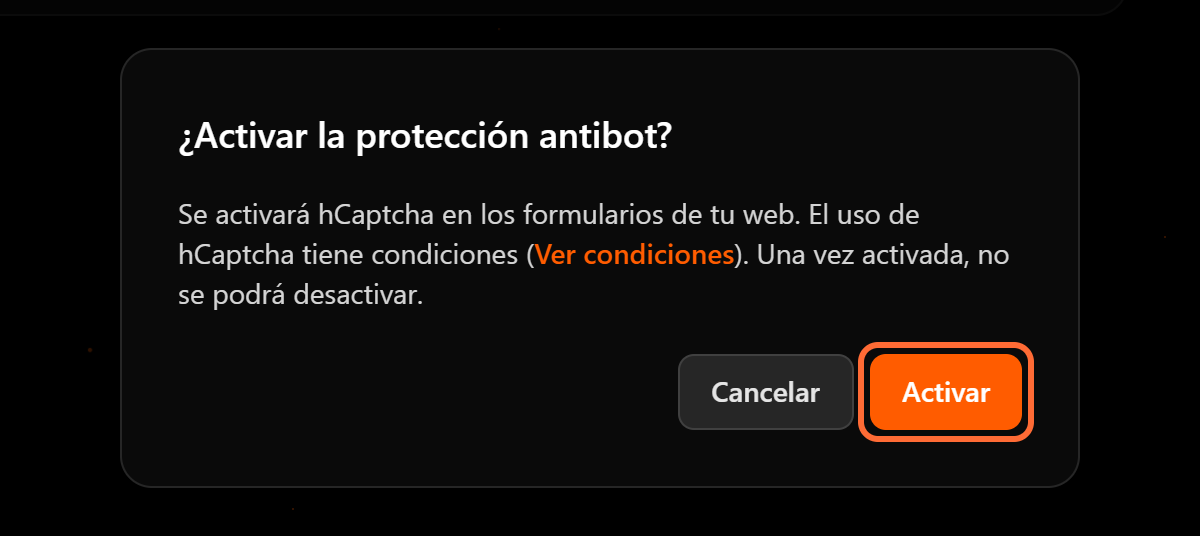
Click the switch (③ in the step 1 image). The notice "¿Activar la protección antibot?" (Turn on anti-bot protection?) opens and reminds you: "Se activará hCaptcha en los formularios de tu web. El uso de hCaptcha tiene condiciones (Ver condiciones). Una vez activada, no se podrá desactivar." (hCaptcha will be turned on in your website's forms. hCaptcha usage has conditions (See conditions). Once it is on, it cannot be turned off.) The notice's "Ver condiciones" link opens the same conditions in a new tab.
Click "Activar" (Turn on) to confirm. If you would rather think about it, click "Cancelar" (Cancel) and everything stays as it was.
If the message "No se pudo activar la protección antibot. Inténtalo de nuevo." (Anti-bot protection could not be turned on. Try again.) appears, click "Activar" again.
⚠ This step cannot be undone: once it is on, anti-bot protection cannot be turned off.
Step 3
Check that it shows "Activado" (On)
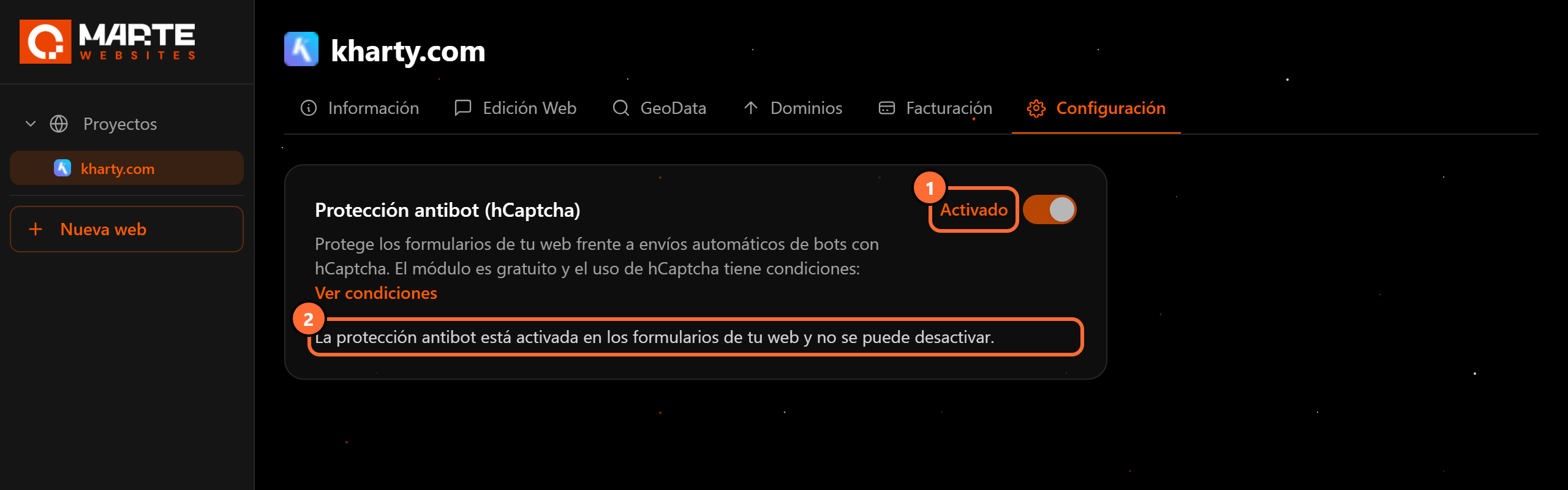
The notice closes and, without reloading the page, the switch stays on with the status "Activado" (On) (①). Below it you see the text "La protección antibot está activada en los formularios de tu web y no se puede desactivar." (Anti-bot protection is on in your website's forms and cannot be turned off.) (②).
From then on the switch can no longer be clicked: this is how that website's "Configuración" (Settings) tab will always look.
Frequently asked questions
Can I turn it off?
No. Once it is on, anti-bot protection cannot be turned off, whoever turned it on. That is why the panel asks you to confirm first.
Does it cost anything?
The antibot module is free. hCaptcha usage has conditions: the first 1,000 assessments are free and, after that, it costs €1 per 1,000 assessments. An assessment is each time hCaptcha checks a submission of your website's form. You can find the conditions through the card's "Ver condiciones" (See conditions) link and on the antibot pricing page.
See the antibot conditionsWho can turn it on?
The website's client or its agency: both see the same "Configuración" (Settings) tab and either of them can turn it on. One of them is enough; the other will already see it as "Activado" (On).
My website already had anti-bot protection. Do I need to do anything?
No. If your website already had anti-bot protection, the "Configuración" (Settings) tab shows it as "Activado" (On) straight away.