Marte Guide
How do I add a floating WhatsApp button?
Adding a WhatsApp widget to your Marte CMS site has been available since version 12.1.
You don't need to import any external plugin or pay a provider—it's included in the Marte CMS editor.
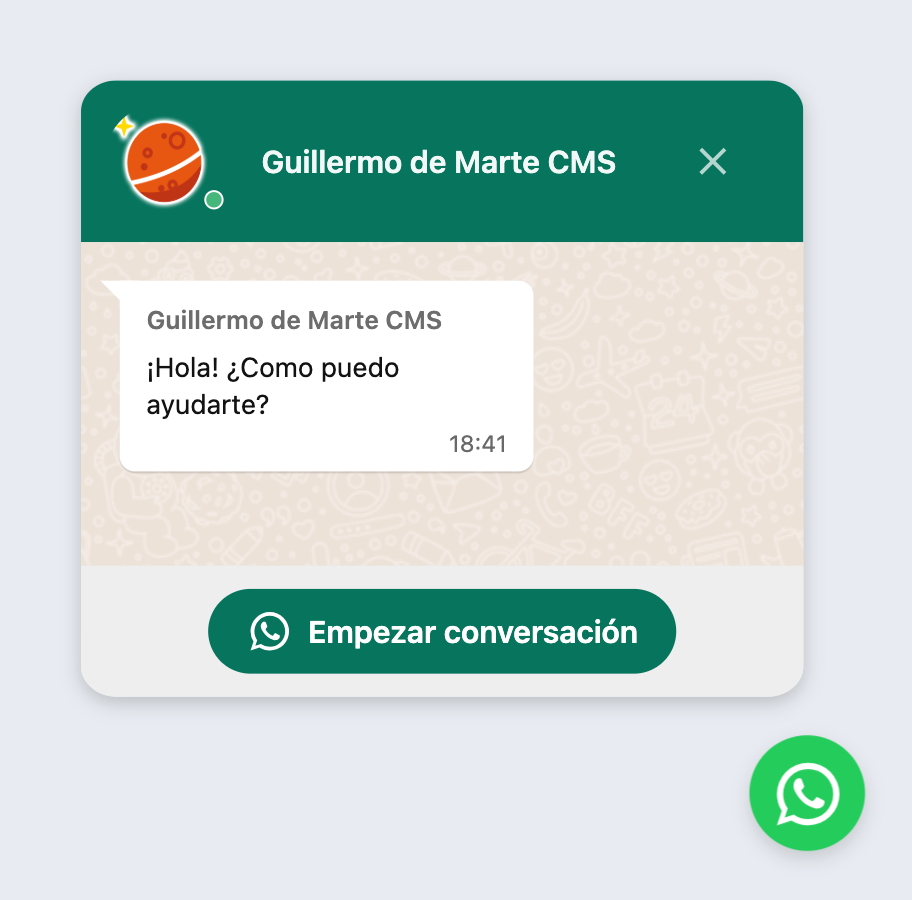
When users click "Start conversation", the WhatsApp app opens.
Floating WhatsApp button example
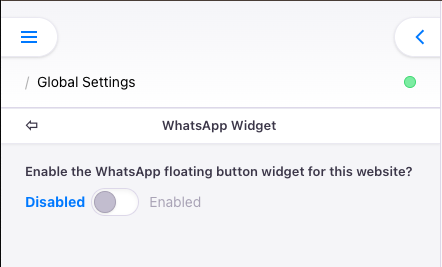
Step 1: Enable
- Open any page with your editor.
- Open the side menu.
- Click on Global Settings.
- Click on WhatsApp Widget.
- Enable the widget.
Step 2: Configure
- Enter the phone number that the chat should open with (usually your business WhatsApp).
- Customise the initial message, account name, photo.
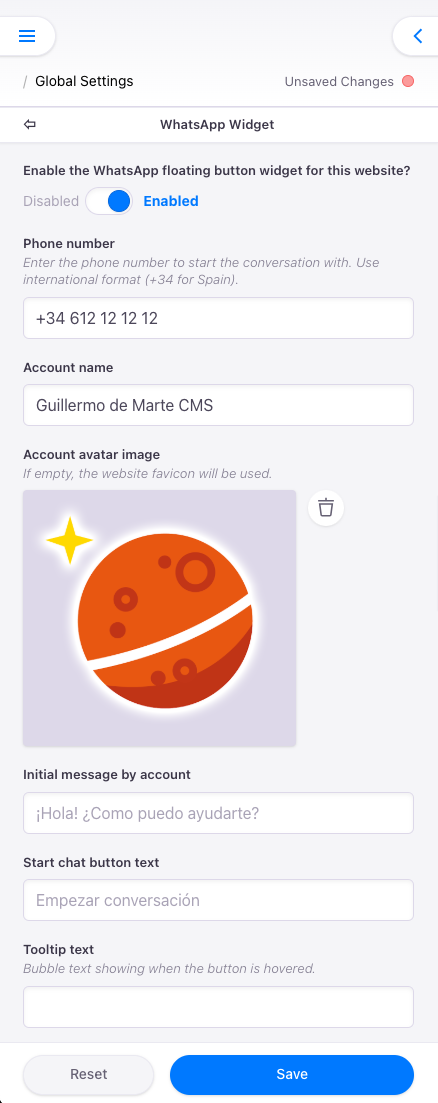
Changes are shown in real time in the preview. That's it!
Other frequently asked questions
About the WhatsApp widget for Marte CMS
How do I make it show immediately?
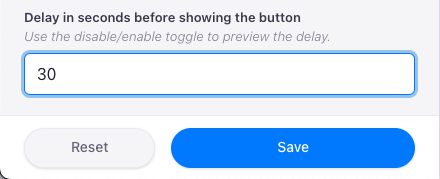
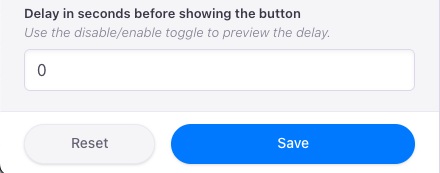
Enter `0` in the "Delay in seconds before showing the button" field.
What if I want it to appear after half a minute?
Easy. Enter `30` in the "Delay in seconds before showing the button" field.