Marte Guide
Edit the multi-language content of your pages in Marte
Here is a detailed guide on how to edit pages in different languages on sites managed with separate instances per language (e.g. Legatrad), based on the specific admin process and the screenshots provided.

## Multilingual access and editing on your site
To manage and edit content in different languages, a system is used where each language is managed independently via its own editor instance, linked to a specific subdomain per language.
Step-by-step: switching language and editing
1. Go to the general admin URL, for example https://www.legatrad.es/admin.
2. Open the 'Global Settings' > 'Multilanguage' > 'Languages' section. Here you will see all languages configured for the site, usually one per subdomain (Spanish, English, Catalan, etc.).
3. In that list, the language with the '(Default)' label is the one you are currently editing. To edit another language, find it in the list (e.g. Catalan for Catalan), click it and the panel for that language will open.
4. In the panel for the language you want to edit, make sure the right option is enabled ("Is the language of this version of the website?") if you will be working in this language.
5. Click "Edit Site" for that language. Usually you will be taken to the admin for that subdomain, e.g. for Catalan: https://ca.legatrad.es/admin.
6. You can now edit all pages and content in the selected language. Changes only affect that version/language of the site.
7. Repeat this process by going to the admin for the English, Catalan or other subdomain when you need to make changes in those versions.
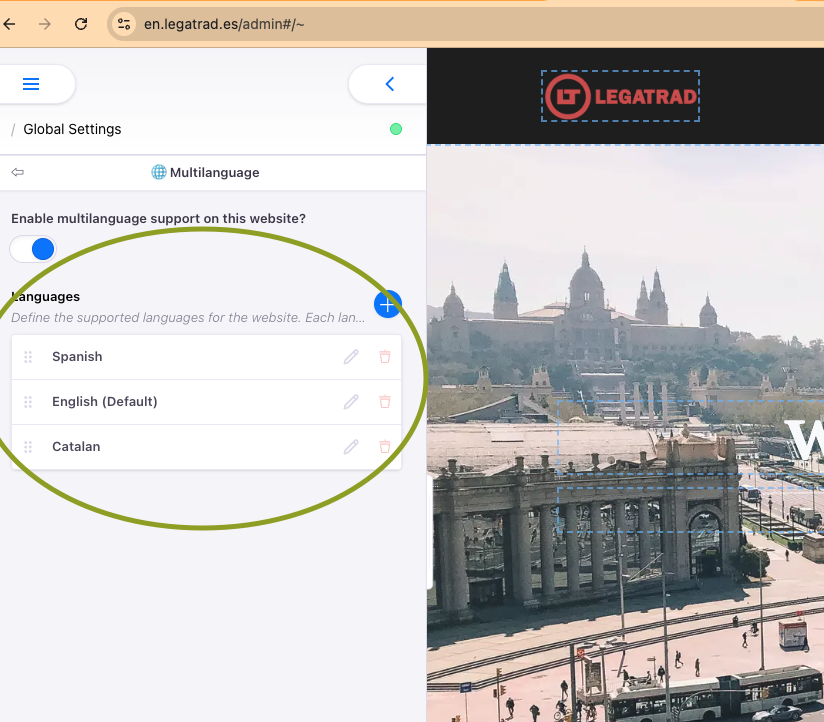
Select the language you want to edit
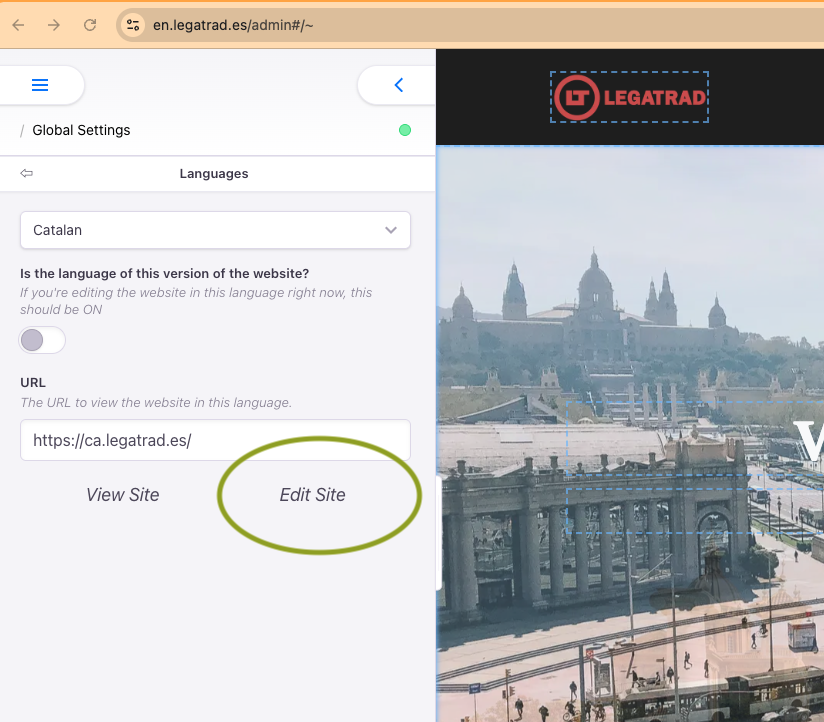
Editor for a specific language
## How to identify the active language
* The language you are editing is shown in the language list with the "(Default)" text.
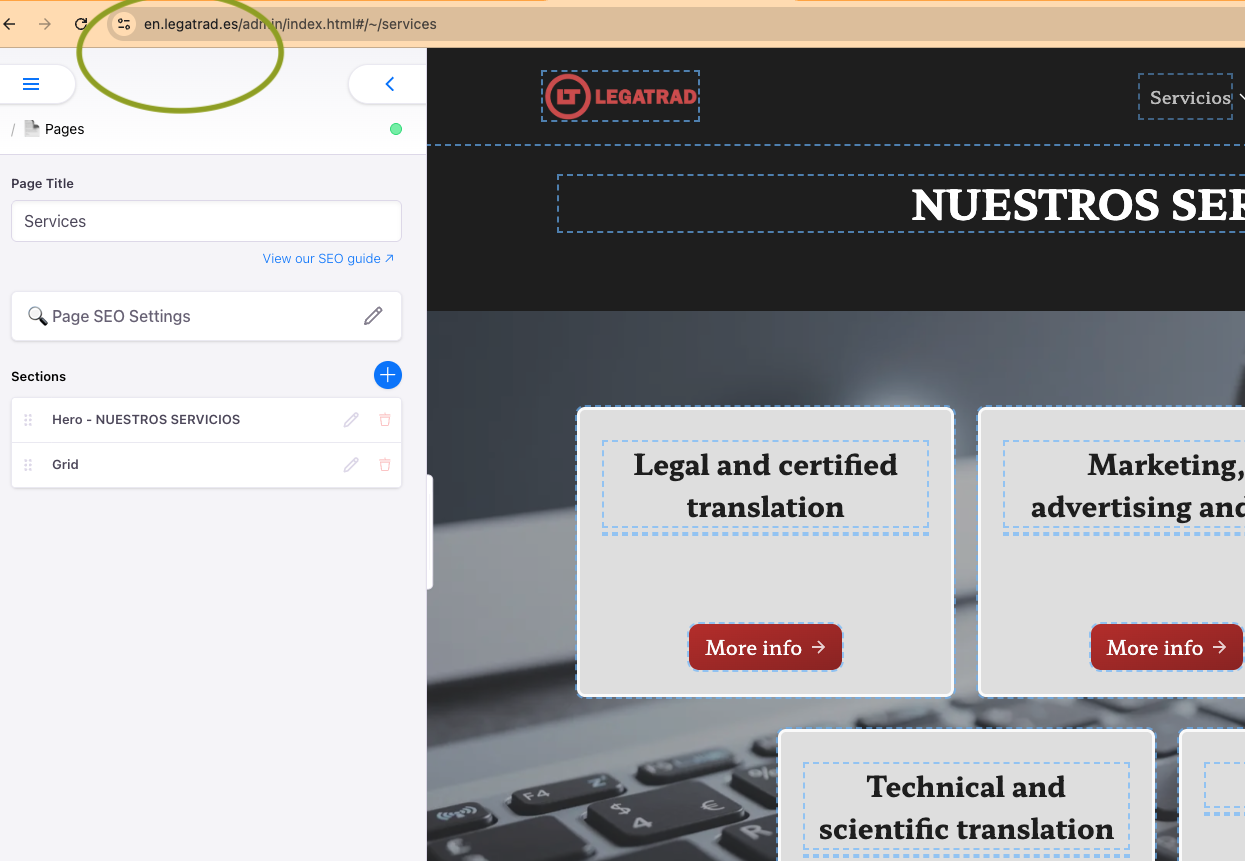
* You can check the domain or subdomain in the URL to ensure you are editing the correct language (e.g. ca.legatrad.es for Catalan or en.legatrad.es for English).
* Always use the "Edit Site" button to go directly to the admin for that language.
Useful notes
* Each language works as an independent site but shares the same structure, so structural changes must be replicated manually in all versions if needed.
* This approach gives full control over each language's content and avoids automatic sync errors.
* If a language does not appear yet, you need to request a new instance (subdomain and admin) for that language.
This option is available in our editor under "Global Settings"; there you select "Multilanguage". This lets you enable the service and add as many languages as needed from the list of available languages.
## How to identify which language you are editing
The simplest and most reliable way to know which language you are editing is to look at your browser's address bar:
* The language of the content you edit is determined by the subdomain you are on.
* If the URL starts with en.legatrad.es, you are editing the English version.
* For ca.legatrad.es, you are editing the Catalan version.
* If there is no subdomain or it is www.legatrad.es, you are usually editing the Spanish (Castilian) content or whichever you set as default.
* Always check the start of the URL after opening the admin or clicking "Edit Site" in the language menu.
* In the admin, the page will show the content for that language only.
For example, in the attached image you can see the URL highlighted in green, indicating that you are working in English because the subdomain is en.legatrad.es.
This check is especially useful to avoid mistakes when updating content and to ensure you are always working in the intended language.